

Azure Virtual Machines let you deploy a wide range of computing solutions in an agile way. Deploy a virtual machine nearly instantly and pay by the minute. Scale from one to thousands of virtual machine instances. Built in virtual networking and load balancing available.
Prerequisites
- Microsoft Azure Subscription (MSDN subscribers or sign up for one month free trial)
You will learn
- Create Windows Server 2012 R2 Virtual Machine
- Configure IIS Server
- Host Web page on Azure Virtual Machine
Create Virtual Machine
Step 1: Navigate to Azure Classic Portal & sign in using Azure Subscription credentials.
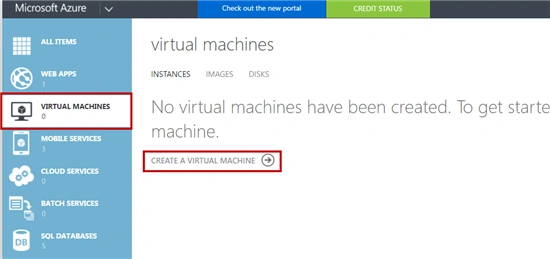
Step 2: Select “Virtual Machine” option & click on “CREATE A VIRTUAL MACHINE” (if no VM available).
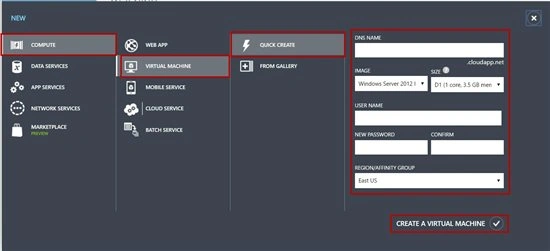
New, Compute, Virtual Machine, Quick Create, then enter vm details
Enter VM details like DNS Name, Image, Size, Username & Password, Region,
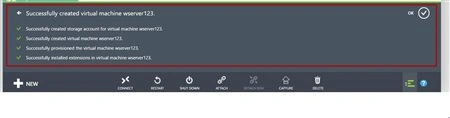
Wait for a few minutes to configure all vm options.
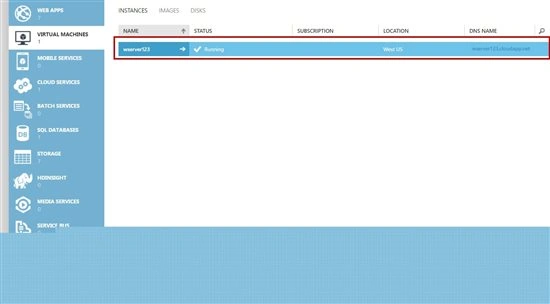
Step 3: Select VM & click on “Connect” option,
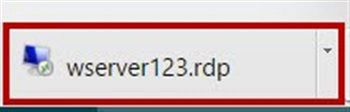
One .rdp file will download,
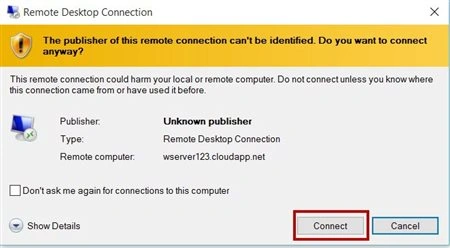
Click on Connect button,
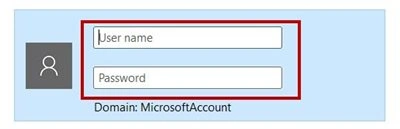
Enter VM Username & Password,
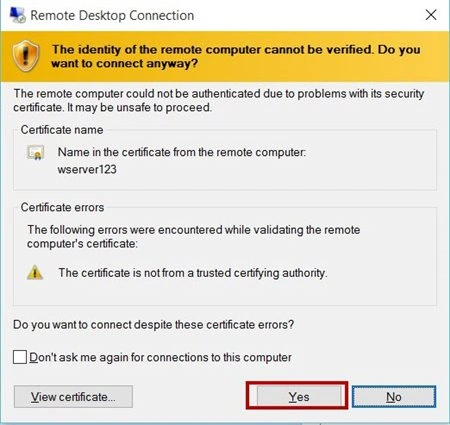
Windows certificate will open & click on Yes button.
Windows 2012 R2 Datacenter ready,
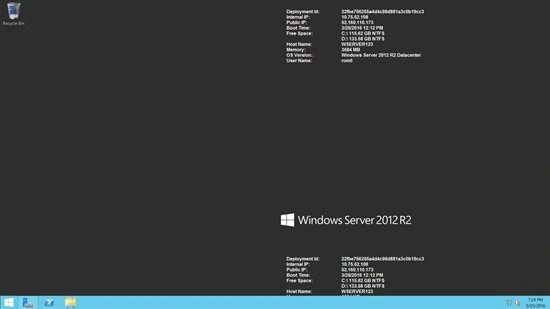
Configure IIS Server
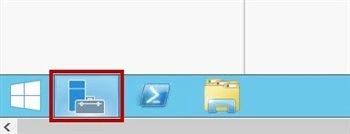
Step 4: Start Server Manager,
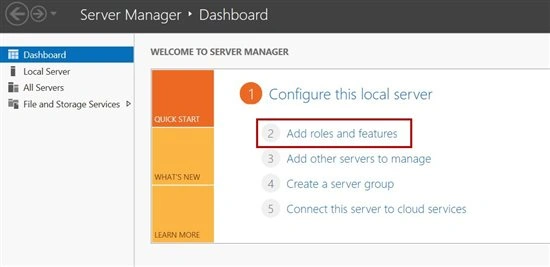
Select “Add roles and features” option,
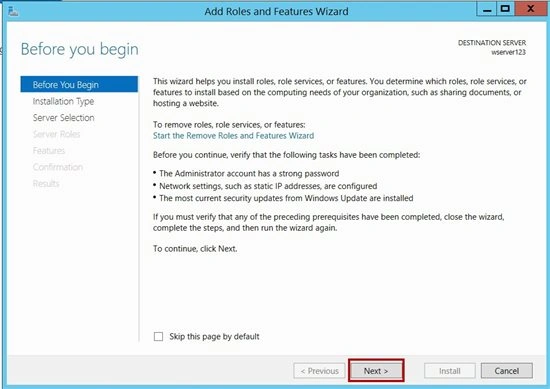
Choose first option “Role-based or feature-based installation”
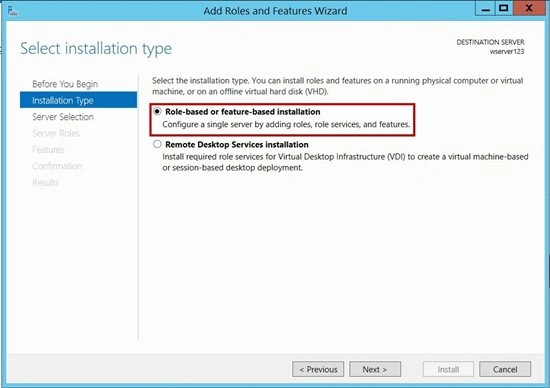
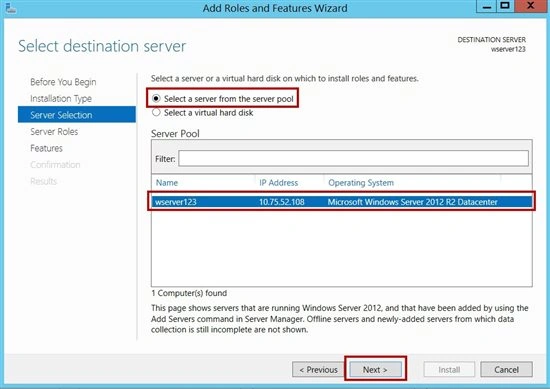
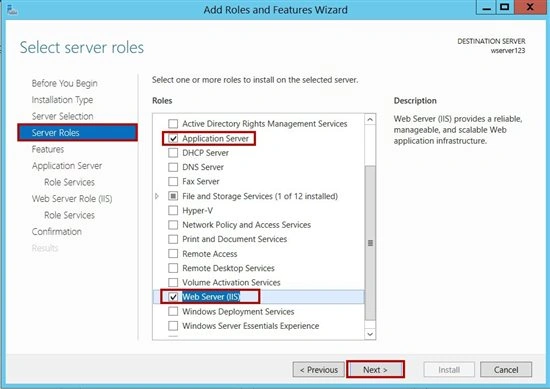
In Server Roles please add “Application Server” & Web Server(IIS)
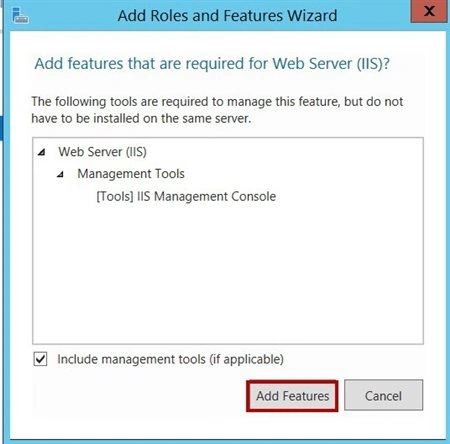
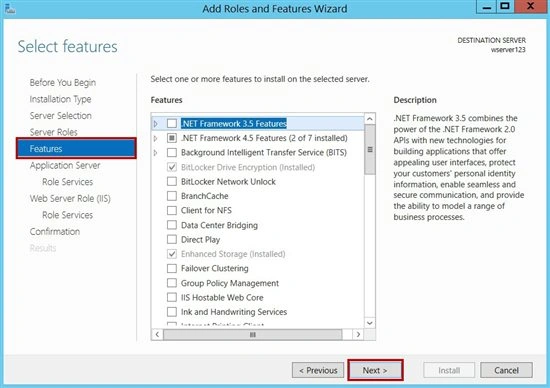
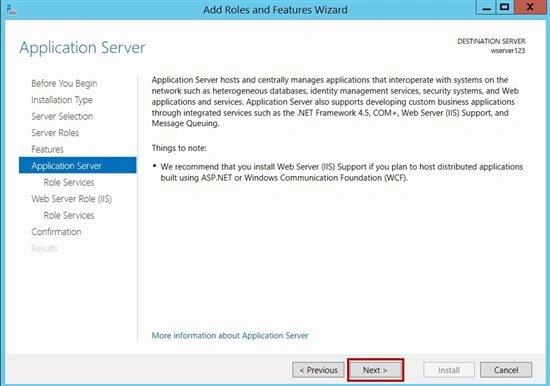
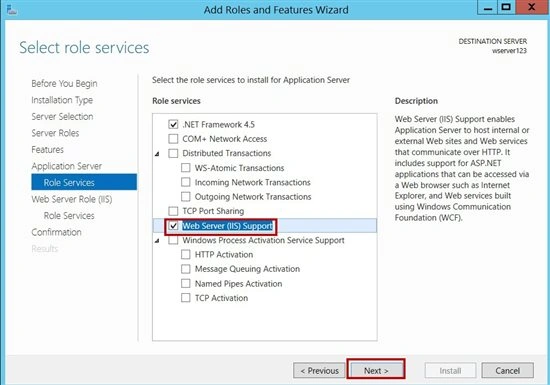
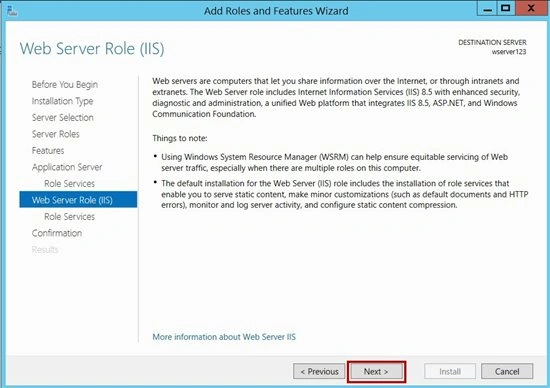
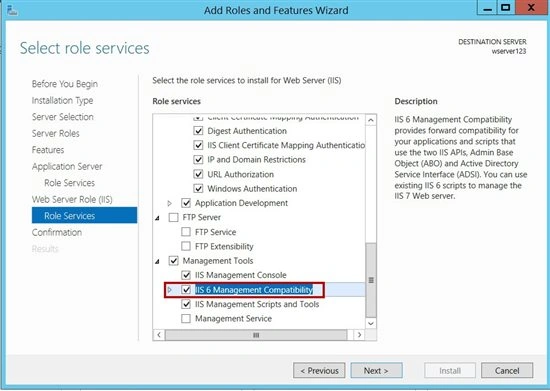
Choose IIS 6 options
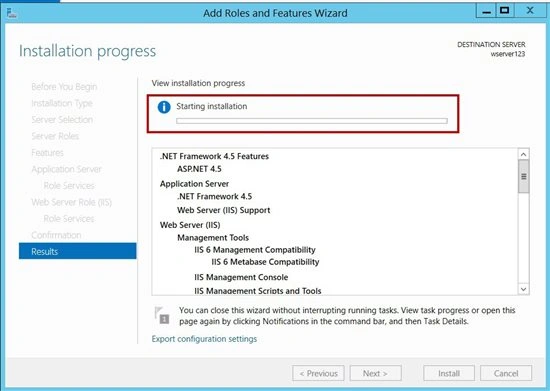
Wait for Installation
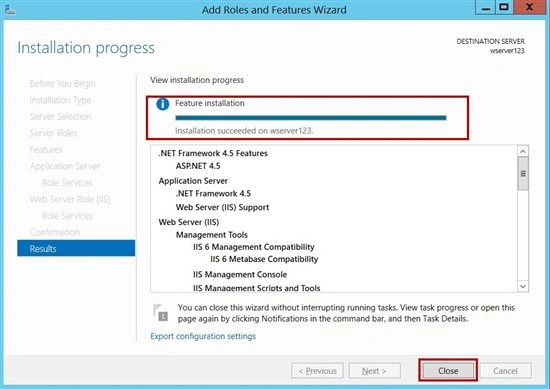
Close the window
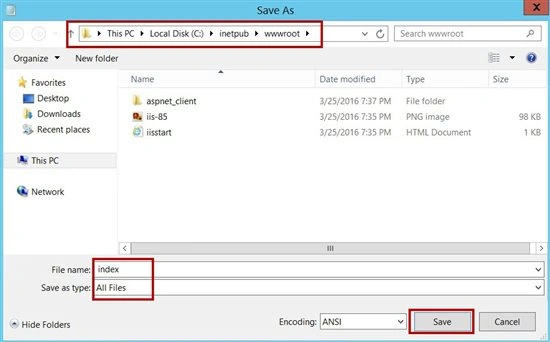
Step 5: Open notepad & add below codes:
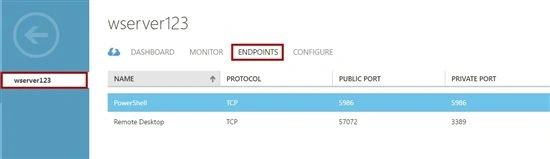

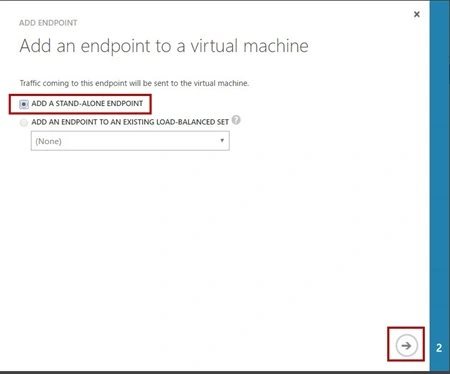
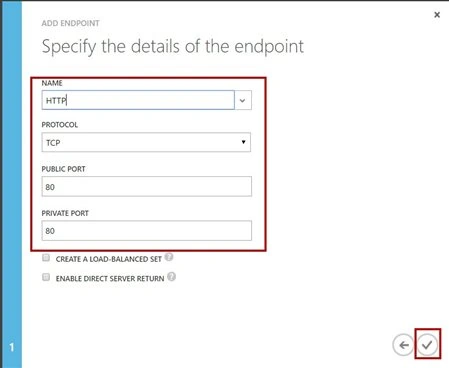

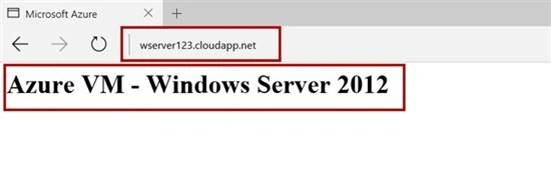
Vignesh ManiPosted May 21, 2016, 9:29 AM
Good one
Praveen SreeramPosted May 20, 2016, 8:28 AM
Any reason why you are still referring to classic portal? Why not new portal?
Sonu ChaudharyPosted May 19, 2016, 11:32 AM
good one
Debasis SahaPosted May 19, 2016, 9:24 AM
Good
Bhuvanesh MohankumarPosted May 19, 2016, 9:23 AM
Good one
Prasanna MuraliPosted May 19, 2016, 9:13 AM
Nice one...........
Praveen SreeramPosted May 19, 2016, 8:19 AM
Thanks for sharing!!