

We know that Microsoft Azure has a great capability for Virtual Machine. It’s also great because it provides you the pre-defined image of the system you need to run your business. When you are business or application is a data driven, then the most essential thing you need in Microsoft Azure is VM with SQL Server pre-installed. But there are some things that still needs to be configured in order to run SQL Server in your own Virtual Machine. So, here is a guide for you.
Create a Virtual Machine
Step 1: Login to your Azure Portal at http://manage.windowsazure.com

Figure 1: Login
Step 2: Go to Virtual Machines and then click new at the left bottom portion of the Notification Bar.
Step 3: Since you are creating a predefined image VM so click select from gallery.

Figure 2: Crate a Predefined Image
Step 4: Navigate to SQL Server Category then click on the desired edition.
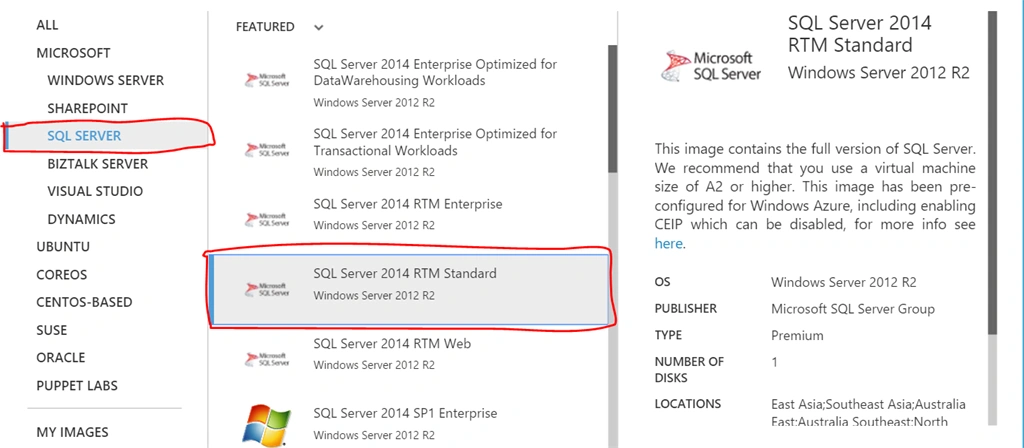
Figure 3: Navigate
Step 5: Fill in the required fields you are asked. Select release date of the SQL Edition you want to use, machine name, pricing tier, size of the VM and new username and password.
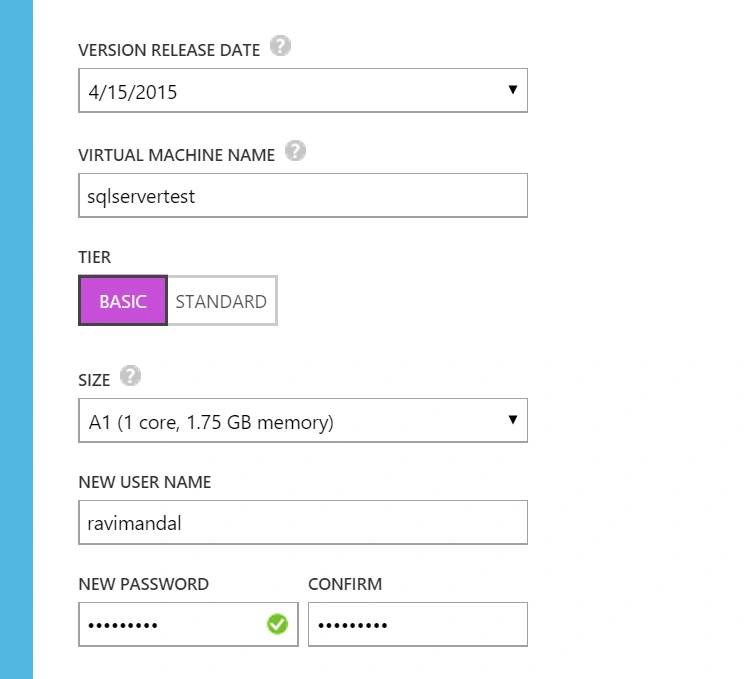
Figure 4: Fill in the Field
Step 6: Enter the cloud service name, create storage account and affinity group of VM (I will select my existing sets).
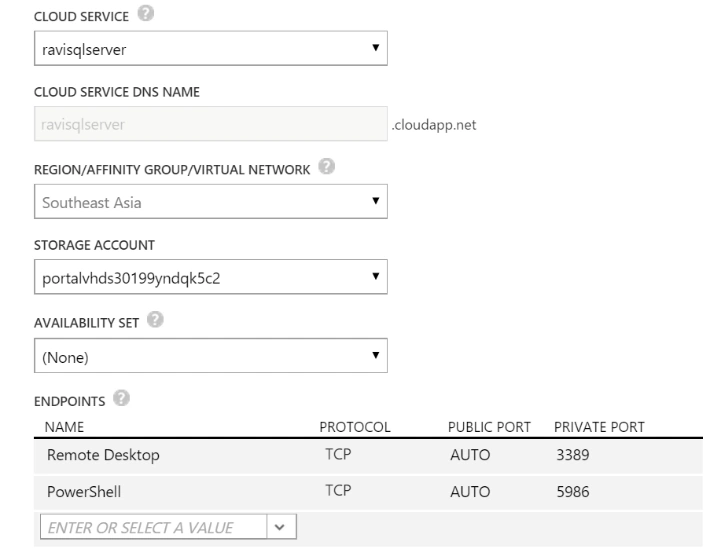
Figure 5: Enter the Cloud Service
Step 7: Click enter or select a value and select MSSQL, a public port and private port (Endpoints) will be created for SQL Server.
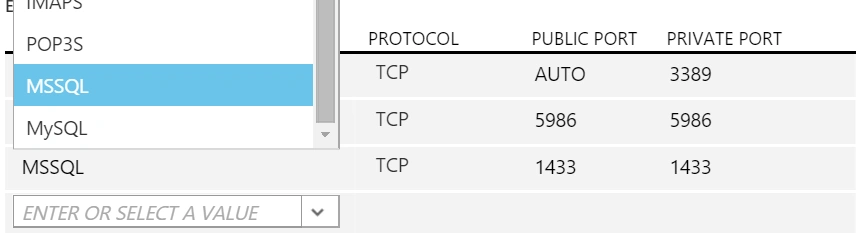
Figure 6: Click Enter
Step 8: Click next two times in a row. Then it will start creating an Azure VM with SQL Server pre-installed.
Connecting VM with Remote Desktop Connection
- Click on the connect button on the bottom bar of the selected VM. This will download a .rdp connection file for the VM.
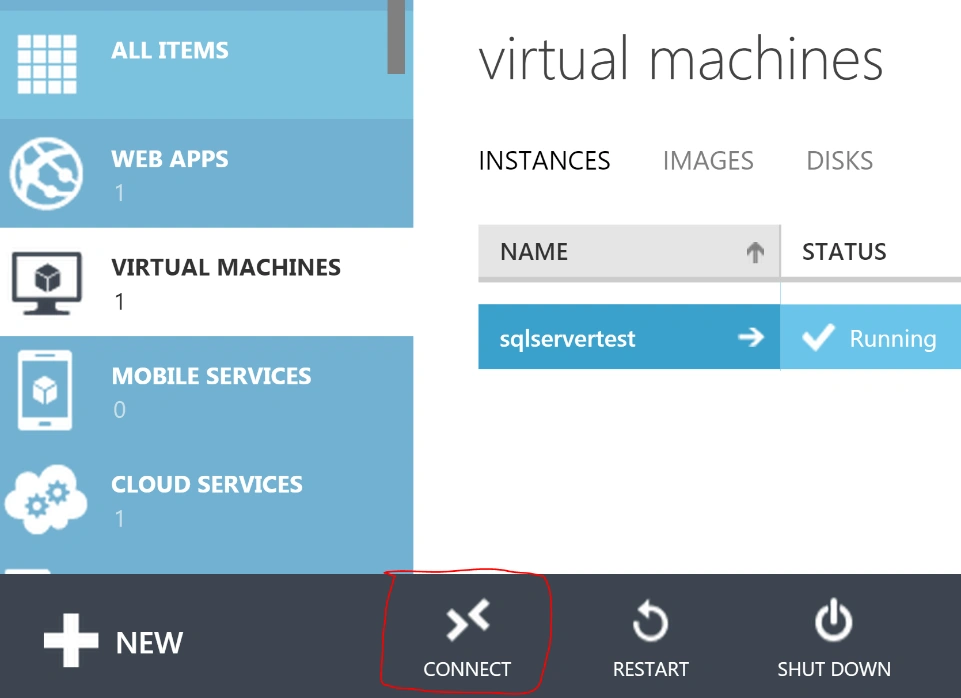
Figure 7: Connect Button
- Open the file which will show the following prompt. Click on Connect.
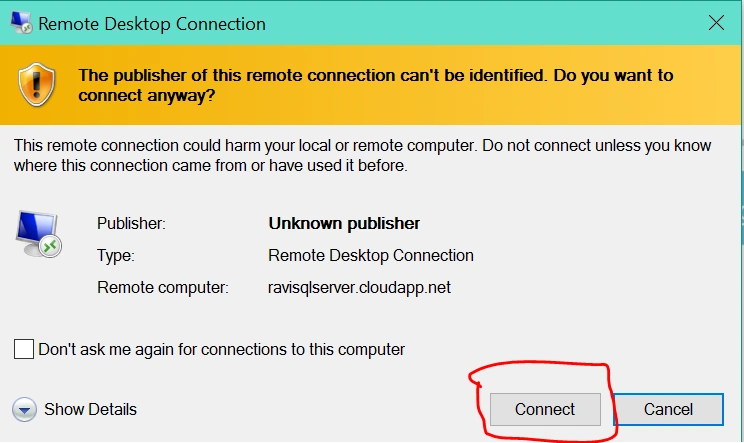
Figure 8: Click on Connect
- Select "Use another Account" then enter the login credentials and click on yes on another window.

Figure 9: Use Another Account
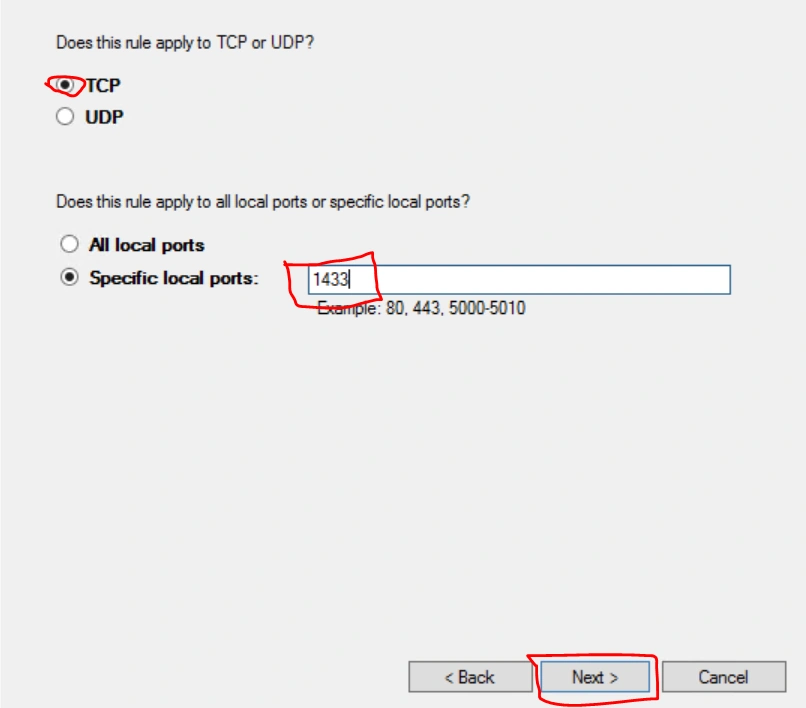
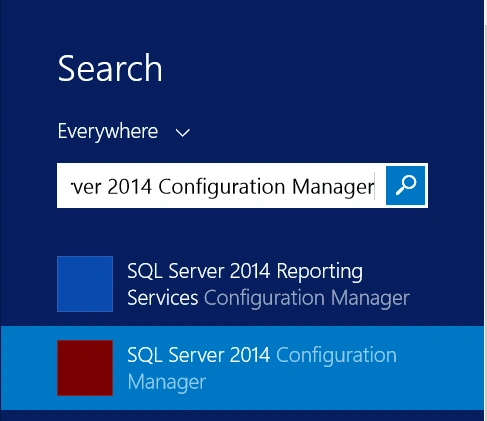
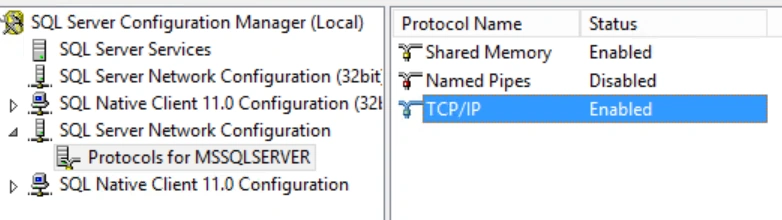
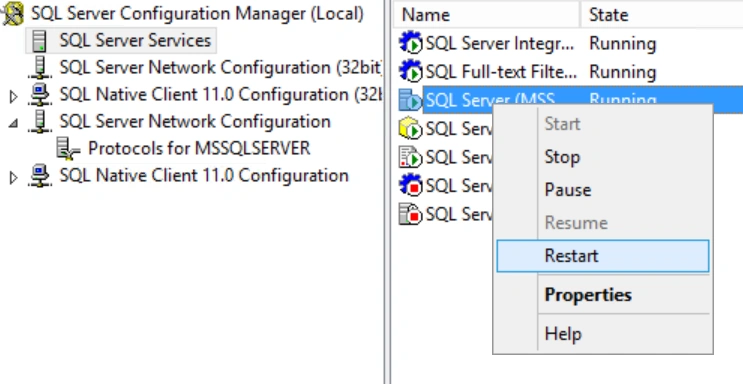
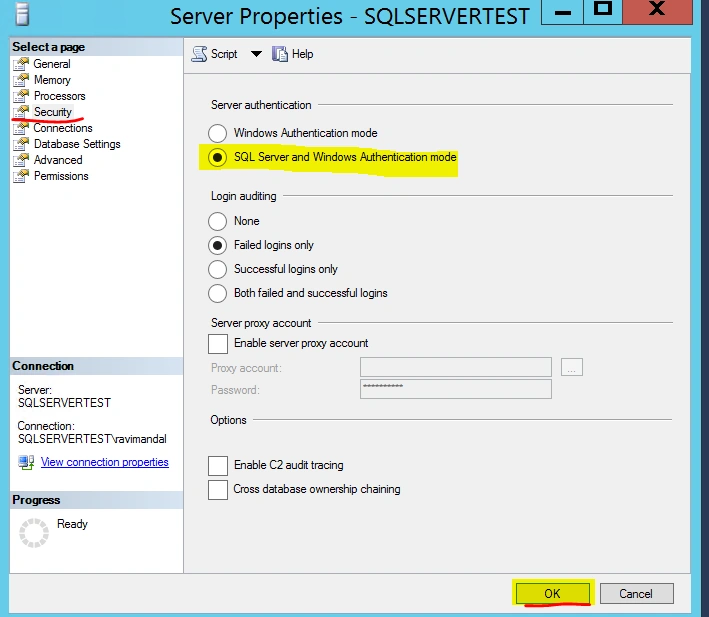
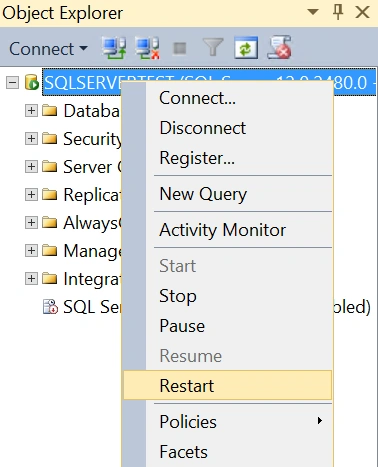
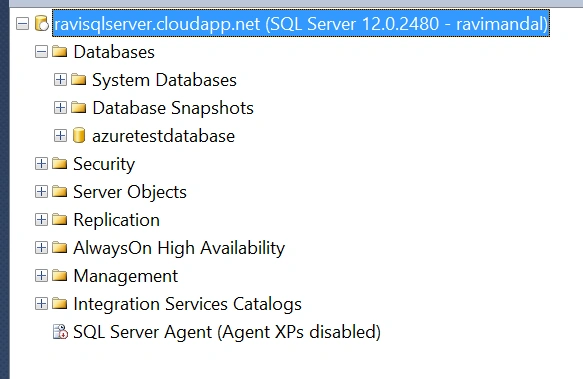
Configuring Firewall Rules
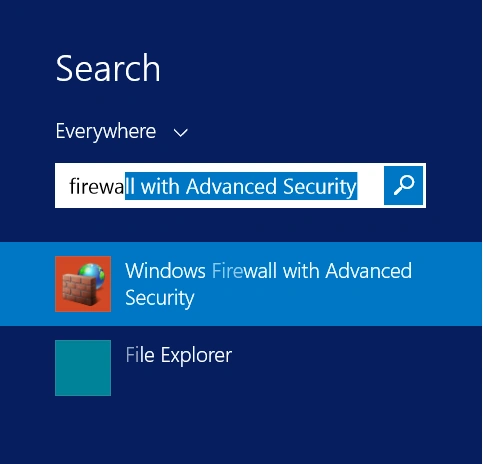

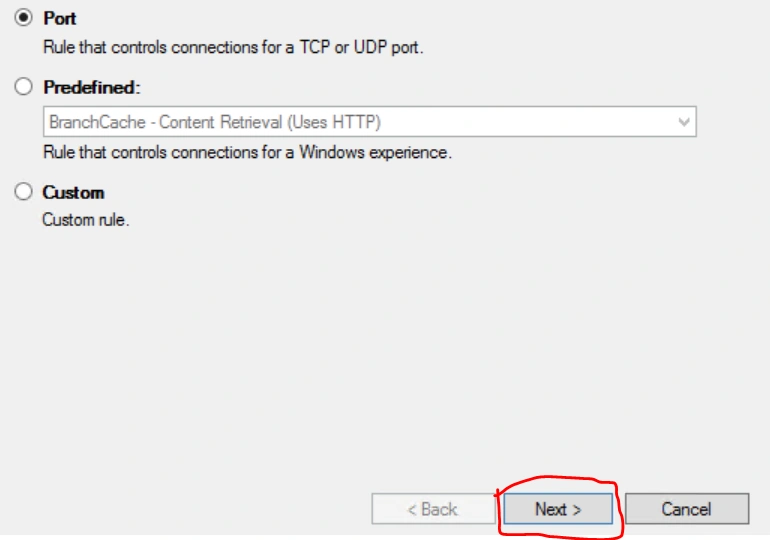




Vaikesh K PPosted Sep 3, 2015, 2:06 AM
Good One
Dev DivisionPosted Sep 2, 2015, 3:34 AM
Good work
Yashwant VishwakarmaPosted Sep 2, 2015, 2:29 AM
awesome one :)
Ravi MandalPosted Sep 2, 2015, 1:10 AM
Thank you Ankit Sir
Ankit BansalPosted Sep 2, 2015, 12:44 AM
good one..really awesome..
Santhakumar MunuswamyPosted Sep 1, 2015, 3:34 PM
Thanks for nice article:)
Mohammed IbrahimPosted Sep 1, 2015, 12:35 PM
nice
Shridhar SharmaPosted Sep 1, 2015, 10:58 AM
informative.
Pankaj Kumar ChoudharyPosted Sep 1, 2015, 9:49 AM
Nice Start Ravi Sir and Welcome you in c#-Corner Community...........
Rajeesh MenothPosted Sep 1, 2015, 8:04 AM
Good Explanation
Sibeesh VenuPosted Sep 1, 2015, 7:26 AM
Nice Share
Manas MohapatraPosted Sep 1, 2015, 6:01 AM
Good One..
Yashwanth MuthineniPosted Sep 1, 2015, 6:00 AM
Nice Share
Karthikeyan KPosted Sep 1, 2015, 4:47 AM
Good one sir...Thanks for share