

Introduction
This article explains how to configure System Failure Settings in Windows 8. You can access the System Failure Settings with the help of "Startup and Recovery Settings". These Settings allow you to optionally make some changes such as System Startup, System Restart and Dump File Location. Windows 8 helps configure System Failure and Recovery options.
If system errors are found such as Fatal System Error, System Crash, etc, then you can configure the action to be taken such as write a System Event Log, Automatically Restart the Computer or dump System Memory to a file that advanced users can use for diagnosing and debugging, etc. You can use the System Control Panel to configure the System Failure and Recovery options.
If a System Failure error occurs, you can click to select the checkboxes for the action that you want Windows to perform:
- Write an event to the System Log For this option the event information is recorded in the system log. By default, it is enabled.
- Automatically Restart This option is turned on by default. For this option Windows automatically restarts your computer.
- Write Debugging option In this option you can select the type of information that you want Windows to record in a Memory Dump File if the computer stops unexpectedly. In the Memory Dump Files, the None option does not record any information. If you don't want Windows to record information in a Memory Dump File then modify the registry by setting the CrashDumpEnabled DWORD value to 0.
Steps How to Configure System Failure Settings in Windows 8
Step 1
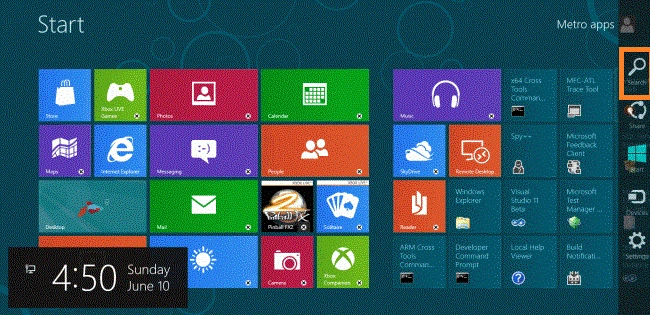
You can move the cursor on the right-bottom and click on the search box and type in it what you want.
Step 2
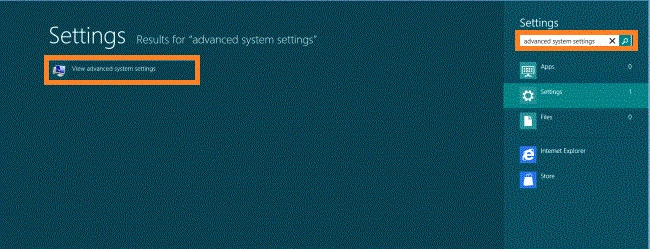
After opening the search box, you can type "Advanced System Settings" under the settings tab highlighted. A window will appear, then click on the "View Advanced System Settings".
Step 3
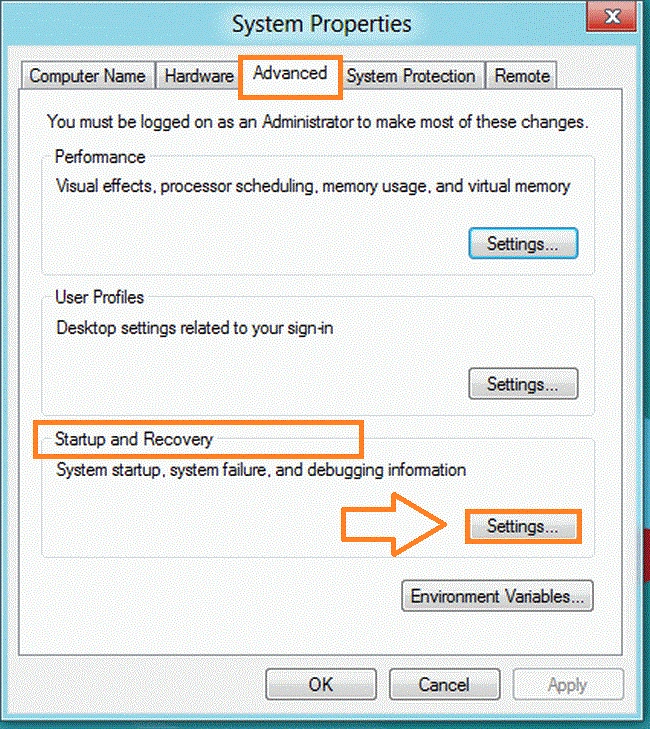
In this step, the System Properties window will appear. In the Advanced tab, click on the "Settings" button under the "Startup and Recovery".
Step 4
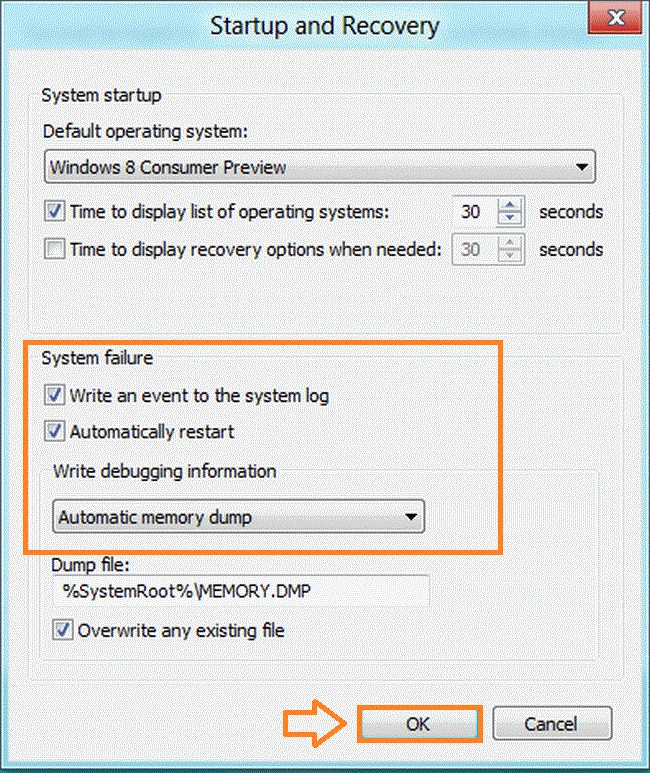
The Startup and Recovery will appear. You can show two options under System Failure.
- Write an event to the System Log The event information is stored in the System Log.
- Automatically Restart In case of error or failure, Windows automatically reboots your computer.
Summary
In this article, we learned about Configure System Failure Settings in Windows 8.
Join the conversation! Your thoughts help the community grow.