

Here are the steps:
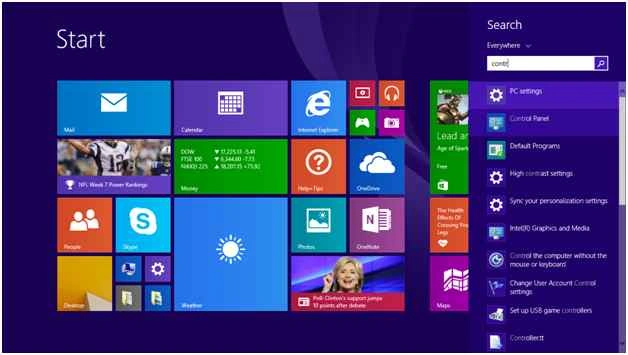
Click Start, navigate through control panel.
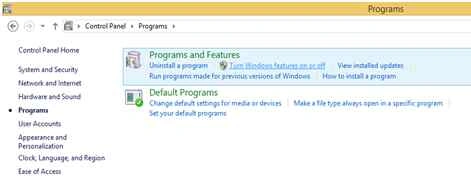
Click Programs

Under Program and features click Turn windows features on or off.
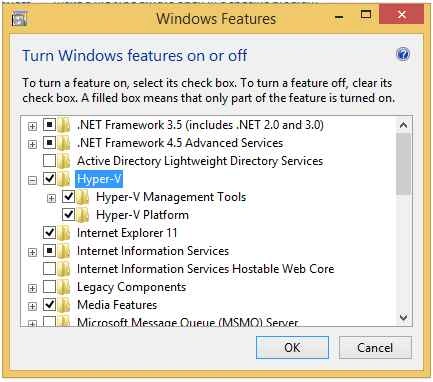
Enable Hyper-v and click OK.
Now its installing hyper-v feature on windows.

Click Restart now to enable hyper-v feature.
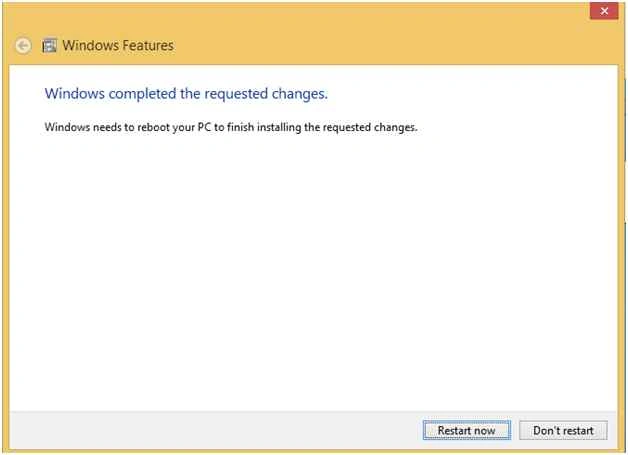
After successful restart windows features configured successfully.
Click Start, then search Hyper-V.
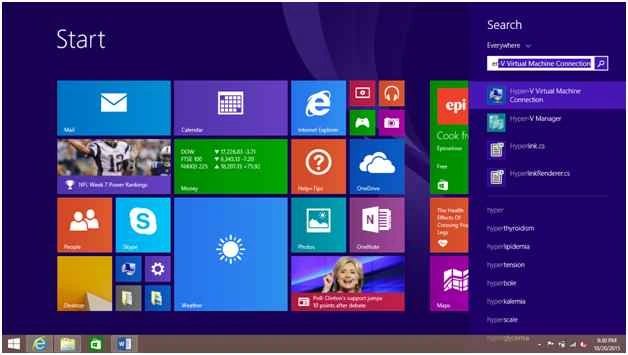
Now I am going to configure the virtual machine using Hyper-V.
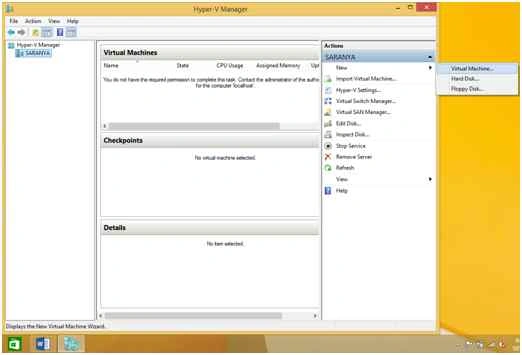
Open Hyper-V Manager.
Click New, then Virtual Machine.
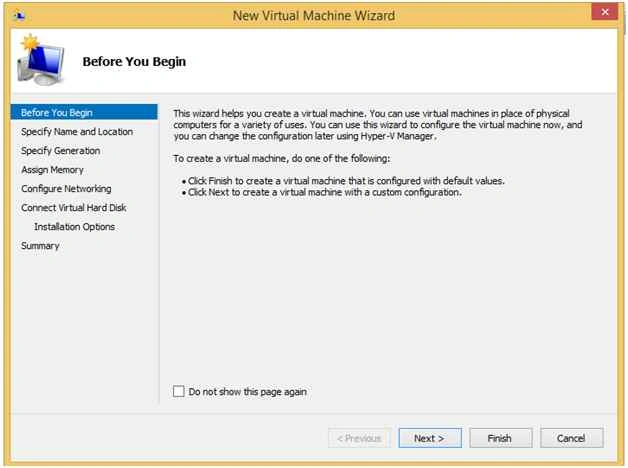
On this popup click next to create a virtual machine.
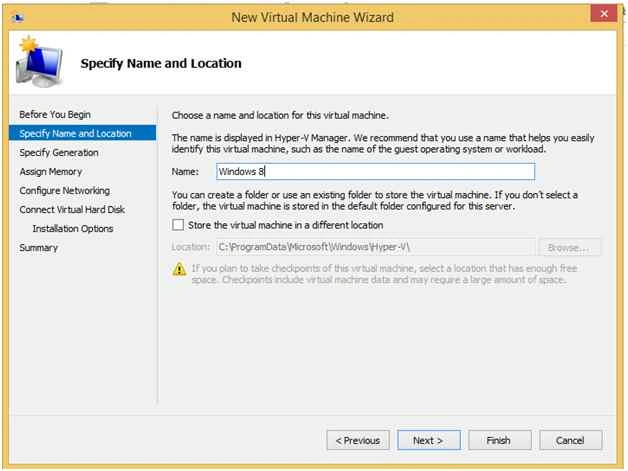
Provide the name for the virtual machine.
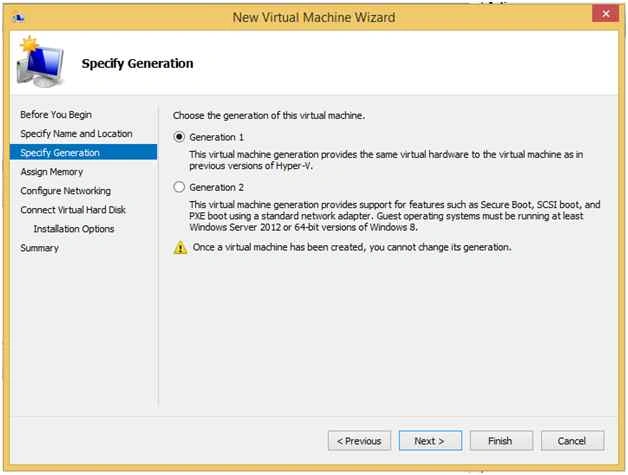
Click Generation 1 as default and click Next.
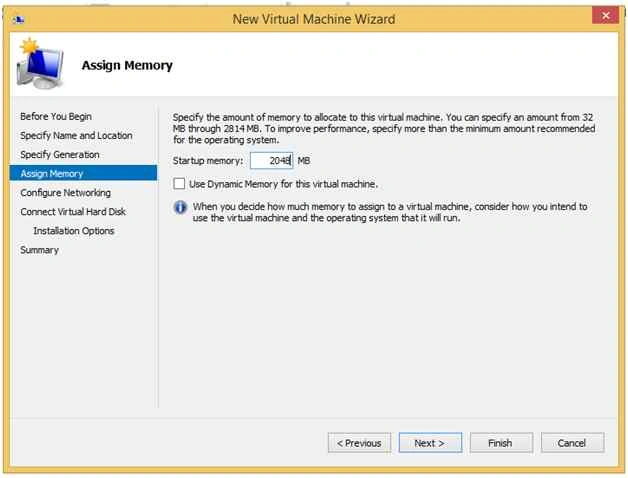
Provide the memory for the virtual machine “I assigned 2GB of RAM”.
Click Next.
Configuring Ethernet adapter.
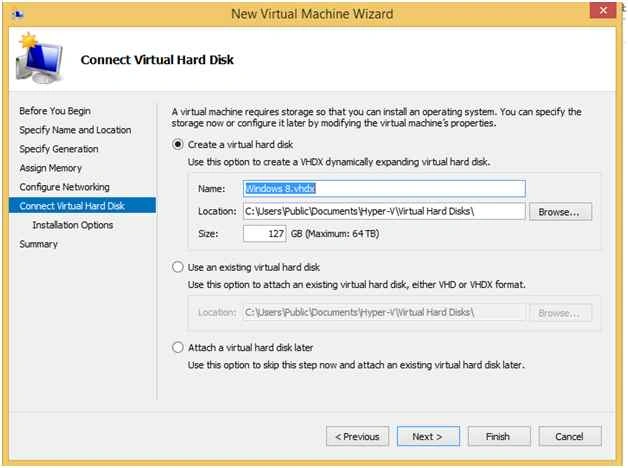
Select the path for creating a virtual disk and provide the size of virtual harddisk.
Click next.
In installation option I selected “Install an operating system later”.
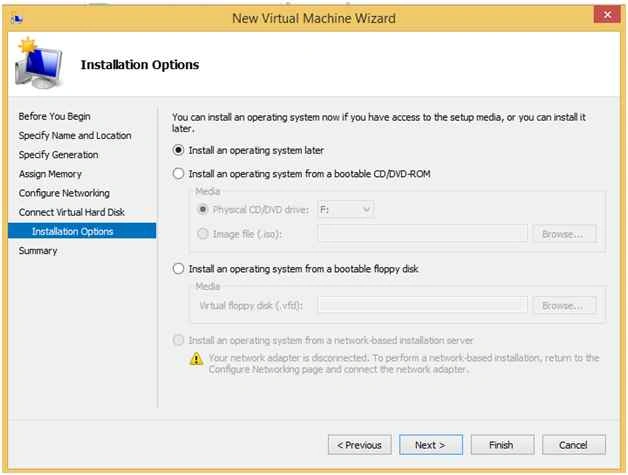
You can also select “Install operating system from bootable CD/DVD-ROM”.
Click next to complete the configuration.
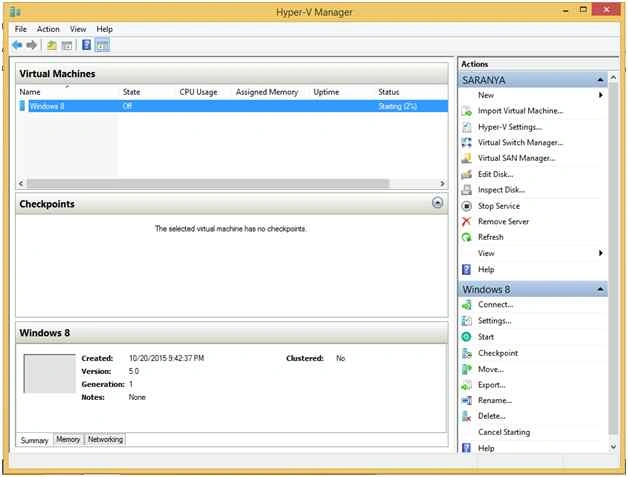
So the virtual machine configured successfully.
You can use this windows feature @ free of cost instead of VMware.
Click Programs
Under Program and features click Turn windows features on or off.
Enable Hyper-v and click OK.
Now its installing hyper-v feature on windows.
Click Restart now to enable hyper-v feature.
After successful restart windows features configured successfully.
Click Start, then search Hyper-V.
Now I am going to configure the virtual machine using Hyper-V.
Open Hyper-V Manager.
Click New, then Virtual Machine.
On this popup click next to create a virtual machine.
Provide the name for the virtual machine.
Click Generation 1 as default and click Next.
Provide the memory for the virtual machine “I assigned 2GB of RAM”.
Click Next.
Configuring Ethernet adapter.
Select the path for creating a virtual disk and provide the size of virtual harddisk.
Click next.
In installation option I selected “Install an operating system later”.
You can also select “Install operating system from bootable CD/DVD-ROM”.
Click next to complete the configuration.
So the virtual machine configured successfully.
You can use this windows feature @ free of cost instead of VMware.
Vinodh NarayananPosted Oct 25, 2015, 12:09 PM
Santhakumar Munuswamy Thanks a lot sir
Santhakumar MunuswamyPosted Oct 25, 2015, 11:48 AM
Good one
Vinodh NarayananPosted Oct 21, 2015, 2:12 AM
Sibeesh Venu Thanks a lot
Vinodh NarayananPosted Oct 21, 2015, 2:11 AM
Nilesh Jadav Ya sure...
Nilesh JadavPosted Oct 21, 2015, 1:59 AM
Have you try to install any OS ?? By the way Nice one !!
Sibeesh VenuPosted Oct 21, 2015, 1:10 AM
Nice Share
Vinodh NarayananPosted Oct 21, 2015, 12:59 AM
Harshad Pansuriya Thanks a lot
Vinodh NarayananPosted Oct 21, 2015, 12:58 AM
Priyaranjan K S thank you
Vinodh NarayananPosted Oct 21, 2015, 12:58 AM
Mohammed Ibrahim Thanks
Harshad PansuriyaPosted Oct 20, 2015, 11:59 PM
Nice one
Mohammed IbrahimPosted Oct 20, 2015, 11:06 PM
nice
Priyaranjan K SPosted Oct 20, 2015, 9:45 PM
Nice walkthrough ...