

Introduction
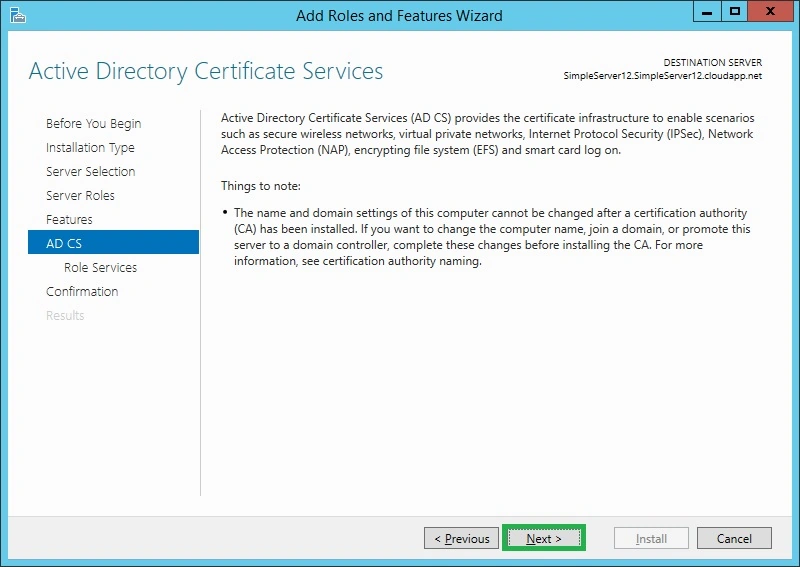
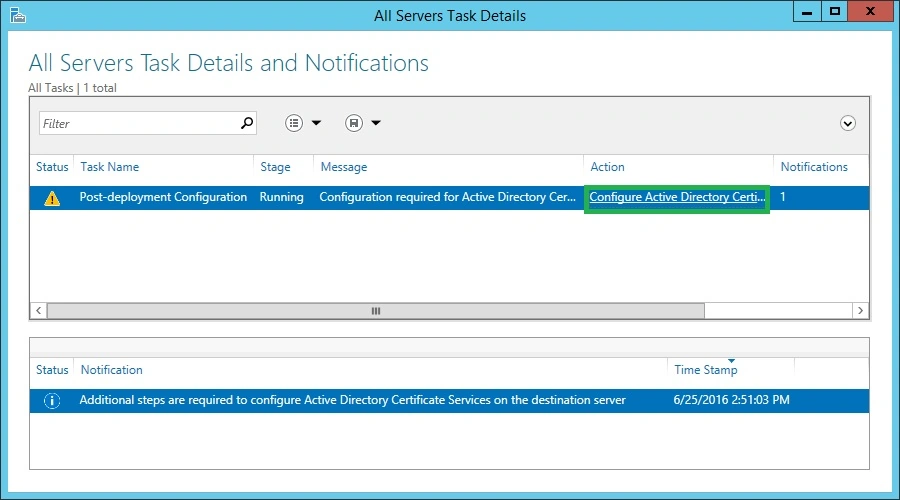
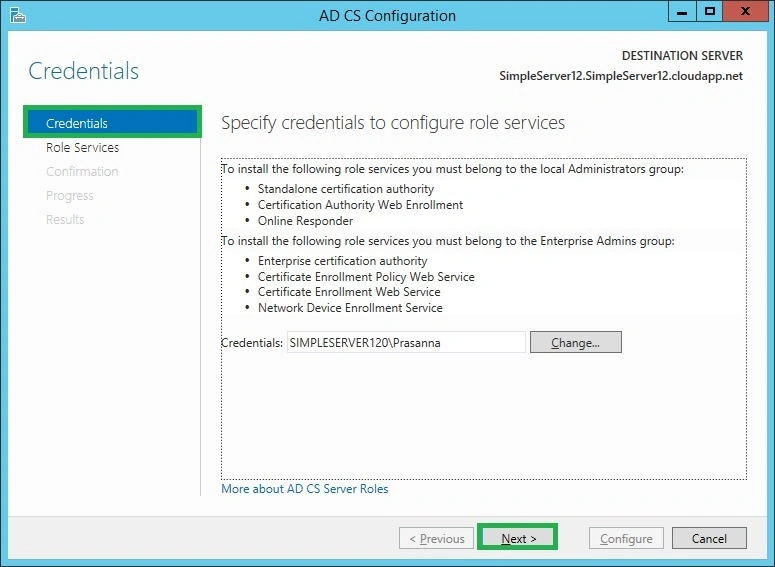
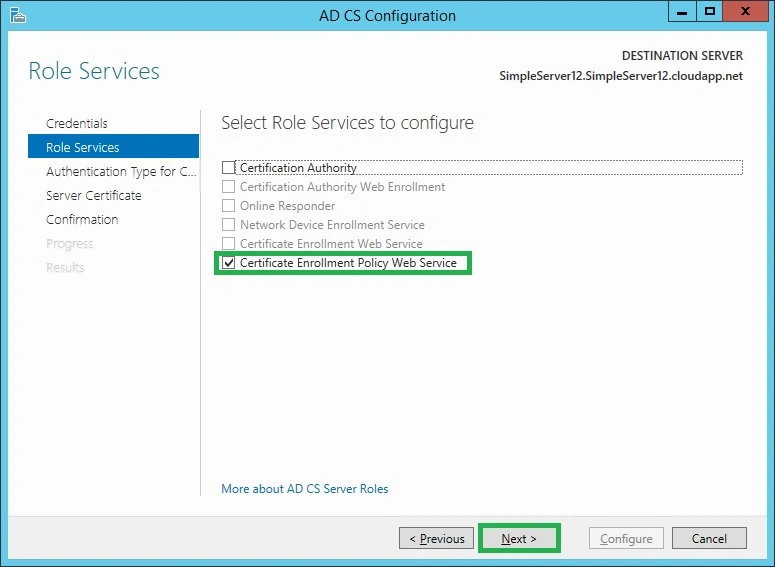
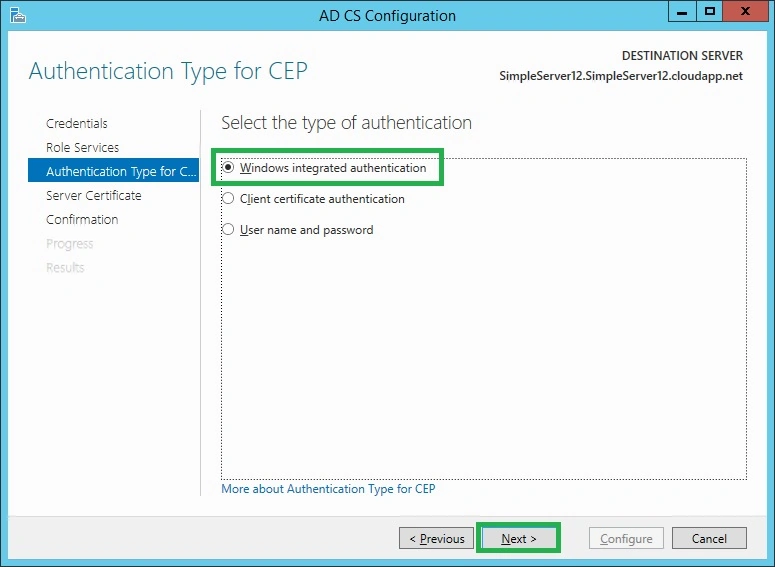
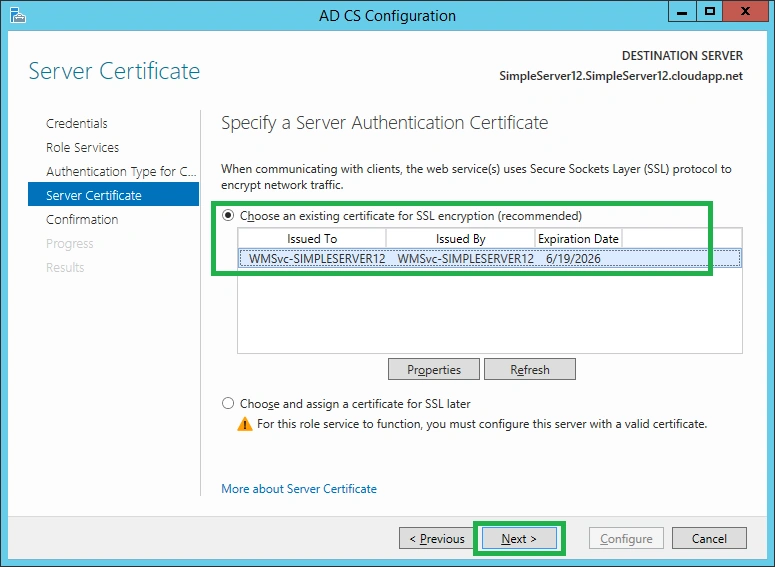
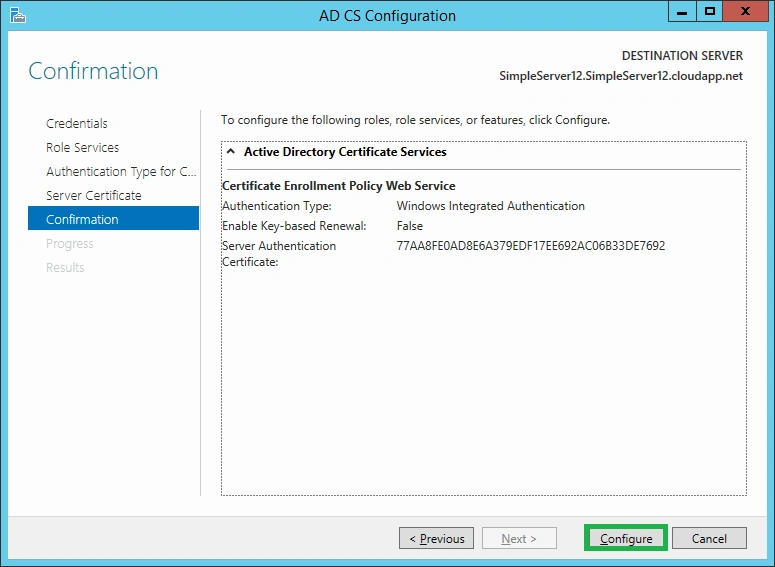
Active Directory Certificate Service (AD CS) provides the certificate infrastructure to enable scenarios such as secured wireless networks, virtual private networks, internet protocol security (IPsec), and smart card log on. In this article we will see about how to configure AD CS in Windows Server 2012.
Requirement
Windows Server 2012 or 2014
The following are the steps needed to configure AD CS:
Step 1: Open Server manager by clicking the icon present in the task bar as shown below.

Step 2: In the server manager select the option “Add roles and features”.
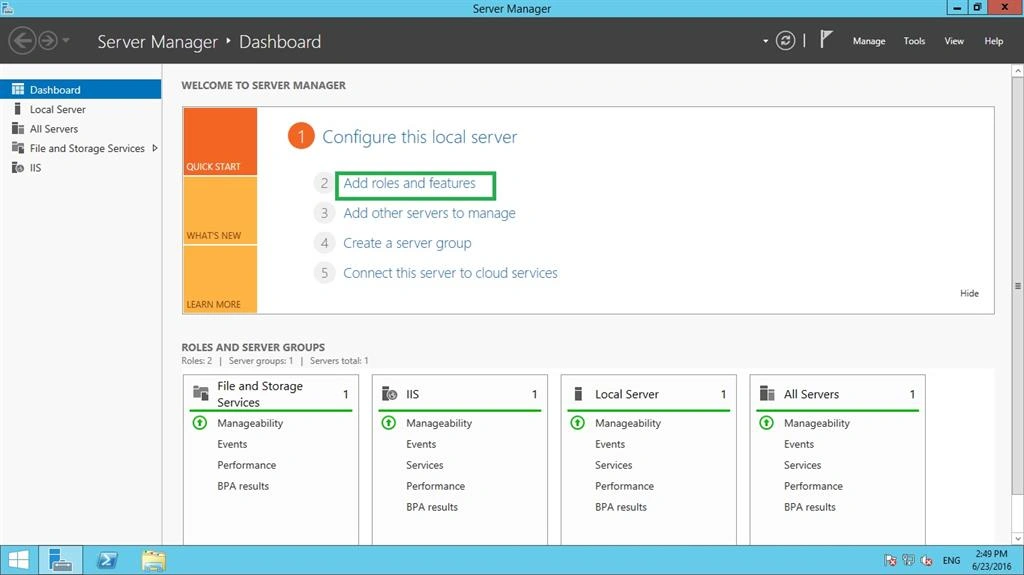
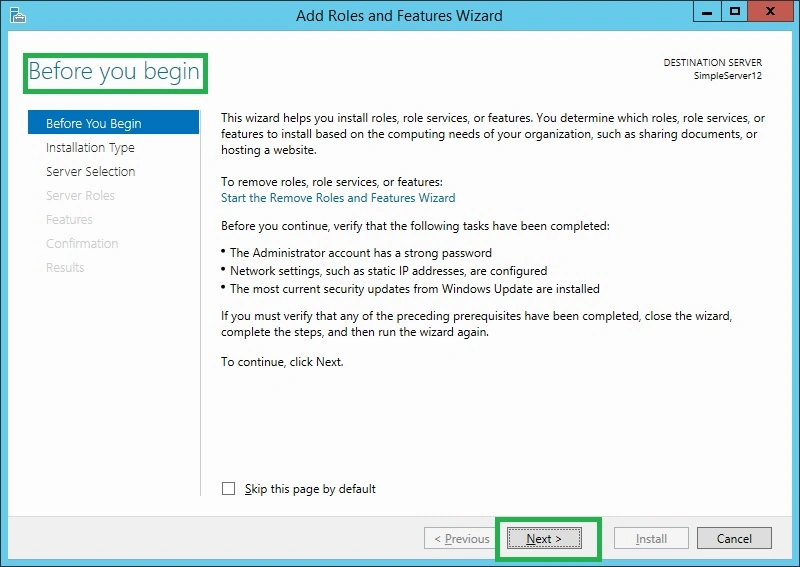
Step 3: In the Add roles and features wizard, before continuing, the following tasks should be completed:
The Administrator account should have a strong Password.
Network Settings such as static IP should be configured.
The most current security updates should be implemented.
And then click Next.
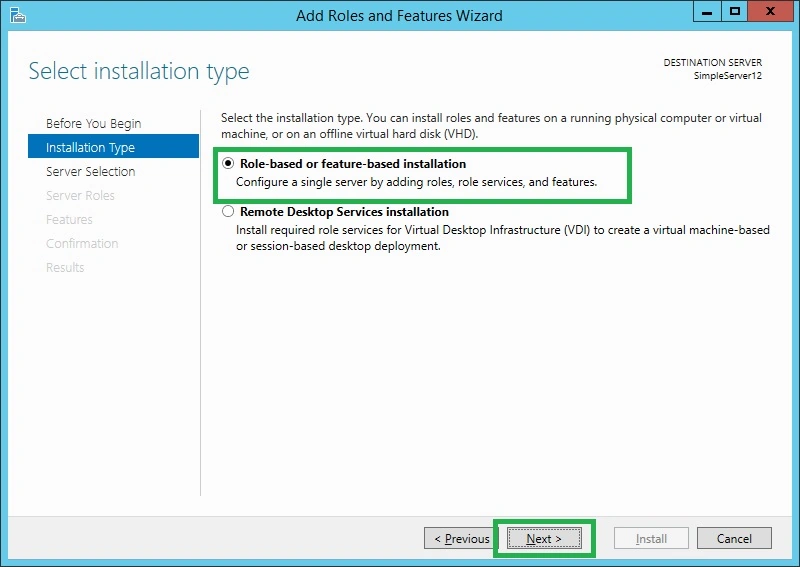
Step 4: In the installation type select “Role based or feature based installation” and click next.
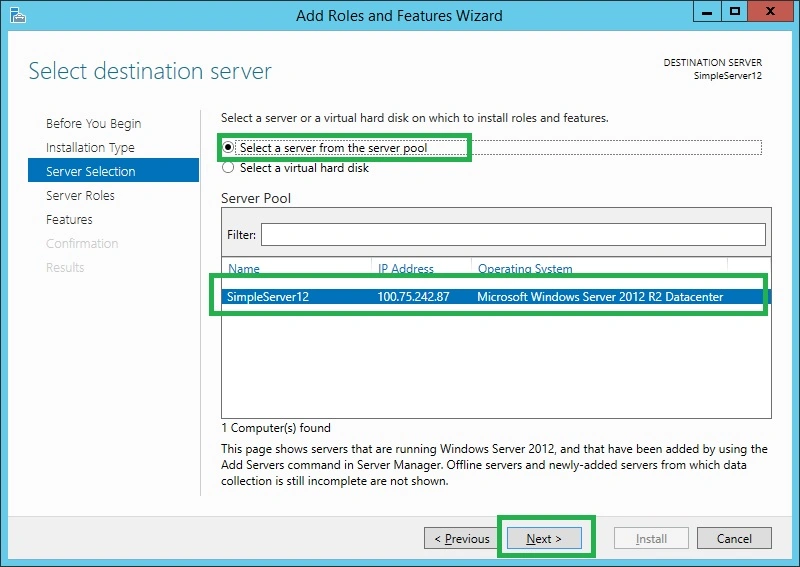
Step 5: In the server selection wizard choose “select a server from the pool.” In the server pool area it contains the name, IP Address, and operating system of the desired server.
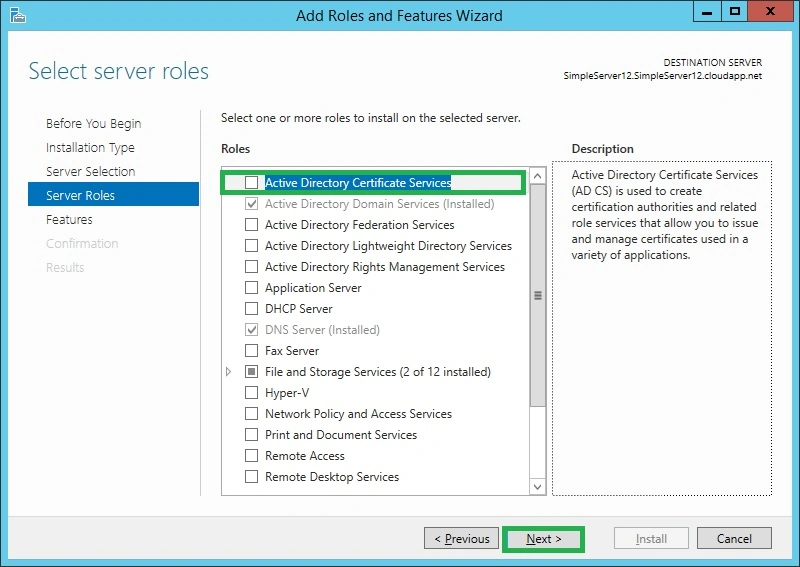
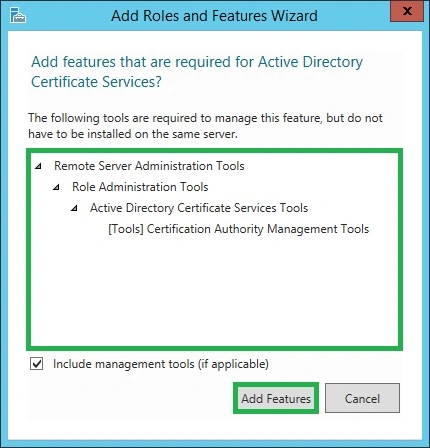
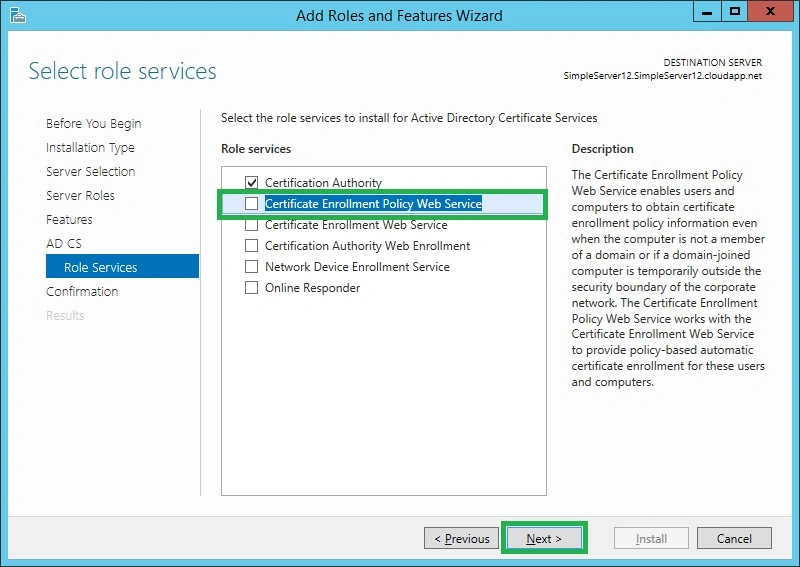
Step 6: In the server role wizard choose “Active Directory Certificate Services”. Once you click a pop up will appear; in that, select Add features option and click next.
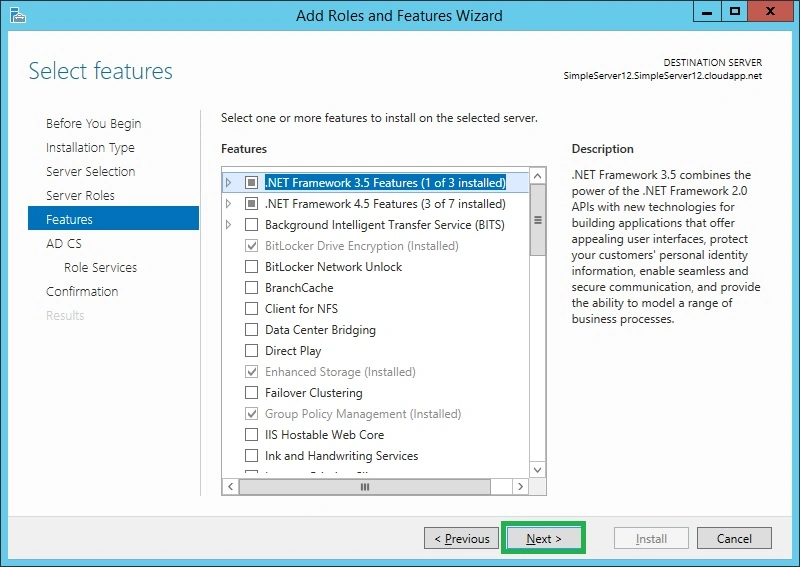
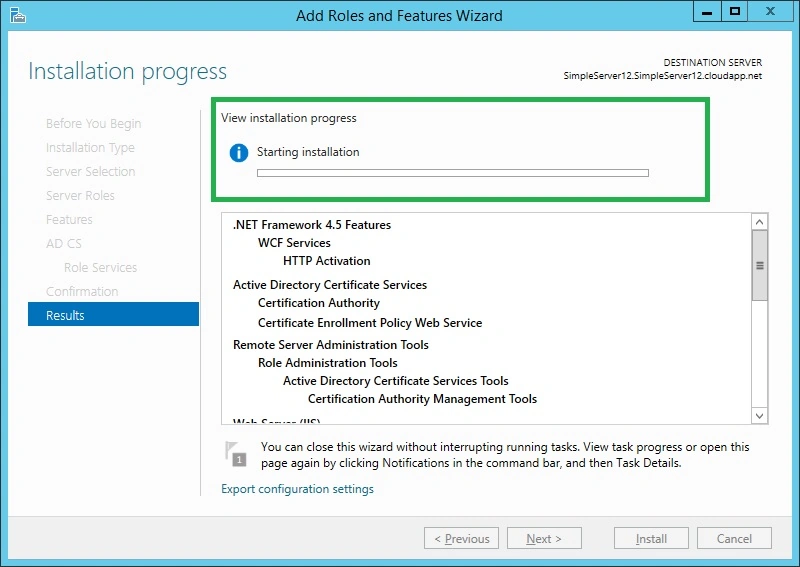
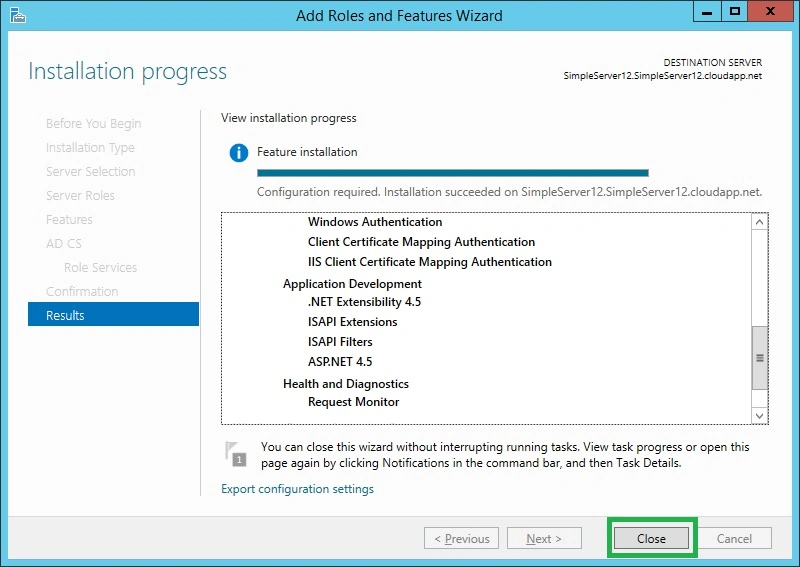
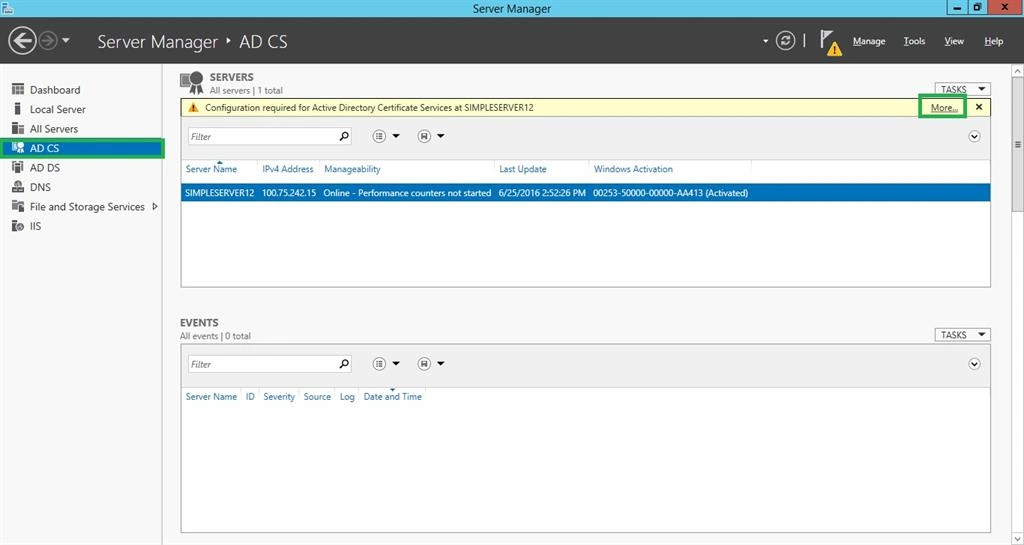
Step 7: In the features wizard add the desired features you want and click next.
Debasis SahaPosted Jun 27, 2016, 2:55 AM
Nice one..
kalu singh raoPosted Jun 27, 2016, 1:43 AM
Nice...
Vignesh ManiPosted Jun 26, 2016, 4:32 PM
Nice