

Introduction
In this article, I am going to explain how to use phone number authentication on Android with Google firebase, which allows users to sign in using their phone number by receiving a One Time Password SMS.
Firebase
Firebase is a backend tool for mobile and web applications.
Google Firebase helps to develop the Application rapidly.
Requirements
- Android Studio.
- Google Account.
Follow the steps given below to build an Android application
Open an Android Studio and create a new project.
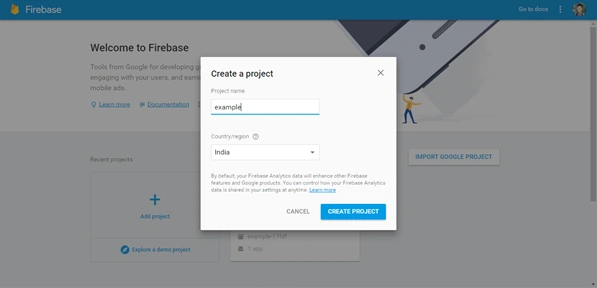
Login to Google Firebase and create a new project in console.
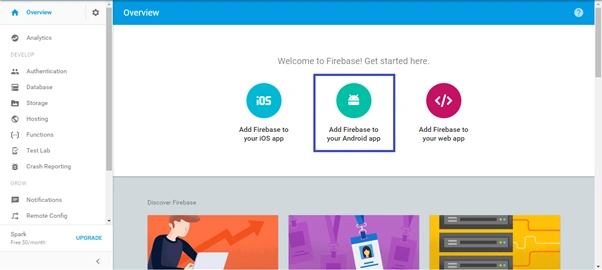
After creating the project select “Add Firebase to your Android app” in Firebase overview page.
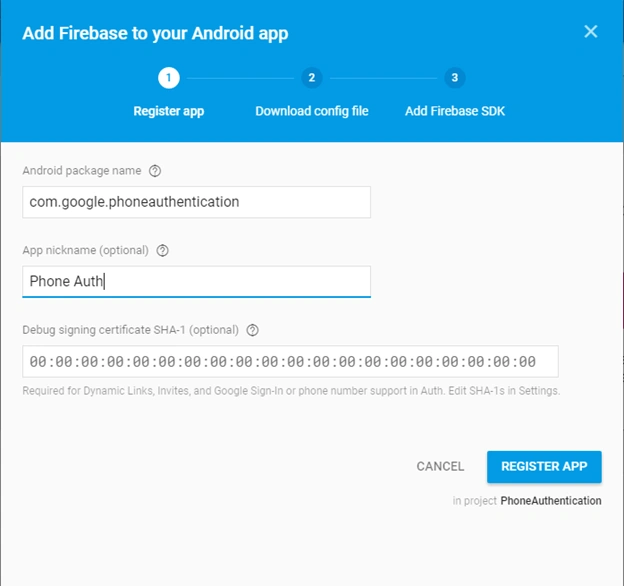
After adding an Application, give your Android application package name, App nickname and Debug signing certificate SHA-1 hit REGISTERAPP.
Now, download Google-services.json file add into your application; app folder.
Adding Dependencies
Add the dependencies plug-in in App gradle for firebase phone authentication.
- compile 'com.google.firebase:firebase-auth:11.0.4'
Add Gradle plug-in (build.gradle(app)) end of the code.
- apply plugin: 'com.google.gms.google-services'
Add classpath plug-in in project gradle
- classpath 'com.google.gms:google-services:3.1.0'
Enable Phone Number sign-in for your Firebase project
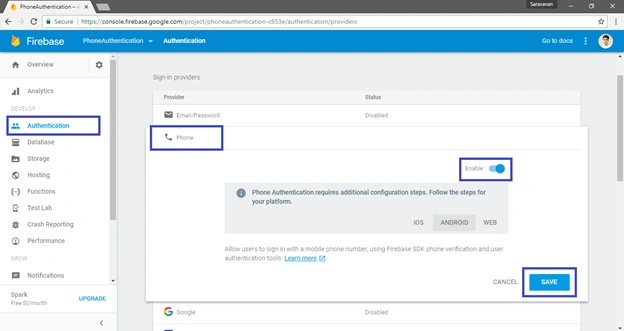
On the Sign-in Method page, enable the Phone Number sign-in method.
Now, go to Android Studio and copy the code.
Creating Layout
- <?xml version="1.0" encoding="utf-8"?>
- <RelativeLayout xmlns:android="http://schemas.android.com/apk/res/android"
- xmlns:tools="http://schemas.android.com/tools"
- android:id="@+id/activity_main"
- android:layout_width="match_parent"
- android:layout_height="match_parent"
- android:orientation="vertical"
- android:paddingBottom="@dimen/activity_vertical_margin"
- android:paddingLeft="@dimen/activity_horizontal_margin"
- android:paddingRight="@dimen/activity_horizontal_margin"
- android:paddingTop="@dimen/activity_vertical_margin"
- tools:context="io.github.saravanan_selvaraju.phoneauthentication.MainActivity">
- <EditText
- android:layout_width="match_parent"
- android:layout_height="wrap_content"
- android:hint="Phone Number"
- android:inputType="phone"
- android:padding="15dp"
- android:maxLength="10"
- android:id="@+id/phone"/>
- <EditText
- android:layout_width="match_parent"
- android:layout_height="wrap_content"
- android:padding="15dp"
- android:id="@+id/code"
- android:hint="Verification Code"
- android:visibility="gone"/>
- <Button
- android:layout_width="match_parent"
- android:layout_height="wrap_content"
- android:text="Verify"
- android:layout_below="@+id/phone"
- android:id="@+id/getcode"
- android:padding="15dp"
- android:onClick="GetCode"/>
- <Button
- android:layout_width="match_parent"
- android:layout_height="wrap_content"
- android:id="@+id/verify"
- android:layout_below="@+id/code"
- android:text="Verify"
- android:onClick="verify"
- android:padding="15dp"
- android:visibility="gone"/>
- <TextView
- android:layout_width="match_parent"
- android:layout_height="wrap_content"
- android:gravity="center"
- android:id="@+id/msgtxt"
- android:layout_centerInParent="true"
- android:text="Signin Successfully"
- android:padding="5dp"
- android:textColor="#000000"
- android:visibility="gone"/>
- </RelativeLayout>
Creating Activity
- package io.github.saravanan_selvaraju.phoneauthentication;
- import android.content.Intent;
- import android.support.annotation.NonNull;
- import android.support.v7.app.AppCompatActivity;
- import android.os.Bundle;
- import android.util.Log;
- import android.view.View;
- import android.widget.Button;
- import android.widget.EditText;
- import android.widget.TextView;
- import android.widget.Toast;
- import com.google.android.gms.tasks.OnCompleteListener;
- import com.google.android.gms.tasks.Task;
- import com.google.firebase.FirebaseException;
- import com.google.firebase.FirebaseTooManyRequestsException;
- import com.google.firebase.auth.*;
- import java.util.concurrent.TimeUnit;
- public class MainActivity extends AppCompatActivity {
- EditText phone,vcode;
- TextView msg;
- Button getcode,verify;
- private FirebaseAuth mAuth;
- private String mVerificationId;
- private PhoneAuthProvider.ForceResendingToken mResendToken;
- private PhoneAuthProvider.OnVerificationStateChangedCallbacks mCallbacks;
- @Override
- protected void onCreate(Bundle savedInstanceState) {
- super.onCreate(savedInstanceState);
- setContentView(R.layout.activity_main);
- phone = (EditText) findViewById(R.id.phone);
- vcode = (EditText) findViewById(R.id.code);
- getcode=(Button)findViewById(R.id.getcode);
- verify=(Button)findViewById(R.id.verify);
- msg=(TextView)findViewById(R.id.msgtxt);
- mAuth = FirebaseAuth.getInstance();
- mCallbacks = new PhoneAuthProvider.OnVerificationStateChangedCallbacks() {
- @Override
- public void onVerificationCompleted(PhoneAuthCredential credential) {
- Toast.makeText(MainActivity.this,"Verified",Toast.LENGTH_LONG).show();
- vcode.setVisibility(View.GONE);
- verify.setVisibility(View.GONE);
- msg.setVisibility(View.VISIBLE);
- }
- @Override
- public void onVerificationFailed(FirebaseException e) {
- Toast.makeText(MainActivity.this,"Login Faled",Toast.LENGTH_LONG).show();
- if (e instanceof FirebaseAuthInvalidCredentialsException) {
- // Invalid request
- // ...
- } else if (e instanceof FirebaseTooManyRequestsException) {
- // The SMS quota for the project has been exceeded
- }
- }
- @Override
- public void onCodeSent(String verificationId,
- PhoneAuthProvider.ForceResendingToken token) {
- mVerificationId = verificationId;
- mResendToken = token;
- }
- };
- }
- public void GetCode(View view) {
- PhoneAuthProvider.getInstance().verifyPhoneNumber(
- phone.getText().toString(),
- 60,
- TimeUnit.SECONDS,
- this,
- mCallbacks);
- phone.setVisibility(View.GONE);
- getcode.setVisibility(View.GONE);
- vcode.setVisibility(View.VISIBLE);
- verify.setVisibility(View.VISIBLE);
- }
- public void verfy(View view) {
- PhoneAuthCredential credential = PhoneAuthProvider.getCredential(mVerificationId, vcode.getText().toString());
- signInWithPhoneAuthCredential(credential);
- }
- private void signInWithPhoneAuthCredential(PhoneAuthCredential credential) {
- mAuth.signInWithCredential(credential)
- .addOnCompleteListener(this, new OnCompleteListener<AuthResult>() {
- @Override
- public void onComplete(@NonNull Task<AuthResult> task) {
- if (task.isSuccessful()) {
- vcode.setVisibility(View.GONE);
- verify.setVisibility(View.GONE);
- msg.setVisibility(View.VISIBLE);
- } else {
- if (task.getException() instanceof FirebaseAuthInvalidCredentialsException) {
- Toast.makeText(MainActivity.this,"Invslid code",Toast.LENGTH_LONG).show();
- }
- }
- }
- });
- }
- }
Please don’t forgot to add internet access permission on androidmanifest.xml
- <uses-permission android:name="android.permission.INTERNET" />
Now, run your application.
Sample output
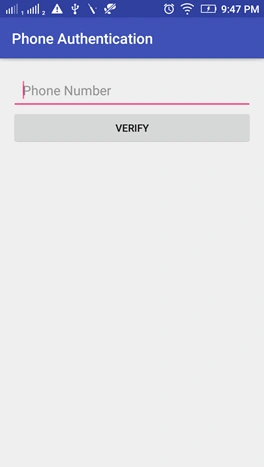
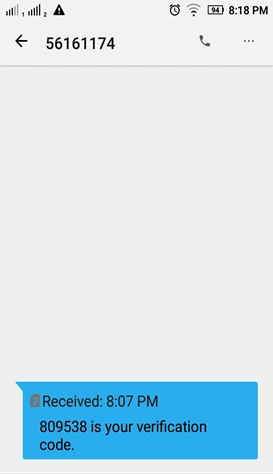
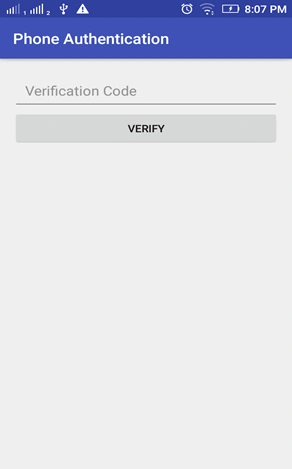
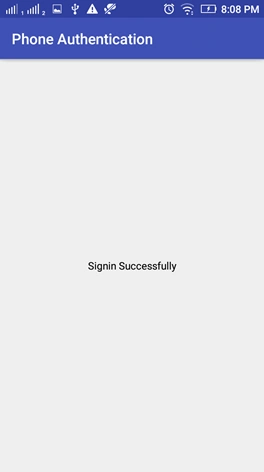
Summary
In this article, we discussed what Google Firebase is, and how to use phone number authentication on Android app with firebase authentication.
sourav karPosted Mar 4, 2019, 2:18 PM
Can you send code for Xamarin android version. difficult to convert java to c#.
Geminie AliPosted Aug 16, 2018, 3:00 AM
Hi, i use your code but it give error of login failed , don't get the mistake help me..
PrAdeep TrivediPosted Jul 9, 2018, 7:16 AM
Thank you sir its working well for me
navyasree PannelaPosted Apr 5, 2018, 6:33 AM
Its showing login failed
Raj CIPLPosted Mar 21, 2018, 4:03 AM
How to consume in xamarin android can anyone has sample about this?
keerthi kothuriPosted Feb 4, 2018, 11:56 PM
Can u pls help me in storing the phone number in firebase....
Swamy NPosted Sep 25, 2017, 2:42 AM
Hi bro, nice article. I am working with this fire base phone authentication. How can I send OTP text message with my app name. As of now I am getting text message only as"123456 is your verification code." I need to display my app name in the text message. Can you please share your thoughts on this.
Donald GenesPosted Aug 9, 2017, 9:20 PM
Nice one..please how can one display user profile image with this Firebase sample demo https://github.com/firebase/quickstart-android/tree/master/database
Manoj KulkarniPosted Aug 7, 2017, 12:38 AM
Nice article. Thank you for sharing
Ravishankar VelladuraiPosted Aug 6, 2017, 2:19 PM
Nice article bro keep sharing
Gokhul VarmanPosted Aug 6, 2017, 12:05 PM
Nice article da..keep doing
Ganeshan NPosted Aug 6, 2017, 11:59 AM
Nice Article ....This way to go man