

Introduction
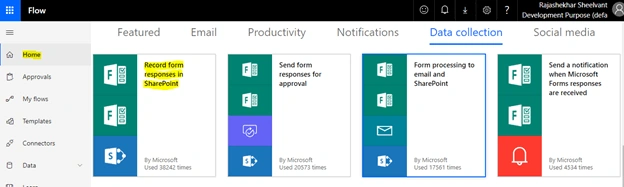
Using Office 365 Apps and Utilities, it is possible to develop a full-fledged business solution even without writing a single line of code. In this article, I will cover how the data can be collected from the external users using Microsoft Forms and then, how this collected data can be stored in the SharePoint list via Microsoft Flow. Some of the business use cases for such situations are mentioned below.
- Hiring team from HR department may want to collect the information from the candidates who are shortlisted for an interview.
- The selected candidate may have to submit some additional information to go through the background verification etc.
- The Marketing team may want to collect compliance related information from the potential vendors/suppliers
The data collected from the external user can be used to drive the complete business solution.
Preparation
In this article, we will be discussing one of the business use cases, i.e., Collection of personal information from the potential candidate to be considered for an initial round of interview.
Create a Candidate Hire form using MS Form
This form can be sent to potential candidates to collect their personal information. The noticeable factor here is that the forms can be distributed directly to the external users and there is no need to manage the permission. The candidate can submit the form just by clicking on the form link. If you are a beginner and interested in understanding the steps, follow the steps below to create the survey form.
- Browse to the Microsoft Forms homepage here and log in using your Office 365 credentials.
- Click on the "New Form" button.
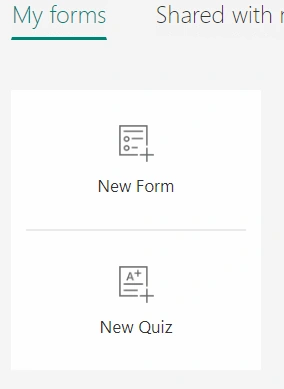
- On the next screen, add the name of the form, such as "Candidate Hire Form" and then add the questions.
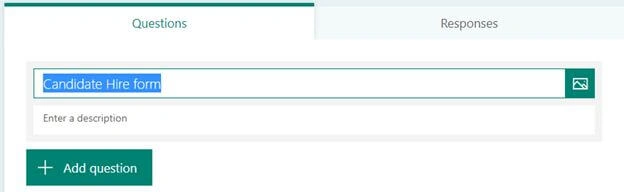
- I have added a few questions as mentioned below.
- Full Name
- Email Id
- Mobile Number
- Current Location
- Gender
- The created form can then be sent to potential candidates to collect their initial details. Before sending the form link, it should be allowed to be opened by external users. In order to do that, click on the "Share" menu and select the option "Anyone with the link can respond".
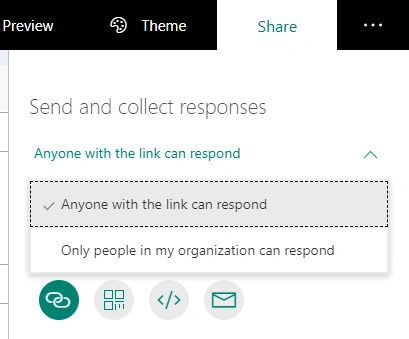
- Then, copy the link and send the form link to the candidates.
Create a candidate hire list in a SharePoint
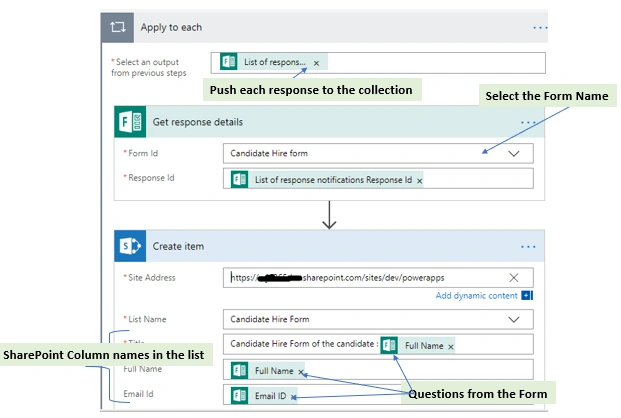
Create a custom list in SharePoint and create the exact same columns which were created during the creation of MS Forms. I am skipping the steps to create the list here assuming that it is the most basic task any SharePoint developer would know.


Mani RudrarajuPosted Jun 15, 2020, 7:56 AM
Is there any other way without using MS flows can we save data in sharepoint list?