

While developing an Android application using Java, I had to get data from an API endpoint. There, I discovered a library that made the job very easy for me. That library is RETROFIT. It allows you to define your API endpoints as an interface and then, you can call the methods you defined conveniently and retrofit will provide an implementation of the interface you declared through dependency injection. Thus, you do not have to worry about loading the data from the endpoints and handling asynchronous tasks. I wondered if I could do the same with Xamarin.android so I searched if retrofit has an implementation for Xamarin.android. Well, they didn’t but I found an alternative library that takes a similar approach to solving the problem of making API calls and that library is REFIT (the name tells it all).
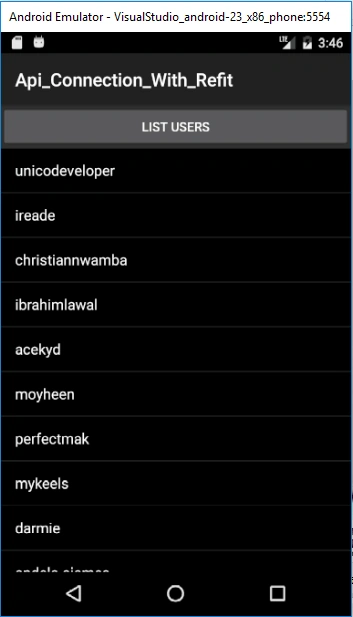
In this tutorial, we will learn how to make API calls using refit. We would be getting a list of developers in a location from GitHub. I have decided to list developers in Lagos, Nigeria where I live; you can decide to add your own city! The result of our search would be displayed in a List View.
Refit would help us get the JSON response from the endpoint but to convert or deserialize the JSON response to a C# object, we would use JSON.NET.
We will follow the following steps to complete this tutorial.
- Start a new Xamarin.Android project using Visual Studio (I am using Visual Studio 2017 but the procedure would work for any version of VS).
- Add reference to the refit library by getting it from nuGet. Refit comes with Json.net so we would not have to install JSON.NET separately.
- Define the reponse model.
- Define the user model (The user mode represents a developer).
- Define the API interface using refit.
- Design the user interface.
- Define refit Serialization settings(these settings are global and have to be set once throughout the application).
- Make calls to the github api to get the list of developers.
- Display the list of developers in a List View.
Let's get started.
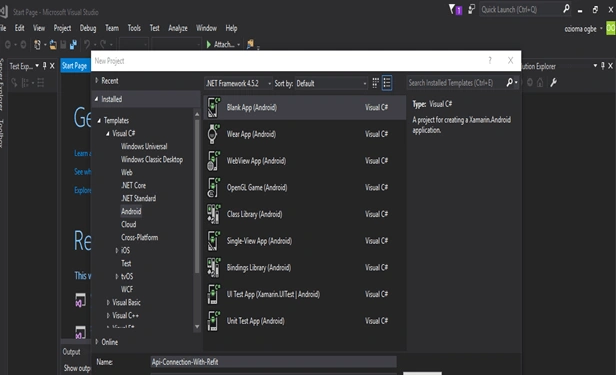
Start a new Xamarin.android projectFrom Visual Studio, start a new Xamarin.Android project. Select a blank project template.
From the Solution Explorer, right click on reference, then from the menu click on manage nugget packages. This will open up the nuGet Package Manager window. Then, select the browse tab and search for refit. From the search result, install the refit library by Paul Betts to the current project.
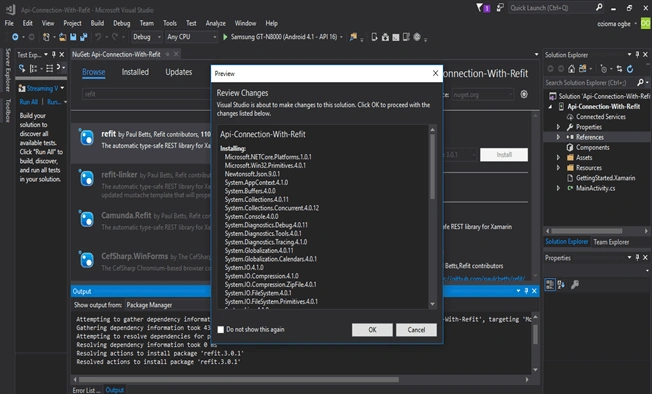
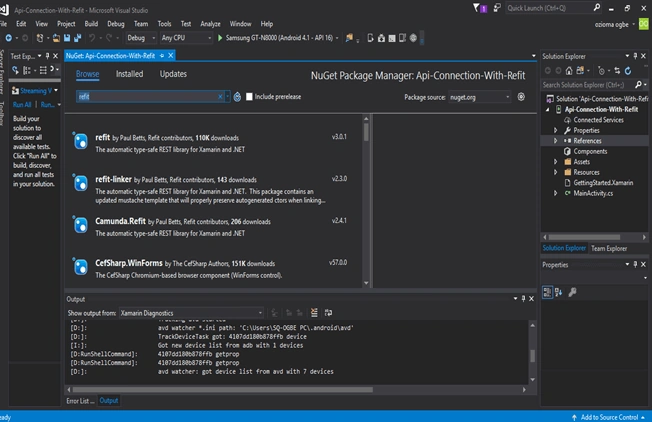
Installing this package will install both Refit dependency and other dependencies we need, to deserialize the JSON. So, we are all set with what we need to build with the app. Then, we need to define the model of our response and user.
Define the Response modelWe need a C# class to model our response, we would be getting from the github API but first of all, let’s see what the response looks like in JSON. The URL that I need to list github developers in Lagos is https://api.github.com/search/users?q=location:lagos so that it would give us our result in JSON. Then, we can use it to know what our response model would look like. I will make the request using postman, but you can use your web browser.
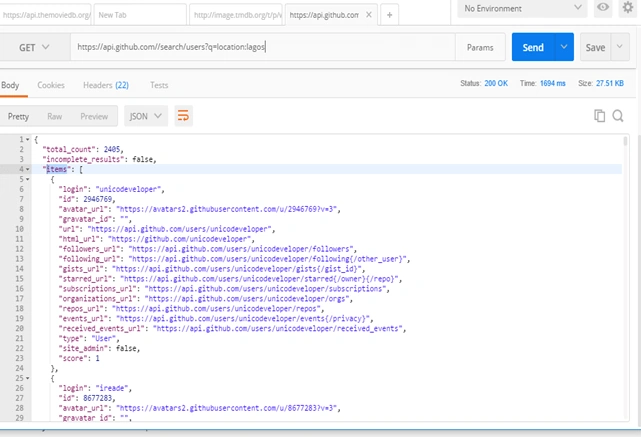
From the structure of the JSON response, we can see that it contains the following.
- The total number of results (total_count).
- A status to show if the result is complete or not(incomplete_result).
- A JSON array (items) containing the result object ( this is what we are interested in).
The result is paginated that means we can only get 30 items per request. To get more items, we will have to pass the page number as part of the request, but these 30 results are enough to demonstrate our example.
So, let’s model our response object.
From the Solution Explorer, right click on the project and create a new folder called Model. This folder will contain our model for the response and the user.
Right click on the newly created Model folder and add a new class called ApiResponse.cs. The code for the ApiResponse.cs class is shown below.
- using Newtonsoft.Json;
- using System.Collections.Generic;
- namespace ConnecingToApiExample.Model
- {
- public class ApiResponse
- {
- [JsonProperty(PropertyName = "total_count")]
- public string totalCount { get; set; }
- [JsonProperty(PropertyName = "incomplete_results")]
- public string incompleteResults { get; set; }
- [JsonProperty(PropertyName = "items")]
- public List<User> items { get; set; }
- }
- }
The attribute JsonProperty(PropertyName = “foo_bar”) is used to define the JSON name of the property that would be used to set the C# properties, this is used by Json.Net to deserialize the JSON into a C# object. We can see that the JSON property “items” which is a JSON array from the response we got from the postman request would be automatically converted to a list of User(we have not defined user yet) again this is done by Json.net .
So, our ApiResponse.cs class is ready but it contains a list of Users but what is a user? Let's define a User.
Define the User modelTo define the User model, right click on the Model folder and add a new Class called User.cs. To define the content of the user class we have to know which property of the user we need, so we go to the Json response and check the item node, since each item represents a User. We only need the “login” property since that is the username of the user and that is what we would display on the list view. So we define our user class as follows
- using Newtonsoft.Json;
- namespace ConnecingToApiExample.Model
- {
- public class User
- {
- [JsonProperty(PropertyName = "login")]
- public string userName { get; set; }
- public override string ToString()
- {
- return userName;
- }
- }
- }
The user class contains the login property and that will be used to populate the “username” C# property. We have also Overridden the ToString() method to return the user name so that it would be easily displayed on the form.
So we are done with the modelling of the Response and the user, what we do next is that we define the API Interface.
Define the API InterfaceTo use Refit, we define an interface that will hold the signature of our endpoint methods and we rely on Refit to provide implementation of the interface using the parameters we provide.
To define the API interface, create a new folder called Interface, right click on the folder and add a new item, select interface and name it IGitHubApi.cs. The content of the API interface is shown below
- using System.Threading.Tasks;
- using Refit;
- using ConnecingToApiExample.Model;
- namespace ConnecingToApiExample.Interface
- {
- [Headers("User-Agent: :request:")]
- interface IGitHubApi
- {
- [Get("/search/users?q=location:lagos")]
- Task<ApiResponse> GetUser();
- }
- }
First of all, we declared a Header "User-Agent: :request:"
This tells the GitHub API that we are making a request.
Then we define the signature of the method we would use to get result from our API
- [Get("/search/users?q=location:lagos")]
- Task<ApiResponse> GetUser();
The Get attribute shows that we are making a get request to the endpoint ("/search/users") with the query parameter ("q=location:lagos")
But how does Refit know the base URL to append these endpoints and parameters to? We would come to that (Step 7).
The next piece of work will be done in our MainActivity but before then let's design our user interface.
Design the User InterfaceOur user interface will be very simple, it will contain just a Button and a List View, the button will be used to start the process of getting the list of users and the list view will display this list of users.
To design the user interface open main.xml and add the following source code
- <?xml version="1.0" encoding="utf-8"?>
- <LinearLayout xmlns:android="http://schemas.android.com/apk/res/android"
- android:orientation="vertical"
- android:layout_width="match_parent"
- android:layout_height="match_parent">
- <Button
- android:layout_width="match_parent"
- android:layout_height="wrap_content"
- android:text="List Users"
- android:id="@+id/btn_list_users" />
- <ListView
- android:layout_width="match_parent"
- android:layout_height="match_parent"
- android:id="@+id/listview_users"
- android:background="#000000" />
- </LinearLayout>
This is how the UI should look in the main layout
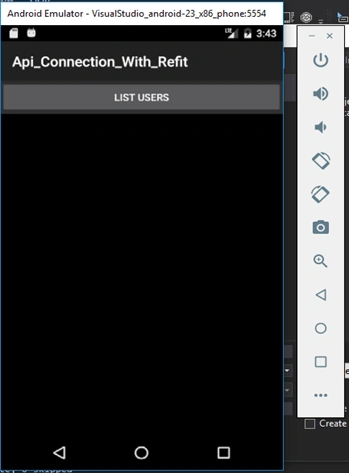
So now that the User Interface is set up let's go to the main part of the program that would start off the API call process.
First of all, let’s declare the global Refit settings.
Define Refit and Json.net SettingsBefore we start calling the refit API, let’s set up the basic settings that would get Refit to work properly. We only need to define these settings once and they will serve us throughout the application. We could keep these settings in a Utility class and make a single call to initialize them but we would keep this example simple and define it in the Main Activity’s OnCreate() method, so that when the activity is created then this settings is initialised. The first thing we have to do is to define the JSON conversion settings and we can do that by adding the following code snippet to the onCreate() method of the MainActivity
- // declare the global settings
- JsonConvert.DefaultSettings = () => new JsonSerializerSettings()
- {
- ContractResolver = new CamelCasePropertyNamesContractResolver(),
- Converters = { new StringEnumConverter() } ;
And add the following reference for the code to function properly
- using Newtonsoft.Json.Serialization;
- using Newtonsoft.Json.Converters;
- using Newtonsoft.Json;
Then we define our global variables in the MainActivity as follows
Murali ContractorPosted Aug 9, 2021, 3:50 PM
I am using Visual studio 2017 ..... i didnt find Xamarin.Android projecct
christophe bernardPosted Aug 14, 2018, 7:49 AM
Hello ozioma ogbe, nice article really well explained, with all detail code and print screen i love it ..nice to follow when we begin ..Thanks and good contination
Francisco GuerreroPosted Dec 3, 2017, 11:09 PM
Thank you! Your post it's grate and very useful.