

Table of Contents
- Consume ASP.NET WEB API via Windows Phone using RestSharp
- Abstract
- Introduction
- Pre-requisite
- What services we will consume
- Let's Start Creation of a Sample Project
- Optional:Add support of HTTP client and JSON.NET
- Add Support of RestSharp for Windows Phone
- Create Layout:
- Create Application Title
- Calling a Web API
- Getting output
- Did you notice anything?
- Conclusion
This article explains how to consume an ASP.NET WEB API using RestSharp for Windows Phone.
Introduction
This article explains how to consume an ASP.NET WEB API using RestSharp Windows Phone. We will create a simple demo application to use simple RestFul services, already developed.
We will not develop any services in this article although we will use the services already developed. We will not cover Windows Phone features in details, the only thing we will explain is the display and usage of JSON data/response from our APIs.
Prerequisites
We need the following to proceed with this article:
- Visual Studio 2013 or later with Windows Phone support (8.0 or later)
- Basic knowledge of Windows Phone
- Basic knowledge of ReSTFUL services
- Basic knowledge of ASP.NET WEB API; we will consume the Web API, although we are not developing the same but we should have basic knowledge about these.
- Any Rest Client; here we will use RestSharp for Windows Phone; there are other alternatives for use with a Microsoft HTTP Client to consume an ASP.NET WEB API
- Basic knowledge of JSON
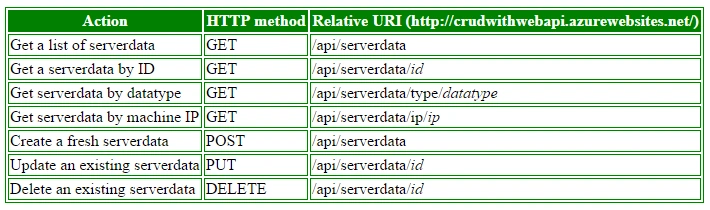
In this article we will use our earlier created ASP.NET WEB API hosted here: http://crudwithwebapi.azurewebsites.net/
We will try to discuss very simple resources in this article. The following are the resources of our Web API:
Let's Start Creation of a Sample Project
Use the following procedure to create a sample project:
- Start Visual Studio and select "File" -> "New" -> "Project..." (or enter Ctrl + Shift + N).
- From Installed templates Visual C# -> Store Apps -> Windows Phone Apps -> Blank App (Windows Phone)

- Provide a name to your new project, I called it ConsumeWebAPIInWindowsPhone to make it a self-explanatory name
- Just a note, I checked Add to source control since I will make this a GitHub repository
- Now click on Ok
- We will get a blank Windows Phone APP
- Add the following XAML code to our MainPage.xaml file
- Add the following code to our MainPage.xaml.cs file
- Add a new class, ServerData.cs, under the Data Model folder and provide the following code:
- public class ServerData
- {
- public int Id { get; set; }
- public string InitialDate { get; set; }
- public string EndDate { get; set; }
- public int OrderNumber { get; set; }
- public bool IsDirty { get; set; }
- public string IP { get; set; }
- public int Type { get; set; }
- public int RecordIdentifier { get; set; }
- }
This section is optional and we are not using a HTTP client in our demo. If you are a fan of HTTP Clients then this section is for you, just read and make changes in your application accordingly.
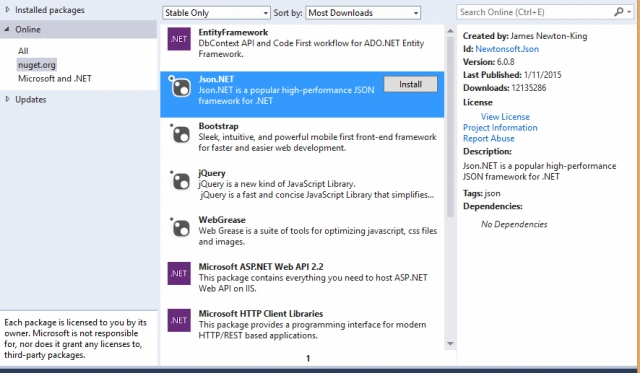
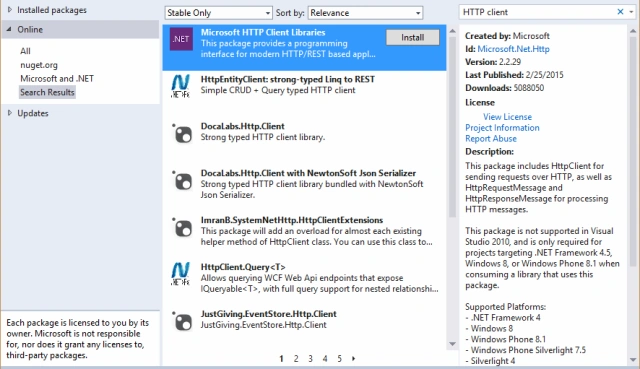
We will consume ASP.NET Web APIs with a JSON response, so, we need both a HTTP client and JSON.NET (to serialize/deserialize our JSON data).
- Open Nuget Managerment console and type following command:
- Install-Package Microsoft.Net.Http
- Install-Package Newtonsoft.Json
Add the following snippet into MainPage.xaml.cs:
- private async void GetServerData_HTTPClient(object sender, RoutedEventArgs e)
- {
- try
- {
- using (HttpClient client = new HttpClient())
- {
- client.BaseAddress = new Uri("http://crudwithwebapi.azurewebsites.net");
- var url = "api/serverdata";
- client.DefaultRequestHeaders.Accept.Add(new MediaTypeWithQualityHeaderValue("application/json"));
- HttpResponseMessage response = await client.GetAsync(url);
- if (response.IsSuccessStatusCode)
- {
- var data = response.Content.ReadAsStringAsync();
- var lstData = JsonConvert.DeserializeObject<List<ServerData>>(data.Result.ToString());
- LstServerData.ItemsSource = lstData;
- }
- }
- }
- catch (Exception ex)
- {
- MessageBox.Show(ex.Message);
- }
- }
In this article, we will use RestSharp for Windows Phone, a ReST client. Let's add the same from Nuget:
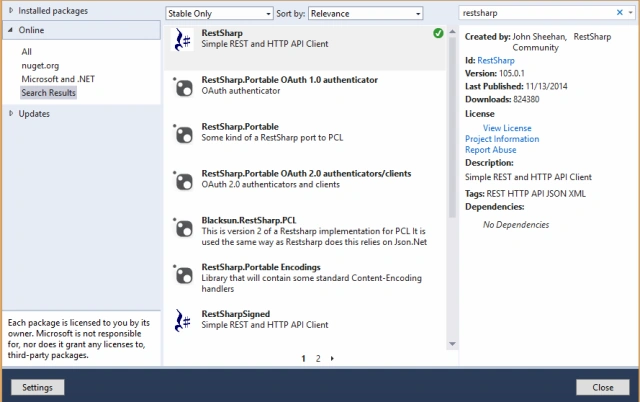
Alternatively, type following command in Package Manager Console
- Install-Package RestSharp
Now, we are ready to write a simple code to call our Web API.
Create Layout
Let's make it very simple, so, add the following XAML code to the MainPage.xaml file:
- <Grid x:Name="ContentPanel" Grid.Row="1" Margin="12,0,12,0">
- <ListBox x:Name="LstServerData">
- <ListBox.ItemTemplate>
- <DataTemplate>
- <Grid Background="DarkOrange" Width="460" Height="150" Margin="0,10,0,0">
- <StackPanel Orientation="Vertical">
- <TextBlock Text="{Binding Title}" Foreground="Black" FontSize="30" Margin="10,10,0,0"/>
- <TextBlock Text="{Binding Description}" FontSize="20" Margin="10,10,20,0" TextWrapping="Wrap"/>
- </StackPanel>
- </Grid>
- </DataTemplate>
- </ListBox.ItemTemplate>
- </ListBox>
- </Grid>
Create Application Title
Just add the following lines before the preceding snippet to make a descent Title for our application:
- <StackPanel x:Name="TitlePanel" Grid.Row="0" Margin="12,17,0,28">
- <TextBlock Text="Demo: Consume Web API" Style="{StaticResource PhoneTextNormalStyle}" Margin="12,0"/>
- <TextBlock Text="Server Data" Margin="9,-7,0,0" Style="{StaticResource PhoneTextTitle1Style}"/>
- </StackPanel>
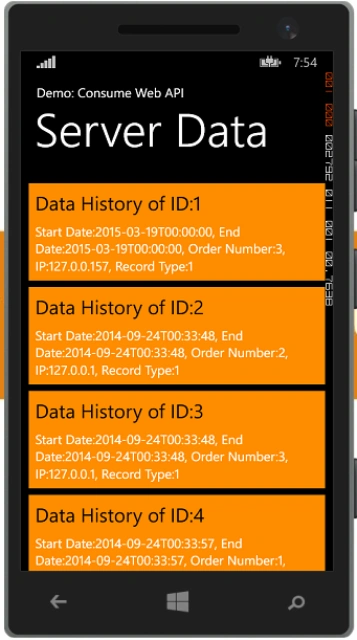
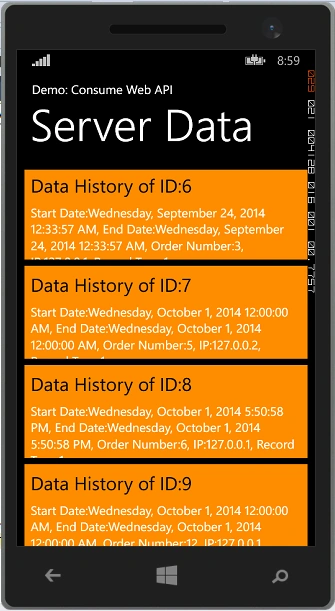
To ensure we are calling our Web API, we need a method to make a call. We want to make this demo as simple as possible, so I am not considering any patterns and programming principles, if you want to extend please try to use some SOLID Programming Principles. To learn more about SOLID Principles read this article: SOLID Programing Principles.
To make a call, just add the following snippet into the MainPage.xaml.cs file:
Santhakumar MunuswamyPosted Jun 14, 2015, 3:03 PM
Thanks for good work:)
Gowtham RajamanickamPosted Mar 25, 2015, 11:26 PM
good one,,
Vithal WadjePosted Mar 23, 2015, 1:37 PM
another outstanding work,keep it up
Shridhar SharmaPosted Mar 23, 2015, 11:19 AM
learned something new today. Nice one Gaurav Kumar Arora sir.
Tom MohanPosted Mar 23, 2015, 4:49 AM
Nice one
Shuby AroraPosted Mar 22, 2015, 4:06 PM
Looks like this article placed in wrong section it should be in the Mobile development instead of asp.net.
Shuby AroraPosted Mar 22, 2015, 4:05 PM
One more nice article.