

Introduction
In this article we show how to consume a WCF service in a Windows Metro Style Application with Visual Studio 2011. So, first we are going to explore a WCF service in a Metro Style Application in Visual Studio 2011 on Windows 8. In Windows Metro Style, we have to select a RadioButton, Textbox, Hyperlink and Button and interact with a WCF service in .NET Framework 4.5. This application, upon button click event, loads the data. It is a useful and fully functional web service in Metro Style Apps and it can save efforts (make things easier).
First we have to make a simple WCF service and Metro Style Application customer. So, lets make a WCF service:
- Open Visual Studio 2011
- New>File>Asp.Net Empty Web Application
- Rename this Application

After creating the application, the service interface will look like as:
Code
using System;
using System.Collections.Generic;
using System.Linq;
using System.Runtime.Serialization;
using System.ServiceModel;
using System.Text;
using System.ServiceModel.Web;
// NOTE: You can use the "Rename" command on the "Refactor" menu to change the interface name "ISimpleService" in both code and config file together.
[ServiceContract]
public interface ISimpleService
{
[OperationContract]
[WebGet(UriTemplate = "Data", ResponseFormat = WebMessageFormat.Json)]
List<string> getsomedata();
}
We have to implement the service with the following code.
Code
using System;
using System.Collections.Generic;
using System.Linq;
using System.Runtime.Serialization;
using System.ServiceModel;
using System.Text;
using System.ServiceModel.Web;
// NOTE: You can use the "Rename" command on the "Refactor" menu to change the class name "SimpleService" in code, svc and config file together.
public class SimpleService : ISimpleService
{
public List<string> getsomedata()
{
List<string> lst =new List<string>();
for (int i=0; i<10; i++)
{
System. Threading.Thread.Sleep(100);
lst.Add(string.Format("total number{0}",i + 1));
}
return lst;
}
}
Output : Here is the web service output.
Here we have to return a list of strings.
Now, we have to publish a WCF service and access this service in a Metro Style Application on the local host.
So, We have to create a Metro Style Application to access this service. We have to follow these steps such as given below.
- Right-click on Solution Item
- Add a new project
- Select Metro Style Application in the template bar
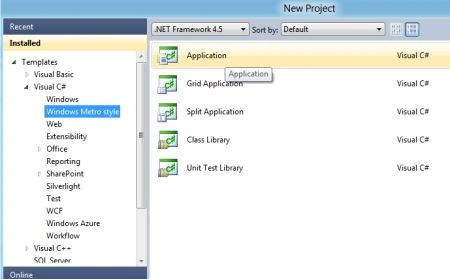
Now, we have to add a service reference.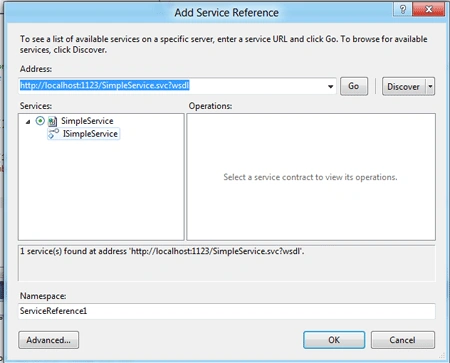
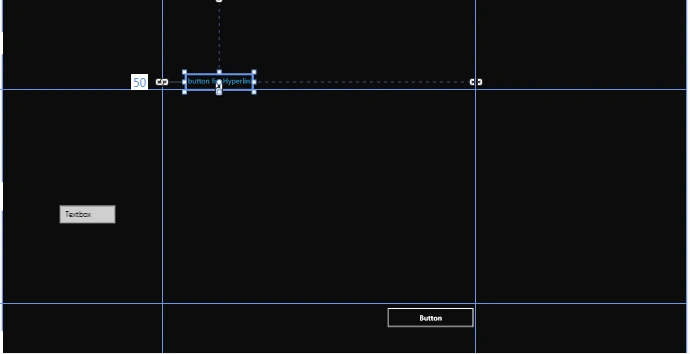
In the GridView we have to add the Textbox, RadioButton, Hyperlink, Button and set the format in the GridView. The XAML code will look like as in the following:
Code
Vijay PrativadiPosted Mar 21, 2012, 12:53 PM
Thanks for Sharing...Great Work!!!