

Introduction
Imagine waking up to the aroma of freshly brewed coffee, your thermostat adjusting to the perfect temperature, and your lights gradually brightening—all automatically. Sounds like a dream, right? Well, this dream becomes a reality with Home Assistant, an open-source smart home platform.
But here's the catch: installing Home Assistant the traditional way can be daunting. Enter Docker, a tool that makes deploying applications easy, scalable, and efficient. By containerizing Home Assistant, you create an isolated, portable environment that eliminates software conflicts, simplifies updates, and ensures smooth operation.
In this article, I’ll take you through a step-by-step process of setting up Home Assistant on Docker—even if you’re a beginner. By the end, you’ll have a smart home hub running seamlessly, ready to automate your daily life.
What’s Docker, and Why Should You Care?
Imagine you’re moving houses. Instead of packing each plate, cup, and fork separately, you put everything into labeled containers. Docker does the same for software. It wraps apps (like Home Assistant) into isolated “containers” that include everything they need to run—code, settings, libraries—so they work seamlessly anywhere.
Why Use Docker for Home Assistant?
- Simplicity: Traditional installations often require dependencies that might conflict with other software. Docker eliminates this hassle by packaging everything into a self-contained unit.
- Portability: Moving your setup to another device? With Docker, it's as simple as copying a few files.
- Effortless Updates: Updating Home Assistant in a traditional setup can be tricky. With Docker, a simple `` command gets you the latest version without breaking anything.
- Lightweight and Efficient: Docker runs without the overhead of a full virtual machine, making it resource-friendly..magine you’re moving houses. Instead of packing each plate, cup, and fork separately, you put everything into labelled containers. Docker does the same for software. It wraps apps (like Home Assistant) into isolated “containers” that include everything they need to run—code, settings, libraries—so they work seamlessly anywhere.
Step 1. Installing Docker
Before we deploy Home Assistant, let’s get Docker up and running. I’ll assume you’re using Ubuntu (the most common choice), but Docker works on Windows, macOS, and even Raspberry Pi OS.
For Ubuntu/Debian Users
-
Prep your system:
sudo apt update && sudo apt upgrade -y sudo apt install apt-transport-https ca-certificates curl software-properties-common -y -
Add Docker’s official repository:
curl -fsSL https://download.docker.com/linux/ubuntu/gpg | sudo gpg --dearmor -o /usr/share/keyrings/docker-archive-keyring.gpg echo "deb [arch=$(dpkg --print-architecture) signed-by=/usr/share/keyrings/docker-archive-keyring.gpg] https://download.docker.com/linux/ubuntu $(lsb_release -cs) stable" | sudo tee /etc/apt/sources.list.d/docker.list > /dev/null - Install Docker Engine:
sudo apt update sudo apt install docker-ce docker-ce-cli containerd.io -y - Avoid “Permission Denied” errors:
sudo usermod -aG docker $USER
newgrp docker  # Reload group permissions without logging out
Test Docker: Run
docker run hello-world. If you see a cheerful message, you’re golden!
Step 2. Setting Up Home Assistant’s “Home”
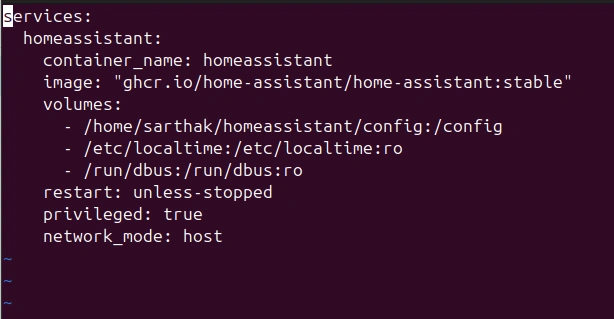
Containers are ephemeral—they forget everything when they stop. To save your smart home’s settings, automation, and device history, we’ll create a persistent storage directory.


Join the conversation! Your thoughts help the community grow.