

Microservice Architecture and Containerization using docker are the latest buzzwords in the software industry. But, many people, including me, in the software industry who are developing big monolithic enterprise applications using .NET Framework for many years have a very limited scope of applying these concepts into existing applications. Well, it's not easy to break the enterprise monolithic application into a microservice architecture without redesigning the application. Also, the .NET Core framework would be the de-facto choice for microservice architecture because it supports cross-platform and can be hosted in Linux containers or Windows containers easily. As of today, Windows Docker container does not support GUI applications, such as WinForms, WPF etc. However, we can still consider modernizing .NET Framework monolithic applications by packaging into docker images for automated end-to-end testing or security testing.
In this article, I will explain how to containerize a simple N-Tier CRUD MVC application using docker. We will create a separate app server and database server container images and deploy and run the simple N-Tier MVC application. If you are new to docker, I would recommend you first read this article about docker for developers and watch the awesome pluralsight course of Modernizing .NET Apps with Docker by Elton Stoneman.
How it works
I took the N-Tier Application on ASP.NET MVC - A Complete Solution from the MSDN Code web site that runs on full .NET Framework. This sample application does the basic CRUD operation for maintaining Employees' data using Model-View-Controller pattern with Repository Pattern and N-Tiers Deployment Architecture Pattern. We will modernize this application by containerizing into a docker image. This application will have a separate database and application server instance. The database server will be based on the Docker version of SQL Server Developer Edition and application server is based on microsoft/aspnet:latest docker image. Every time a new container instance is created, a new database is created and all the data that was created in the prior container instance is destroyed when the container instance is stopped. This works perfectly for automated testing scenarios.
Steps
Now, I am going to explain about the docker-compose file to orchestrate how to build and deploy a .NET Framework application into a docker container. Visual Studio provides the default container orchestration support for .NET Web Projects. You can add it by right-clicking on the web project and selecting "Container Orchestration Support" as below.
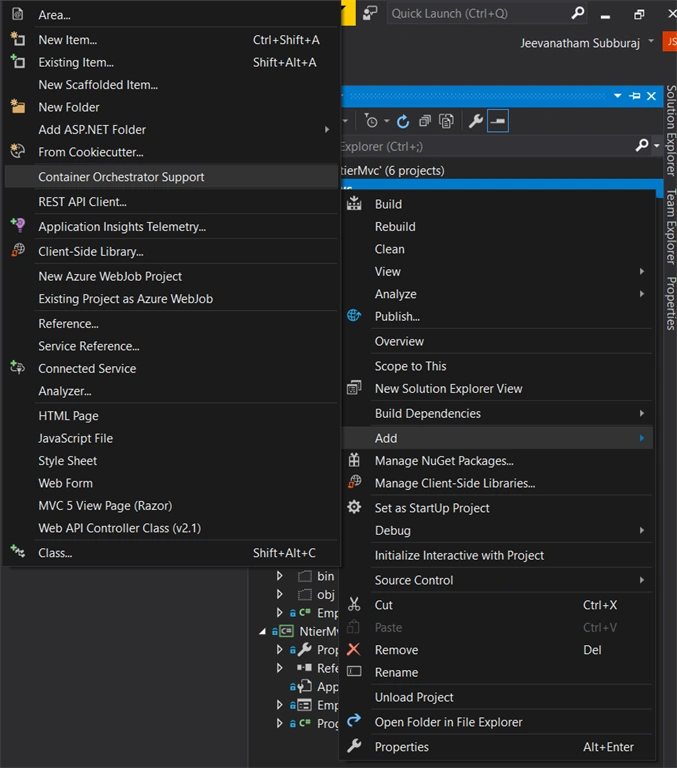
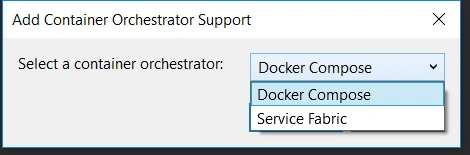
However, I am not using the built-in container orchestration support feature for creating the docker-compose file. I created it manually from scratch using Visual Studio Code Editor.
docker-compose
In the root folder of the project, create a new file called docker-compose.yml with the below code. I used VS Code as my editor because it has great support for yaml file with intelliSense.
- version: '3'
- services:
- docker_ntierdemo_app:
- image: jeevasubburaj/dockerntierdemo_app:v1
- build:
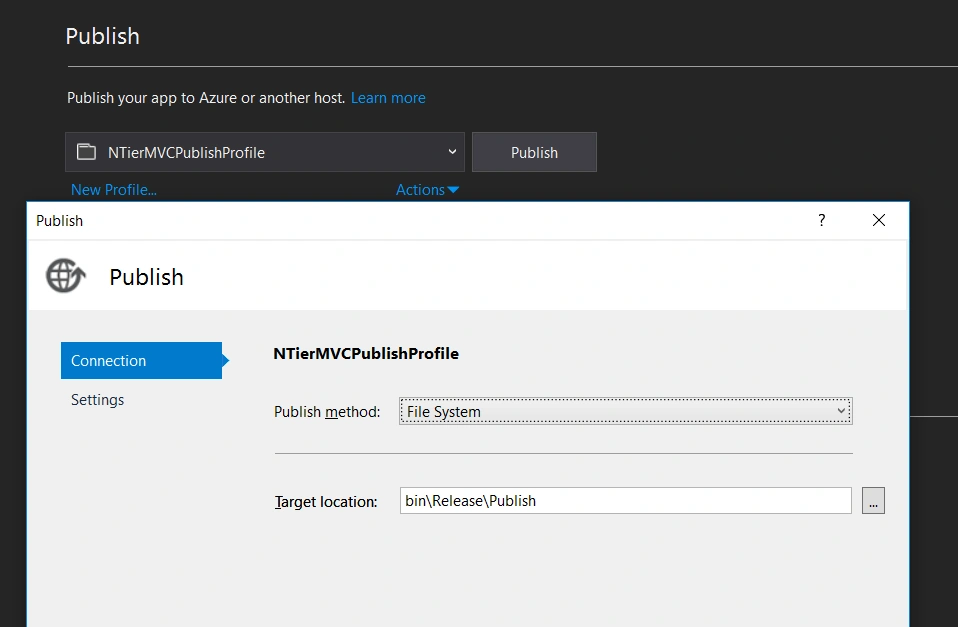
- context: ./NtierMvc/bin/Release/Publish
- depends_on:
- - docker_ntierdemo_db
- hostname: ${APP_UUID}
- container_name: ${APP_UUID}
- networks:
- docker_ntierdemo-net:
- ipv4_address: 172.16.238.20
- docker_ntierdemo_db:
- image: jeevasubburaj/dockerntierdemo_db:v1
- build:
- context: ./Database
- ports:
- - "14333:1433"
- env_file: db_dev.env
- hostname: ${DB_UUID}
- container_name: ${DB_UUID}
- networks:
- docker_ntierdemo-net:
- ipv4_address: 172.16.238.21
- networks:
- docker_ntierdemo-net:
- ipam:
- driver: default
- config:
- - subnet: 172.16.238.0/24
Let's talk about each line in the above docker-compose file to understand what is going on. Before we take a deep dive into that, I would recommend you to read the official docker-compose guide from the docker website.
- version: '3'
This is the version of the docker-compose format that we use in this example.
- services:
- docker_ntierdemo_app:
- ....
- docker_ntierdemo_db:
Service's definition contains the configuration applied to each container started for that service. In our example, we will be creating an application and the Database Server Services.
Before we go into services in detail, let us discuss how to create environment variables in docker-compose using a .env file and custom env files. We are going to create some custom environment variables, such as hostname and SQL Server login password etc. to access it from the docker-compose file.
By default, you can set your environment variables using a .env file which docker-compose automatically looks for. If you want to create a custom environment file, you can also do that and reference that file inside the docker-compose file. In this example, I used both. In addition to that, you can also create the environment variable inside the docker-compose file without creating an environment file.
Before we go into services in detail, let us discuss how to create environment variables in docker-compose using a .env file and custom env files. We are going to create some custom environment variables, such as hostname and SQL Server login password etc. to access it from the docker-compose file.
By default, you can set your environment variables using a .env file which docker-compose automatically looks for. If you want to create a custom environment file, you can also do that and reference that file inside the docker-compose file. In this example, I used both. In addition to that, you can also create the environment variable inside the docker-compose file without creating an environment file.
.env file
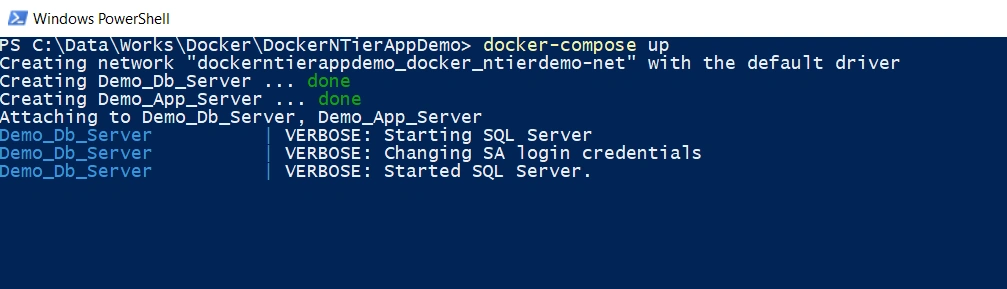
- APP_UUID=Demo_App_Server
- DB_UUID=Demo_Db_Server
db_dev.env
- SA_PASSWORD=P@ssw0rd
- ACCEPT_EULA=Y
In this custom environment file, I have defined the default SA Account password and accepted the EULA flag for the SQL Server to start inside the container.
Database Server Services
- image: jeevasubburaj/dockerntierdemo_db:v1
- build:
- context: ./Database
- ports:
- - "14333:1433"
- env_file: db_dev.env
- hostname: ${DB_UUID}
- container_name: ${DB_UUID}
In the first line, I defined the name of the image with version number.
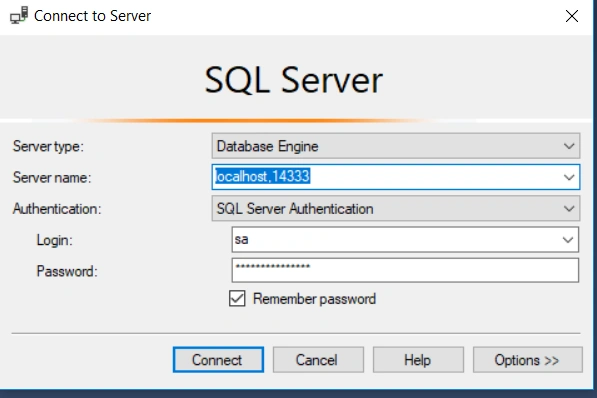
Before we jump into the build section, let us look at other references in that section. I mapped the default SQL port 1433 from the container into 14333 on the host port using ports configuration so that you can connect the database from your host server with servername as localhost,14333. This step is optional only.
We have also defined the hostname and container_name using an environment variable. This will be needed to configure the database server name in our web.config, before we deploy the application into the container.
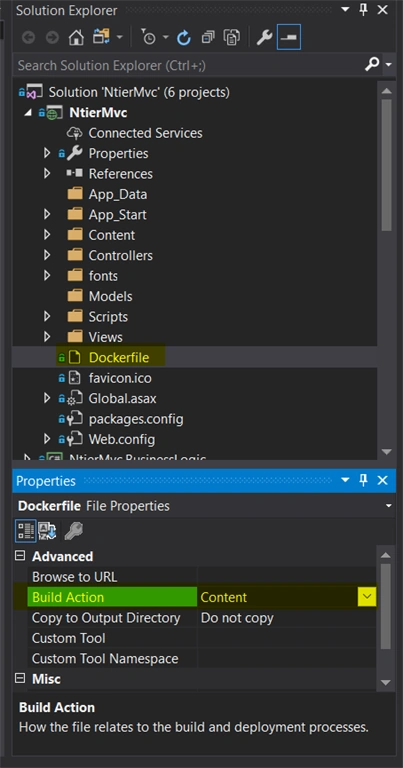
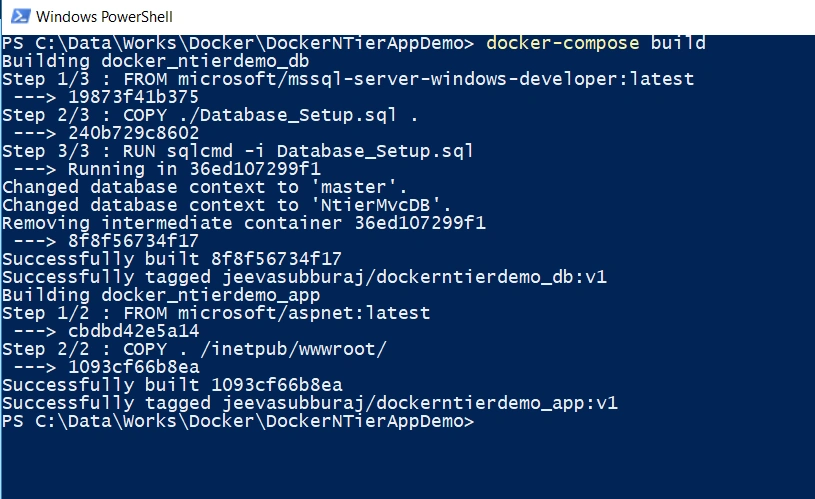
Build configurations are applied at docker build time. The context configuration defines the path to a directory containing the DockerFile. I created a new folder Database and placed the DockerFile and Database_Setup.sql file and pointing the context to that folder. When we build the docker image using docker-compose, it runs the DockerFile inside the Database Folder and build the database image. By Default, it will look for the file with the name of DockerFile. If you want to create a custom DockerFile Name, you have to add dockerfile configuration to specify the custom docker file name.
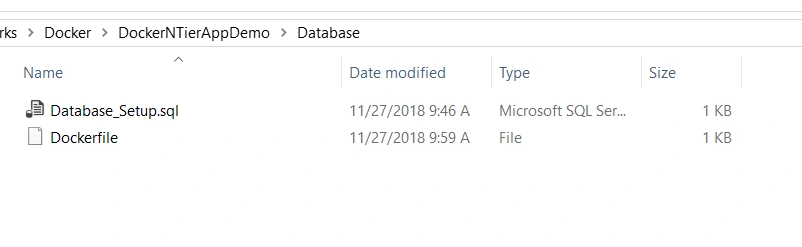
DockerFile
- FROM microsoft/mssql-server-windows-developer:latest
- COPY ./Database_Setup.sql .
- RUN sqlcmd -i Database_Setup.sql
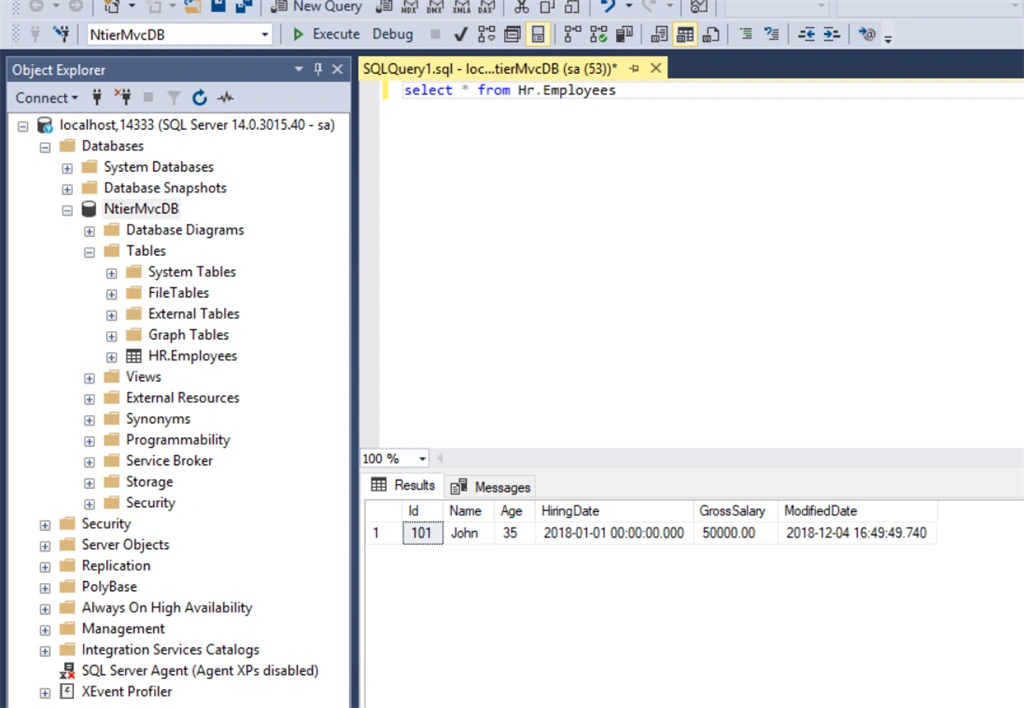
This dockerfile gets the base image from the sql server developer edition and coiesy the Database_Setup.sql into the image and executes the SQL query using sqlcmd command which will create the database and the tables defined in the SQL file.
Database_Setup.sql



Gaurav GahlotPosted Dec 8, 2018, 10:04 PM
Great share. Certainly helpful.
Satyaprakash SamantarayPosted Dec 7, 2018, 9:51 AM
Good job and thanks for sharing.