

We are going to discuss the basic workflow of Continuous Integration using TeamCity, Docker, and GitHub with the help of .NET Core Web API.
Agenda
- Introduction of TeamCity
- Features of TeamCity
- TeamCity Continuous Integration
- Step-by-step implementation of .NET Core Web API
- TeamCity Installation
- Build steps and other configurations of TeamCity
Prerequisites
- GitHub
- TeamCity
- Docker Desktop with Docker Hub Login Credentials
- Visual Studio 2022
- .NET Core 6 SDK
Introduction of TeamCity
- TeamCity is the general-purpose CI/CD Tool which is which automates all sorts of application builds, releases, and deployment with minimum configuration
- It supports all continuous integration and continuous deployment-related things right from build, test, and deploy in the software development
- CI/CD is the main part of DevOps and many tools in the market are used by many organizations like Jenkins, TeamCity, Azure DevOps, and many more.
- This makes it easier for a developer to just focus on software development for better productivity by integrating changes rather than focusing on the build, testing and deploying of the application
Features of TeamCity
- Integration with multiple IDE’s
- Easy to configure and Installation
- Multi-platforms support
- User-Friendly Interface
- Build History
- Code Quality Tracking
TeamCity Continuous Integration
- In the continuous integration process, we integrate all the latest code changes which are committed by the developer into the git and any other.
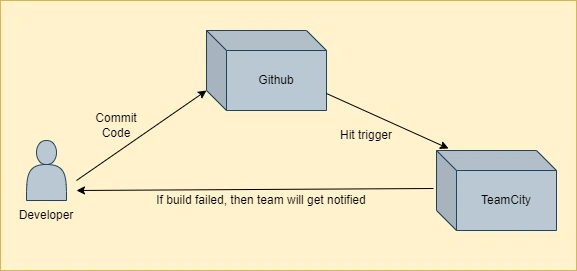
- In real-time multiple developers are working on the same branch and EOD will commit their work to the git.
- Later on, the Team City server will trigger the build pipeline whenever the new code is committed, run a test case, and create an error-free build for many environments like QA, DEV, and Production as per our needs.
- If some build and unit test cases failed then the user will get notified about that and again the new code will come and this process is continuously work
- If you want to learn more about Jenkins then read the official documentation (https://www.jetbrains.com/help/teamcity/teamcity-documentation.html)
Step-by-step implementation of .NET Core Web API
GitHub URL
https://github.com/Jaydeep-007/TeamCityDemo.git
Step 1
Create a new .NET Core Web API

Step 2
Configure application

Step 3
Provide additional information
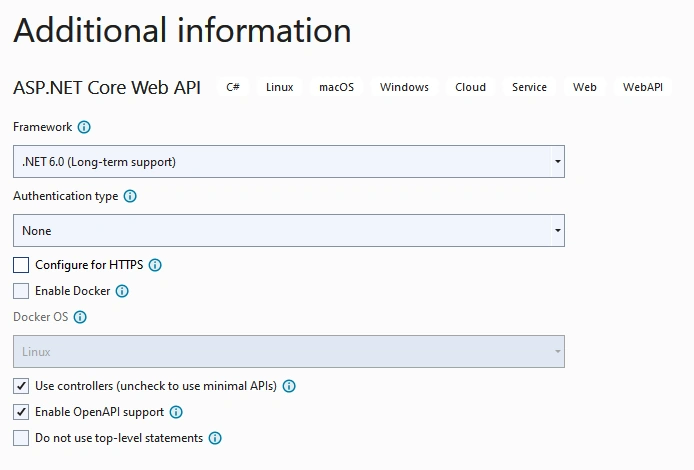
Step 4
Project structure
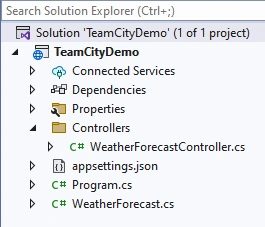
Step 5
Edit Program class
var builder = WebApplication.CreateBuilder(args);
// Add services to the container.
builder.Services.AddControllers();
// Learn more about configuring Swagger/OpenAPI at https://aka.ms/aspnetcore/swashbuckle
builder.Services.AddEndpointsApiExplorer();
builder.Services.AddSwaggerGen();
var app = builder.Build();
// Configure the HTTP request pipeline.
//if (app.Environment.IsDevelopment())
//{
   app.UseSwagger();
   app.UseSwaggerUI();
//}
app.UseAuthorization();
app.MapControllers();
app.Run();
Step 6 - Add Docker file
Right-click on the solution and add Docker Support (Note: Make sure Docker Desktop is running on your system)
If you don’t have a docker desktop then download it from
https://docs.docker.com/desktop/install/windows-install/
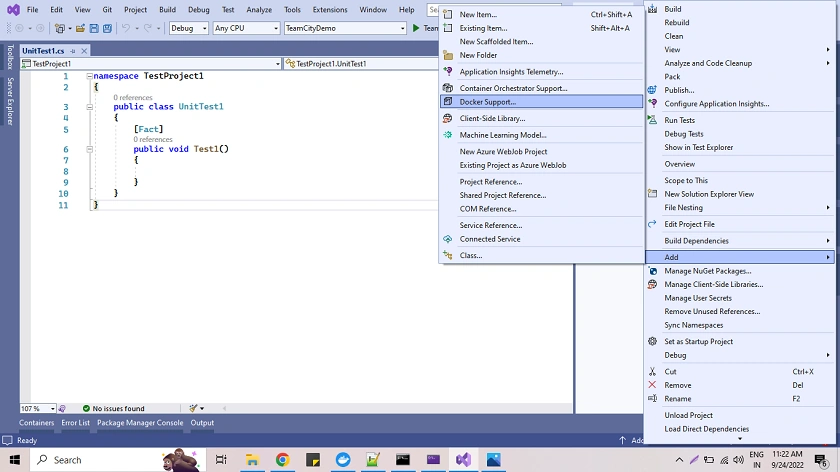
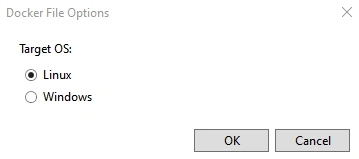
It will create one Docker file. Put that file inside the root folder of the project solution
#See https://aka.ms/containerfastmode to understand how Visual Studio uses this Dockerfile to build your images for faster debugging.

FROM mcr.microsoft.com/dotnet/aspnet:6.0 AS base
WORKDIR /app
EXPOSE 80

FROM mcr.microsoft.com/dotnet/sdk:6.0 AS build
WORKDIR /src
COPY ["TeamCityDemo/TeamCityDemo.csproj", "TeamCityDemo/"]
RUN dotnet restore "TeamCityDemo/TeamCityDemo.csproj"
COPY . .
WORKDIR "/src/TeamCityDemo"
RUN dotnet build "TeamCityDemo.csproj" -c Release -o /app/build

FROM build AS publish
RUN dotnet publish "TeamCityDemo.csproj" -c Release -o /app/publish

FROM base AS final
WORKDIR /app
COPY --from=publish /app/publish .
ENTRYPOINT ["dotnet", "TeamCityDemo.dll"]
Step 7
Push your code into Git Repository which we are going to be using inside TeamCity
TeamCity Installation
Step 1
Download TeamCity using the following URL
https://www.jetbrains.com/teamcity/download/
Step 2
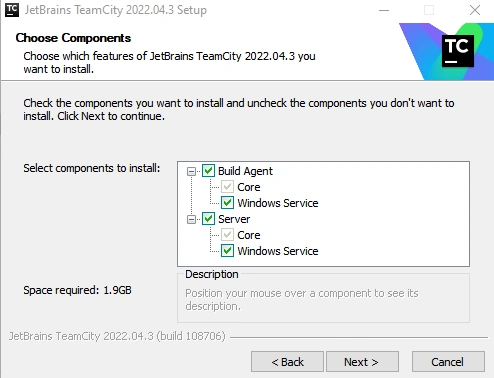
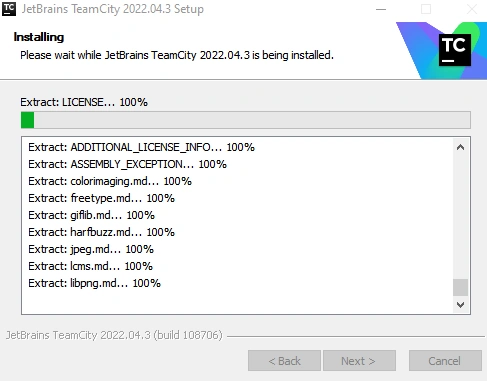
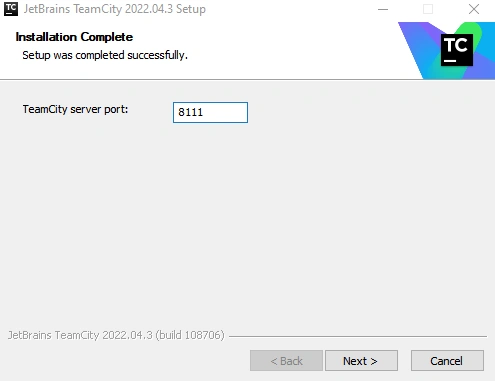
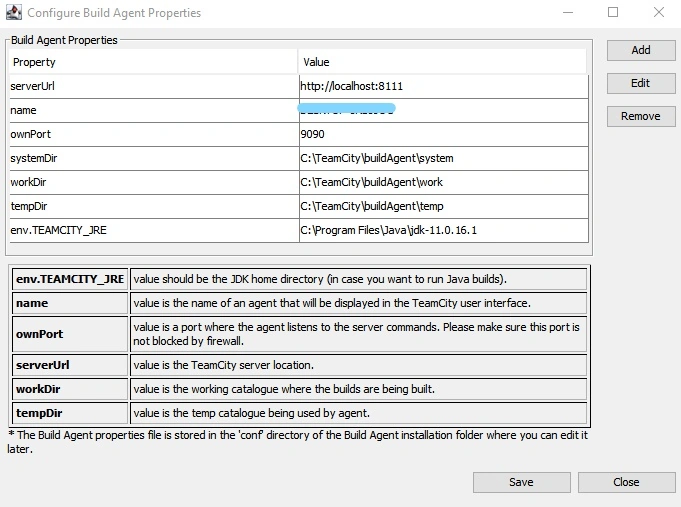
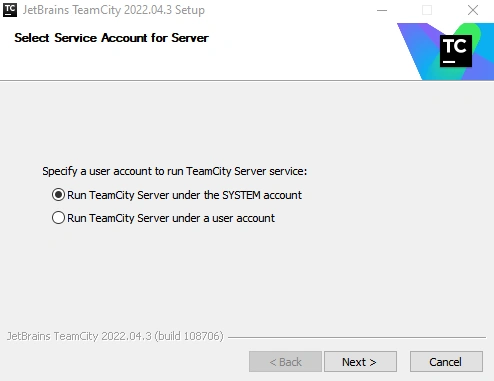
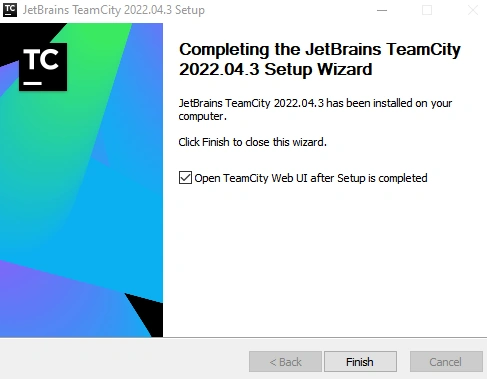
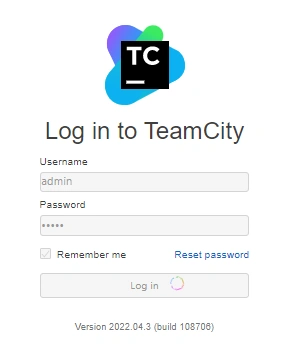
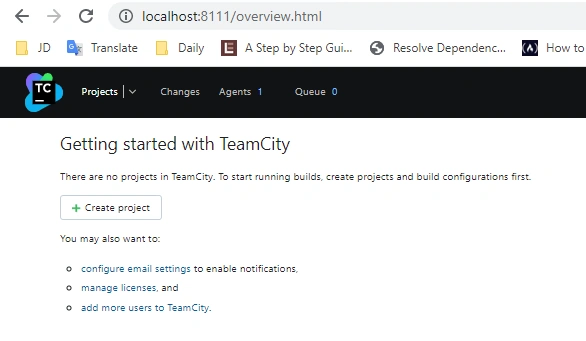
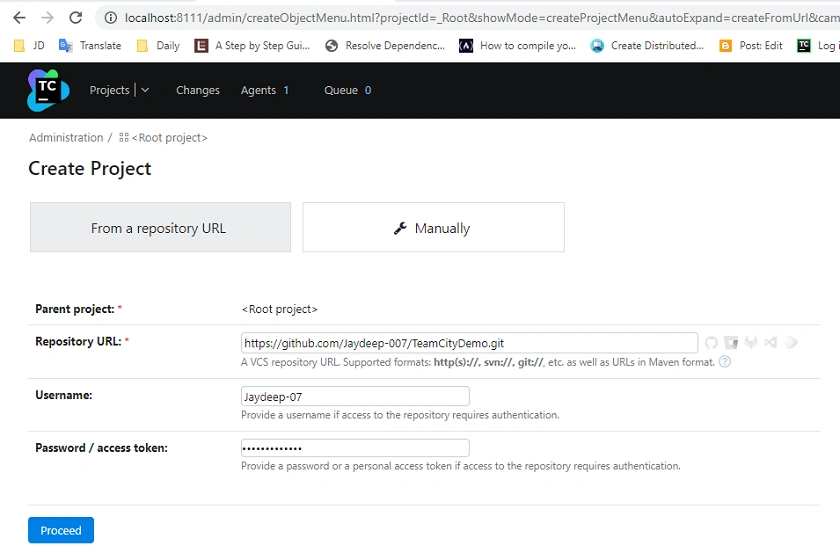
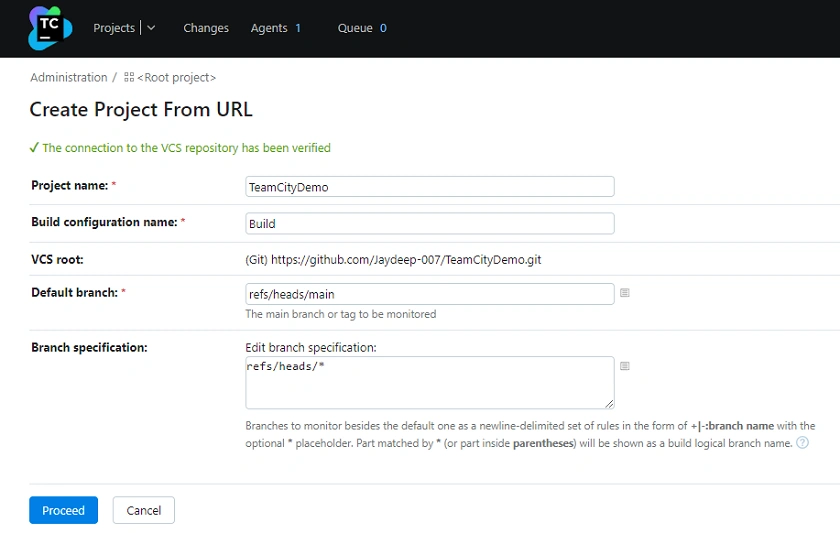
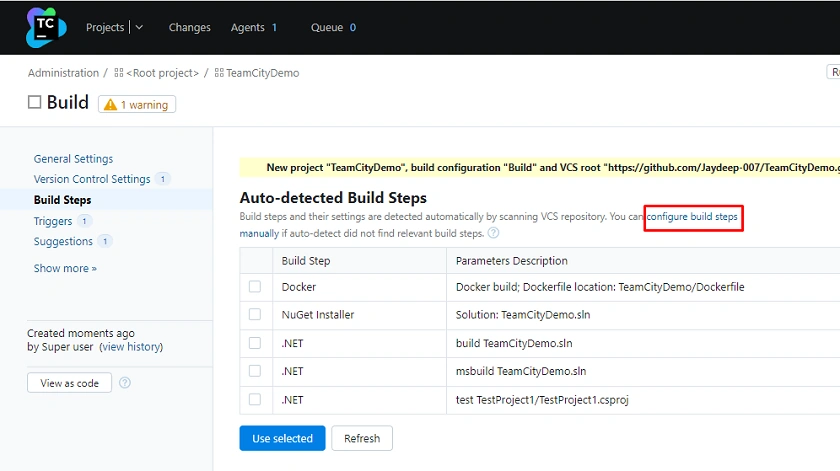
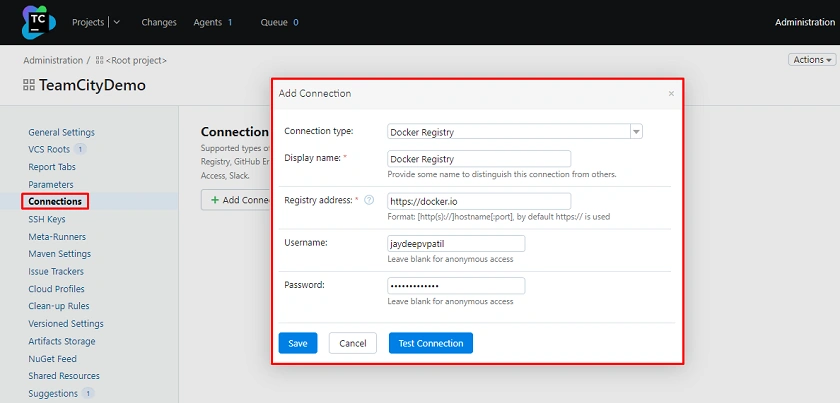
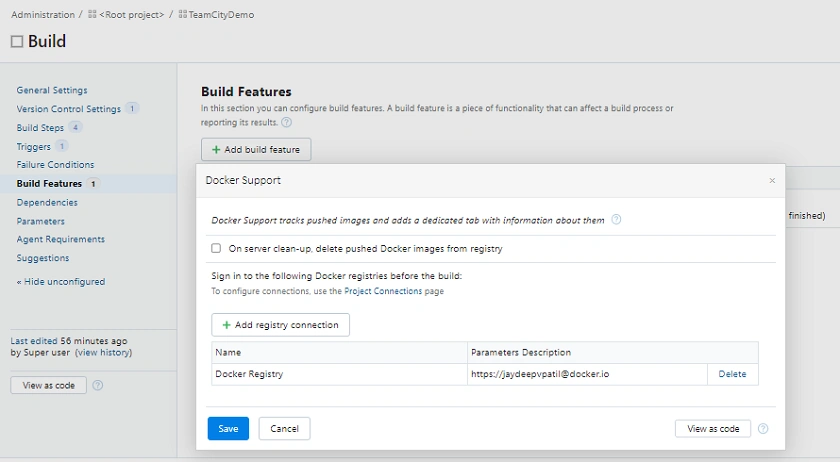
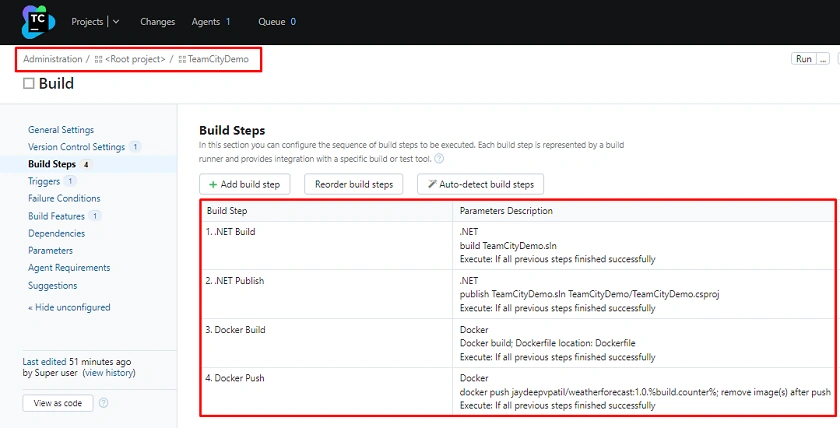
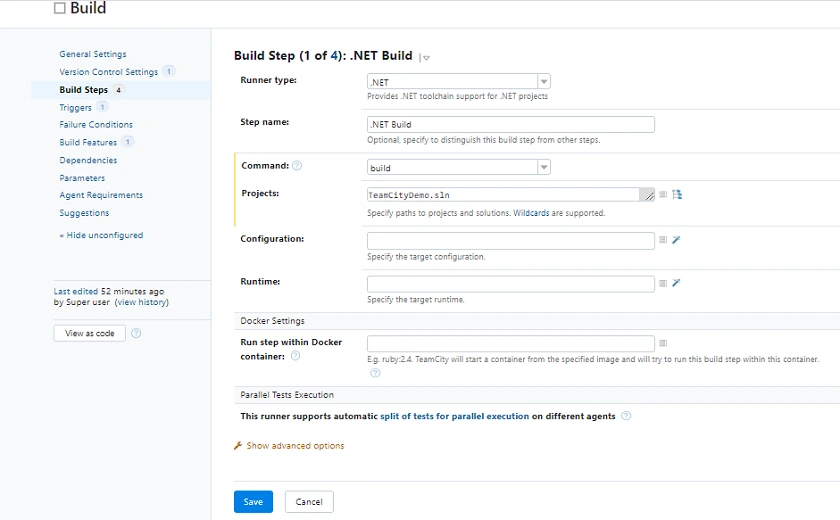
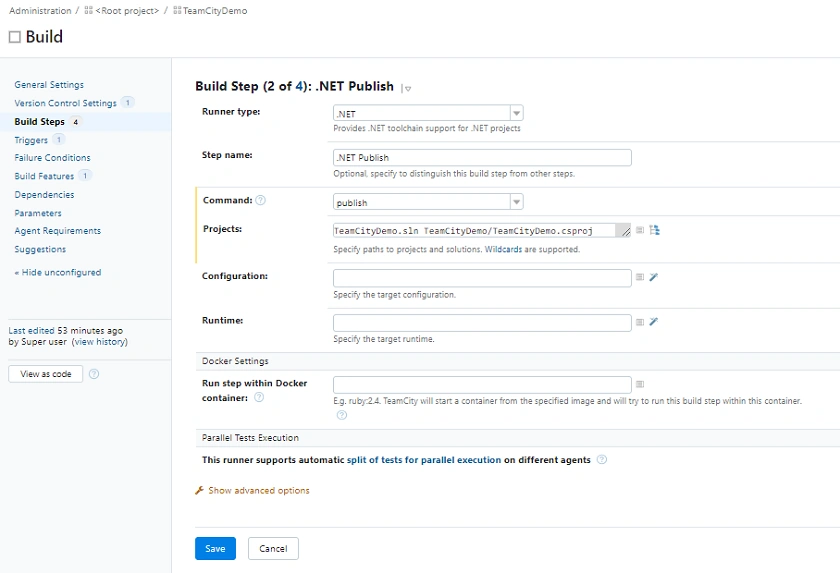
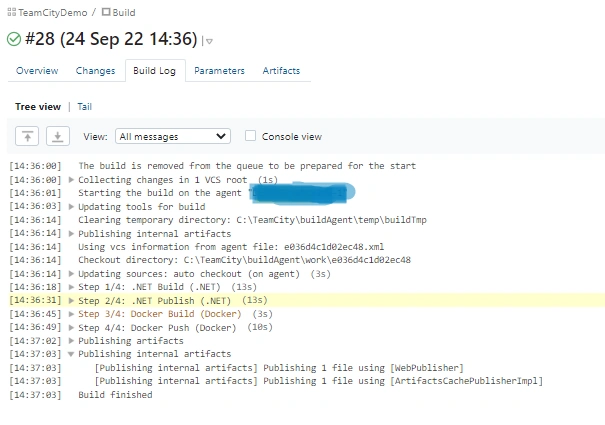
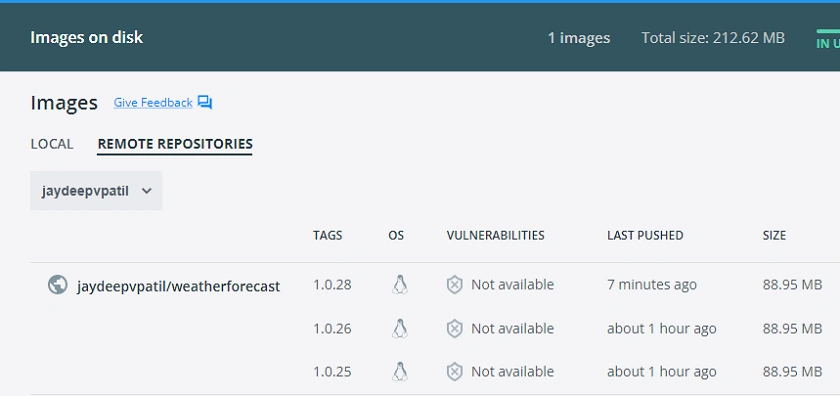
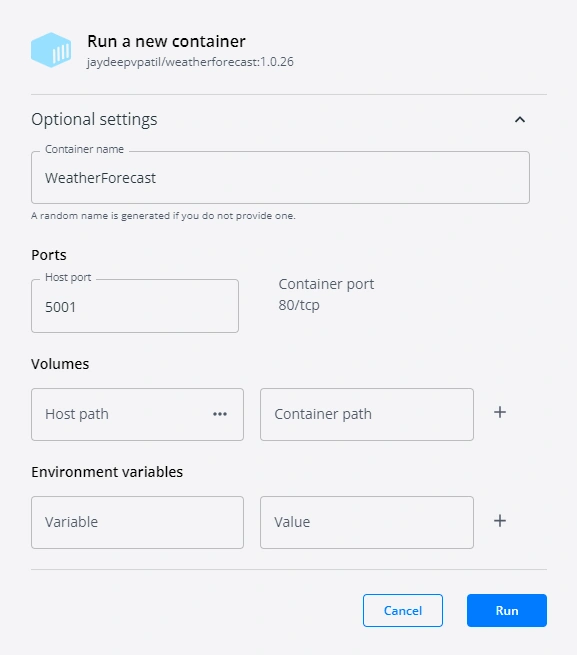
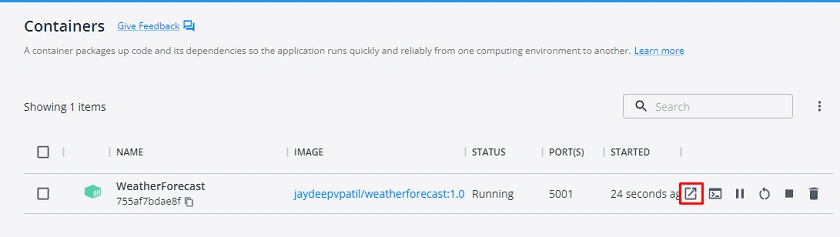
Open the EXE and follow the steps I showed in the following images
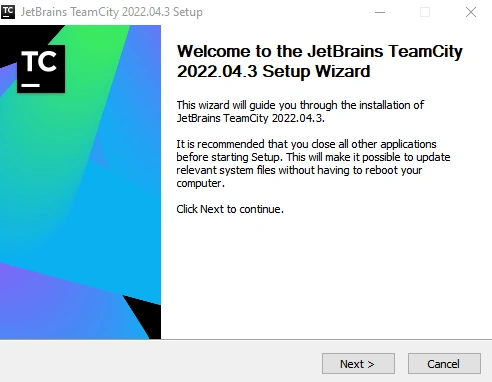
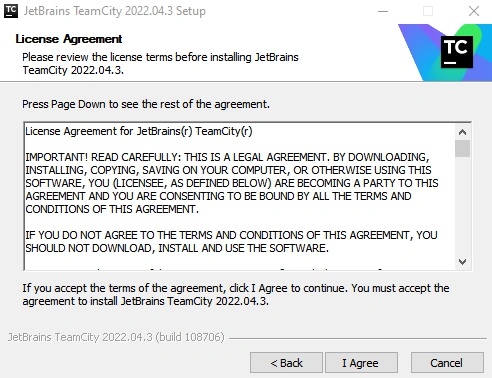
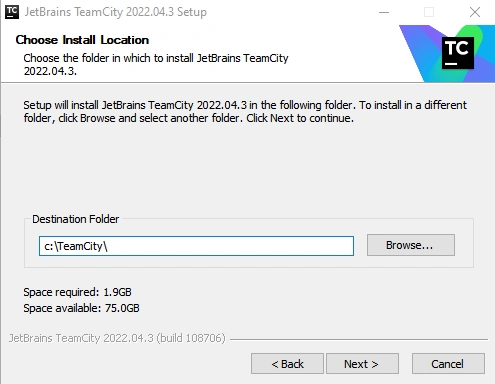
Vishal YelvePosted Oct 2, 2022, 3:48 PM
Nice article