
Introduction
This article explains the Control class and Tab order. The Control class is a base class for Windows Presentation Foundation (WPF) controls. It inherits from the FrameworkElement type. Unlike FrameworkElement and the other WPF base classes, Control is not a super class for all of the WPF layout controls. It is the base class only for controls that have a template. These controls that can be heavily customised by replacing the basic template with new visuals.
Background
We will be looking at the process of modifying a control's template. We'll be seeing some of the other properties and events supplied by Control. We will also consider a window's tab order.
Solution
It's important for users to be able to navigate the controls logically with key presses. Microsoft Windows uses the concept of a tab order for keyboard navigation. Pressing the tab key moves the focus between controls. The tab order determines in which order items are visited when pressing tab. The order is reversed if the user holds the Shift key whilst tapping tab.
Procedure
The default tab order for a window is determined by the position of each control within the logical tree. When pressing only the tab key, the first control visited will be the one that is closest to the top of the tree. Further taps of the key will move the focus through the tree. In many cases the tab order matches the order in which controls are defined in the XAML.
Step 1
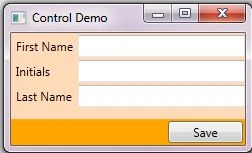
Create a new WPF application project in Visual Studio. Name the project "ControlTabOrderDemo". Once the project is initialised, replace the XAML in the main window with the code below:
<Window x:Class="ControlTabOrderDemo.MainWindow"
xmlns="http://schemas.microsoft.com/winfx/2006/xaml/presentation"
xmlns:x="http://schemas.microsoft.com/winfx/2006/xaml"
Title="Control Demo"
Height="150"
Width="250">
<DockPanel Background="Orange">
<Button DockPanel.Dock="Bottom"
HorizontalAlignment="Right"
VerticalAlignment="Bottom"
Margin="2"
Width="75"
IsTabStop="False">Save</Button>
<Grid Background="PeachPuff">
<Grid.ColumnDefinitions>
<ColumnDefinition Width="Auto"/>
<ColumnDefinition/>
</Grid.ColumnDefinitions>
<Grid.RowDefinitions>
<RowDefinition Height="25"/>
<RowDefinition Height="25"/>
<RowDefinition Height="25"/>
SubashPosted Sep 30, 2016, 7:09 AM
Nice one