

Introduction
Parts Lists
Hardware Parts
- Arduino Uno
- Fan
- Bread Broad
- Hookup Wires
Software Parts
- Arduino IDE
- Python IDLE
Connection
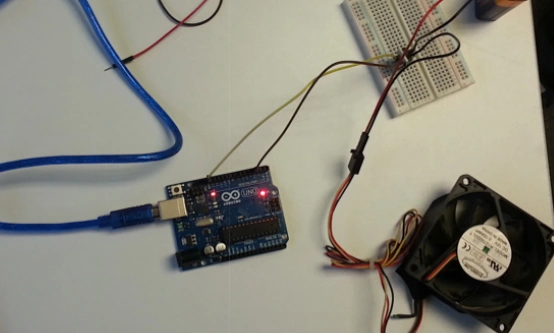
Connecting the fan to the Arduino Board is simple. Given below are the instructions for connecting the fan.
| Fan | Board |
| Positive Side | 10 |
| Negative Side | Gnd |
- int Fan = 10;
- char mydata = 0;
- void setup()
- {
- pin Mode(Fan, OUTPUT);
- Serial begin(9600);
- }
- void loop()
- {
- my data = int(serial.read());
- if (y data = = '1') digitalWrite(Fan, HIGH);
- if (mydata = = '0') digitalWrite(Fan, LOW);
- }
In the Arduino Side, run the above program. If we set 1, it will be high and if we set 0, it will be low.
Python Programming
- import Serial
- import time
- from tkiner import*
- def Fan_on();
- arduinoData.write(b '1')
- def Fan_off( );
- arduinoData.Write(b '0')
- Fan_control_Window=Tk( )
- btn = Button(Fan_control_window,text = "Fan on",command = Fan_on)
- btn2 = Button(Fan_control_window,text = "Fan off",command = Fan_off)
- btn.pack( )
- btn2.pack()
- arduinoData= Serial.Serial("COM4",9600)
Explanation
In Python, the above program is used to connect the Serial monitor with the Board. For creating the ON and OFF buttons in Python, the following code will be used:
- Fan_control_Window=Tk( )
- btn = Button(Fan_control_window,text = "Fan on",command = Fan_on)
- btn2 = Button(Fan_control_window,text = "Fan off",command = Fan_off)
Output
RajaPosted Aug 17, 2016, 5:24 AM
Nice Share..
Vignesh ManiPosted Jul 21, 2016, 4:46 PM
Nice One
kalu singh raoPosted Jul 21, 2016, 1:48 AM
Good one
Sreekanth ReddyPosted Jul 21, 2016, 1:06 AM
Superb... Great work.
Anu VPosted Jul 20, 2016, 11:59 PM
Nice