

Client-Side Rendering was introduced in SharePoint 2013. The primary purpose of CSR is to provide the conditional formatting of the data present within the List Views. Prior to SharePoint 2013, XSLT formatting was the way to implement the conditional formatting of List Views. XSLT formatting requires an in depth knowledge of working with XSL and debugging was also cumbersome. However with CSR, we can tap in to the rendering process and override the default properties of the List View, using JavaScript and convert SharePoint List Data to modified HTML.
Some of the properties that can be overridden are given below.
- OnPreRender
- OnPostRender
- View
- Body
- Item
- Fields
- Header
- Footer
OnPrerender allows us to write some logic even before List View is rendered, while OnPostrender allows us to modify List View, once the view has been rendered. Similarly, each of the properties can be overridden during run time to accomplish different List View modifications and at different List View locations.
Chart JS

Chart JS is an open source JavaScript charting library, using which we can create different types of charts by pumping in the data to the chart creation command. We can download the latest version of Chart.js on GitHub or just use these Chart.js CDN links.
What are we going to do?
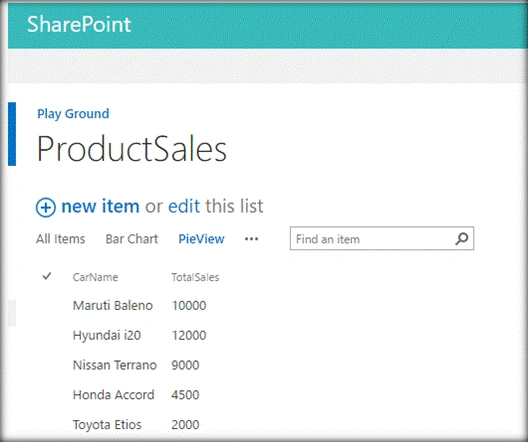
In this walk through, we will use Chart JS along with Client Side Rendering (CSR) to convert SharePoint List View data into a Radar Chart during the run time. Initially, SharePoint List will have the car sales details of the vehicles.
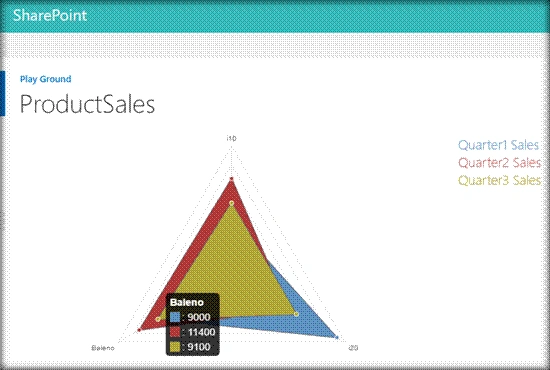
During the run time, we will make use of JSLink and convert it to Radar Chart representation given below.
You can also see, how we can convert the list view to Bar chart from the article.
Prerequisites
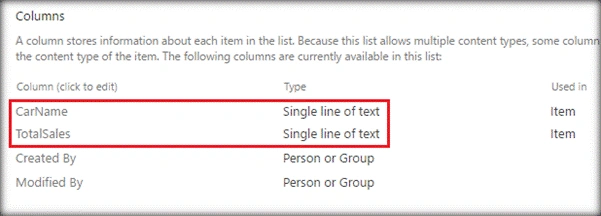
- A SharePoint List with the columns given below. Create a new View named ‘RadarView’, which we will convert to the graphical representation, using CSR and Chart JS.
- Download Chart JS from js on GitHub or just use these Chart.js CDN links. Upload it to SharePoint Site Assets.
- Get jQuery minified version. Upload it to SharePoint Site Assets.
The required JS files are zipped and uploaded along with this article too. You can use it as well.
Implementation
Once the above prerequisites are in place, let’s go to the implementation logic. At a high level, ChartJS works by placing a div in the page and uses the new command to create a chart, using the available values at the particular div. In order to get started, we will require a couple of arrays, which will hold the values from SharePoint List, which will be plotted in Radar Chart.
- // Declare the arrays used for Chart Creation
- var RadarChart = RadarChart || {};
- Colors = ['#5e92c1', '#b23a3a', '#b2a839'];
- ChartTitle =[];
- Q1Values = [];
- Q2Values = [];
- Q3Values= [];
- Description = '';
The main starting point function of Client Side Rendering is discussed below. During the runtime, we will override the header, footer and Item properties of the context information object.
- var ContextOverride = {};
- Templates = {};
- Templates.Header = RadarChart.Header;
- Templates.Item = RadarChart.Item;
- Templates.Footer = RadarChart.Footer;
- TemplateManager.RegisterTemplateOverrides(ContextOverride);
An Item override method will run for each SharePoint list item. It will push SharePoint list item values to the variable arrays, which we had declared earlier. These data arrays will be used to plot Radar chart. The Value attribute will store SharePoint Values and Color attribute stores Radar chart color to be associated with it. Description will store the legend details, which will also act as a hyperlink towards the corresponding list item.
- Item = function(ctx) {
- var Q1Val = ctx.CurrentItem.Quarter1.replace(",", "");
- var Q2Val = ctx.CurrentItem.Quarter2.replace(",", "");
- var Q3Val = ctx.CurrentItem.Quarter3.replace(",", "");
- ChartTitle.push(ctx.CurrentItem.Product);
- Q1Values.push(parseInt(Q1Val));
- Q2Values.push(parseInt(Q2Val));
- Q3Values.push(parseInt(Q3Val));
- return '';
- }
Chat JS requires a div element with an Id, which will be used while running the new command to create the chart. This div element will be added to the page by overriding the Header property. In the Footer Property override method, we will create the chart, using new chart command and this command takes in parameter array‘data’, which contains the list data and color schemes to be used.
S CPosted Apr 9, 2020, 6:51 AM
In case you're looking for a file download associated to this article, there isn't one. But, click through the Bar Chart link, and it has one in the upper left corner, just under the ads.
S CPosted Apr 9, 2020, 6:47 AM
There are 3 pictures in the article that aren't rendering. Can you put them back in. Maybe there's something in there that I'm missing, as the descriptions provided are not enough content to make this work. Maybe check some of your wording, and be more explicit in your descriptions.
S CPosted Apr 8, 2020, 7:54 PM
When you say to download Chart JS from GitHub, is it ONLY the one file called chart.js, or is it all of the files in the chart.js.zip?
S CPosted Apr 8, 2020, 7:45 PM
The "shortcut" reference for the JSLink entry has a radar.js. I cannot find that file anywhere in the Chart.js.zip. So, why is this part of the shortcut?
Paul WisePosted Apr 26, 2019, 6:38 AM
Hi Priyaranjan, I am trying to get CSR working on my list to render a Radar Chart from the data. I have followed and checked all steps in your article and downloaded the Zip files but I cannot get it render. We are using SharePoint Online. It just shows the list view without any chart, any ideas? I know this article is a couple of years old, is there a better method?