

Introduction
Cloud SQL is a fully managed database service that makes it simple to line up, maintain, manage, and administer your relational PostgreSQL and MySQL databases within the cloud. Cloud SQL offers high performance, scalability, and convenience. Hosted on the Google Cloud Platform, Cloud SQL provides a data infrastructure for applications running at any place.
We will see all the steps to create a Google Cloud SQL instance. We will create a project in the Google Cloud console and then, we will create a MySQL instance and will connect this instance from MySQL Workbench 8.0 Community Edition. We will create a database and table. Later, we will connect this table and database from our Blazor application.
About Blazor Framework
Blazor is a .NET web framework from Microsoft using C#/Razor and HTML that runs in the browser with Web Assembly. Blazor provides all the benefits of a client-side web UI framework using .NET on the client and optionally, on the server.
I have already written many articles on Blazor on C# Corner. If you are new to it, please refer to the below articles to get started with Blazor.
- Single Page Application With Blazor And CosmosDB
- Blazor - CRUD Using PostgreSQL And Entity Framework Core
- Blazor - Connect With Amazon DynamoDB Using AWS SDK
- Blazor - Work With Cassandra API In Cosmos DB
- Localization In Blazor App Using Microsoft.JSInterop
- Blazor - Create SPA With Azure Database For MariaDB Server
- Blazor - Connect With Oracle Database In Amazon RDS
- Get C# Corner RSS Feeds In Blazor Project
- C# Corner RSS Feeds In Blazor With Pagination
- Deploy Blazor Application On AWS Cloud Using Elastic Beanstalk
- Azure Redis Cache With Azure SQL In Blazor Project
- Single Page Application In Blazor With Azure Table Storage
- Create A Simple Chart By Date For The Latest C# Corner Article Count
- Remotely Debug the Blazor App On Azure From Visual Studio
Create Google Cloud SQL instance with MySQL engine
You must create a Google Cloud account before starting it. Currently, Google provides a one-year free membership with $300 credits.
Log into the Google Cloud console with your Google credentials.
Please select a project if you have any. Otherwise, you can click the “New Project” button to create a new project.
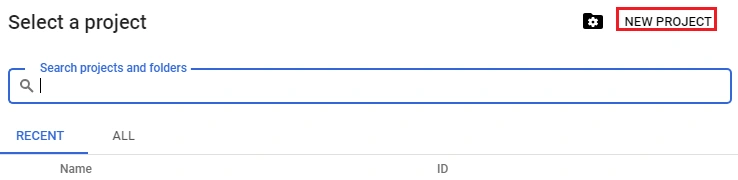
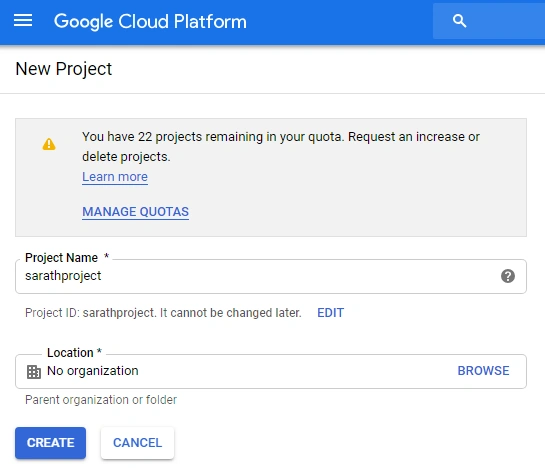
Choose a unique name for your project and click the “Create” button to start project creation.
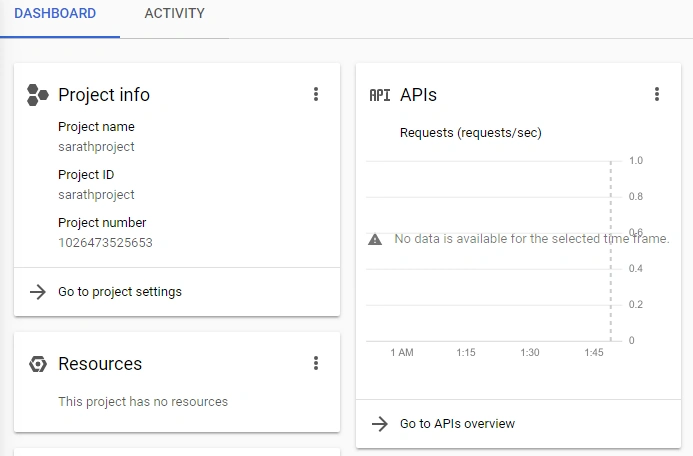
Your project will be ready in a few minutes. You can choose the project and it will list the project details on the dashboard.
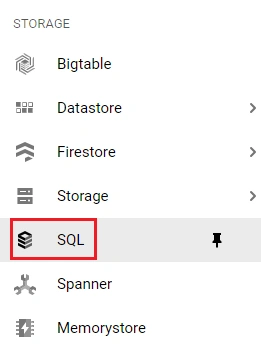
We can create the Cloud SQL instance now. Please choose the SQL tab from the left-side menu.
Click the “Create Instance” button to proceed.
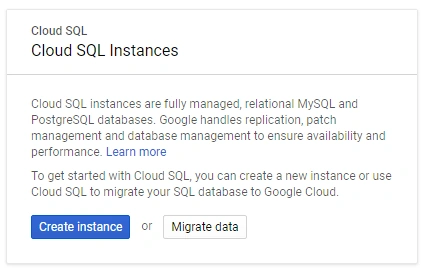
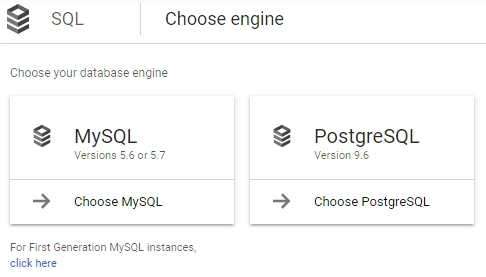
Currently, Google Cloud SQL supports MySQL and PostgreSQL engines. Here, we have selected the MySQL engine.
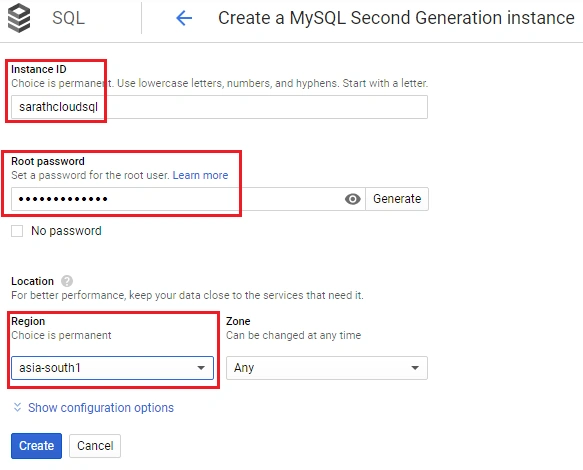
We can give a valid instance name and give a password to the “root” user. Please note this is a default user. We can later change the password if needed. We can also create multiple users at a later stage. Here, I have chosen the “asia-south1” region. You can choose your convenient region.
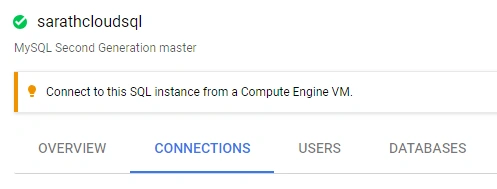
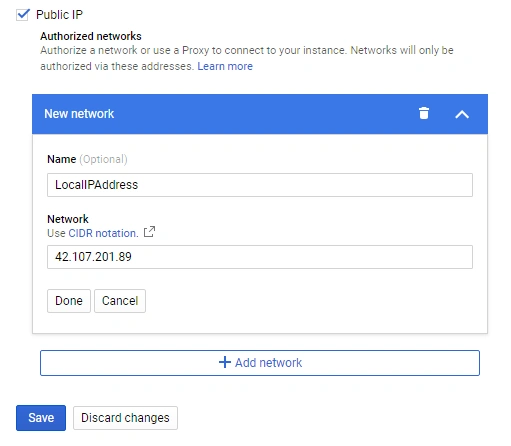
It will take some time to create the instance. Before connecting this instance with MySQL workbench, you must add your local IP address to the Cloud SQL authorized networks. You can open the "Connections" tab to add your local IP address.
Add your local IP address and "Save".
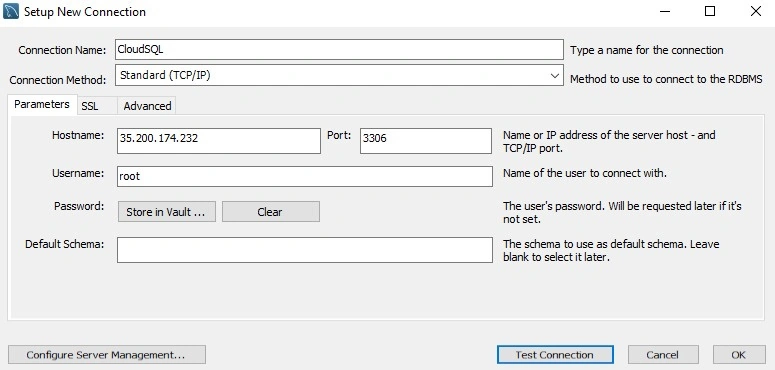
Now, we can connect the instance from the MySQL client. Here, we are using MySQL Workbench 8.0 Community Edition. It is a very good and free SQL Editor. We can give the instance details and test the connection.
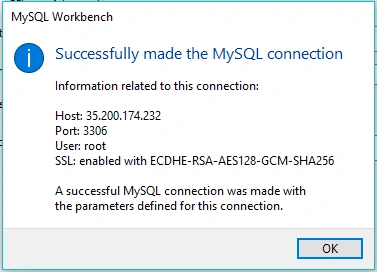
Our connection is successful now.
Open the SQL editor and create a database and table in the Cloud SQL instance.
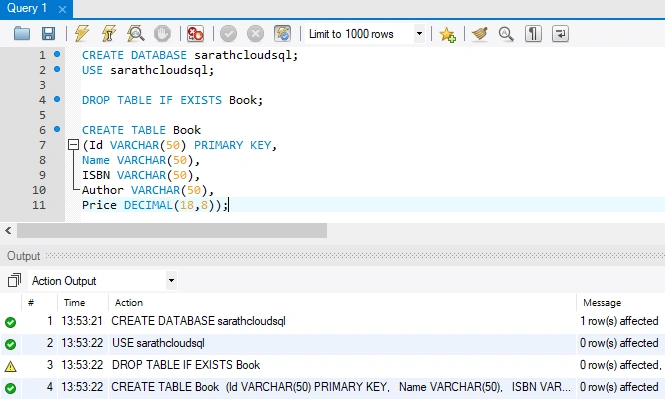
CREATE DATABASE sarathcloudsql;
USE sarathcloudsql;
DROP TABLE IF EXISTS Book;
CREATE TABLE Book
(
    Id VARCHAR(50) PRIMARY KEY,
    Name VARCHAR(50),
    ISBN VARCHAR(50),
    Author VARCHAR(50),
    Price DECIMAL(18,8)
);
Create a Blazor project in Visual Studio 2017
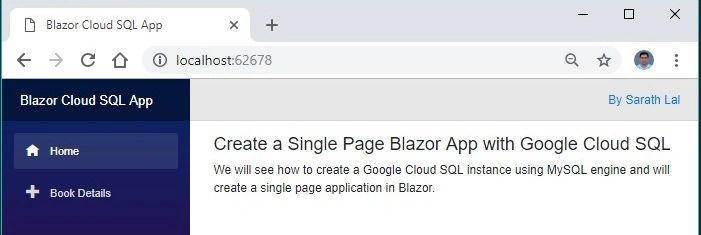
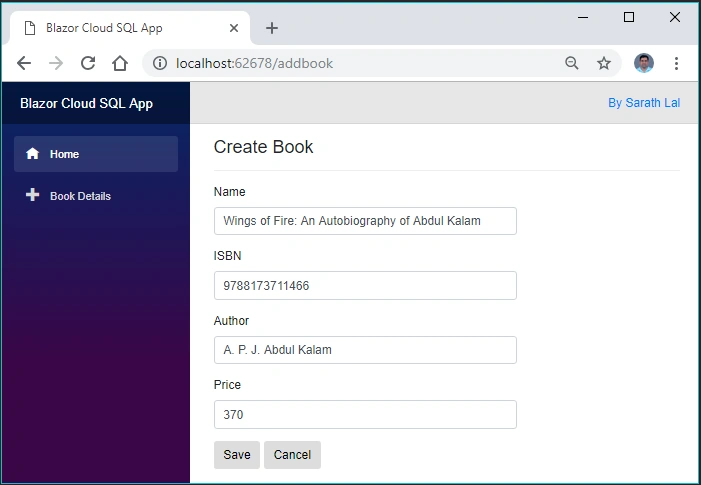
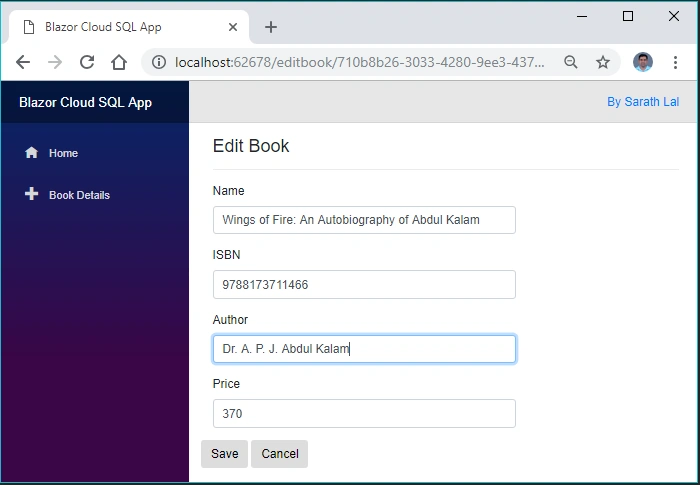
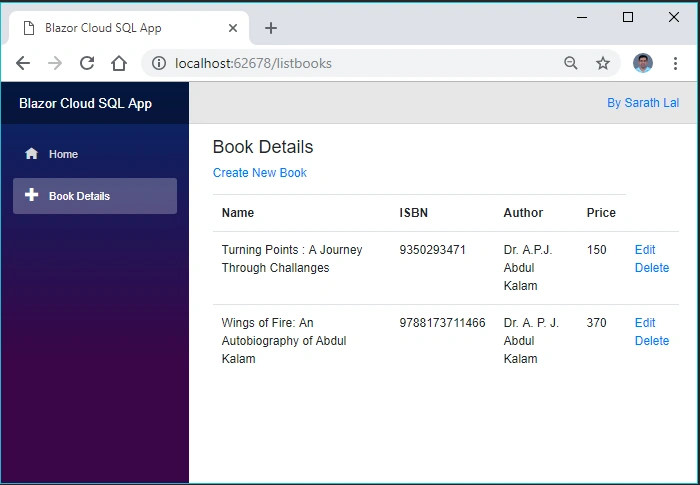
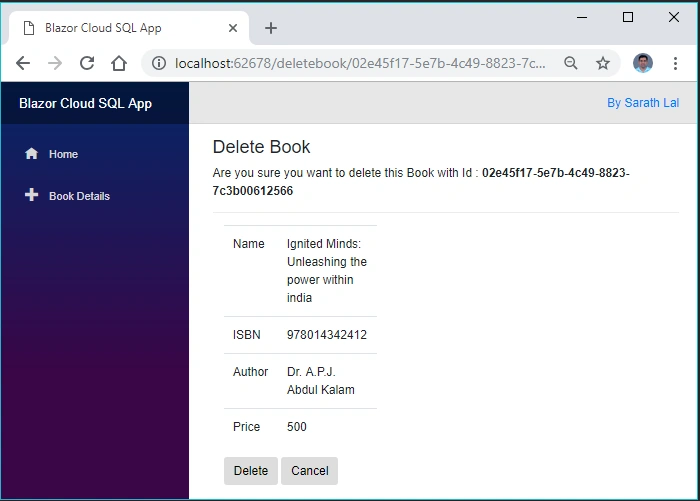
In this article, we will create a Book Data Entry single-page application. I am using the free Visual Studio 2017 Community edition to create the Blazor application.
Choose .NET Core -> ASP.NET Core Web Application template. Currently, there are three types of Blazor templates available. We chose the Blazor (ASP.NET Core hosted) template.
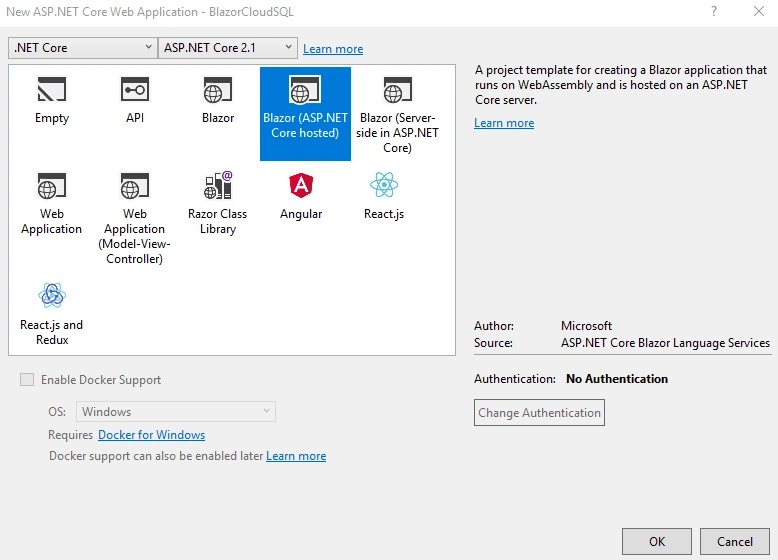
Our solution will be ready in a few minutes. Please note that there are three projects created in the solution - “Client”, “Server” and “Shared”.
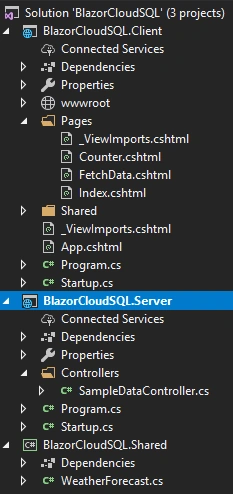
By default, Blazor created some files in these three projects. We can remove all the unwanted files like “Counter. cshtml”, “FetchData.cshtml”, “SurveyPrompt.cshtml” from the Client project and “SampleDataController.cs” file from the Server project and delete the “WeatherForecast.cs” file from the Shared project too.
Now, let us create a “Models” folder in the “Shared” project and create a “Book” class inside this.
Book. cs
namespace BlazorCloudSQL.Shared.Models
{
    public class Book
    {
        public string Id
        {
            get;
            set;
        }
        public string Name
        {
            get;
            set;
        }
        public string ISBN
        {
            get;
            set;
        }
        public string Author
        {
            get;
            set;
        }
        public decimal Price
        {
            get;
            set;
        }
    }
}
Install “MySql.Data” NuGet Package in the “Server” project. This package is developed by Oracle Corporation.
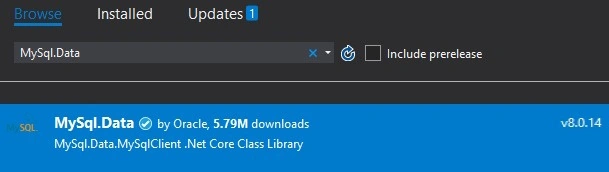
Create a “DataAccess” folder in the “Server” project and create a CloudSQLContext class inside the DataAccess folder. Add all the CRUD operation logic inside this class. We will call the methods in this class from our Controller class later.
CloudSQLContext.cs
using BlazorCloudSQL.Shared.Models;
using MySql.Data.MySqlClient;
using System;
using System.Collections.Generic;
using System.Data;
using System.Threading.Tasks;

namespace BlazorCloudSQL.Server.DataAccess
{
    public class CloudSQLContext
    {
        public string ConnectionString { get; set; }

        public CloudSQLContext(string connectionString)
        {
            ConnectionString = connectionString;
        }

        private MySqlConnection GetConnection()
        {
            return new MySqlConnection(ConnectionString);
        }

        public async Task<List<Book>> GetAllAsync()
        {
            List<Book> list = new List<Book>();

            using (MySqlConnection conn = GetConnection())
            {
                conn.Open();
                var commandText = @"SELECT Id,Name,ISBN,Author,Price FROM Book;";
                MySqlCommand cmd = new MySqlCommand(commandText, conn);

                using (var reader = cmd.ExecuteReader())
                {
                    while (await reader.ReadAsync())
                    {
                        list.Add(new Book()
                        {
                            Id = await reader.GetFieldValueAsync<string>(0),
                            Name = await reader.GetFieldValueAsync<string>(1),
                            ISBN = await reader.GetFieldValueAsync<string>(2),
                            Author = await reader.GetFieldValueAsync<string>(3),
                            Price = await reader.GetFieldValueAsync<decimal>(4),
                        });
                    }
                }

            }
            return list;
        }

        public async Task InsertAsync(Book book)
        {
            book.Id = Guid.NewGuid().ToString();

            using (MySqlConnection conn = GetConnection())
            {
                conn.Open();
                var commandText = @"INSERT INTO Book (Id,Name,ISBN,Author,Price) VALUES (@Id, @Name, @ISBN, @Author, @Price);";

                MySqlCommand cmd = new MySqlCommand(commandText, conn);

                cmd.Parameters.Add(new MySqlParameter
                {
                    ParameterName = "@Id",
                    DbType = DbType.String,
                    Value = book.Id,
                });

                cmd.Parameters.Add(new MySqlParameter
                {
                    ParameterName = "@Name",
                    DbType = DbType.String,
                    Value = book.Name,
                });

                cmd.Parameters.Add(new MySqlParameter
                {
                    ParameterName = "@ISBN",
                    DbType = DbType.String,
                    Value = book.ISBN,
                });

                cmd.Parameters.Add(new MySqlParameter
                {
                    ParameterName = "@Author",
                    DbType = DbType.String,
                    Value = book.Author,
                });

                cmd.Parameters.Add(new MySqlParameter
                {
                    ParameterName = "@Price",
                    DbType = DbType.Decimal,
                    Value = book.Price,
                });

                await cmd.ExecuteNonQueryAsync();

            }
        }

        public async Task UpdateAsync(Book book)
        {
            using (MySqlConnection conn = GetConnection())
            {
                conn.Open();
                var commandText = @"UPDATE Book SET Name=@Name, ISBN=@ISBN, Author=@Author, Price=@Price Where Id=@Id;";

                MySqlCommand cmd = new MySqlCommand(commandText, conn);

                cmd.Parameters.Add(new MySqlParameter
                {
                    ParameterName = "@Id",
                    DbType = DbType.String,
                    Value = book.Id,
                });

                cmd.Parameters.Add(new MySqlParameter
                {
                    ParameterName = "@Name",
                    DbType = DbType.String,
                    Value = book.Name,
                });

                cmd.Parameters.Add(new MySqlParameter
                {
                    ParameterName = "@ISBN",
                    DbType = DbType.String,
                    Value = book.ISBN,
                });

                cmd.Parameters.Add(new MySqlParameter
                {
                    ParameterName = "@Author",
                    DbType = DbType.String,
                    Value = book.Author,
                });

                cmd.Parameters.Add(new MySqlParameter
                {
                    ParameterName = "@Price",
                    DbType = DbType.Decimal,
                    Value = book.Price,
                });

                await cmd.ExecuteNonQueryAsync();
            }

        }

        public async Task DeleteAsync(string id)
        {
            using (MySqlConnection conn = GetConnection())
            {
                conn.Open();
                var commandText = @"DELETE FROM Book Where Id=@Id;";

                MySqlCommand cmd = new MySqlCommand(commandText, conn);

                cmd.Parameters.Add(new MySqlParameter
                {
                    ParameterName = "@Id",
                    DbType = DbType.String,
                    Value = id,
                });

                await cmd.ExecuteNonQueryAsync();
            }

        }

        public async Task<Book> FindOneAsync(string id)
        {
            using (MySqlConnection conn = GetConnection())
            {
                conn.Open();
                var commandText = @"SELECT Name,ISBN,Author,Price FROM Book Where Id=@Id;";
                MySqlCommand cmd = new MySqlCommand(commandText, conn);
                cmd.Parameters.Add(new MySqlParameter
                {
                    ParameterName = "@Id",
                    DbType = DbType.String,
                    Value = id,
                });

                using (var reader = cmd.ExecuteReader())
                {
                    if (await reader.ReadAsync())
                    {
                        return new Book()
                        {
                            Id = id,
                            Name = await reader.GetFieldValueAsync<string>(0),
                            ISBN = await reader.GetFieldValueAsync<string>(1),
                            Author = await reader.GetFieldValueAsync<string>(2),
                            Price = await reader.GetFieldValueAsync<decimal>(3),
                        };
                    }
                    else
                    {
                        return null;
                    }

                }
            }
        }
    }
}
Kubilay KucukogluPosted Aug 2, 2019, 6:43 AM
This is a very good Blazor crud sample especially for being the only sample for MYSQL.Thank you. But, i think a few things has changed in the latest Blazor preview cousing you code not to run. can you please update your code for the latest visual studio 2019 preview?