We often come across the need for using a customized master page, owing to various business needs. SharePoint has advanced much in terms of its master page design and deployment and gives much emphasis to non-server side components (HTML5/CSS3, Bootstrap, etc.)
This article is a step by step manual on how to create a Master page in SharePoint using HTML.
Step 1 - Create an HTML page
In this step, we will create the HTML page that will contain the basic layout and design elements of the master page. Let us create a simple design with a header and a footer. Something like the image below,
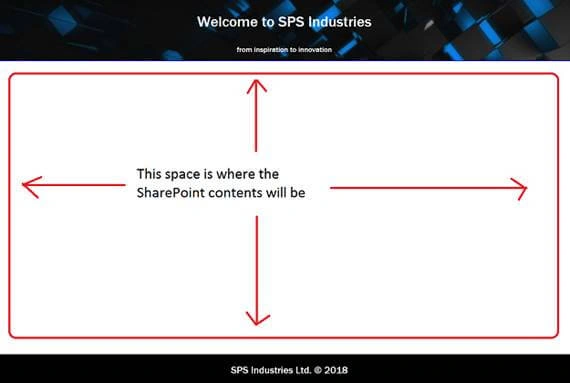
The whitespace is where the actual SharePoint contents will be. You can download the HTML and CSS from my GitHub repo.
Step 2 - Import the HTML and CSS files using SharePoint Designer (SPD)
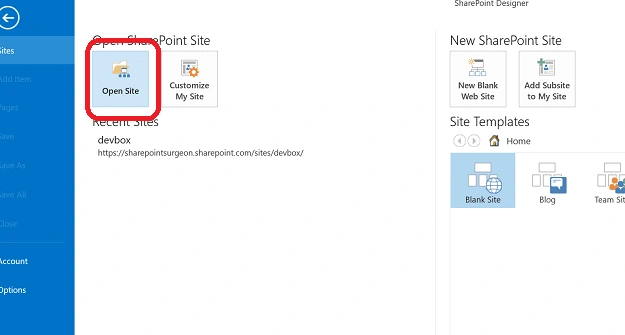
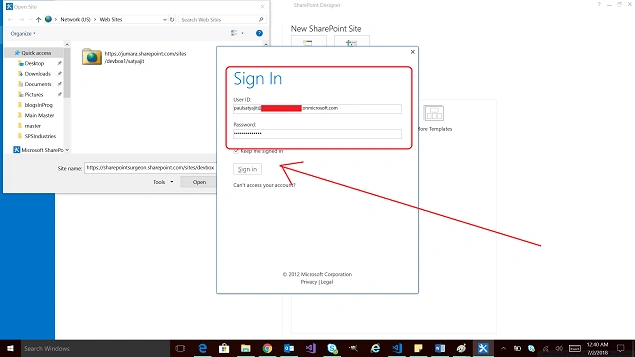
Open your SPD and connect to your SharePoint site (SPOnline site in this example).
Put in the SP Online site URL and log in by passing the credentials.
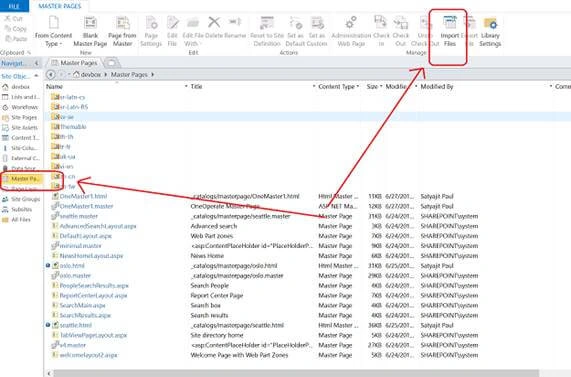
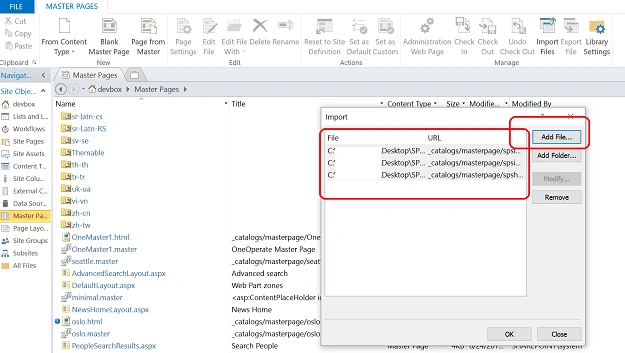
Once the site is open, click on “Master Page” on the quick launch. After that, click on “Import files” to select your HTML files.
This step will complete once the files are uploaded. Next, we move on to Design Manager.
Step 3 - Convert the HTML page to Master Page using Design Manager
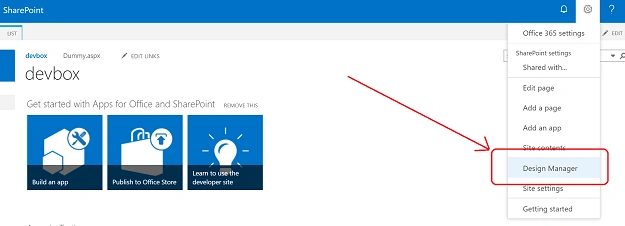
Now, we will convert the HTML file uploaded in the previous step to a Master Page using Design Manager. Open the Design Manager in your SharePoint.
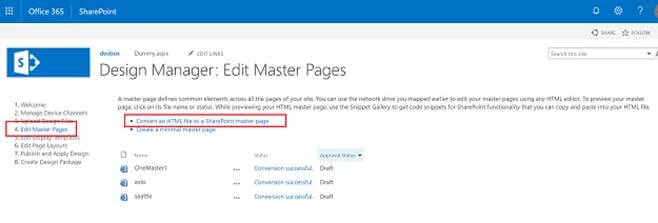
Once it’s open, click on “Edit Master Page” - “Convert an HTML file to a SharePoint master page”.
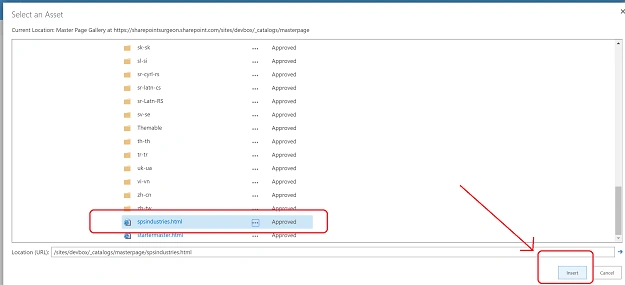
This link will take you to the below window. If you scroll down, you’ll notice the HTML page imported via SPD will be available here. Generally, the file will be in “Draft” mode. It must be changed to a published version as shown below.
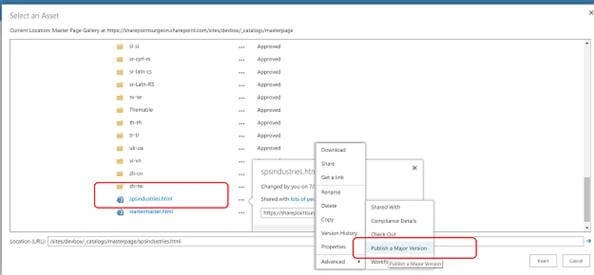
Once approved, select the file and then click “Insert”.
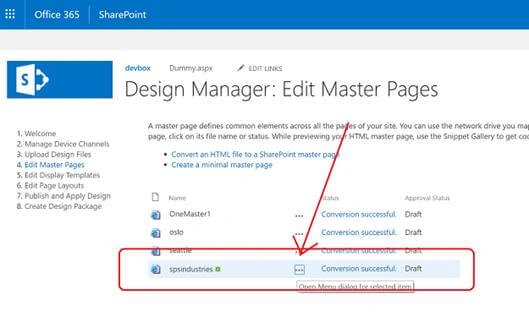
The previous step will lead you to the Design Manager screen where you’ll see that your HTML file has been changed into a SharePoint Master Page.
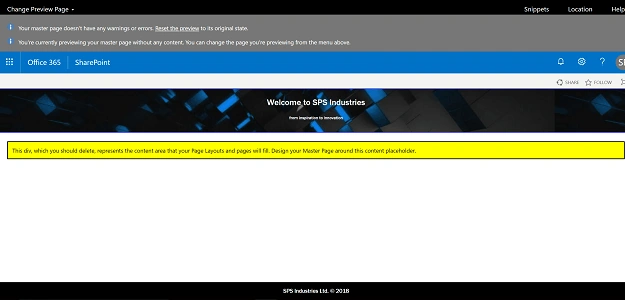
Publish the master page from a draft to an approved version. To view the master page in your browser, click on the “Conversion Successful” link. This will give you an idea of how the master page will look like. Voila!
Well, we are almost there. Just a few more steps and we are ready!!!
Notice the message box in yellow? This is where the actual SharePoint elements will be displayed.
Step 4 - Set the Site master page
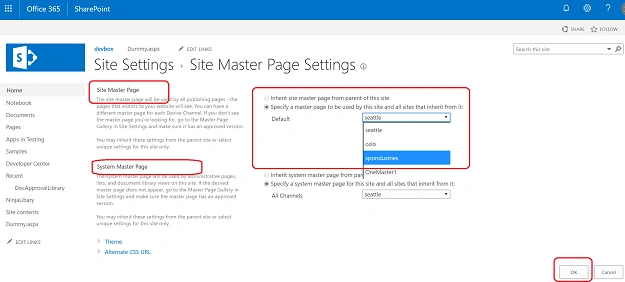
Now, locate the Site Master Page settings using the below navigation guide.
Site Settings - Look and Feel - Master Page
In the Site Master Page category, select the newly created master page from the drop down and click on OK.
Note
The System Master Page, which you see, uses the default master page. Generally, it is not changed, as all the system pages (add a new item, upload file, all modal pop-ups, etc) use this master page.
After OK is clicked, the master page is set. Go ahead and create a new page under “Pages” library. Once created, we can edit the page and add various artifacts as needed. Here is how a demo page looks.
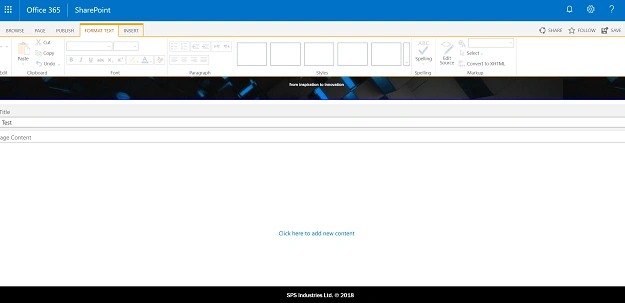
This concludes the creation of a simple master page for SharePoint from scratch. We can extend the master page further in adding some SharePoint snippets, removing default SharePoint banner, etc. We will look into it in our next blog.


Divesh GuptaPosted Jul 14, 2020, 11:03 AM
Hey Satya!! This is a very helpful article. Do you have more HTML samples that i can use to build on?
Sudheer GPosted Apr 18, 2020, 4:24 PM
Good article. for activating Master pages, i followed this article to change the master page. http://sharepointsolutions-sudheer.blogspot.com/2020/04/custom-master-page-modern-site-sharepoint-online.html
Vijay ChavanPosted Aug 28, 2019, 4:36 AM
Nice Article,
Sunshine FlowerPosted Mar 22, 2019, 2:38 PM
What about the CSS? I followed the steps above. They don't mention what to do with the CSS file. A few guesstimated steps I took for the CSS: upload the CSS to the site assets in SharePoint Designer - Publish the file - Master Page - Select new HTML page for both dropdowns - Go to alternate CSS and browse to the location where CSS is being stored.
agila raviPosted Jan 24, 2019, 1:44 AM
Hi i stuck where i click publish a Major version ,when i click that its showing "file may not be moved deleted renamed or otherwise edited" Please Help Me
MeenakshiPosted Nov 26, 2018, 5:40 AM
Hi, This worked great and very useful artical. The master page is applying to all forms (NewFrom/EditForm/DispForm), which I don't want to happen. I have kept System master page as Seattle itself & changed only Site Master Page as "spindustries". Can you please let me how I can remove master page from being inherited into Forms....Thanks!
Prabesh A.Posted Oct 10, 2018, 8:06 PM
I can't get to edit the html or css from master page gallery in Visual Studio. I created a network drive of the folder which contains all the html page and css page in Master page gallery. I then tried opening these files( css and html) in visual studio. But every time I tried to save these files, I get the "file is checked out or locked for editing" message. Am I doing it correctly or is there a better way to make changes to your html or css page after creating master page.
Viknaraj ManogararajahPosted Jul 14, 2018, 11:12 PM
Nice Article, Thank you for sharing.........