

Introduction
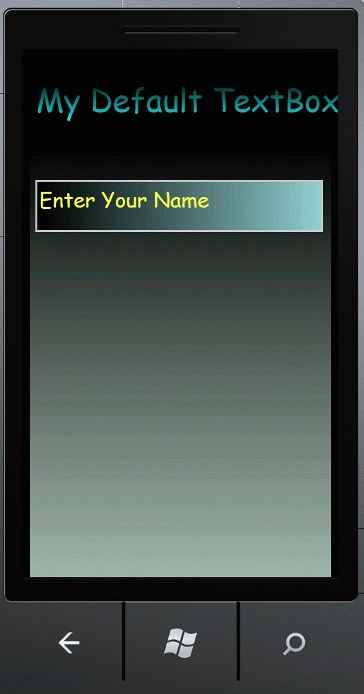
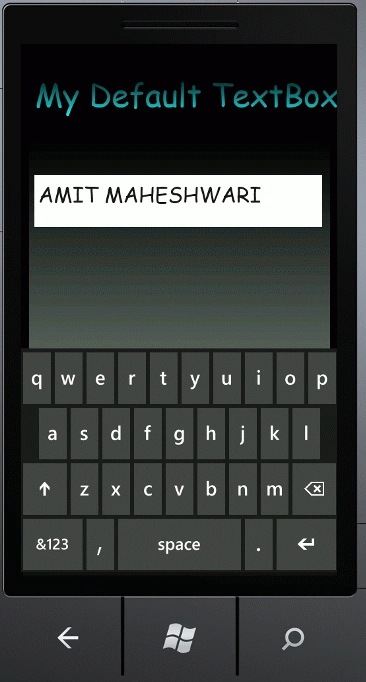
In this article we are going to explore how to create a custom TextBox with default Text in Windows Phone 7. Whenever we click on the TextBox it will clear out it's default text and whenever we don't have any value in the TextBox the default text will be shown again by it's default property. It shows the Default text written inside the TextBox. In this we will use a Windows Phone class library in which we will declare the default text property. In the Windows Phone library project we have to inherit a class named TextBox so because of that we will make a custom TextBox. We all know why we used the custom control because, if we want to make our own control according to the user requirement and will do the easy task of the user. Further we will see how it is possible to make such type of functionality to make it a custom control. To implement it you will have to use the steps given below.
Step 1: In this step we have to create a Windows Phone library so let's see from where you have to add it which is given in the figure.
- Go to Visual Studio 2010
- Open New->Project
- Select the template Silverlight for Windows Phone
- Select the Windows Phone library and give it a name as you want to give.
- Click OK.

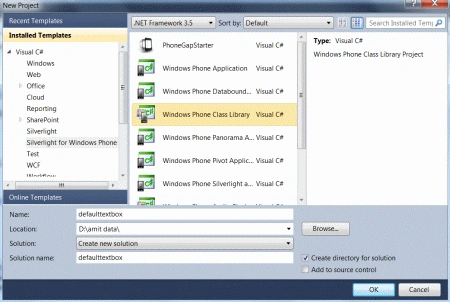
Step 2: In this step we will see the code for the DefaultTxt_box.cs file which is given below.
Code:
using System;
using System.Net;
using System.Windows;
using System.Windows.Controls;
using System.Windows.Documents;
using System.Windows.Ink;
using System.Windows.Input;
using System.Windows.Media;
using System.Windows.Media.Animation;
using System.Windows.Shapes;
namespace defaulttextbox
{
public class DefaultTxt_box:TextBox
{
private string My_Default_Text = string.Empty;
public string D_Text
{
get
{
return My_Default_Text;
}
set
{
My_Default_Text = value;
MyDefault_Text();
}
}
public DefaultTxt_box()
{
this.GotFocus += (sender, e) =>
{ if (this.Text.Equals(D_Text)) { this.Text = string.Empty; } };
this.LostFocus += (sender, e) => { MyDefault_Text(); };
}
private void MyDefault_Text()
{
if (this.Text.Trim().Length == 0)
this.Text = D_Text;
}
}
}
In this code given above here we are declaring a property named D_Text which is used to place the default string inside the TextBox; it's the property by which we can set the default text to the TextBox.
Step 3: In this step you have to build the class library for which you have to build the project; it will be built successfully as well.
Step 4: Now you have to take another application which is a Windows Phone application.
- Start another instance of Visual Studio 2010.
- Go to Menu->File->New->Project.
- Select the Silverlight template for Windows Phone.
- Select the Windows Phone application.
- Click OK.
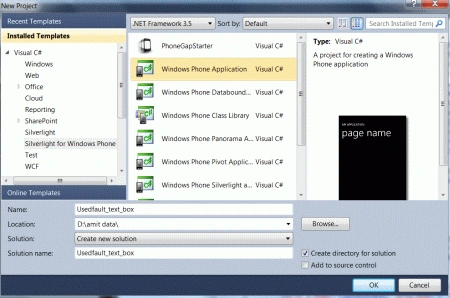
Step 5: In this step you will have to add the reference of the phone class library which was previously created; let us see from where you have to add this which is shown in the figure.
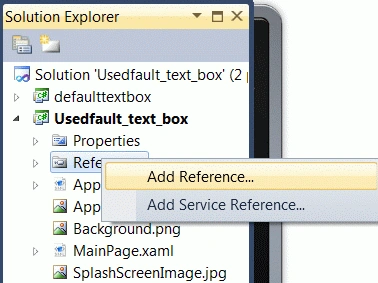
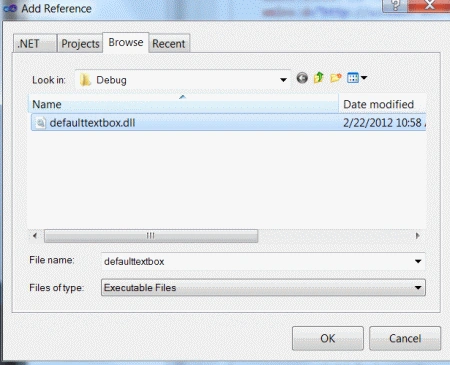
Step 6: In this step we have to add the complete phone library project to the Windows Phone application project; let us see how you will add it.
- Go to the Solution Explorer.
- Right-click and select the existing project.
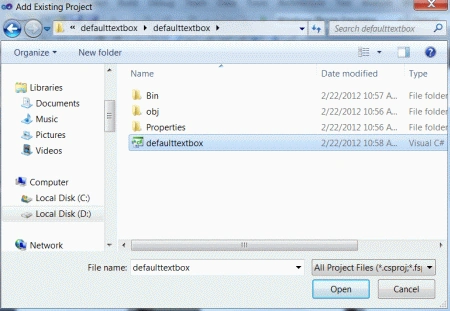
- Select the Class Library cs file and add it.
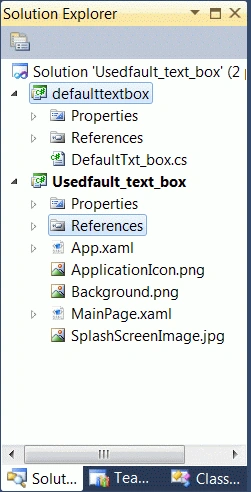
- You just see that the entire library project will be added to the Windows Phone application project.
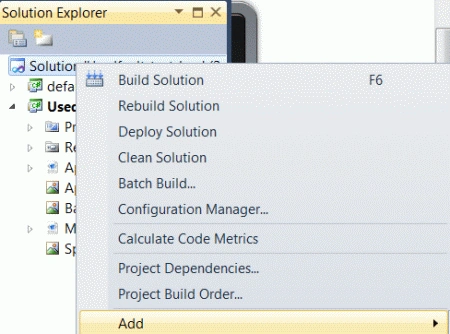
Click on Add and select the Existing Project which is shown in the figure given below.
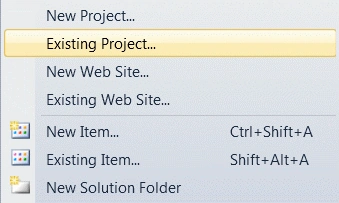
Add the Existing Project with the Project file which is given below.
Step 7: In this step you will see that the project has been added to your Windows Phone application project which you can see in the figure given below.
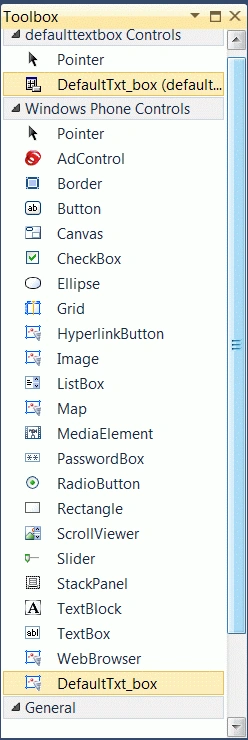
Step 8: In this step you just see that the control named with Validation Control has been added to the toolbox which you can see in the figure given below; you can drag and drop that control to use it.
Step 9: In this step you will see the code for the MainPage.xaml file which is given below.
Code:
<phone:PhoneApplicationPage
x:Class="Usedfault_text_box.MainPage"
xmlns="http://schemas.microsoft.com/winfx/2006/xaml/presentation"
xmlns:x="http://schemas.microsoft.com/winfx/2006/xaml"
xmlns:phone="clr-namespace:Microsoft.Phone.Controls;assembly=Microsoft.Phone"
xmlns:shell="clr-namespace:Microsoft.Phone.Shell;assembly=Microsoft.Phone"
xmlns:d="http://schemas.microsoft.com/expression/blend/2008"
xmlns:mc="http://schemas.openxmlformats.org/markup-compatibility/2006"
mc:Ignorable="d" d:DesignWidth="480" d:DesignHeight="768"
FontFamily="{StaticResource PhoneFontFamilyNormal}"
FontSize="{StaticResource PhoneFontSizeNormal}"
Foreground="{StaticResource PhoneForegroundBrush}"
SupportedOrientations="Portrait" Orientation="Portrait"
shell:SystemTray.IsVisible="True" xmlns:my="clr-namespace:defaulttextbox;assembly=defaulttextbox">
<!--LayoutRoot is the root grid where all page content is placed-->
<Grid x:Name="LayoutRoot" Background="Transparent">
<Grid.RowDefinitions>
Join the conversation! Your thoughts help the community grow.