
This article shows how to create a site collection for existing web applications in SharePoint Central Administration 2013.
Step 1
Click the Start menu, then click Microsoft SharePoint 2013 Products and click SharePoint 2013 Central Administration.
Step 2
The following Central Administration page will appear.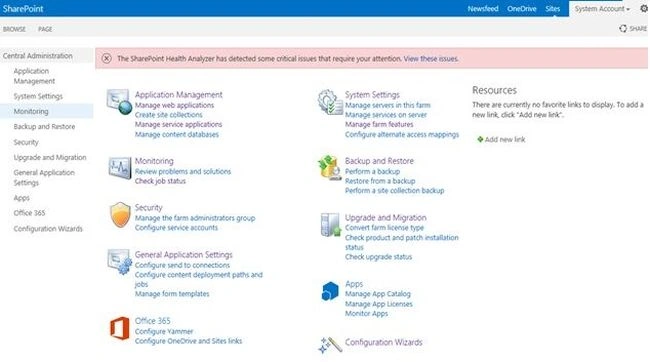
Step 3
Click Application Management in the left navigation. The following screen will appear.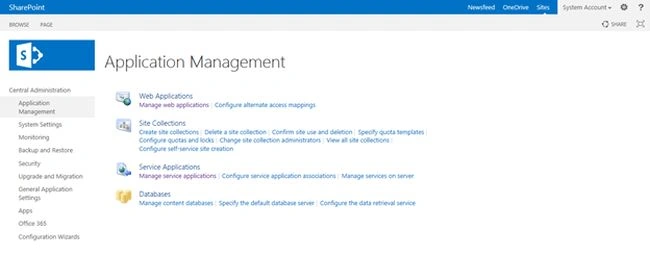
Step 4
Click Create Site collections under the Site Collections menu. The following screen will appear.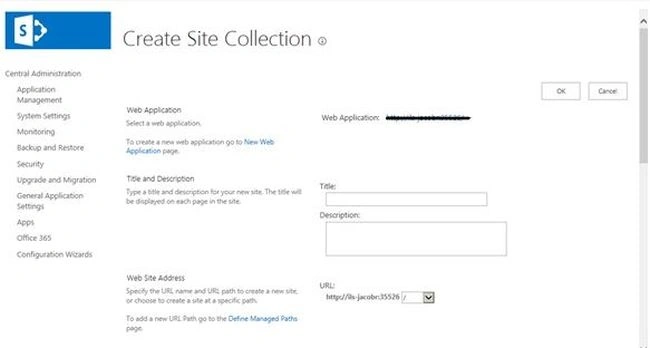
Step 5
If you want to, you can change your web application as in the following way.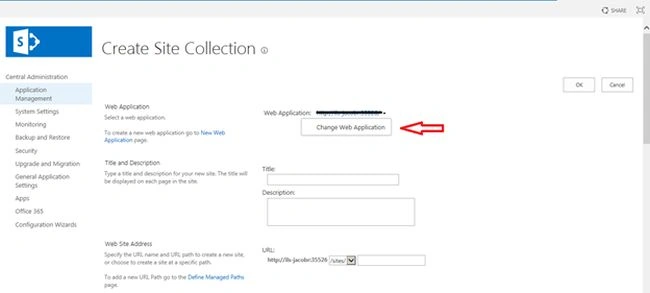
Step 6
Enter the Site collection Name in the Title text box.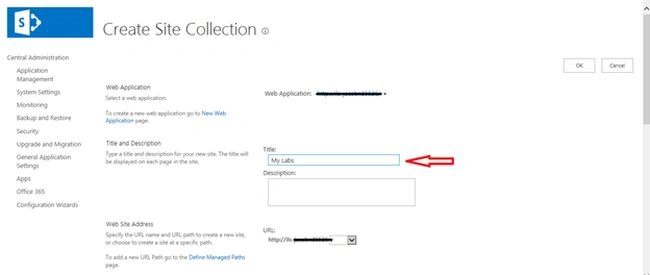
Step 7
Select your template selection by the following. Here I selected the Team Site template.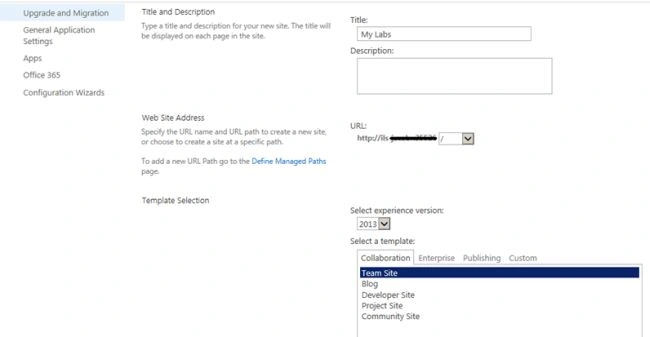
Step 8
Provide a Primary Site Collection Administrator. If you need a Secondary Site Collection Administrator then enter the user name in the Secondary Site Collection Administrator User Name textbox. And finally click the OK button.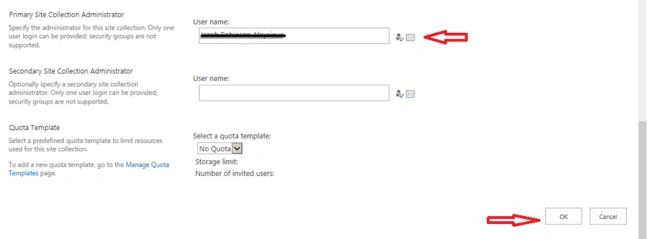
Step 9
Finally the new top level site is created successfully. Click the URL and then the site collection you just created will appear.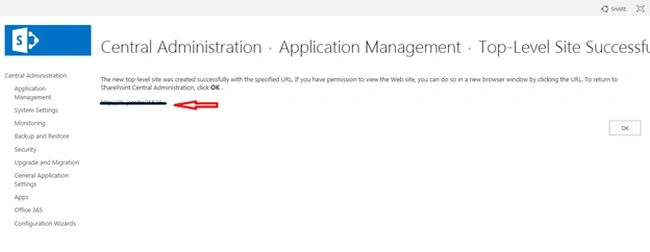
Summary
In this article we explored how to create a site collection for an existing web application in SharePoint Central Administration 2013.

Create a Site Collection For Existing Web Application in SharePoint Central Administration
Join the conversation! Your thoughts help the community grow.
Sign in to leave a comment
It is the same account you read, post and publish with — and you will come straight back to this page.
SriramPosted Jul 2, 2015, 10:35 AM
Good..............
Santhakumar MunuswamyPosted Jun 16, 2015, 2:52 PM
Nice one
NitinPosted Jun 16, 2015, 4:52 AM
good one