

Introduction
This article is about how to create a Spinner application with TextView in Xamarin Android application, using Visual Studio 2015 Update 3.
This article is about how to create a Spinner application with TextView in Xamarin Android application, using Visual Studio 2015 Update 3.
Requirements
- Visual Studio 2015 Update 3
If you want to develop the Spinner application in Xamarin Android application, you should follow the below steps.
Step 1
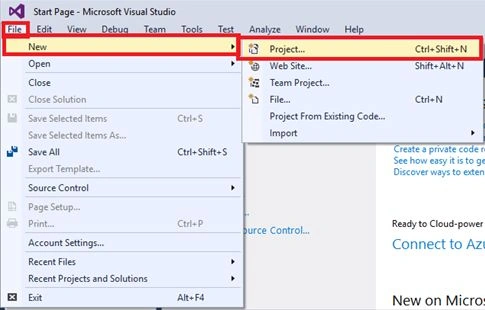
Open Visual Studio 2015 update 3 and click File >> NewProject and open the new window. Or, use the shortcut keys - Ctrl+Shift+N.
Open Visual Studio 2015 update 3 and click File >> NewProject and open the new window. Or, use the shortcut keys - Ctrl+Shift+N.
Step 2
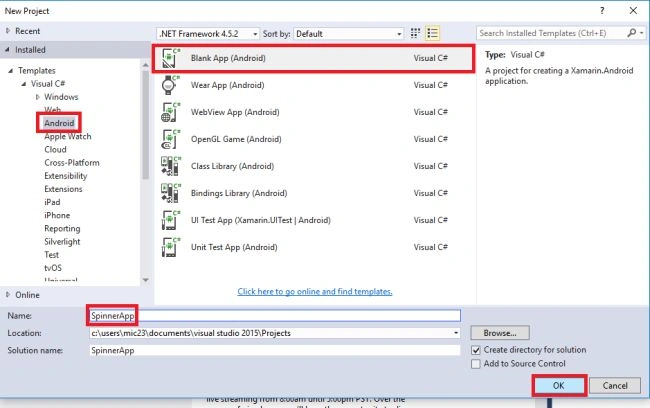
Now, open the New project and go to the Visual C# . Click Android, then choose the BlankApp (Android). Now, write the application name and click on OK button.
Step 4
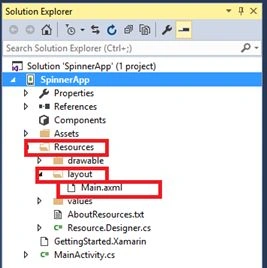
Now,open the project, go to Solution Explorer, and click the Resource. Click Layout >> Main.xaml.
Now, open the New project and go to the Visual C# . Click Android, then choose the BlankApp (Android). Now, write the application name and click on OK button.
Step 4
Now,open the project, go to Solution Explorer, and click the Resource. Click Layout >> Main.xaml.
Step 5
Here, open the designer page and click the View and Toolbox. If you want some options like Spinner and TextView, drag and drop the method and build the design.
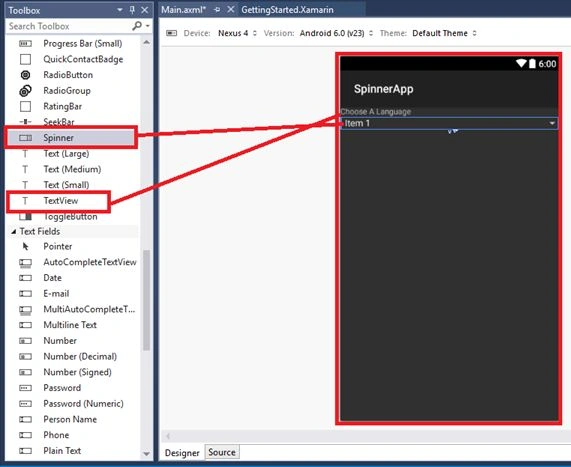
Here, open the designer page and click the View and Toolbox. If you want some options like Spinner and TextView, drag and drop the method and build the design.
Step 6
Now, go to the Source and build the XAML code.
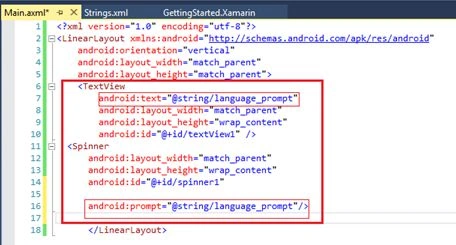
Here is the XAML code.
- <?xml version="1.0" encoding="utf-8"?>
- <LinearLayout xmlns:android="http://schemas.android.com/apk/res/android"
- android:orientation="vertical"
- android:layout_width="match_parent"
- android:layout_height="match_parent">
- <TextView
- android:text="@string/language_prompt"
- android:layout_width="match_parent"
- android:layout_height="wrap_content"
- android:id="@+id/textView1" />
- <Spinner
- android:layout_width="match_parent"
- android:layout_height="wrap_content"
- android:id="@+id/spinner1"
- android:prompt="@string/language_prompt"/>
- </LinearLayout>
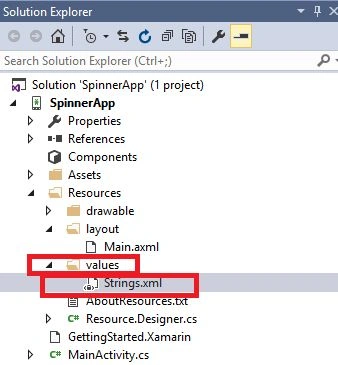
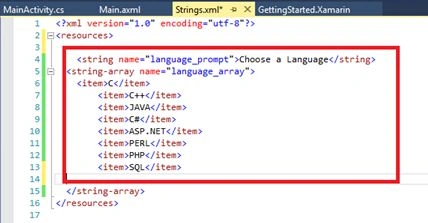
Now, go to Values and select string.xml page and build code. It should be like that array's value.
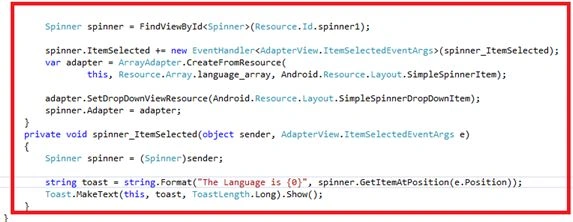
Step 8
Join the conversation! Your thoughts help the community grow.