

Introduction
Xamarin is a platform to develop cross-platform and multi-platform apps (for example, Windows phone, Android and iOS). In Xamarin platform, the code sharing concept is used. In Xamarin Studio, Visual Studio is also available.
Slider is visually similar to the Progress bar but it has a draggable slider, which will allow the user to change the value displayed by the control.
Xamarin is a platform to develop cross-platform and multi-platform apps (for example, Windows phone, Android and iOS). In Xamarin platform, the code sharing concept is used. In Xamarin Studio, Visual Studio is also available.
Slider is visually similar to the Progress bar but it has a draggable slider, which will allow the user to change the value displayed by the control.
Prerequisites
- Xamarin Studio.
- Xcode.
The steps given below are required to be followed in order to create a Vertical Slider in Xamarin iOS, using Xamarin Studio.
Step 1
Go to Xamarin Studio.
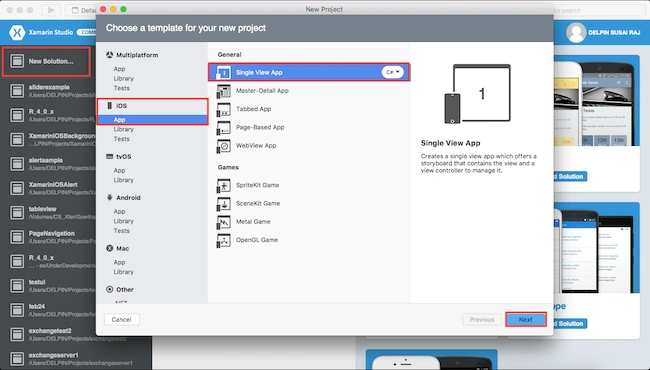
Click New Solution—> select iOS—>select App--> Choose single View App. Afterwards, click Next.
Step 2
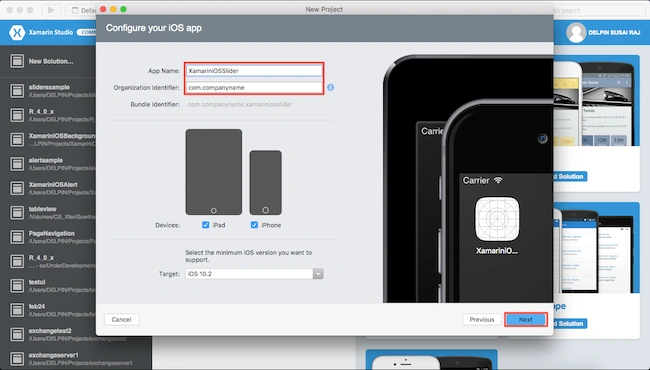
In this step, configure your app. Give the app name (Ex:sample), Organization Identifier. Afterwards, click Next.
Step 1
Go to Xamarin Studio.
Click New Solution—> select iOS—>select App--> Choose single View App. Afterwards, click Next.
Step 2
In this step, configure your app. Give the app name (Ex:sample), Organization Identifier. Afterwards, click Next.
Step 3
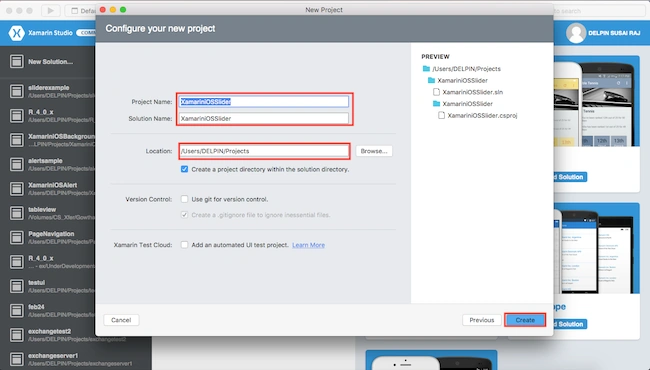
In this step, give your project name (Ex: Sample) and solution name (Ex: Sample). Give the path of your project. Afterwards, click Create.
Step 4
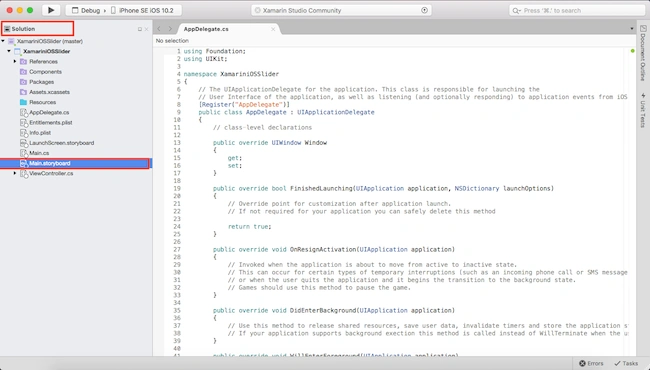
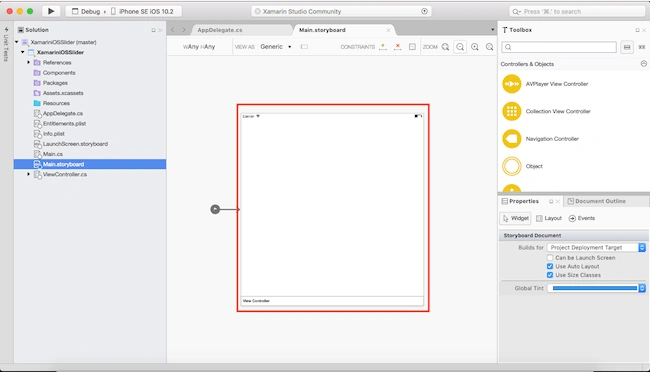
Subsequently, go to the solution. In the solution, get all the files and sources in your project. Now, select Main.storyboard and double click to open Main.storyboard page.
In this step, give your project name (Ex: Sample) and solution name (Ex: Sample). Give the path of your project. Afterwards, click Create.
Step 4
Subsequently, go to the solution. In the solution, get all the files and sources in your project. Now, select Main.storyboard and double click to open Main.storyboard page.
Step 5
After opening Main.storyboard, you can design the page, as per your desire.
Step 6
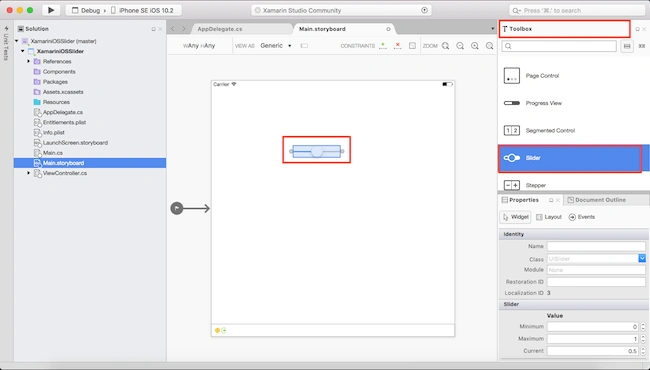
Now, go to the toolbox Window. In the toolbox Window, get all the types of the tools and controls. You need to go to the toolbox Window. Now, scroll down and you will see all the tools and controls. You need to drag and drop the Slider.
You need to align the Slider, using the constraints.
Step 7
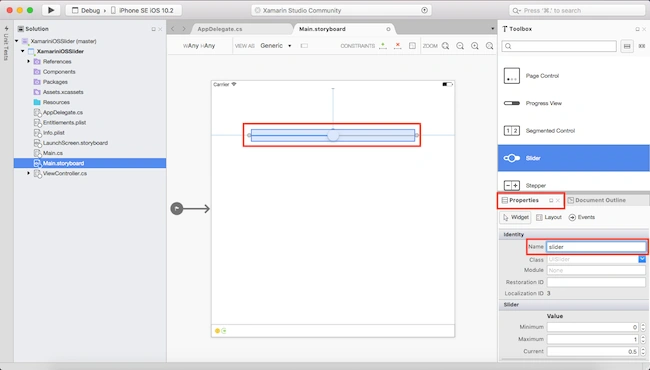
Now, go to the properties Window. Select the Slider and give a name (Ex:slider).
Step 8
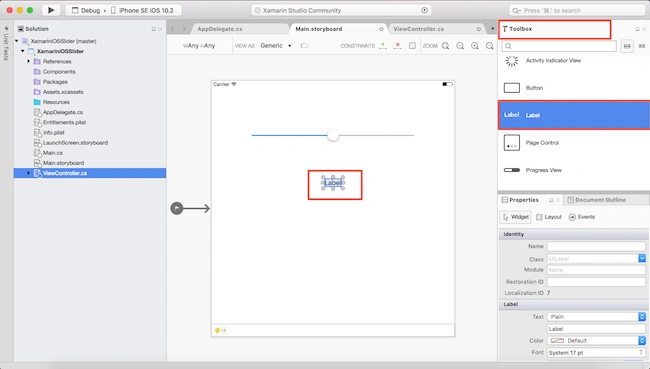
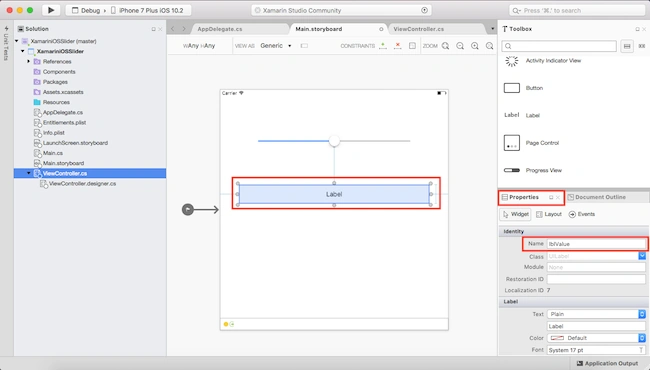
You need to drag and drop the Label.
You need to align the label, using the constraints.

Thiruppathi RPosted May 20, 2017, 5:24 AM
Nice Article......