

Why we need web service
Suppose, you are working as a resident software developer for any plastic product manufacturing company. Company want to share product details on web to other applications also.
Web service is XML and HTTP base protocol kind of service. Mostly it can consume by major other framework.
- Create a new empty web site project.
File, Web Site, then ASP.NET Empty Web Site.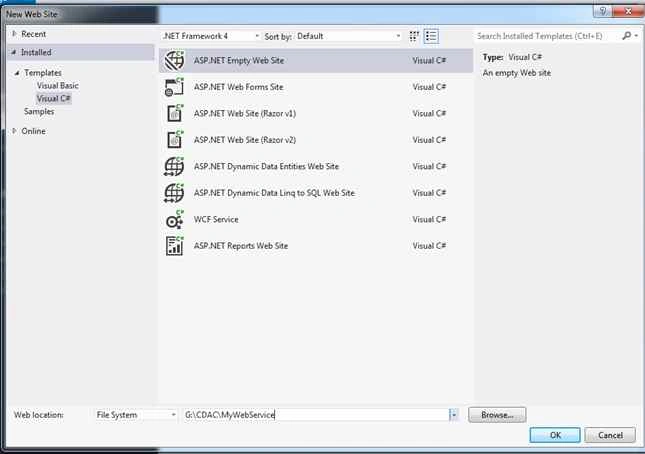
In the above screenshot we created empty web site project named MyWebService
- Add a new Web Service to this project by right clicking,
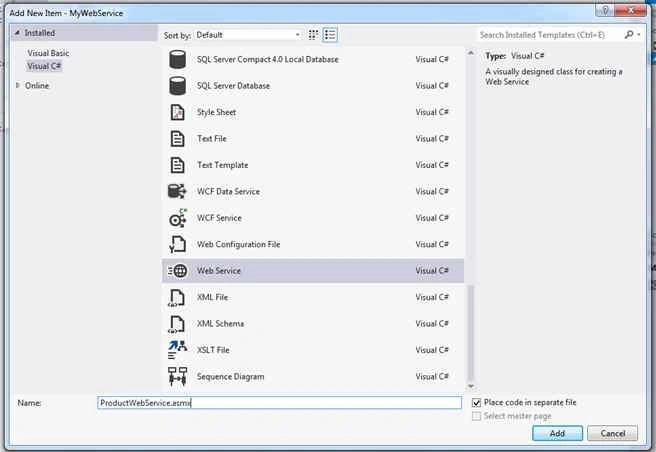
I added webservice file named ProductWebService.asmx - After creating webservice the following files will get created in our project.
- ProductWebService.Cs : The file created with folder App_Code, means app_code folder not created in your project. Visual studio will create App_Code folder and then this file.
- ProductWebService.asmx: This file gets created on root of project.
By default Visual Studio created HELLOWORLD web method. You keep this method or comment or delete from the code.
I had removed HELLOWORLD method. - ProductWebService.Cs : The file created with folder App_Code, means app_code folder not created in your project. Visual studio will create App_Code folder and then this file.
- Namespace required.
Namespace Functionalities Using System.Xml For returning XmlElement. Using System.Data To get ASP.NET data handling classes. Using System.Data.SqlClient To connect to Microsoft SQL server. Using Systen.Configuration To fetch configuration and connectionstring from app.config. Table Structure inside MemberCDAC database, table named TBLPLASTICS
- USE [MemberCDAC]
- GO
- /****** Object: Table [dbo].[tblProducts] Script Date: 12/19/2015 11:09:21 ******/
- SET ANSI_NULLS ON
- GO
- SET QUOTED_IDENTIFIER ON
- GO
- SET ANSI_PADDING ON
- GO
- CREATE TABLE [dbo].[tblProducts](
- [ProductID] [int] IDENTITY(1,1) NOT NULL,
- [ProductName] [varchar](50) NULL,
- [ProductRemarks] [varchar](500) NULL
- ) ON [PRIMARY]
- GO
- SET ANSI_PADDING OFF
- Web.Config filetblProducts: table data.
- <?xml version="1.0"?>
- <!--
- For more information on how to configure your ASP.NET application, please visit
- http://go.microsoft.com/fwlink/?LinkId=169433
- -->
- <configuration>
- <system.web>
- <compilation debug="true" targetFramework="4.0" /> </system.web>
- <configuration>
- <connectionStrings>
- <add name="MemberCDACConnectionString" connectionString="Data Source=SAIBABA-PC\SAIBABA;Initial Catalog=MemberCDAC;Integrated Security=True" providerName="System.Data.SqlClient" /> </connectionStrings>
- </configuration>
- </configuration>
PRODUCT ID PRODUCTNAME 1 Ball Pen 2 Gel Pen 3 Ink Pen 4 6B Pencil 5 6C Pencil 6 Bar Mobile Dual Sim 7 Bar Mobile Three Sim 8 Jalgoan Chiiki 9 Jaipur Chaadar 10 Jalna Bhel 11 Jamshedpur Steel 12 Jamnuna Prasad - ProductWebService.CS file code
- using System;
- using System.Collections.Generic;
- using System.Configuration;
- using System.Data;
- using System.Data.SqlClient;
- using System.Linq;
- using System.Web;
- using System.Web.Services;
- using System.Xml;
- /// <summary>
- /// Summary description for ProductWebService
- /// </summary>
- [WebService(Namespace = "http://tempuri.org/")]
- [WebServiceBinding(ConformsTo = WsiProfiles.BasicProfile1_1)]
- // To allow this Web Service to be called from script, using ASP.NET AJAX, uncomment the following line.
- // [System.Web.Script.Services.ScriptService]
- public class ProductWebService: System.Web.Services.WebService
- {
- //To fetch connection string from APP.CONFIG file.
- string ConStr = ConfigurationManager.ConnectionStrings["MemberCDACConnectionString"].ConnectionString;
- public ProductWebService()
- {
- //Uncomment the following line if using designed components
- //InitializeComponent();
- }
- [WebMethod]
- public XmlElement GetProductsByProductKeyWord(string ProductSearchKeyword)
- {
- //Set connection which feteched from app.config.
- SqlConnection con = new SqlConnection(ConStr);
- //SELECT query to fetch data from ProductsTable
- SqlDataAdapter da = new SqlDataAdapter("Select ProductName From tblProducts Where ProductName Like '%" + ProductSearchKeyword + "%'", ConStr);
- //DataSet is virutual database or data container.
- DataSet ds = new DataSet();
- //Fill data inside ds(DataSet) with TableNamed ProductsTable
- da.Fill(ds, "ProductTable");
- //Convert data result set into xmlelement.
- XmlDataDocument _xmldata = new XmlDataDocument(ds);
- XmlElement _xmlElement = _xmldata.DocumentElement;
- return _xmlElement;
- }
- }
- Press F5 To check Web Service.

Now click on our WebMethod named GetProductsByProductKeyWord - As you click on WebMethod GetProductsByProductKeyWord.
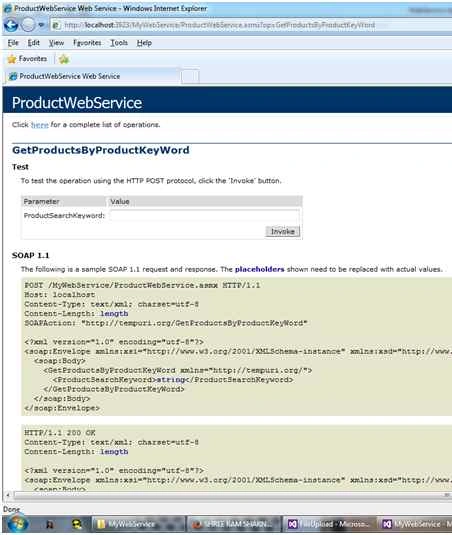
In this screen you have to enter search product name.
I am going to search PEN, so type PEN and click on INVOKE button.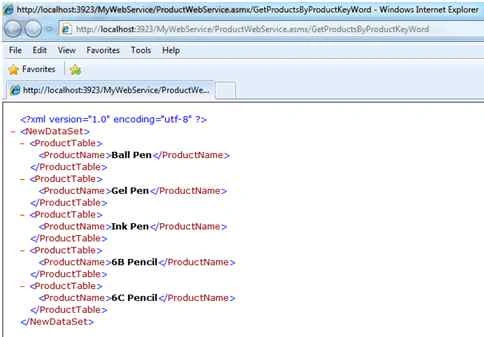
I had searched PEN and here's the WebService result.Now I am going to implement this web service into our aspx page.- <?xml version="1.0" encoding="utf-8" ?> -
- <NewDataSet> -
- <ProductTable>
- <ProductName>Ball Pen</ProductName>
- </ProductTable> -
- <ProductTable>
- <ProductName>Gel Pen</ProductName>
- </ProductTable> -
- <ProductTable>
- <ProductName>Ink Pen</ProductName>
- </ProductTable> -
- <ProductTable>
- <ProductName>6B Pencil</ProductName>
- </ProductTable> -
- <ProductTable>
- <ProductName>6C Pencil</ProductName>
- </ProductTable>
- </NewDataSet>
- Create a new Web Page on same project.
Right click on project and add new item then select Web Form from list.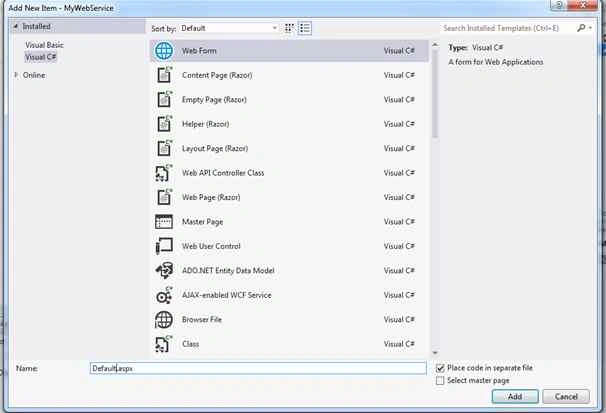
- Namespace required.
Namespace Functionalities Using System.Data To get ADO.NET data handling classes. Using System.Data.SqlClient To connect to Microsoft SQL server. Using Systen.Configuration To fetch configuration and connectionstring from app.config. Note: Don’t forget to give reference of web service to project.
Here I had given reference and named MYWebServiceReference.
In Default.aspx.cs I had uses reference of MYWebServiceReference and create instance of SOAPCLIENT and uses method of webservice named GetProductsByProductKeyWord. - Now switch back to DEFAULT.ASPX page, drag and drop HTML TABLE from toolbox.
Note: HTML tool box of controls located at bottom of toolbox.
Add the following controls as per charts.CONTROL TYPE CONTROL ID DESCRIPTION TextBox txtProductSearchKeyword To enter Product to search. Button btnSubmit Text = “Search Product”
Button to submit data.GridView ProductsGridView Gridview to display data.
Set following settings from properties:
Width="100%"Drag and Drop above mentioned controls from toolbox after html table.
- After drag and drop grid view, click smart tag of Gridview and select AUTO FORMAT.
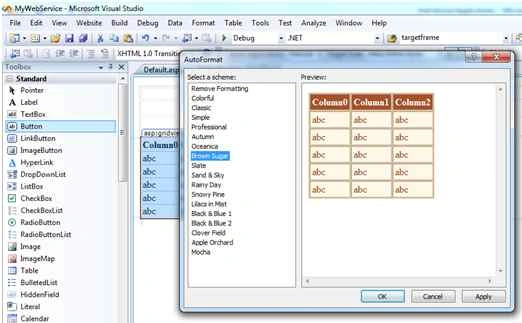
- Default.aspx file code,
- <%@ Page Language="C#" AutoEventWireup="true" CodeFile="Default.aspx.cs" Inherits="_Default" %>
- <!DOCTYPE html>
- <html xmlns="http://www.w3.org/1999/xhtml">
- <head runat="server">
- <title></title>
- <style type="text/css">
- .auto-style1 {
- width: 226px;
- }
- </style>
- </head>
- <body>
- <form id="form1" runat="server">
- <div>
- <table style="width: 100%;">
- <tr>
- <td class="auto-style1"></td>
- <td></td>
- <td></td>
- </tr>
- <tr>
- <td class="auto-style1" style="text-align: right">Search Product : </td>
- <td>
- <asp:TextBox ID="txtProductSearchKeyword" runat="server" Width="286px"></asp:TextBox>
- </td>
- <td> </td>
- </tr>
- <tr>
- <td colspan="2">
- <asp:Button ID="btnSubmit" runat="server" Text="Search Product" sytle="padding-left:120px" Width="194px" onclick="btnSubmit_Click" /> </td>
- <td> </td>
- </tr>
- <tr>
- <td colspan="2">
- <asp:GridView ID="ProductsGridView" runat="server" BackColor="#DEBA84" BorderColor="#DEBA84" BorderStyle="None" BorderWidth="1px" CellPadding="3" CellSpacing="2">
- <RowStyle BackColor="#FFF7E7" ForeColor="#8C4510" />
- <FooterStyle BackColor="#F7DFB5" ForeColor="#8C4510" />
- <PagerStyle ForeColor="#8C4510" HorizontalAlign="Center" />
- <SelectedRowStyle BackColor="#738A9C" Font-Bold="True" ForeColor="White" />
- <HeaderStyle BackColor="#A55129" Font-Bold="True" ForeColor="White" /> </asp:GridView>
- </td>
- <td> </td>
- </tr>
- </table>
- </div>
- </form>
- </body>
- </html>
- Default.aspx.cs file code,
- using System;
- using System.Collections.Generic;
- using System.Linq;
- using System.Web;
- using System.Web.UI;
- using System.Web.UI.WebControls;
- using System.Data;
- using System.Data.SqlClient;
- using System.Configuration;
- using MYWebServiceReference;
- using System.Xml;
- public partial class _Default: System.Web.UI.Page
- {
- protected void Page_Load(object sender, EventArgs e)
- {
- if (!IsPostBack)
- {
- //By default gridview should not default any record that why used NULL
- SearchProducts("NULL");
- }
- }
- protected void SearchProducts(string SearchProductKeyWords)
- {
- //Uses the reference of MYWebServiceReference and create Instace of SoapClient then used web method.
- MYWebServiceReference.ProductWebServiceSoapClient serviceRef = new MYWebServiceReference.ProductWebServiceSoapClient();
- DataSet ds = new DataSet();
- XmlElement exelement = serviceRef.GetProductsByProductKeyWord(SearchProductKeyWords);
- if (exelement != null)
- {
- XmlNodeReader nodereader = new XmlNodeReader(exelement);
- ds.ReadXml(nodereader, XmlReadMode.Auto);
- ProductsGridView.DataSource = ds;
- ProductsGridView.DataBind();
- }
- else
- {
- ProductsGridView.DataSource = null;
- ProductsGridView.DataBind();
- }
- }
- protected void btnSubmit_Click(object sender, EventArgs e)
- {
- SearchProducts(txtProductSearchKeyword.Text);
- }
- }
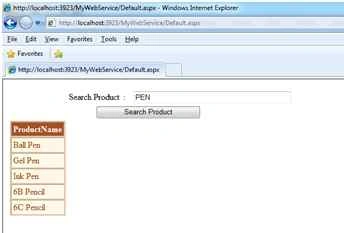
- After pressing F5 on default.aspx, the screen will look like the following,
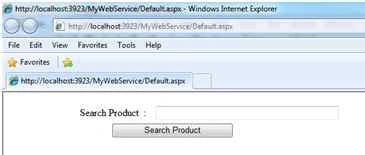
- Type PEN in textbox and click on Search Product button.
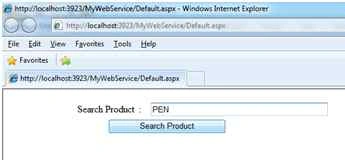
- Result
Thank You, Task completed.
Hadshana KamalanathanPosted Jul 22, 2018, 1:48 AM
Nice one..
Vivek KumarPosted Apr 17, 2016, 2:20 PM
Nice one
Amatya AgyeyPosted Apr 4, 2016, 6:32 AM
Keep it up
Asfend YarPosted Mar 12, 2016, 2:52 PM
nice
Krishna Rajput SinghPosted Mar 1, 2016, 9:39 AM
very helpful article sir..
Santhakumar MunuswamyPosted Dec 26, 2015, 2:20 AM
Thanks for nice article
Ankur MistryPosted Dec 20, 2015, 12:15 PM
Nice share
Humayun Kabir MamunPosted Dec 20, 2015, 1:30 AM
Nice...