

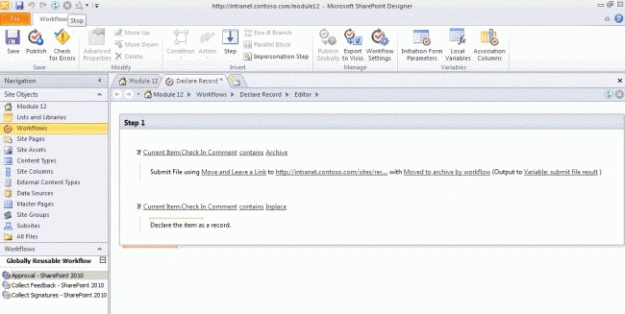
Here we can see how to use SharePoint Designer to create a custom workflow that declares an in-place record in a document library.
We will go through the following activities:
- Set up the environment.
- Create a workflow to declare an in-place record or a send a document to a records archive.
- Test your workflow.
Setting Up the Environment
- Open your site in browser.
- In the Site Actions menu, click New Site.
- Select the Team Site template, and provide a title.
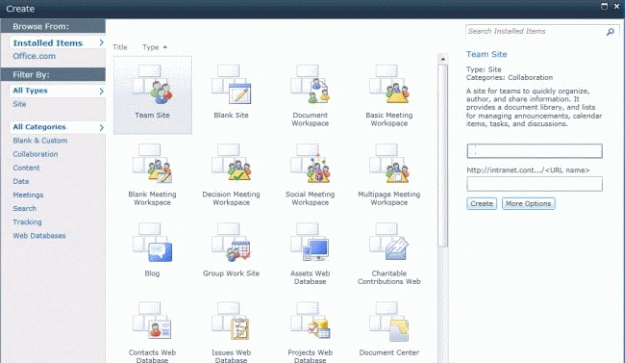
- Click the Create button.
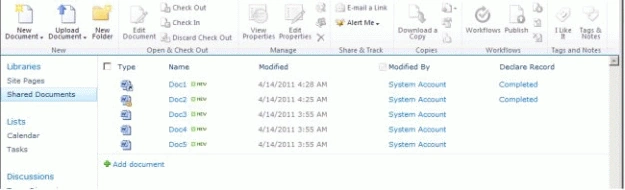
- In the newly created team site, navigate to the Shared Documents document library.
- Set up versioning on this document library. In the Library tab of the Ribbon, in the Settings group, select the Library Settings button.
- In the General Settings group, click the link to Versioning Settings.
- In the Require Check Out configuration section, select Yes.
- Click OK.
- Add some sample content for this document library. Click the Documents tab in the Ribbon.
- In the New Ribbon group, expand the Upload Document button.
- Select Upload Multiple Documents.

- Open Windows Explorer and navigate to [[Module12LabFiles\Documents]].
- Select all the files in the folder, and drag them into the Upload Multiple Documents dialog.
- Click OK.
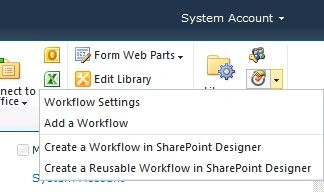
Creating a Workflow
Gowtham RajamanickamPosted Apr 11, 2016, 1:53 AM
good one..