Introduction
Azure Functions lets you execute your code in a serverless environment without having to first create a VM or publish a web application.
In this article, you learn how create an Azure function by using Visual Studio 2017 tools. You then publish the function code to Azure. Then you call this function by using ASP.NET Core Web application.
Create Azure Function
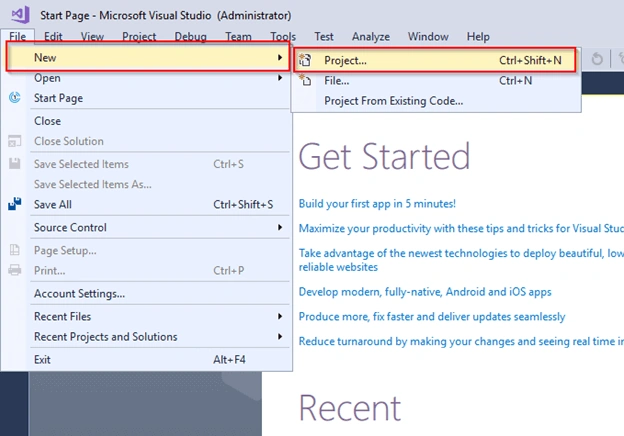
To create an Azure function through Visual Studio 2017, in visual studio on the File menu, select New > Project.
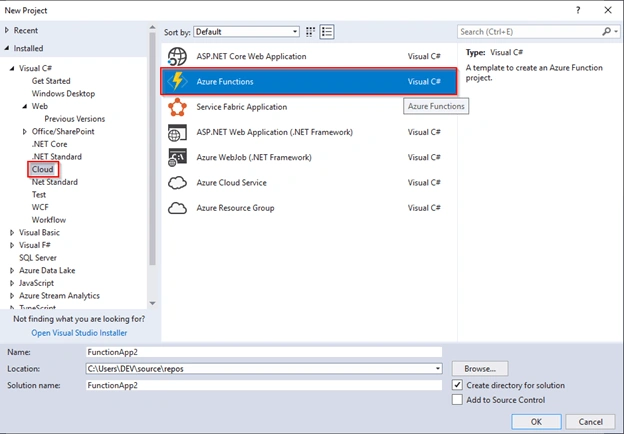
Select Cloud > Azure Functions
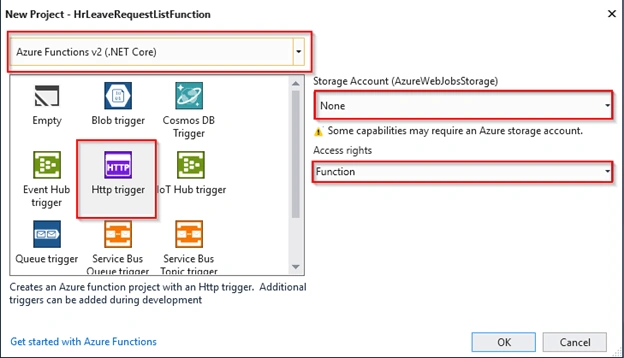
Create a new function named HR Leave Request List Function.
Select Http Trigger, for storage account select None, and for Access rights select Function.
In Function under Access rights, you're required to present the function key in requests to access your function endpoint.
In this article, I need to create a simple function that returns a list of leave requests. So first I need to create entity class for leave request.
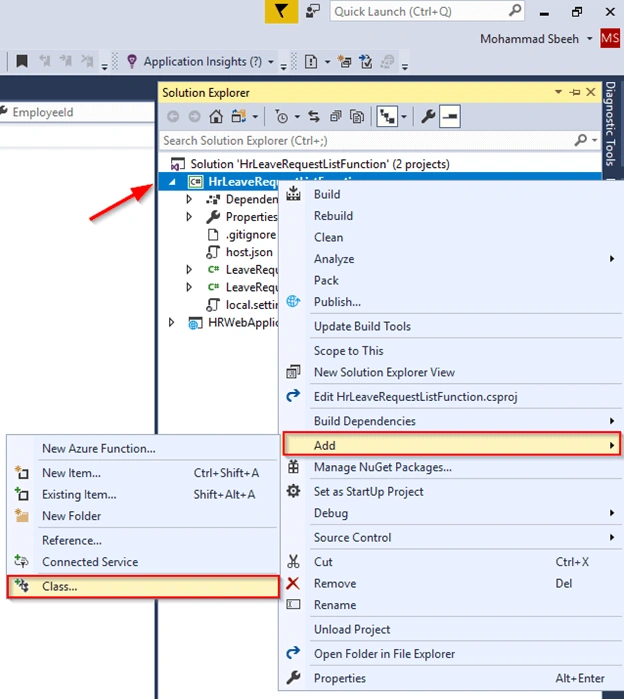
Right click on project and select Add > Class
Rename the class as LeaveRequest. Add the following code to LeaveRequest Class.
- public class LeaveRequest
- {
- [JsonProperty(PropertyName = "employeeId")]
- public string EmployeeId { get; set; }
- public string Name { get; set; }
- public DateTime From { get; set; }
- public DateTime To { get; set; }
- }
In function class add the following code:
- public static class HrLeaveRequest
- {
- [FunctionName("LeaveRequestList")]
- public static async Task<IActionResult> Run(
- [HttpTrigger(AuthorizationLevel.Function, "get", "post", Route = null)] HttpRequest req )
- {
-
- List<LeaveRequest> lst = null;
- string EmployeeId = string.Empty;
-
- string requestBody = await new StreamReader(req.Body).ReadToEndAsync();
- dynamic data = JsonConvert.DeserializeObject(requestBody);
- EmployeeId = data?.employeeId;
-
-
- if(EmployeeId != null)
- {
- lst = new List<LeaveRequest>();
- for (int i = 1; i < 4; i++)
- {
- lst.Add(new LeaveRequest() { EmployeeId = "10", Name = $"Employee {i}", From= DateTime.Now.AddDays(-i -1), To = DateTime.Now.AddDays(-i)});
- }
-
- return (ActionResult)new OkObjectResult(lst);
- }
-
- return new BadRequestObjectResult("Please pass a employee Id in the request body");
- }
- }
The above code returns a list of leave requests as static data for demo purposes.
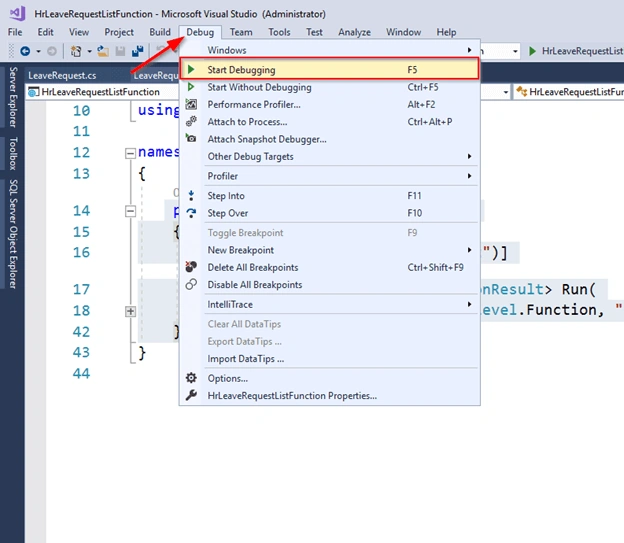
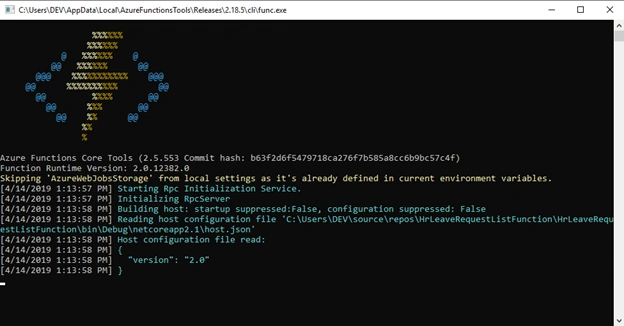
Our function is ready now to test locally. From Debug select Start Debugging.
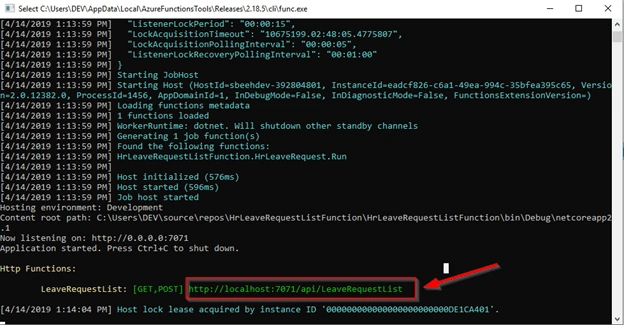
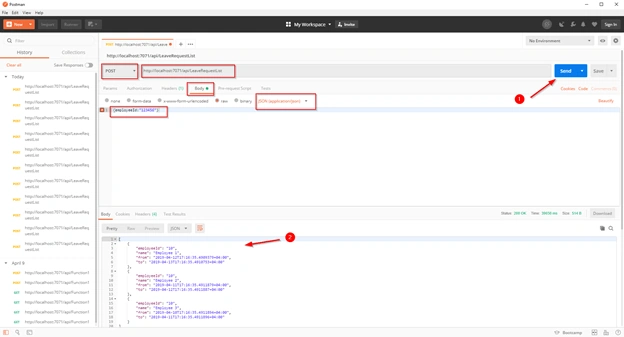
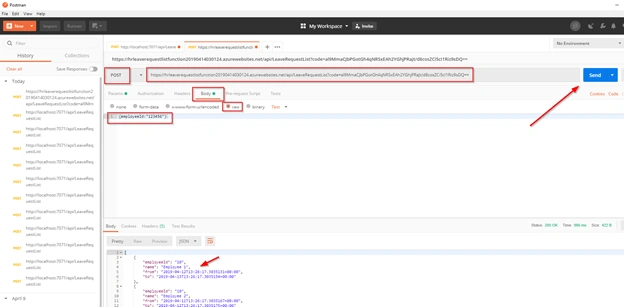
Copy the function URL from console application, and from Postman tool paste the URL as the following:
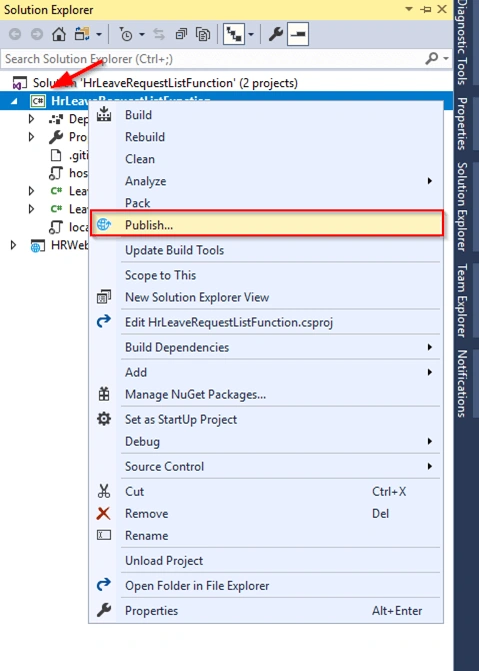
Next, you need to deploy this function to Azure. Right click on project and select Publish.
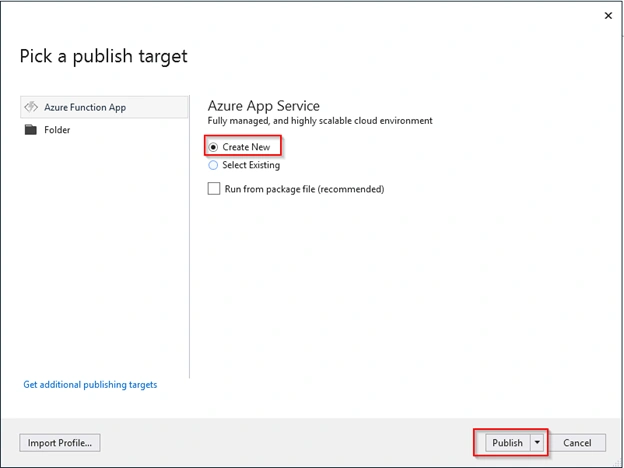
Select Create New. And fill in all required fields.
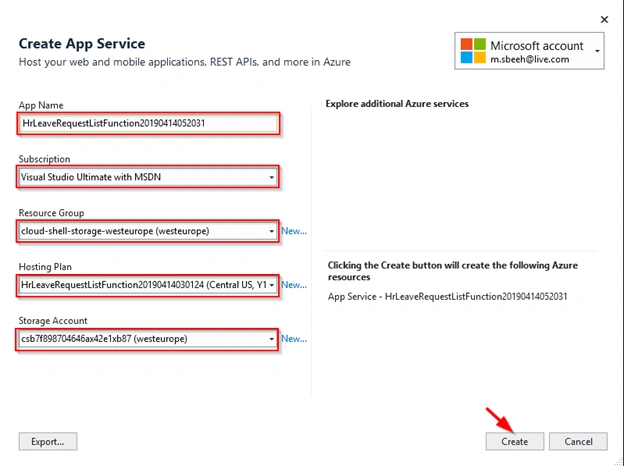
Then click On Create Button.
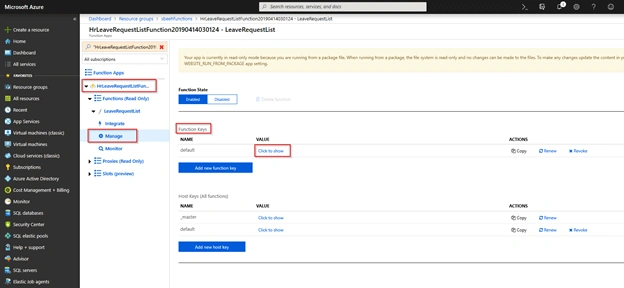
After publishing the function, we need to obtain keys. Keys are stored as part of your function app in Azure. To view your keys, navigate to one of your HTTP-triggered functions in the Azure portal and select Manage.
Most HTTP trigger templates require an API key in the request. So, your HTTP request normally looks like the following URL:
Copy
https://<APP_NAME>.azurewebsites.net/api/<FUNCTION_NAME>?code=<API_KEY>
To test function after publishing, open the postman tool and past the new URL with Code and test.
https://hrleaverequestlistfunction20190414030124.azurewebsites.net/api/LeaveRequestList?code=<API_Key>
Create ASP.NET Core Web App to call Azure function
In Visual Studio on the File menu, select New > Project.
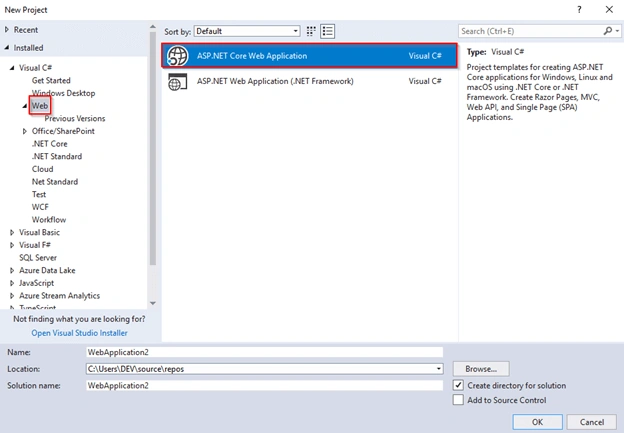
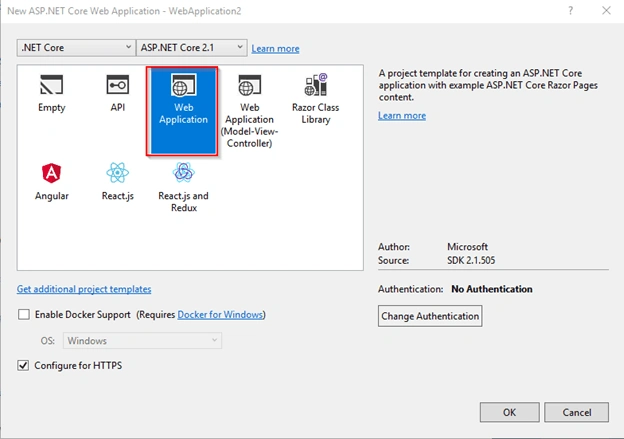
Select Web > ASP.NET Core Web Application.
Rename the project and click OK.
In appsettings.json file add the Azure Function URL with Code:
- "AppSettings": {
- "AzureFunctionURL": "https://[AppName].azurewebsites.net/api/[FunctionName]?code=<API_Key>"
- }
Next, create a new C# Class, and add the properties that matches your configuration file:
- public class AppSettings
- {
- public string AzureFunctionURL { get; set; }
- }
Open Startup.cs, add the code for Configure AppSettings.
- public void ConfigureServices(IServiceCollection services)
- {
- …
-
- services.Configure<AppSettings>(Configuration.GetSection("AppSettings"));
-
- …
- }
Whenever you use the type AppSettings in your code, it will return an instance of Configuration.GetSection("AppSettings")
Next, create a new C# Class for LeaveRequest enitiy class.
- public class LeaveRequest
- {
- public string EmployeeId { get; set; }
- public string Name { get; set; }
- public DateTime From { get; set; }
- public DateTime To { get; set; }
- }
Finally, in your IndexModel, modify the constructor like this,
- public class IndexModel : PageModel
- {
- private AppSettings AppSettings { get; set; }
-
- public IndexModel(IOptions<AppSettings> settings)
- {
- AppSettings = settings.Value;
- }
- …
- }
In IndexModel create SerializeJsonIntoStream function,
- public static void SerializeJsonIntoStream(object value, Stream stream)
- {
- using (var sw = new StreamWriter(stream, new UTF8Encoding(false), 1024, true))
- using (var jtw = new JsonTextWriter(sw) { Formatting = Formatting.None })
- {
- var js = new JsonSerializer();
- js.Serialize(jtw, value);
- jtw.Flush();
- }
- }
In this code we create a StreamWriter using one of its overloads:
We first pass the stream to write to. We create a new UTF8Encoding instance passing false to its constructor to deal with UTF-8.
We pass the buffer default buffer size as shown in the StreamWriter source code.
We finally use a boolean to inform the StreamWriter that we don’t want it to become the owner of the stream in the parameter and that we will clean up resources ourselves.
Next Create the HttpContent.
- private static HttpContent CreateHttpContent(object content)
- {
- HttpContent httpContent = null;
-
- if (content != null)
- {
- var ms = new MemoryStream();
- SerializeJsonIntoStream(content, ms);
- ms.Seek(0, SeekOrigin.Begin);
- httpContent = new StreamContent(ms);
- httpContent.Headers.ContentType = new MediaTypeHeaderValue("application/json");
- }
-
- return httpContent;
- }
As you can see, we serialize the content into the stream and return the HttpContent instance to the caller.
Finally, we just need to post the data to the API with a code relatively similar to the classical one.
- public async Task<IActionResult> OnPostAsync(string employeeID)
- {
- var Url = AppSettings.AzureFunctionURL ;
-
- dynamic content = new { employeeId = employeeID };
-
- CancellationToken cancellationToken;
-
-
- using (var client = new HttpClient())
- using (var request = new HttpRequestMessage(HttpMethod.Post, Url ))
- using (var httpContent = CreateHttpContent(content))
- {
- request.Content = httpContent;
-
- using (var response = await client
- .SendAsync(request, HttpCompletionOption.ResponseHeadersRead, cancellationToken)
- .ConfigureAwait(false))
- {
-
- var resualtList = response.Content.ReadAsAsync<List<LeaveRequest>>();
-
- ViewData["LeaveRequest"] = resualtList.Result;
-
- return Page();
- }
- }
-
- }
In Index.cshtml replace the current html code with following:
- <div class="row">
- <div class="col-md-12">
- <hr />
- @{
- List<LeaveRequest> lst = ViewData["LeaveRequest"] as List<LeaveRequest>;
-
- if (lst != null)
- {
- foreach (var item in lst)
- {
- <p>@item.Name - @item.From.ToShortDateString() - @item.To.ToShortDateString()</p>
- }
- }
- }
- <hr />
- <form method="post">
-
- <label for="firstName">Employee Id</label>
- <input type="text" id="employeeID" name="employeeID" placeholder="Employee Id" />
- <input type="submit" />
- </form>
- </div>
- </div>
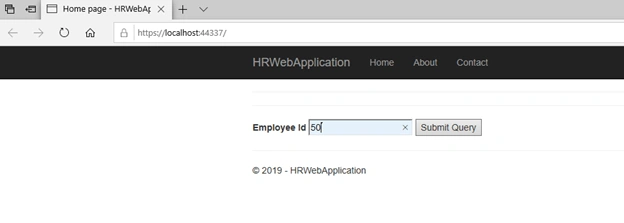
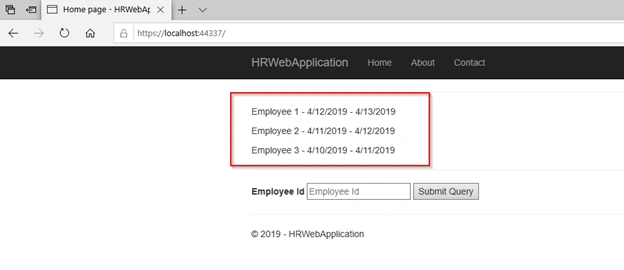
Run the web by press on F5.
Put any number and click submit query button.
Congratulations. It's working!


Hamid KhanPosted Apr 6, 2023, 10:09 AM
Very nice article. Thanks @Mohammad Sbeeh
Aman KourPosted Nov 19, 2020, 6:35 AM
[FunctionName("A_GetTokenValues")] public static async Task<Template> GetTokenValues([ActivityTrigger] string payload, ILogger log) { Template OutRespObj = new Template(); //Call FunctionApp var Url = "FunctionApp URL"; using (var client = new HttpClient()) { using (var request = new HttpRequestMessage(HttpMethod.Post, Url)) { request.Content = new StringContent(payload, Encoding.UTF8, "application/json"); var response = client.SendAsync(request).Result; OutRespObj = await response.Content.ReadAsAsync<Template>(); } } return OutRespObj; }
Aman KourPosted Nov 19, 2020, 6:32 AM
I am calling an azure function from another azure function (durable function)
sreedevi kotipalliPosted Sep 2, 2020, 7:01 AM
The example is very helpful, but i get the following error "UnsupportedMediaTypeException: No MediaTypeFormatter is available to read an object of type 'List`1' from content with media type 'text/plain'." Kindly can you suggest what could be the reason..im using VS Code tool
Mallikarjuna MatamPosted Jun 21, 2019, 9:16 AM
Sbeeh this is really good example. Thanks for posting