

Overview
In this article, we will talk how we can create a project using VSTS (Visual Studio Team Service).
We will cover the following topics in this article.
- Creating Project in VSTS
- Cloning Project using Tortoise GIT
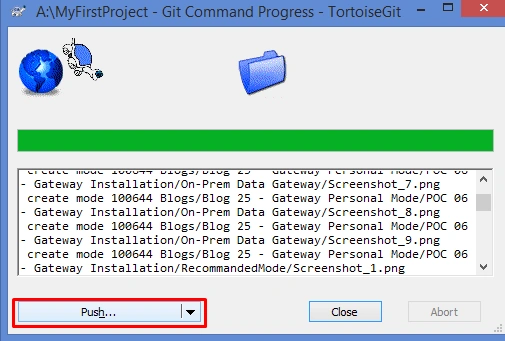
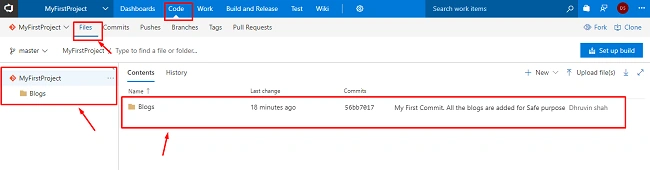
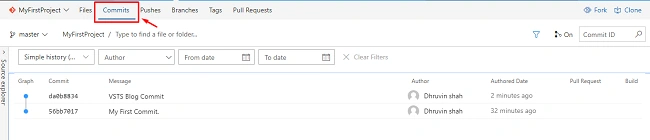
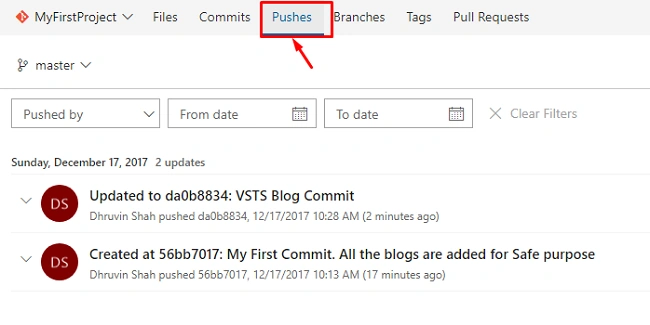
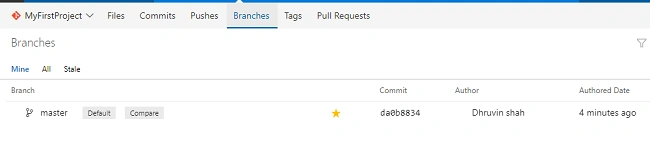
- Push Files to VSTS project
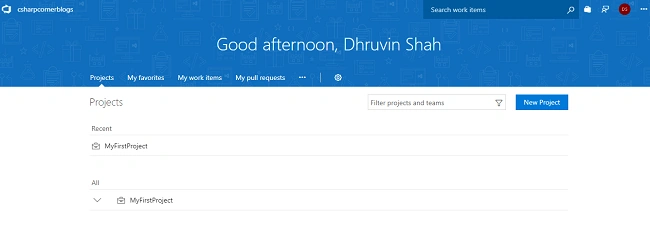
- Overview of Dashboard in VSTS
So, let’s get started!
Creating Project in VSTS
- Login with VSTS using your Personal or Work account.
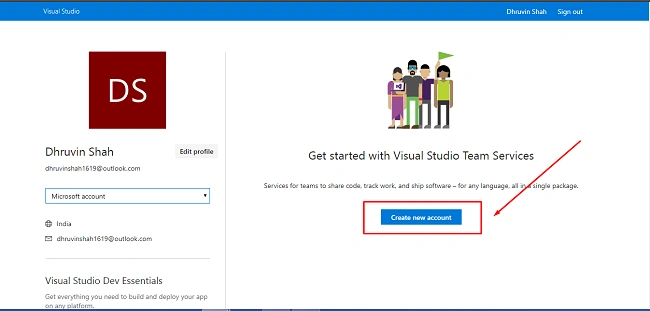
https://www.visualstudio.com/team-services/ - Click on "Create Account".
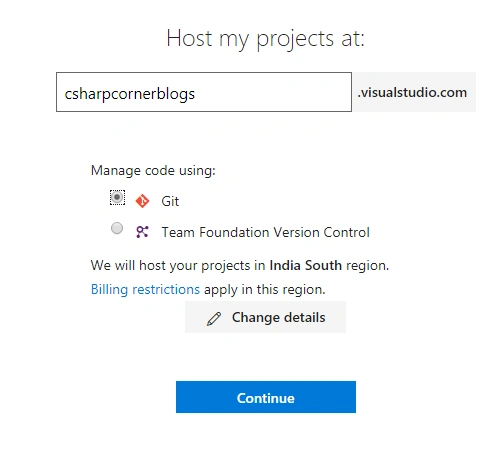
- Give URL of your project.
Ex: We give URL of Project “csharpcornerblogs”.
Choose to manage code using “GIT”.
Click "Continue".
- Your first project has been created successfully.
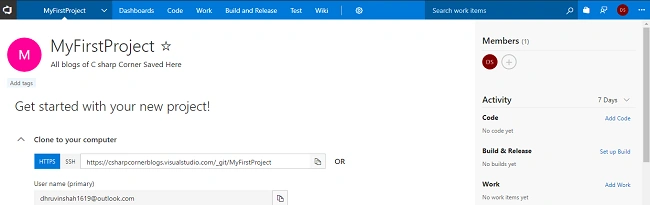
- Copy the URL to clone the project.

Clone the Project Using Tortoise GIT
- Download and install Tortoise Git using below URL.
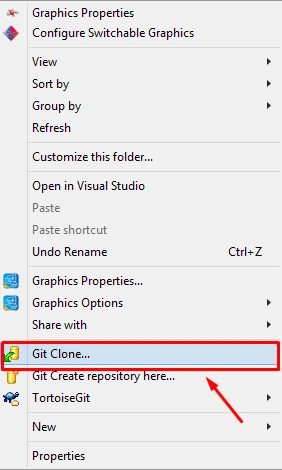
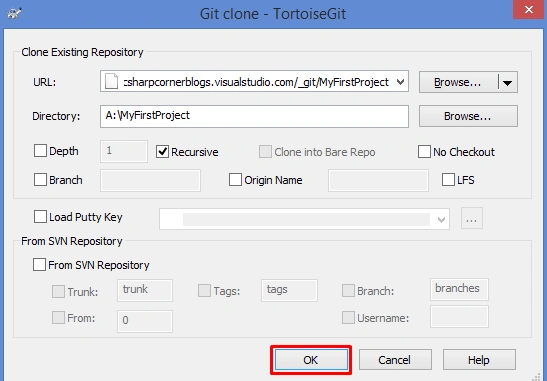
https://tortoisegit.org/download/ - Now, right-click on File System > Click Git Clone.
- In URL = Paste Copied URL
Check the Checkbox for Recursive.
Click on OK.
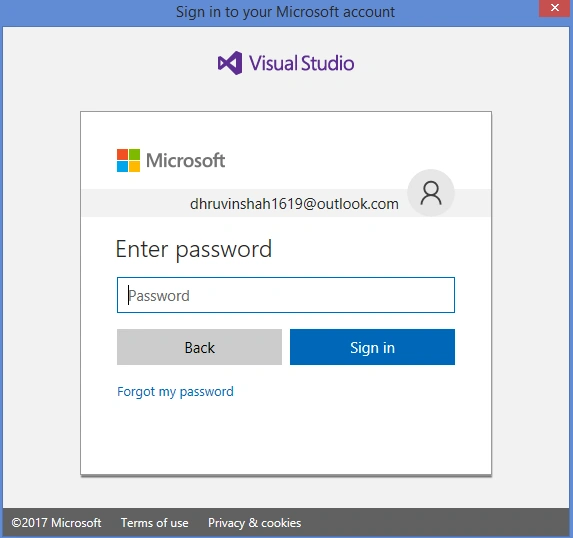
- Enter credential for VSTS Account.
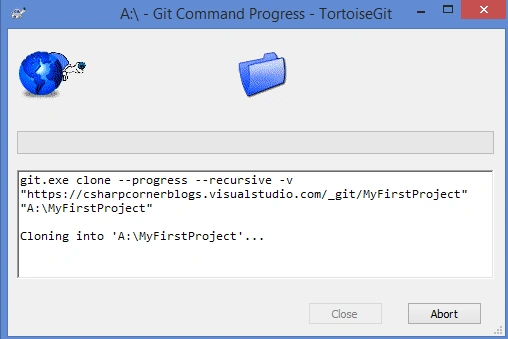
- It will show cloning Process.
- Once Cloning has been successful, it will prompt this message.
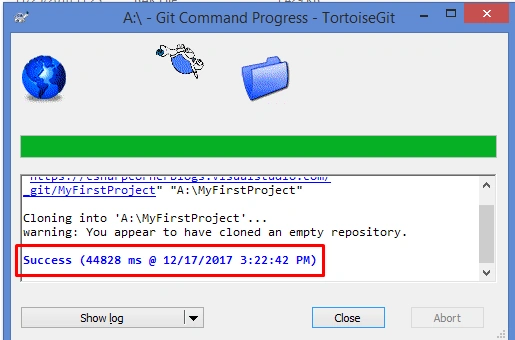
- Cloning has been created successfully.

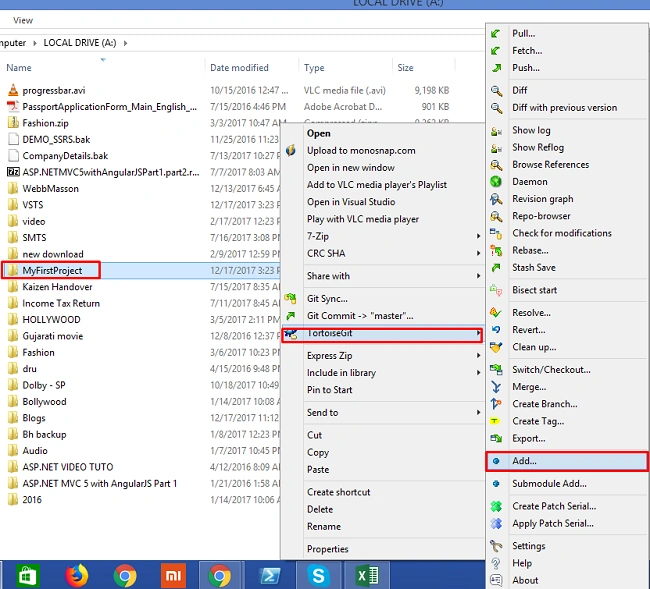
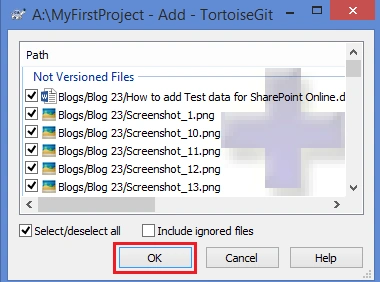
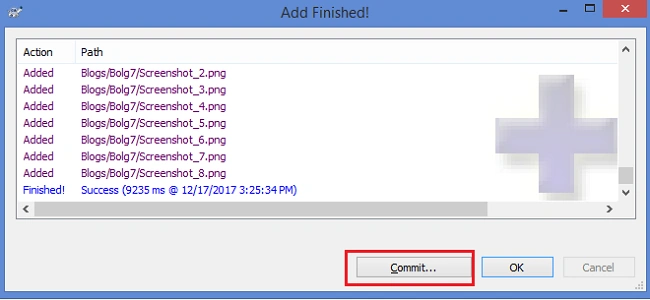
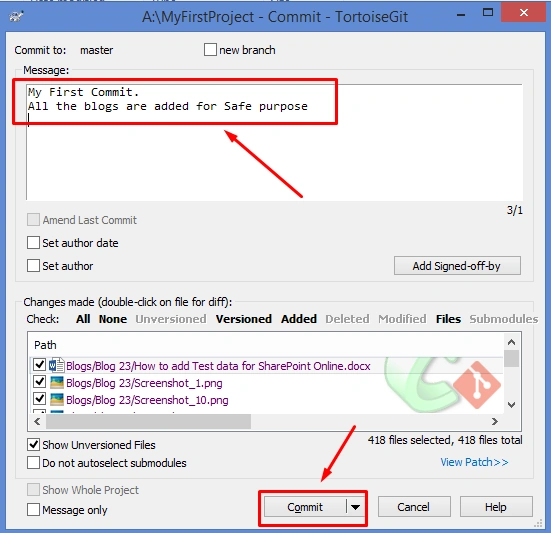
- Add the files to this created Project.
Vishal PrajapatiPosted Dec 19, 2017, 9:00 AM
Good one...Thanks for sharing with us..
sreenivasa kPosted Dec 19, 2017, 8:01 AM
Nice article. thanks a lot sir
Ankur MistryPosted Dec 19, 2017, 7:18 AM
Useful stuff Dhruvin, thanks for sharing
Sridhar SharmaPosted Dec 18, 2017, 7:37 PM
Good one. Thanks for sharing :)