

This article shows how to create a folder in the list/document Library using REST. Develop the project using the following Method in the NAPA Tool:
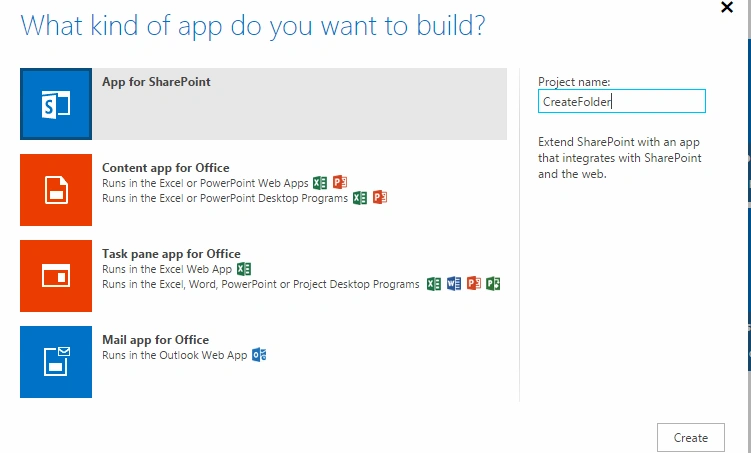
On your Developer Site, open the "Napa" Office 365 Development Tools and then choose Add New Project.
- Choose the App for SharePoint template, name the project Create Site and then choose the Create button.
- Replace APP.js with the following source code below.
- Publish Your App.
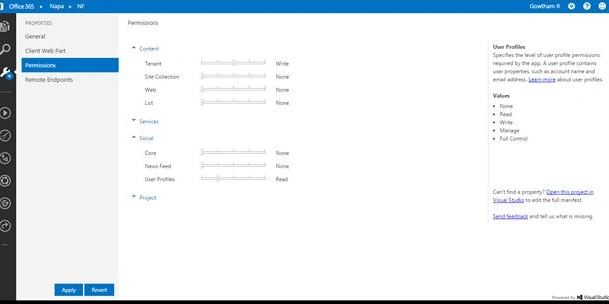
Prerequisites: The following are important steps to be done before creating the app. Specify the permissions that your app needs as in the following:
Choose the Properties button at the bottom of the page.
- In the Properties window, choose Permissions.
- In the Content category, set Write permissions for the Tenant scope.
- In the Social category, set Read permissions for the User Profiles scope.
- Close the Properties window.
Default ASPX: Add the following div content to the default aspx page in the app.
- <div>
- <p>
- <b>Create Folder</b>
- <br />
- <input type="text" value="List Name Here" id="CreateFolder" />
- <button id="btnclick">Create Folder</button>
- </p>
- </div>
CodeUnderstanding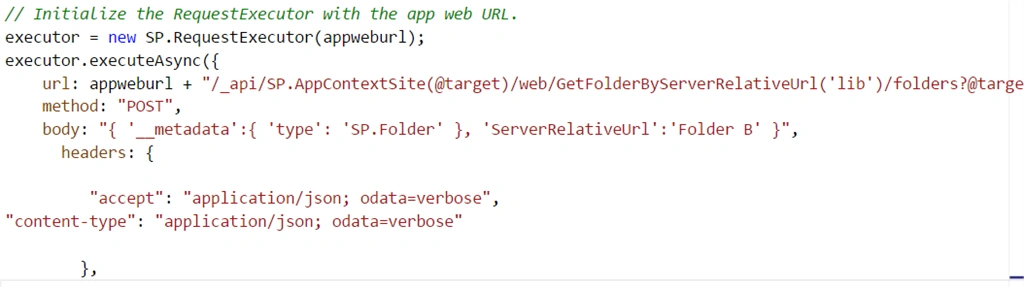
Lib=SharePoint Library Name
Folder B=NewFolder Name
SourceCode
- 'use strict';
- var hostweburl;
- var appweburl;
- // Get the URLs for the app web the host web URL from the query string.
- $(document).ready(function ()
- {
- //Get the URI decoded URLs.
- hostweburl = decodeURIComponent(getQueryStringParameter("SPHostUrl"));
- appweburl = decodeURIComponent(getQueryStringParameter("SPAppWebUrl"));
- // Resources are in URLs in the form:
- // web_url/_layouts/15/resource
- $("#btnclick").click(function (event) {
- FolderCreation();
- event.preventDefault();
- });
- // Load the js file and continue to load the page with information about the folders.
- // SP.RequestExecutor.js to make cross-domain requests
- $.getScript(hostweburl + "/_layouts/15/SP.RequestExecutor.js");
- });
- //Retrieve all of the folders from root Site
- function FolderCreation()
{ - var executor;
- var getfoldername= document.getElementById("CreateFolder").value;
- // Initialize the RequestExecutor with the app web URL.
- executor = new SP.RequestExecutor(appweburl);
- executor.executeAsync({
- url: appweburl + "/_api/SP.AppContextSite(@target)/web/GetFolderByServerRelativeUrl('lib')/folders?@target='" + hostweburl + "'",
- method: "POST",
- body: "{ '__metadata':{ 'type': 'SP.Folder' }, 'ServerRelativeUrl':'Folder B' }",
- }
- headers:
- {
- "accept": "application/json; odata=verbose",
- "content-type": "application/json; odata=verbose"
- },
- success: FoldersSuccessHandler,
- error: FoldersErrorHandler
- });
- }
- //Populate the selectFolders control after retrieving all of the folders.
- function FoldersSuccessHandler(data) {
- alert("Folder Created successfully in Library");
- }
- function FoldersErrorHandler(data, errorCode, errorMessage) {
- alert("Could not Create a Folder in Library: " + errorMessage);
- }
- //Utilities
- // Retrieve a query string value.
- // For production purposes you may want to use a library to handle the query string.
- function getQueryStringParameter(paramToRetrieve) {
- var params = document.URL.split("?")[1].split("&");
- for (var i = 0; i < params.length; i = i + 1) {
- var singleParam = params[i].split("=");
- if (singleParam[0] == paramToRetrieve) return singleParam[1];
- }
- }
Publish
Publish the App and click the Trust it button.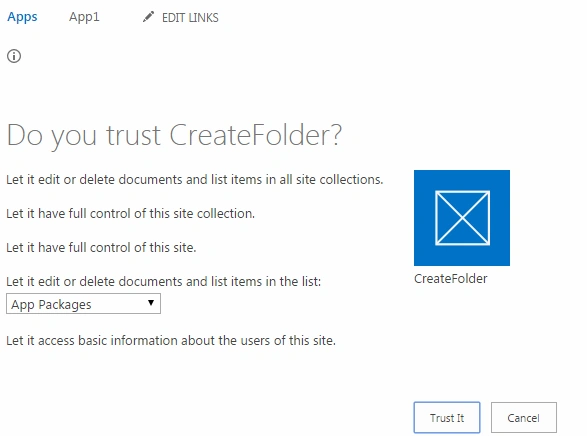
Output
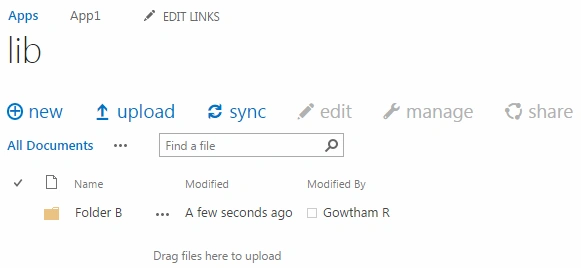
The folder has been created successfully in the Document Library SharePointLibraray.
Amardeep GuptaPosted Aug 23, 2018, 2:54 AM
What if we want folder name should be inputted by user instead of hard coding it as 'Folder B'..... i tried it by passing variable getfoldername into executeAsync({ }) as body: "{ '__metadata':{ 'type': 'SP.Folder' }, 'ServerRelativeUrl':getfoldername}" but it won't work...any solution for that???
Vithal WadjePosted Mar 26, 2015, 2:21 PM
nice
Vijay SPosted Mar 25, 2015, 2:49 AM
Good one