

Introduction
In this article, we will explore how to create a modern page template for ease of reuse.
There are two ways to create a page template.
- Create a modern page (choose any template type, e.g. News, Page),
- Another way is to choose any page from the Template gallery and use it as a starting point for your customized template.
A customized page template can be reused for the addition or modification of content any time later. Your customized page template anywhere without changing the original template copy and without affecting the template.
Objective
The OOB feature will be used in this solution.
Follow the below steps to create a Modern Page template in SharePoint Online.
Step 1. Navigate to your SharePoint 2013 Online modern site.
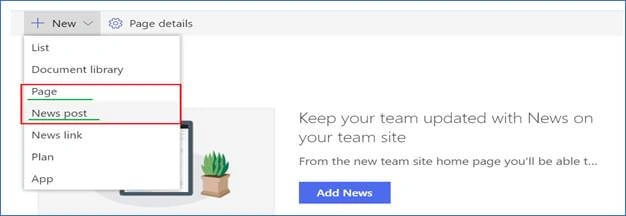
Step 2. Click "New" at the top of the page and choose a page or News Post.
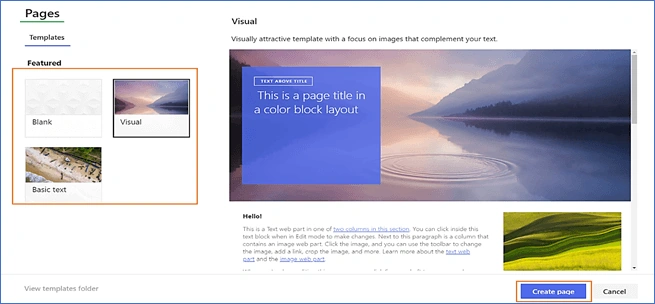
Step 3. If you select page or News Post below the screen appears. Select the template you want to start a page from scratch. Then, click on the "Create Page" button.
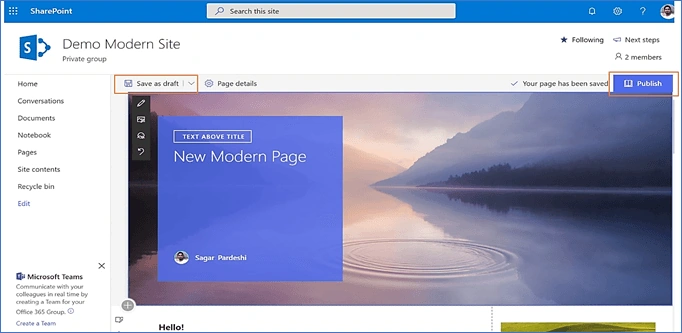
Step 4. After creation, the below screen appears. Customize the page, like adding the contents, web parts, moving web parts, and so on. If you want to make changes again after some time then click on Save As draft When you are done and ready to make your page changes visible to everyone, click the Publish button.
Step 5. Create a Modern Page Template.
- In SharePoint online, there are two ways to “Save as template” of a modern page. We will see one by one.
- Publish the page you'll want to use as the basis for your page template.
- Click the Edit button. Click the down arrow next to Save as draft at the top of the page and select Save as a template.
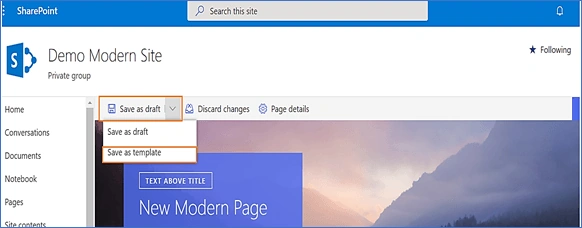
- Published page you want to use as the basis for your page template
- Click the button and then click Save as page template option
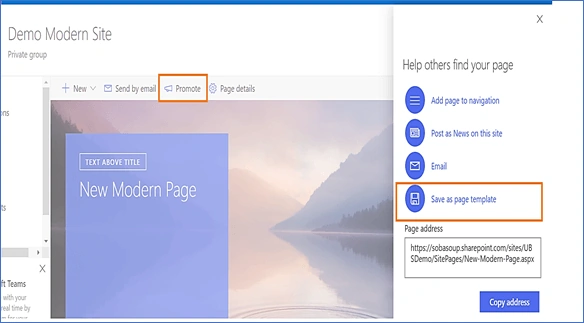
- Now you can see your customized template is ready to reuse.
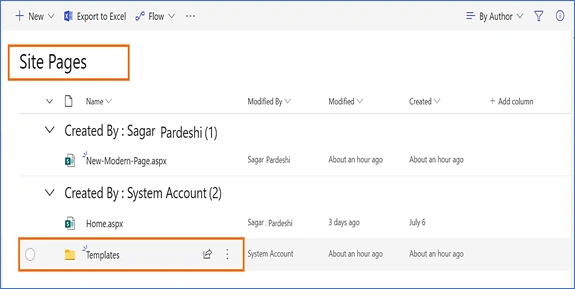
- To view or check your newly created template please follow the below path.
- Site Action->Site Content-> Site Pages->Template folder in the pages library.
- You can delete or modify a newly created template from this location.
Summary
Customized templates are good features to reuse the structure of pages in multiple sites or subsites. This gives reusability as well as time savings while creating OOB solutions.
Anuranjan SrivastavPosted Jul 28, 2019, 10:06 PM
Very informative article..