

This article explains how to create a SharePoint 2013 News Ticker using JQuery. Look at the following procedure.
Step 1
Open Visual Studio.
Step 2
Create a new project and select SharePoint 2013 Empty project.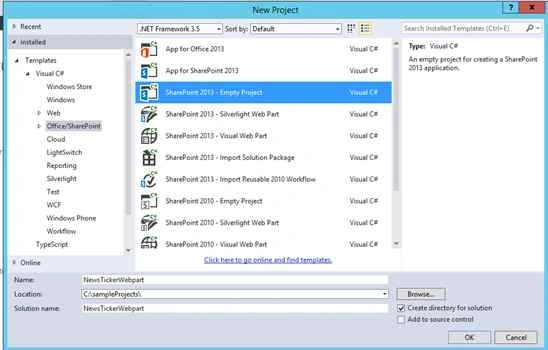
Step 3
Deploy as a Farm Solution.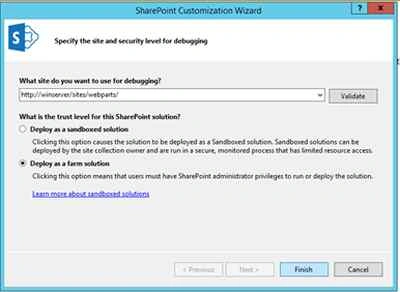
Step 4
Add a new item into the empty SharePoint project.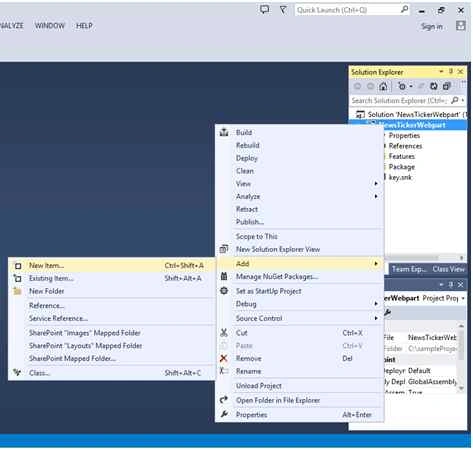
Step 5
Create a new Visual webpart.
Step 6
Now add the jQuery references into the SharePoint LAYOUTS Folder.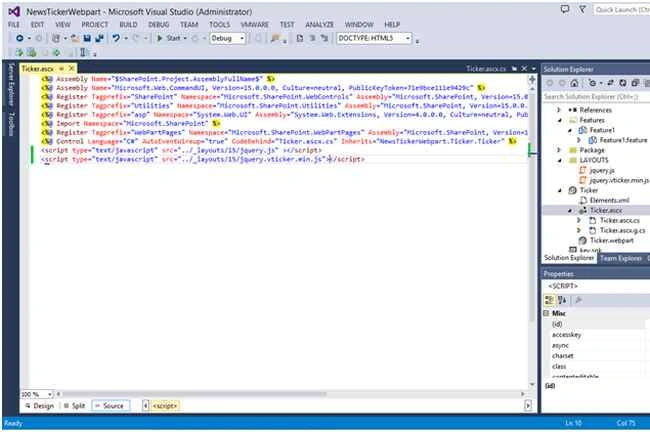
Step 7
Add a reference into the page "Ticker.ascx".
Design
Just add a ticker activities into it.
- < script > $(document).ready(function() {
- $('#NewsTicker').vTicker({
- speed: 500,
- /*Speed of the feed message*/
- pause: 3000,
- /*Pause time*/
- showItems: 1,
- /*No of News to display*/
- animation: 'fade',
- /*animation styles*/
- mousePause: true,
- /* pause when hover */
- direction: 'up' /*Text direction*/
- });
- }); < /script>
- <style type="text/css" media="all">
- #NewsTicker
- {
- width: 844px;
- margin: auto;
- }
- #NewsTicker ul li div
- {
- height:30px;
- background: Yellow;
- }
- <div style="width:1310px; height:30px; border-style:solid; border-width:2px; border-color:#FFCB05">
- <div style="float:left;background-color:White; height: 27px; width: 118px;">
- <h2 style="font-family:Arial; font-size:22px; background-color:#FFCB05; color:Black;">News</h2>
- </div>
- <div id="NewsTicker" style="float:left; padding-left:15px; font-size:24px; font-family:Arial; height: 29px;">
- <ul style="width: 920px">
- <asp:Literal ID="ltNews" runat="server" Text=""></asp:Literal>
- </ul>
- </div>
- </div>
- </style>
Add these two namespaces.
- using System.Text;
- using Microsoft.SharePoint;
- private void BindData()
- {
- Guid siteId = SPContext.Current.Site.ID;
- Guid webId = SPContext.Current.Web.ID;
- StringBuilder sb = new StringBuilder();
- SPSecurity.RunWithElevatedPrivileges(delegate
- {
- using(SPSite site = new SPSite(siteId))
- {
- using(SPWeb web = site.OpenWeb(webId))
- {
- SPList list = web.Lists.TryGetList("News"); /*Create the list*/
- if (list != null)
- {
- foreach(SPListItem item in list.Items)
- {
- sb.AppendLine("<li>");
- sb.AppendLine("<div>");
- sb.AppendLine(item.Title); /*Get the title column*/
- sb.AppendLine("</div>");
- sb.AppendLine("</li>");
- }
- }
- }
- }
- });
- ltNews.Text = sb.ToString();
- }
Step 8
Now save and deploy.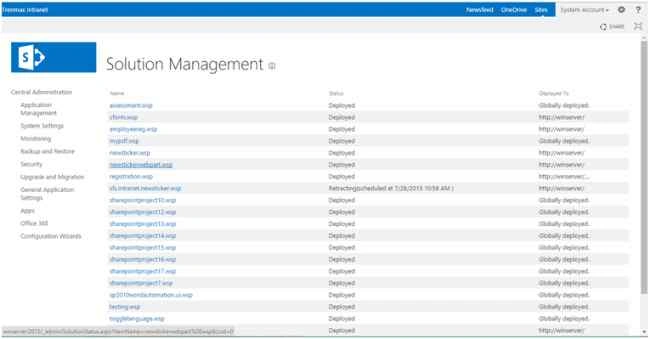
Step 9
So the solutions have been deployed now.
Go to the site.
Here I am have created a list named “News”.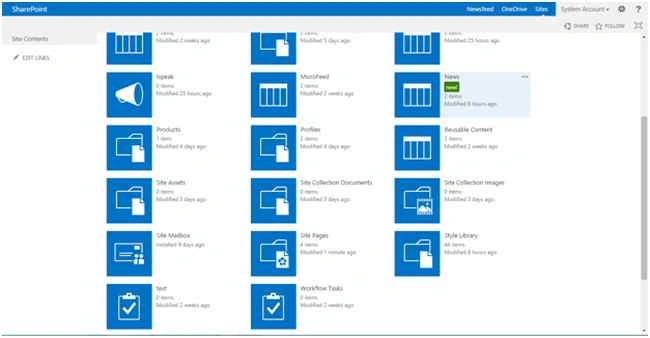
Step 10
The news lists have two feeds.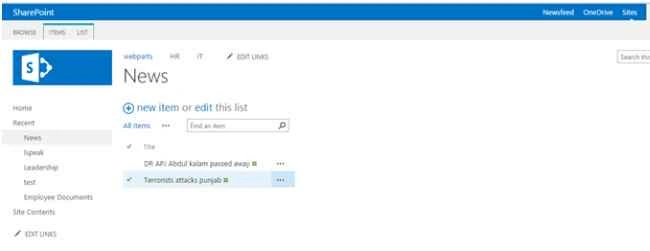
Step 11
Add a Newsfeed webpart from the “Custom” tab.
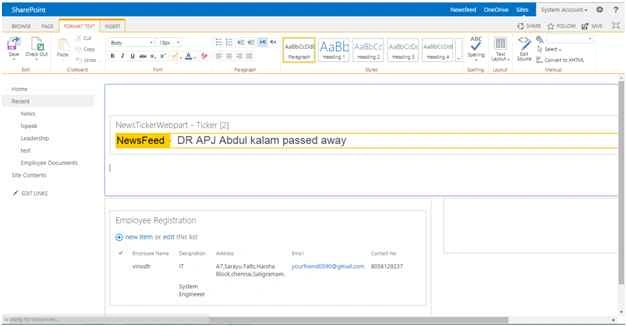
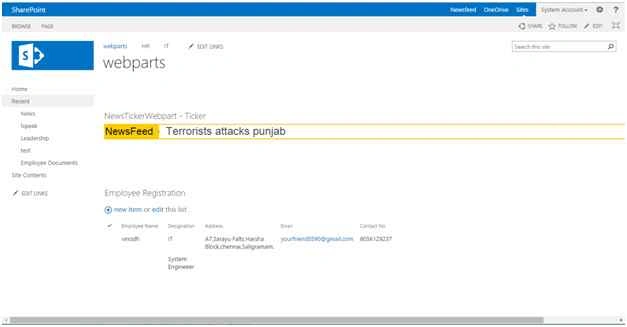

So we can use this newsfeed dynamically.
Regards: Vinodh.N(SharePoint developer/administrator).
Mohit TharejaPosted Jan 28, 2016, 3:50 AM
how can this be changed to scroll horizontally
Richard GriffithsPosted Dec 15, 2015, 5:24 AM
Hey can this used with external lists?
Vinodh NarayananPosted Jul 29, 2015, 8:56 AM
Thank u guys
Sibeesh VenuPosted Jul 29, 2015, 6:09 AM
Nice Share.
Debasis SahaPosted Jul 29, 2015, 2:03 AM
Nice Article..
Vinodh NarayananPosted Jul 29, 2015, 12:38 AM
Thank you guys
Jacob RobinsonPosted Jul 29, 2015, 12:21 AM
Good show..
Rajeesh MenothPosted Jul 29, 2015, 12:14 AM
Good One
Nilesh JadavPosted Jul 29, 2015, 12:06 AM
NIce article sir
Gopi ChandPosted Jul 28, 2015, 11:08 PM
Good one
Neeraj KumarPosted Jul 28, 2015, 3:47 PM
Nice