

Overview
MS Graph APIs offers a wide range of capabilities. It can be effectively used to create Office 365 groups from SharePoint Framework solutions. An SPFx web part can be a useful asset to create Office 365 groups right from the SharePoint page, instead of navigating to the Office 365 admin center.
During this article, we will develop a practical scenario to create Office 365 groups using MS Graph.
Develop SPFx Web Part
Open a command prompt. Create a directory for the SPFx solution.
md spfx-create-o365-groups
Navigate to the above-created directory.
cd spfx-create-o365-groups
Run the Yeoman SharePoint Generator to create the solution.
yo @microsoft/sharepoint
The Yeoman generator will present you with the wizard by asking questions about the solution to be created.
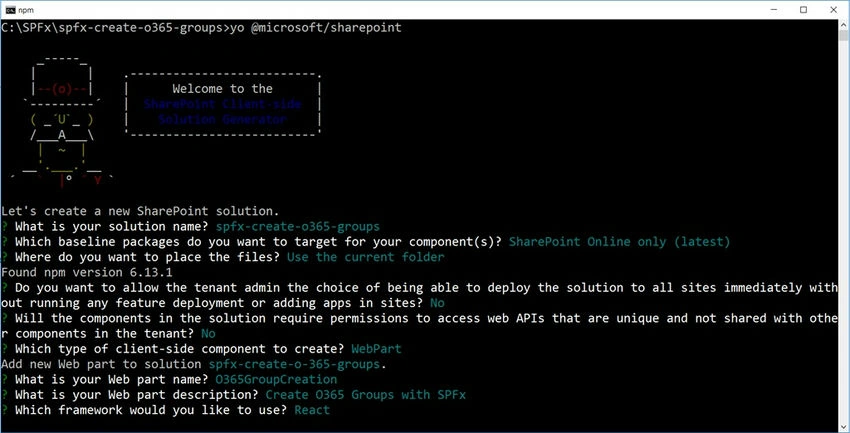
The Yeoman generator will perform a scaffolding process to generate the solution. The scaffolding process will take a significant amount of time.
Once the scaffolding process is completed, lock down the version of project dependencies by running the below command.
npm shrinkwrap
In the command prompt type the below command to open the solution in the code editor of your choice.
code .
NPM Packages Dependency
Microsoft Graph TypeScript types
The typing will help in providing IntelliSense while writing the code.
On the command prompt, run the below command to include the npm package.
npm install @microsoft/microsoft-graph-types --save-dev
@pnp/spfx-controls-react (https://sharepoint.github.io/sp-dev-fx-controls-react/)
On the command prompt, run the below command to include the npm package.
npm install @pnp/spfx-controls-react --save
@pnp/sp (https://www.npmjs.com/package/@pnp/sp)
On the command prompt, run the below command.
npm i @pnp/logging @pnp/common @pnp/odata @pnp/sp --save
Set Permission Scopes
To consume MS Graph or any third-party REST APIs, the permissions need to be explicitly set in the solution manifest.
Open “config\package-solution.json” and add the below permission scope.
{
  "$schema": "https://developer.microsoft.com/json-schemas/spfx-build/package-solution.schema.json",
  "solution": {
    "name": "spfx-create-o365-groups-client-side-solution",
    "id": "899531e0-cbce-4e4d-a96e-6dd6f18c7e7e",
    "version": "1.0.0.0",
    "includeClientSideAssets": true,
    "isDomainIsolated": false,
    "webApiPermissionRequests": [
      {
        "resource": "Microsoft Graph",
        "scope": "Group.Read.All"
      },
      {
        "resource": "Microsoft Graph",
        "scope": "Group.ReadWrite.All"
      },
      {
        "resource": "Microsoft Graph",
        "scope": "Directory.Read.All"
      },
      {
        "resource": "Microsoft Graph",
        "scope": "Directory.ReadWrite.All"
      },
      {
        "resource": "Microsoft Graph",
        "scope": "Directory.AccessAsUser.All"
      }
    ]
  },
  "paths": {
    "zippedPackage": "solution/spfx-create-o365-groups.sppkg"
  }
}
Define State
Define a state to represent O365 group creation information.
Add a file IO365GroupCreationState.ts file under the folder “src\webparts\o365GroupCreation\components\IO365GroupCreationState.ts”.
import { MessageBarType } from 'office-ui-fabric-react';

export interface IO365GroupCreationState {
    name: string;
    description: string;
    visibility: string;
    owners: string[];
    members: string[];
    showMessageBar: boolean;
    messageType?: MessageBarType;
    message?: string;
}
Implement O365 Groups Service
Implement service to perform operations against O365 groups.
Under src, create a folder named "services".
Add a file O365GroupService.ts file under it.
import { MSGraphClient } from "@microsoft/sp-http";
import { WebPartContext } from "@microsoft/sp-webpart-base";
import { Group } from "@microsoft/microsoft-graph-types";

export class O365GroupService {
    public context: WebPartContext;

    public setup(context: WebPartContext): void {
        this.context = context;
    }

    public createGroup(groupName: string, groupDescription: string, groupVisibility: string, groupOwners: string[], groupMembers: string[]): Promise<void> {
        return new Promise<void>((resolve, reject) => {
            try {

                const groupRequest: Group = {
                    displayName: groupName,
                    description: groupDescription,
                    groupTypes: [
                        "Unified"
                    ],
                    mailEnabled: true,
                    mailNickname: groupName.replace(/\s/g, ""),
                    securityEnabled: false,
                    visibility: groupVisibility
                };

                if (groupOwners && groupOwners.length) {
                    groupRequest['[email protected]'] = groupOwners.map(owner => {
                        return `https://graph.microsoft.com/v1.0/users/${owner}`;
                    });
                }

                if (groupMembers && groupMembers.length) {
                    groupRequest['[email protected]'] = groupMembers.map(member => {
                        return `https://graph.microsoft.com/v1.0/users/${member}`;
                    });
                }

                this.context.msGraphClientFactory
                    .getClient()
                    .then((client: MSGraphClient) => {
                        client
                            .api("/groups")
                            .post(groupRequest)
                            .then((groupResponse) => {
                                console.log(groupResponse);
                                resolve();
                            });
                    });
            } catch (error) {
                console.error(error);
            }
        });
    }
}

const GroupService = new O365GroupService();
export default GroupService;
Under the services folder, add a file index.ts.
export * from './O365GroupService';
Consume service from the web part
Open the web part file at “src\webparts\o365GroupCreation\O365GroupCreationWebPart.ts”
Import the service.
import O365GroupService from '../../services/O365GroupService';
Implement the onInit() method to set up the service.
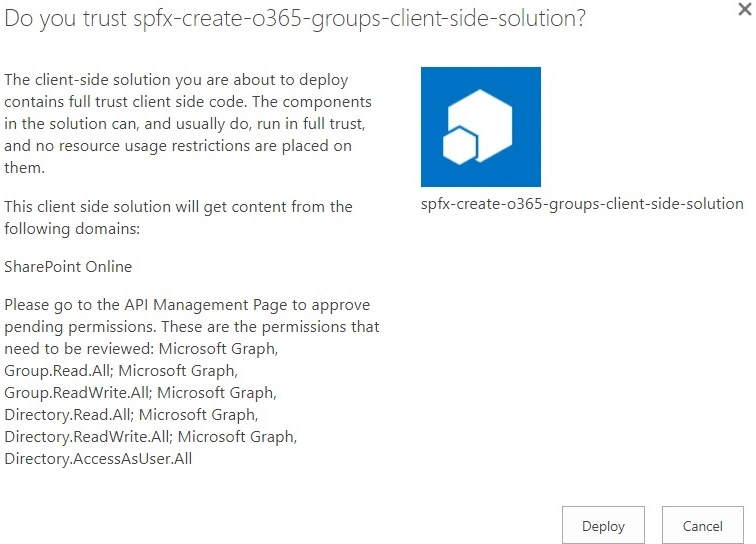
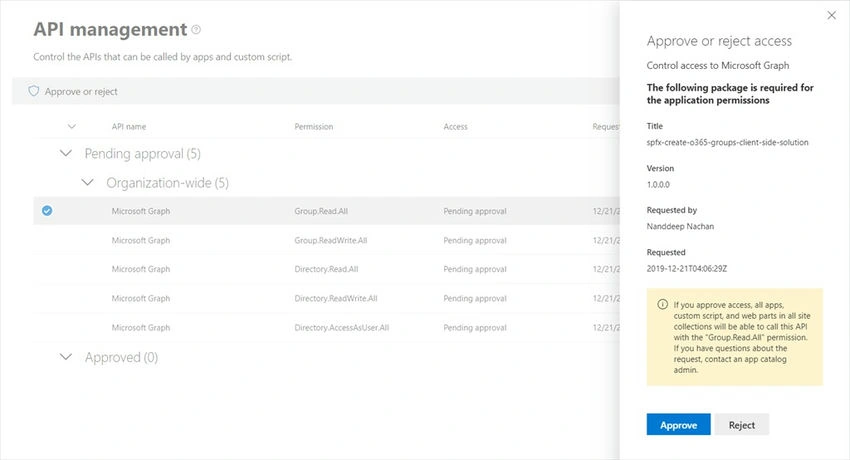
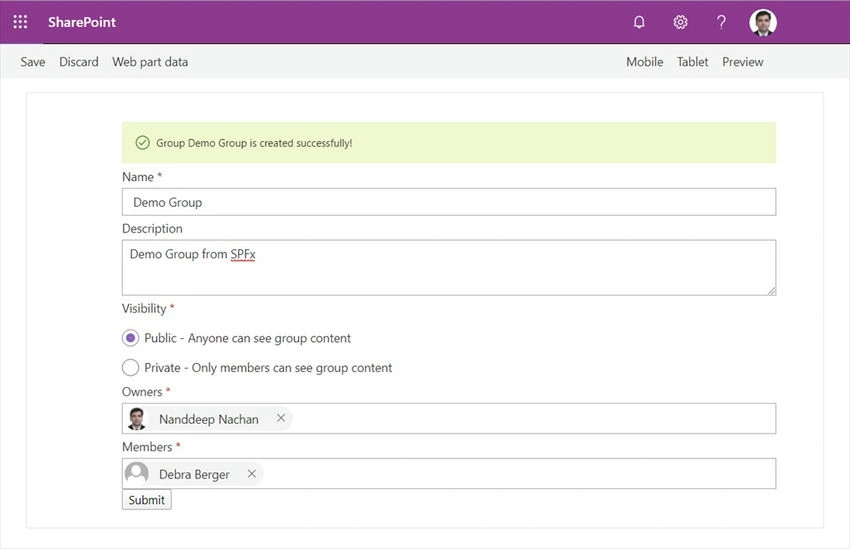
Purna ChanderPosted Jun 30, 2020, 8:51 AM
Hi Nanddeep, Thanks for your help on this. The group creation is working for sharepoint/global admin but for end users its giving "Tenant admin has not enabled Unified Group creation". So as you suggested, I have added "Group.Create" permission in package-app.json and deployed the app again . In API section, now we see Group.Create pending request. But when trying to approve, it is throwing HTTP 400 error. Tried with Global admin, still it is showing same. Can you let me know if anything we are missing here.
Purna ChanderPosted Apr 25, 2020, 10:35 PM
Hi Nanddeep, very detailed article. Thanks for sharing. Can you please clarify you dint register the app at azure AD except granting the API permissions in SharePoint API section. I noticed, in other samples there is a step of registering the app at azure and using client id, secret to perform activities like creation of group/ adding tabs to MS team channels etc..
Sourav Kumar DasPosted Dec 26, 2019, 12:45 AM
Nice and useful article. Thanks for sharing.
Prasham SabadraPosted Dec 24, 2019, 7:41 PM
Thanks Nanddeep for sharing this. But one question might be what will be the real life use case or scenario for this