
The Portable Document Format (PDF) is a file format used to present documents in a manner independent of application software, hardware and operating systems. Each PDF file encapsulates a complete description of a fixed-layout flat document, including the text, fonts, graphics and other information needed to display it. As a program developer, sometimes we will need to manipulate PDF documents programmatically. When you search the Internet, you will find many products, all of which might be very nice and useful, but I will recommend two products used in my work to you, that are more wonderful, one is ItextSharp, the other one is Spire.PDF.
This article shows how to create a PDF and convert it to an image in a relatively easy method to use the two libraries.
The first step is to create a simple PDF document with ItextSharp.
Namespace to be used:
- using iTextSharp.text;
- using iTextSharp.text.pdf;
- Document document = new Document();
- PdfWriter.GetInstance(document, new FileStream("Sample.pdf", FileMode.Create));
- document.Open();
- document.Add(new Paragraph("Hello World"));
- PdfPTable table = new PdfPTable(3);
- table.SpacingBefore = 30f;
- table.SpacingAfter = 30f;
- PdfPCell cell = new PdfPCell(new Phrase("Header spanning 3 columns"));
- cell.Colspan = 3;
- cell.HorizontalAlignment = 1;
- table.AddCell(cell);
- table.AddCell("Col 1 Row 1");
- table.AddCell("Col 2 Row 1");
- table.AddCell("Col 3 Row 1");
- table.AddCell("Col 1 Row 2");
- table.AddCell("Col 2 Row 2");
- table.AddCell("Col 3 Row 2");
- document.Add(table);
- Image image = Image.GetInstance("1.PNG");
- document.Add(image);
- document.Close();
Here is how it looks. 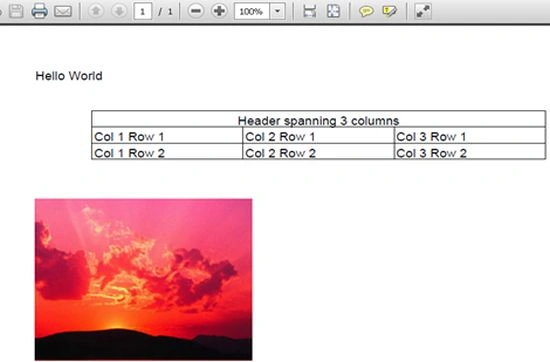
As you can see, it is easy, you could also set the style of the table, add the image, and so on.
Next is to convert the PDF document generated by ItextSharp to an image with Spire.Pdf.
Step 1
Open the PDF document.
To open a document the Spire.PDF library contains a PdfDocument class, that allows loading PDF documents in many formats, stream, byte, and so on. Here I use the file source path:
- PdfDocument pdfdocument = new PdfDocument("Sample.pdf");
Step 2
Iterate through the PDF document pages and save it as an image.
Now I iterate through the pages the PDF contains, then save it as an image. In the SaveAsImage method, we can set the DPI of the image. Here is the code:
- for(int i=0;i< pdfdocument.Pages.Count;i++)
- {
- System.Drawing.Image image= pdfdocument.SaveAsImage(i, 96, 96);
- image.Save(string.Format("ImagePage{0}.png", i), System.Drawing.Imaging.ImageFormat.Png);
- }
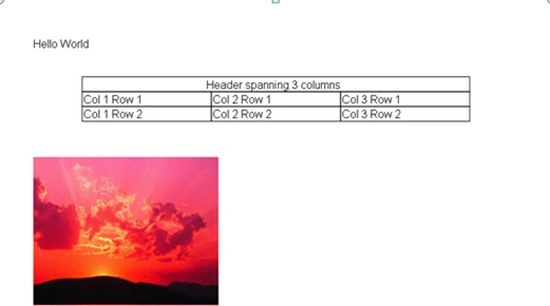
I hope you enjoy this article.
Happy coding.
Ian JacobsPosted Mar 3, 2022, 8:51 AM
Nice article. Recently I found that besides converting pdf to image, the spire.pdf dll also supports creating pdf documents. https://www.e-iceblue.com/Introduce/pdf-for-net-introduce.html
Lokesh MulewaPosted Dec 14, 2017, 7:31 AM
I want to convert pdf to image with itextsharp only (NOT Spire.pdf) . is there any way to do this.
navneet kaurPosted Aug 18, 2017, 2:42 AM
Exception occur on "image.Save" A generic error occurred in GDI+.
Sonu ChaudharyPosted Jun 8, 2016, 2:56 PM
good one ..
Anil Kumar VadlamudiPosted Oct 27, 2015, 8:31 AM
Hi Rahul, How to Insert data to Database from Excel file?
mosi sirishPosted Sep 20, 2015, 4:02 AM
pdfdocument.SaveAsImage does not exist ...
Gurunatha DogiPosted Nov 4, 2014, 4:56 AM
Superb article..Nice