

Power BI is a Cloud based Service that provides data visualization options, based on the source data. Using Power BI, we can create dashboards based on the data. In order to create the reports, make sure that you have a Power BI account. If you don’t have an account, you can sign up for it here .You can either work with Power BI online or download the Power BI Desktop version here.
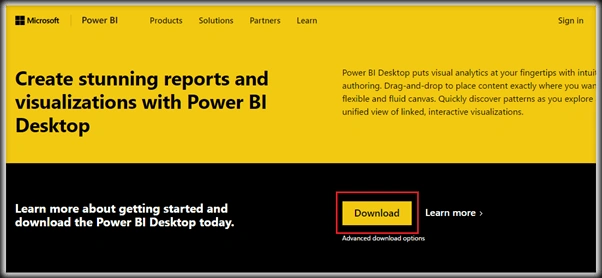
Power BI has the flexibility to consume numerous data sources and generate business intelligence reports from the source data. In this article, we will see how to consume JSON data from REST Web Service within Power BI and create reports.
Consume JSON data from REST Web Service within Power BI
We will be using REST Web service to pump JSON data into Power BI which will be used to create reports. If we have a fully functional REST Service hosted in our environment, we can use it with Power BI; else we can create a mock REST Service using JSON Server that will help us work with a REST service for testing. As a bonus to the readers, we will be exploring a neat hack that helps us set up a mock REST Service using JSON Server for testing with Power BI.
JSON Server
JSON Server is built on top of Node.js and is an npm package using which we can create mock REST Services. We will be making use of a JSON file that acts as a back end database to power the REST Service. We can install and setup Node.js and npm by installing Node JS LTS version from here.
Once we have installed Node JS, we can install JSON Server by running the below command:
npm install -g json-server
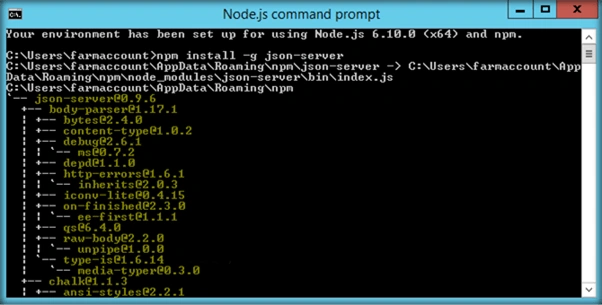
This will install JSON Server in our development environment. We can check the JSON Server version using the command:
json-server –v
Now, we can attach a JSON file that acts as the database to the JSON Server using the command -
json-server <location of the json file>

We will be making use of Product.json that has the Q1-Q4 sales data of cars.

Thus, the JSON Server has been setup up and will be running on server port 3000 and the home URL using which we can access the REST service is “http://localhost:3000”.
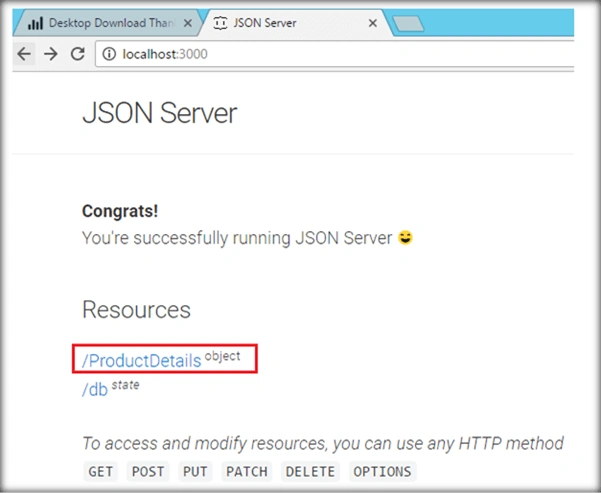
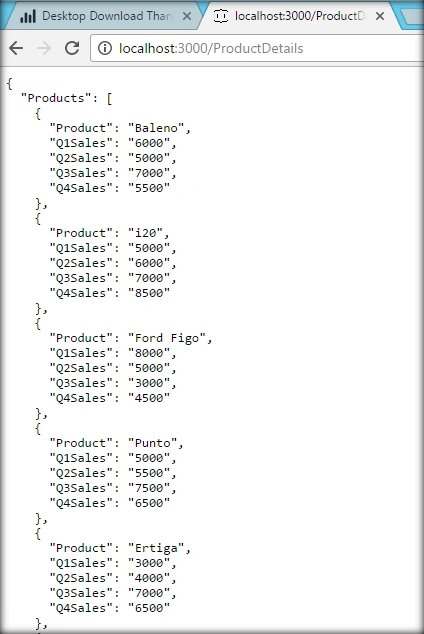
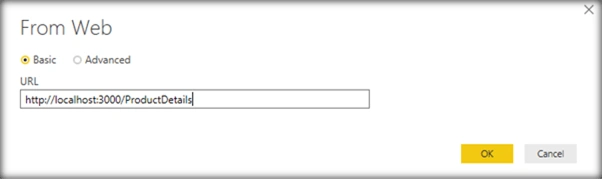
On accessing the home URL ,we can see the available resources which we can access as a REST endpoint. We have the ‘ProductDetails’ resource which will be accessible as “http://localhost:3000/ProductDetails”.
We can see that a successful GET will fetch us the below JSON response in the browser.
Create Power BI Reports from REST Service
Once we have a working REST Service (or a mock REST Service using JSON Server), we can consume it from Power BI and create business intelligence reports.
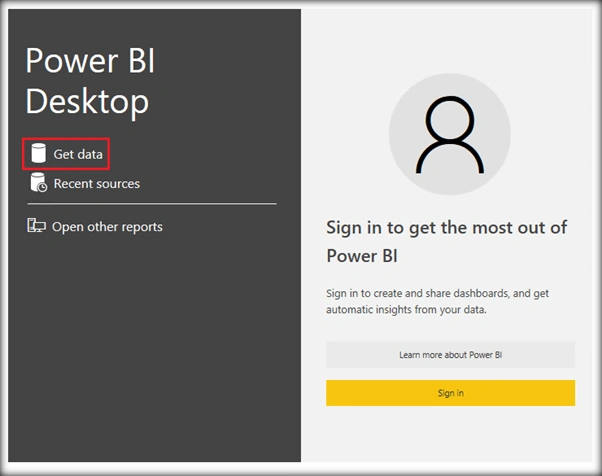
Head over to Power BI Desktop and select ‘Get Data’ option.
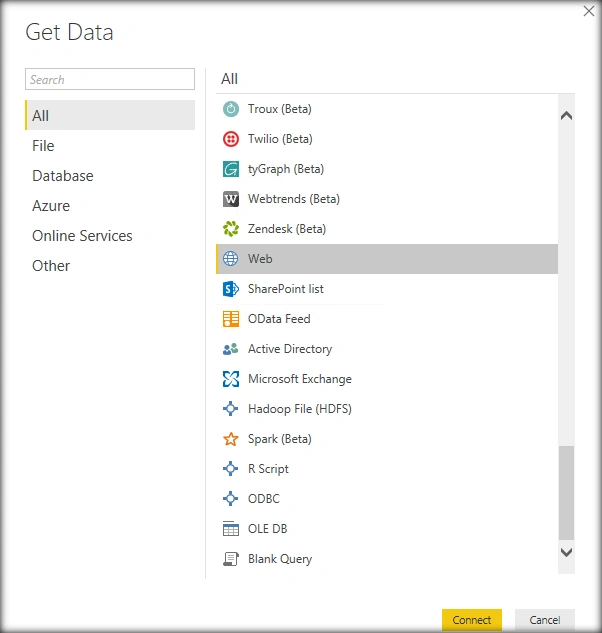
From the options, select ‘Web’ and click on Connect.
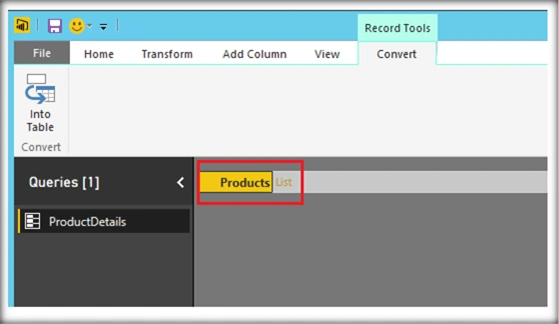

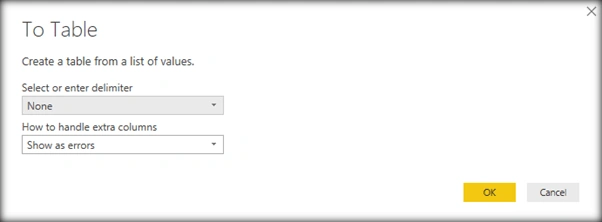
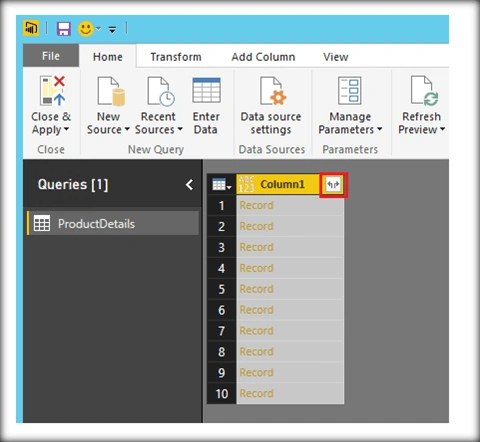
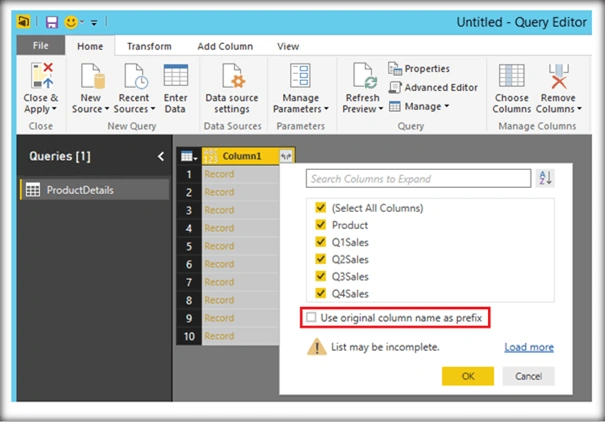
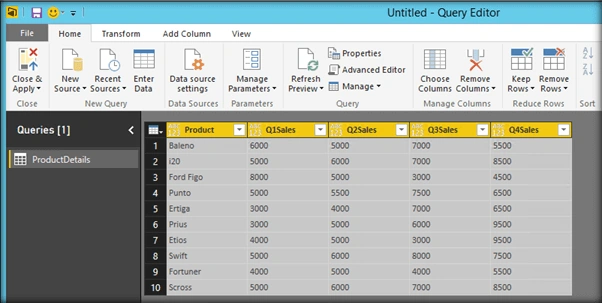


Nancy RaiPosted Sep 1, 2018, 2:30 AM
Really Informative Article...Thanks for sharing wonderful Information. I found more blogs related to Power BI. Check out the following link : https://zappysys.com/blog/howto-import-json-rest-api-power-bi/
Thabo PaliPosted Jun 11, 2017, 2:31 PM
We need more of these, from Novice to Intermediate :)
Tejesh BarmaPosted Mar 21, 2017, 7:42 AM
This is really good.Please keep sharing Power Bi articles much more.
Madhanmohan DevarajanPosted Mar 20, 2017, 9:43 AM
This article is so easy to understand. Please keep sharing Power BI report creation using other input source also.
Thennarasu NPosted Mar 19, 2017, 2:32 AM
Thank you much brother sharing