

Introduction
This article provides a simple example of how to create a QVD file in a QlikView application.
Step 1: Open the QlikView application
In the first step you must open the QlikView application then go to "File" -> "New" +then this window will be opened.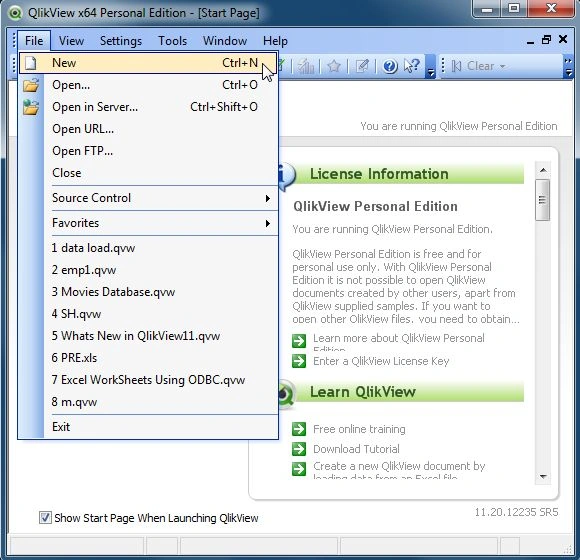
Step 2: Open Edit Script
The second step is to open the edit script window, from "File" -> "Edit Script".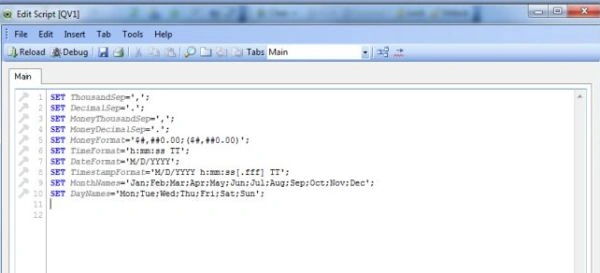
Step 3: Select Database
The third step is to select a database from the Data tab and click on the Connect Button.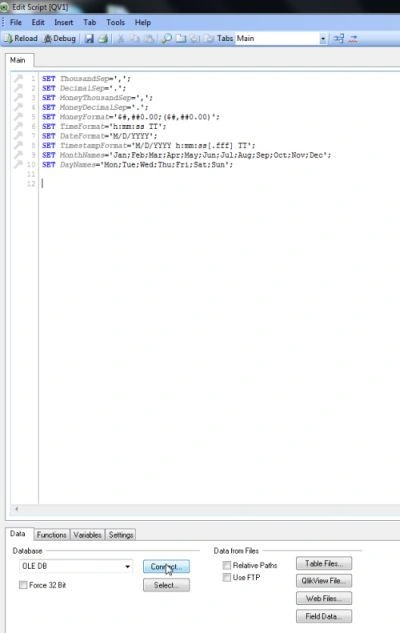
Step 4: Data link property window
In this window we select SQL Server and click on the Next Button.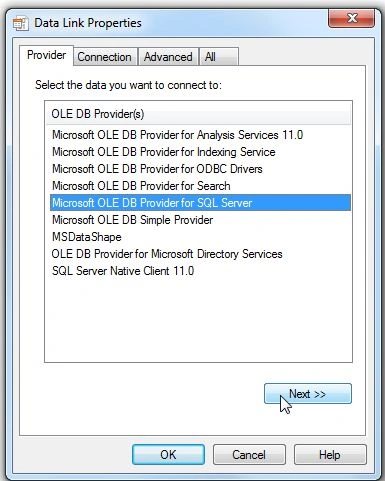
Step 5: Connection tab
In the connection tab, enter the server name and user name and password and select the database from your server and click on Test Connection.
Then you find that the test connection succeeded and click on the OK button.
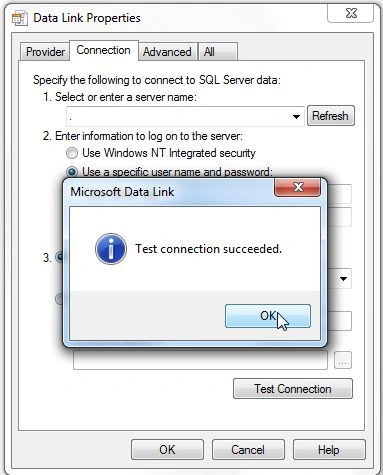
Then click on the OK button.
Step 6: SQL Server login
Then they require SQL Server login so you have entered a valid login id and password and click on the OK button.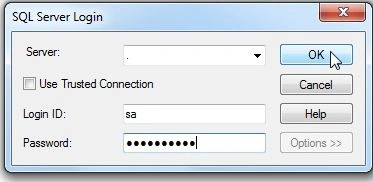
Then this window will be opened.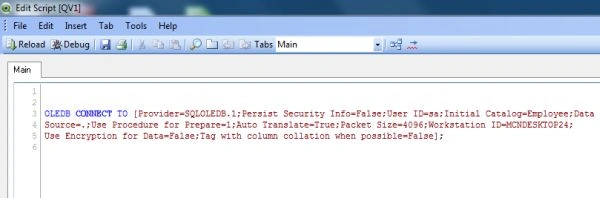
Step 7: Create select statement
When we click on the Select button on data tab then this window will be opened.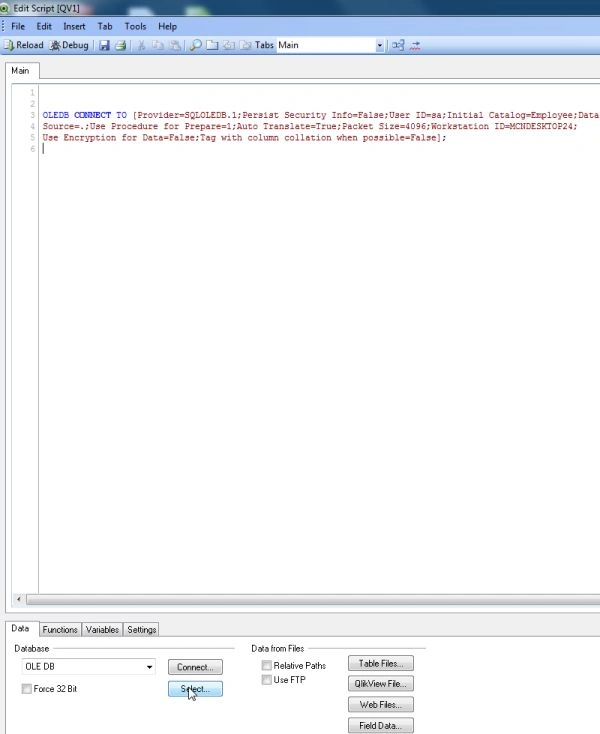
Then this window will be opened and click on the OK button.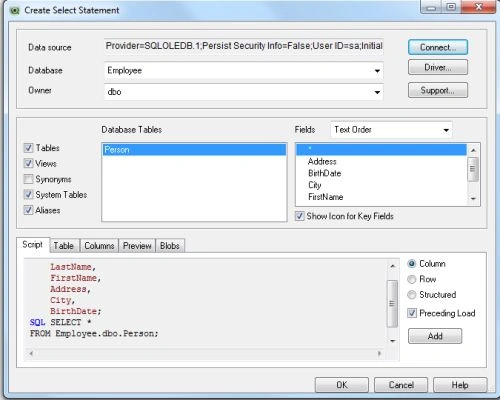
Step 8: Code of edit script
Now create a QVD file and write this code in the edit script.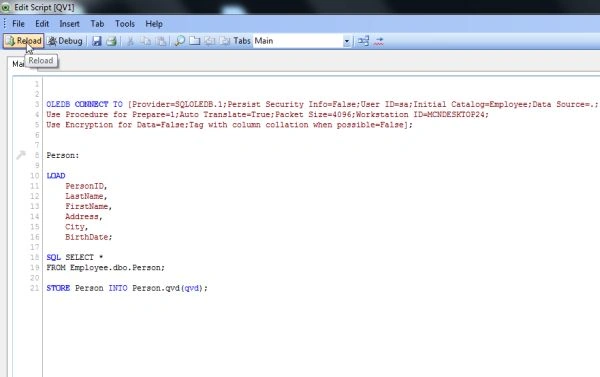
Step 9: Save QlikView file
After reloading the edit script, the next step is to save the QlikView file and click on the Save button.
Step 10: Script execution progress
Then the script execution progress window will be opened; enter the required login Id and password and click on the OK button.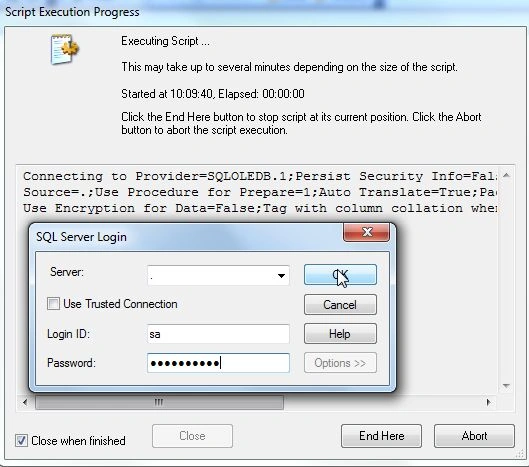
Step 11: Sheet property Window
After this process, the sheet property window will be opened. If you want, add a field and select a field from the available fields and click on the OK button.
Then this window will be opened.
Step 12: Now this window will be opened and close it.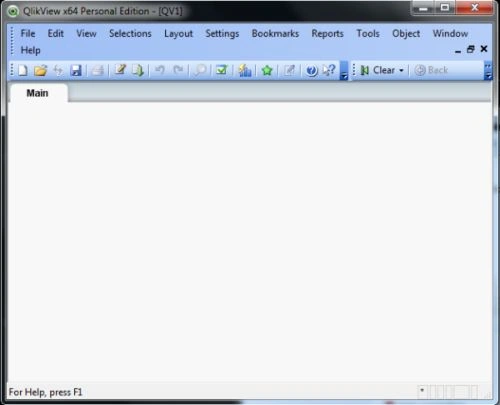
Step 13: Now you will see the QVD file in the location you saved your QlikView file.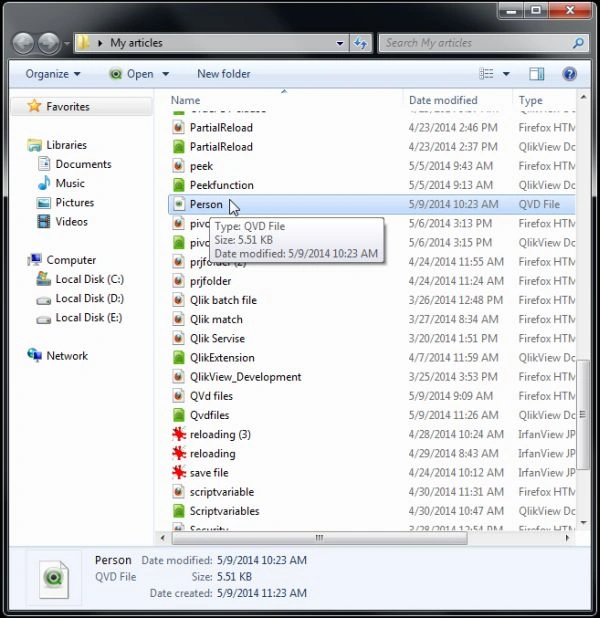
Summary
This article described how to create QVD files in your QlikView application.
Join the conversation! Your thoughts help the community grow.