RDLC Stands for Report Definition Language Client Side. It is used to create reports using Microsoft Reporting Technology.
It is not a third party report and is a built-in reporting service in Microsoft Visual Studio.
Benefits
- Runs on client side
- Run Based on only one Dataset
- Run Based on one Data Source
- No need to install any Reporting Service Instance
Here are the steps to create a new RDLC Report in C#.
Step 1. To create a new website start Visual Studio 2008, Go to File, then click New Web Site.
Then choose the path where we have to save the website folder and mention the website name as whatever you need. Here, I have given the website name RDLC.
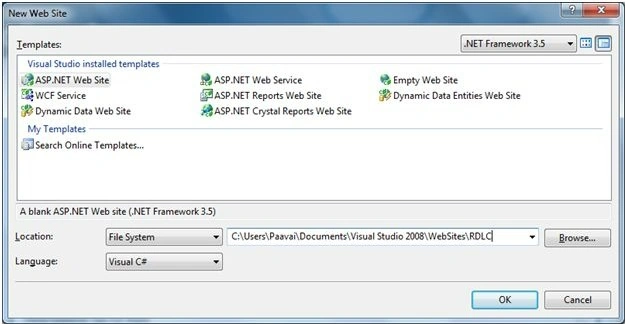
Figure 1. Create a new website
Then hit the OK button.
Step 2. Now we are going to create a Dataset for our report. Here are the steps.
Right-click the website name folder RDLC, Add a new Item, then choose Dataset.
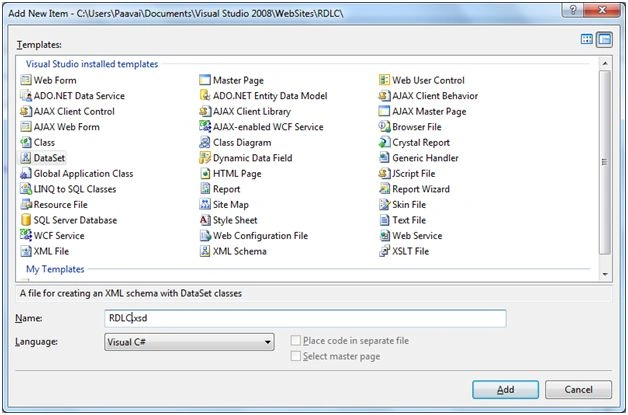
Figure 2. Dataset Creation
Mention the dataset name and then hit the Add button to explore the dataset window.
Now your dataset RDLC is placed under the App_Code folder then the following dataset window will open.
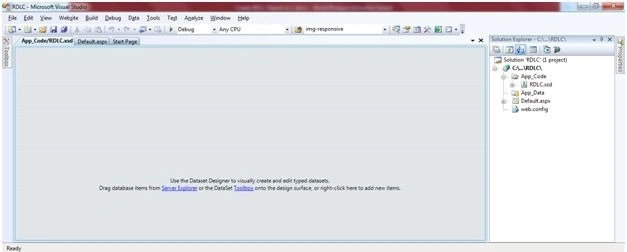
Figure 3. Dataset window
Step 3. In the working area of the dataset window right click, Add, then click DataTable.
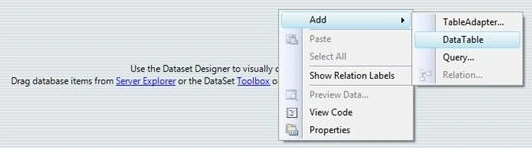
Figure 4. Adding Data Table
Now the data table is added into the dataset working area field like the following.
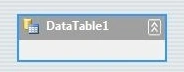
Figure 5. Data Table
After the table creation right right-click the table, then Add and click Column to add the column.
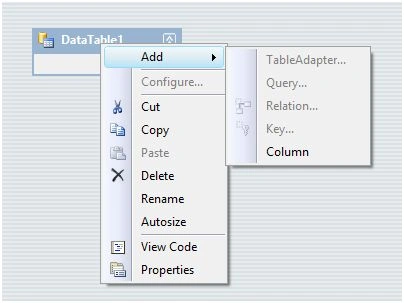
Figure 6. Adding Column
Add the data column whatever you need and then change the table name to tblStudent.
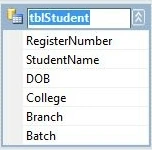
Figure 7. After Column Field Added
Now your data set is ready to connect with our report.
Step 4. After dataset creation, we are going to create RDLC.
Right click the website name folder, click Add new item, then choose Report Wizard.
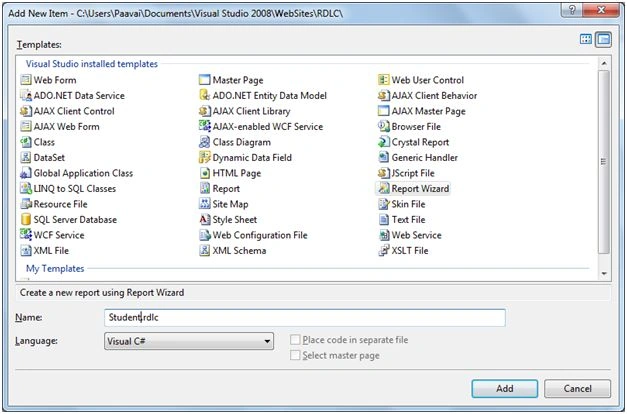
Figure 8. Report Creation
Mention the report name as Student.rdlc and then hit the Add button. After clicking the add button the following pop-up window will open. In this window hit the next button.
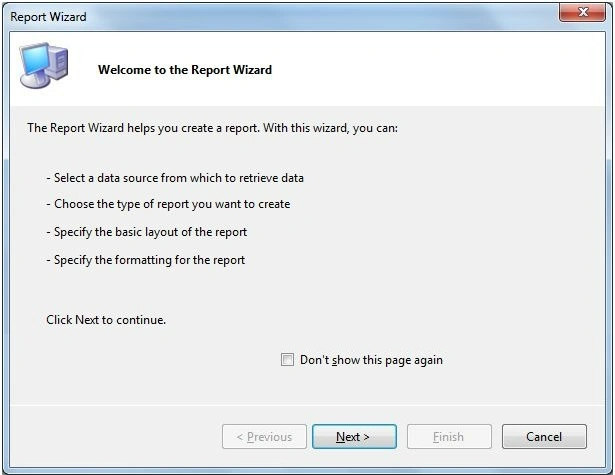
Figure 9. Pop up window
After clicking next button it will take you into the data source selection window.
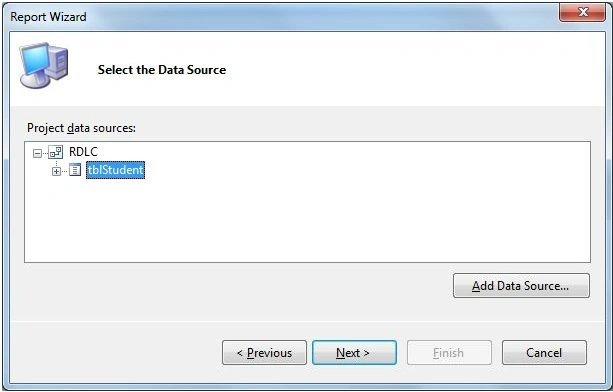
Figure 10. Data Source selection window
In this window select the data source that is our student dataset and then click the Next button.
Then choose the report type as Tabular and then hit next. It will take you to the following tab. In this tab choose whatever fields you need to display it into your report. Select the fields in Available fields then hit Page button to add it into the Displayed Fields column. Then choose table layout whatever you want and then hit next then choose the table style. Here I have to choose the table style as forest. After that click the Finish button to exit the report creation wizard.
Now your report is displayed into the following format.
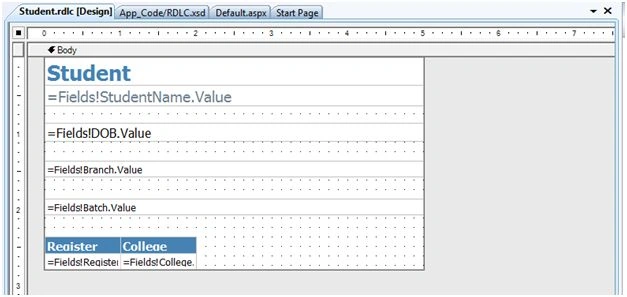
Figure 11. RDLC Report
Step 5. Now we are going to add a reporting viewer to our webpage.
In the RDLC report we need to add a reporting viewer means we need a Script manager that is Ajaxcontroltoolkit.dll to be added to our webpage reference.
Choose ScriptManager in the Ajax Extension Toolbox.
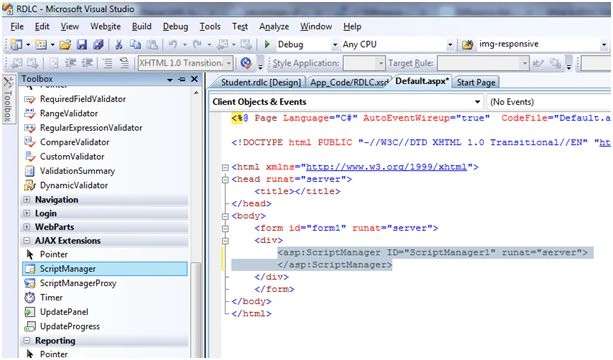
Figure 12. Adding Script Manager
Then choose ReportViewer under the Reporting toolbox.
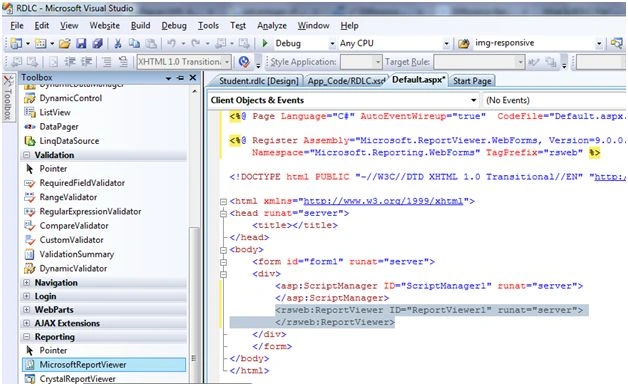
Figure 13. Adding Report Viewer
Step 6. Coding to bind a Report from the database.
Adding the following reference to our code page.
using System.Data;
using System.Data.Sql;
using System.Data.SqlClient;
using Microsoft.Reporting.WebForms;
public partial class Default : System.Web.UI.Page
{
    protected void Page_Load(object sender, EventArgs e)
    {
        SqlConnection con = new SqlConnection("Data Source=sql Server name; Initial Catalog=ResultDB; Integrated Security=True");

        if (!IsPostBack)
        {
            string strQuery = "SELECT * FROM tblStudent";
            SqlDataAdapter da = new SqlDataAdapter(strQuery, con);
            DataTable dt = new DataTable();
            da.Fill(dt);
            RDLC ds = new RDLC();
            ds.Tables["tblStudent"].Merge(dt);
            ReportViewer1.ProcessingMode = ProcessingMode.Local;
            ReportViewer1.LocalReport.ReportPath = Server.MapPath("Student.rdlc");
            ReportDataSource datasource = new ReportDataSource("RDLC", ds.Tables[0]);
            ReportViewer1.LocalReport.DataSources.Clear();
            ReportViewer1.LocalReport.DataSources.Add(datasource);
        }
    }
}
After execution, you can see what the following error means.
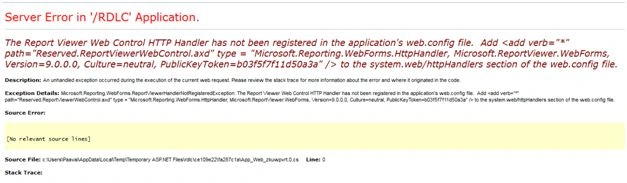
Figure 14. Error
Paste the following code into your web. config file under HTTP handlers.
<add verb="*" path="Reserved.ReportViewerWebControl.axd" type="Microsoft.Reporting.WebForms.HttpHandler, Microsoft.ReportViewer.WebForms, Version=9.0.0.0, Culture=neutral, PublicKeyToken=b03f5f7f11d50a3a" />
Read more articles on ASP.NET.


IMAD AYOUBPosted Jul 26, 2021, 8:18 PM
Excellent tutorial. Thanks a lot. Does RDLC work in asp.net core?
ankit chauhanPosted Jul 17, 2021, 10:43 AM
How to open RDLC Report on new page
Hawk eyePosted May 14, 2019, 5:06 AM
DOES visual studio 2008 code works the same in studio 2012
Dharmendra Kumar PanditPosted Feb 14, 2019, 7:56 PM
Nice one.....
Manimekalai GanesanPosted Apr 4, 2016, 1:25 AM
Thank you Kuppurasu sir
Kuppurasu NagarajPosted Apr 3, 2016, 4:35 AM
Nice
Manimekalai GanesanPosted Apr 2, 2016, 5:33 AM
Thank you Gowtham sir
Gowtham RajamanickamPosted Apr 2, 2016, 5:23 AM
Good one...
Manimekalai GanesanPosted Mar 24, 2016, 1:24 AM
Thank you Humayun
Humayun Kabir MamunPosted Mar 24, 2016, 12:39 AM
Nice...
Manimekalai GanesanPosted Mar 24, 2016, 12:15 AM
Thank you all
Jaipal ReddyPosted Mar 23, 2016, 11:59 PM
Nice One. . .
Kumaresh RajalingamPosted Mar 23, 2016, 9:07 PM
Nice share
Debasis SahaPosted Mar 23, 2016, 1:18 PM
Nice one..
Vignesh ManiPosted Mar 23, 2016, 12:50 PM
Good One