
In this example I will explain how to create a Setup and Deployment project using ClickOnce.for Windows Forms applications using Visual Studio 2005/2008/2010.
A similar approach can be applied for creating a setup project for web applications as well.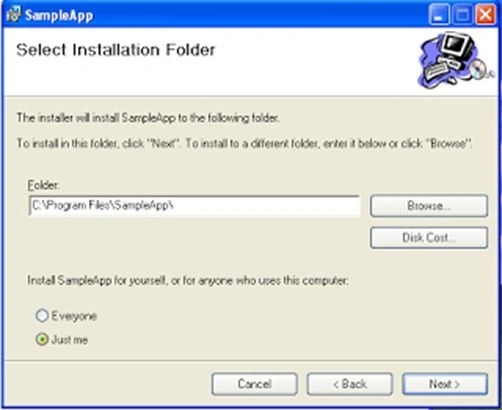
First of all create a sample Windows/web application.
Create setup project
Right-click on Solution Explorer root and select "Add" > "New project".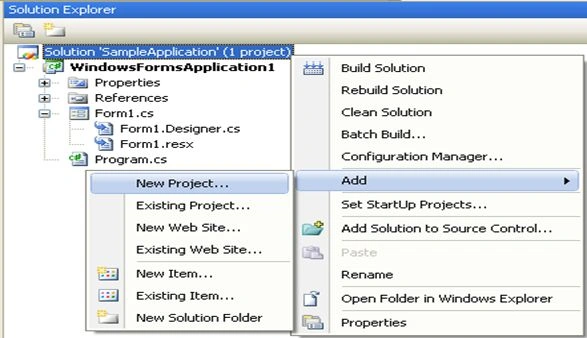
In the add new project dialog box select "Setup and Deployment" from other project types and then select Setup Project.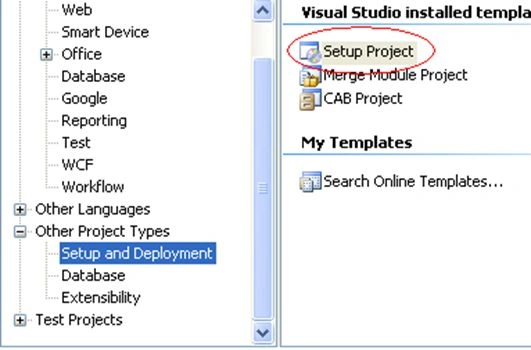
In the setup project file system editor window, right-click on the Application folder then select "Add" > "Project Output".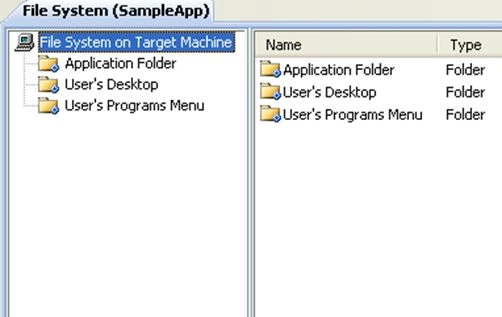
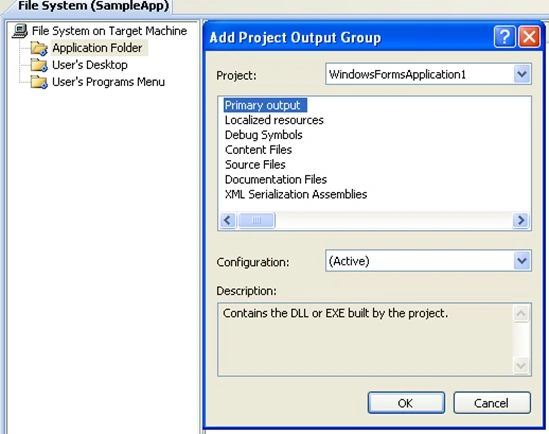
Now select primary output from the next dialog box and click on OK.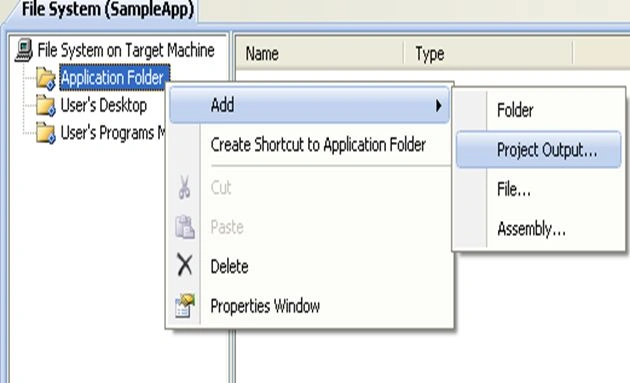
Right-click on the user's Desktop and create a shortcut to primary output in the application folder.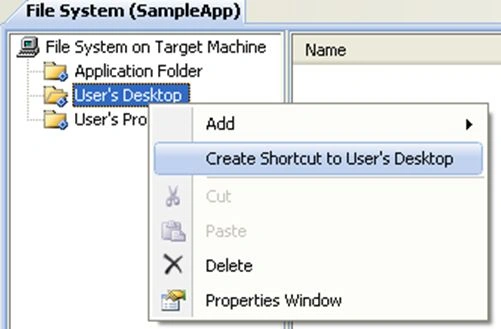
Similarly add a shortcut in the user's Program Menu.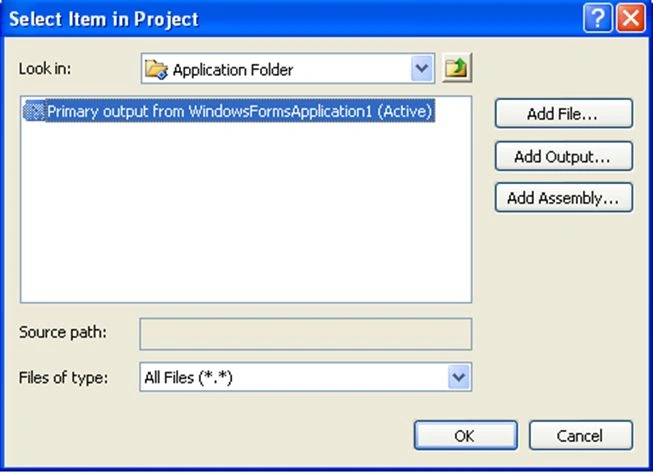
Build the project by right-clicking on the setup project name and run the setup.
Deploying Windows applications using ClickOnce (Visual Studio 2008)
ClickOnce deployment allows you to publish Windows-based applications to a Web server or network file share for simplified installation. Visual Studio provides full support for publishing and updating applications deployed with ClickOnce. ClickOnce deployment is available for projects created with Visual Basic, Visual C#, and Visual J#, but not for Visual C++.
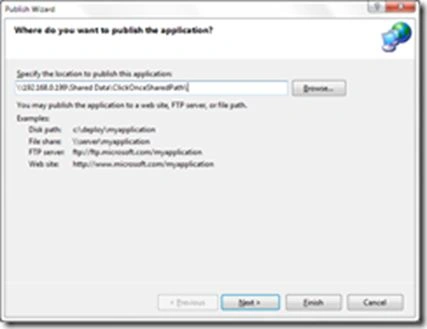
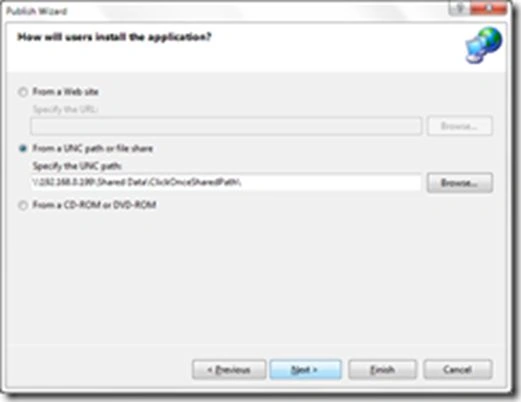
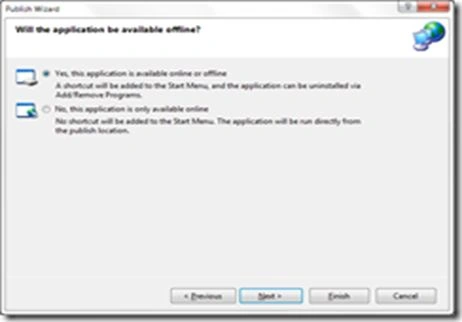
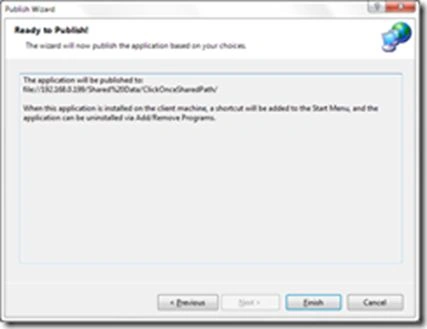
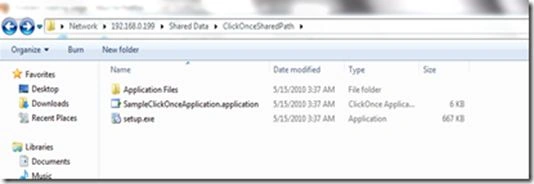
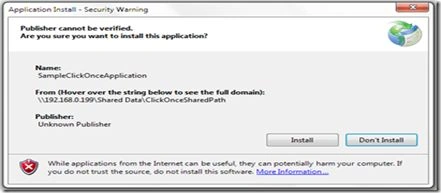
You can publish a ClickOnce application in three various ways: from a Web page, from a network file share, or from media such as a CD-ROM. A ClickOnce application can be installed on an end user's computer and run locally even when the computer is offline, or it can be run in an online-only mode without permanently installing anything on the end user's computer.
Open the Visual Studio 2008 IDE and create a new Windows application.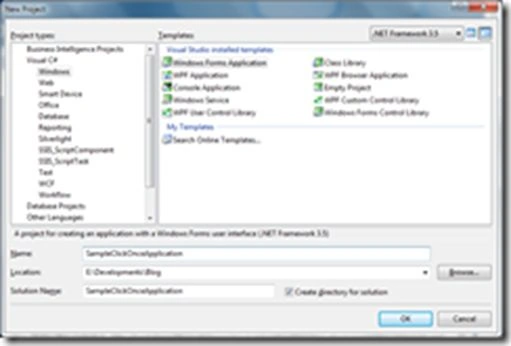
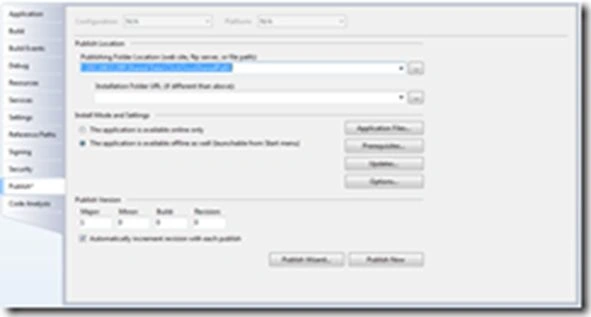
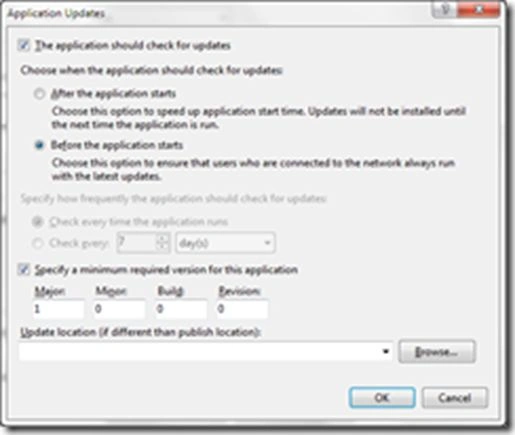
Go to "Project" –> "<Application Name> Properties" –> "Publish".

Create Setup and Deployment Project in Visual Studio 2008/2010
Join the conversation! Your thoughts help the community grow.
Sign in to leave a comment
It is the same account you read, post and publish with — and you will come straight back to this page.
Dilip SinghPosted Aug 2, 2017, 2:33 AM
Hi Santhosh, After completing installation of window form MSI setup, my raw files(Design and coding) are also showing at installation location. I've developed this application using visual studio 2010. Setup created successfully, but after installation that MSI this problem is happening. Please help me. Thanks in advance.
gangadhar jagtapPosted Jul 17, 2014, 10:17 PM
i suffring from that all option but sir there is no option shown after click on new project then set up and deployment option directly show windows forn and others
Aditya PatilPosted Jul 14, 2014, 12:34 AM
Please, update article with clear visible screenshots.