

Introduction
SharePoint offers different methods by which we can synchronize the User profiles with Active Directory. SharePoint Profile Synchronization and Active Directory Import are the two primary methods by which we can implement Profile Synchronization. When we set up the SharePoint farm we can chose to run an instance of the Synchronization service in one of the server which is called the Synchronization Server. We can specify the server while creating the User Profile Service Application and SharePoint will create an instance of the Forefront Identity Manager in the synchronization Server.
Configure and Start User Profile Service and FIM Service
First and Foremost we have to ensure that the User Profile Service Application is already created in the SharePoint Farm. User Profile Service is the primary service application that is responsible for the synchronization of user profiles with the Active Directory.
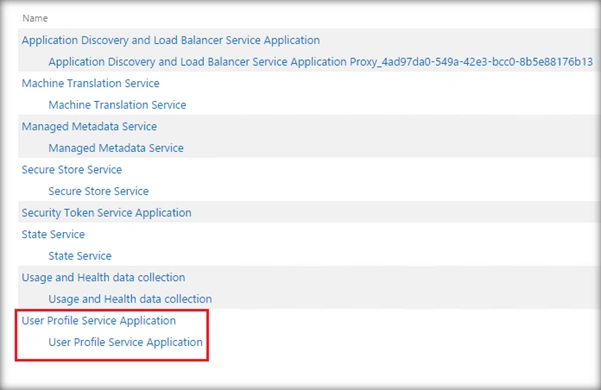
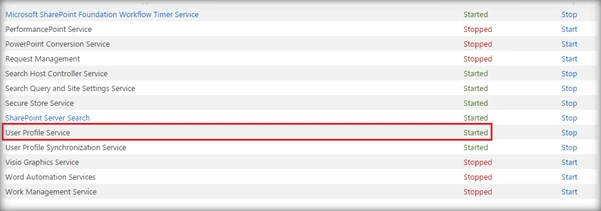
Once we have ensured that the Service Application is created we will also have to go to the ‘Manage Services on Server’ in Central Administration and see it is in started state.
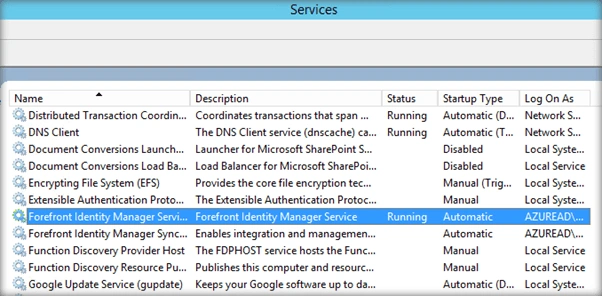
Once the User Profile Service Application has been configured, ensure that the Forefront Identity Manager Service is running by going to Services.msc
Configure Synchronization Connection
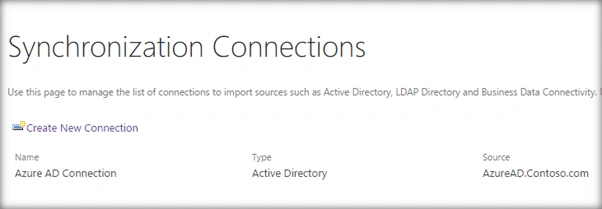
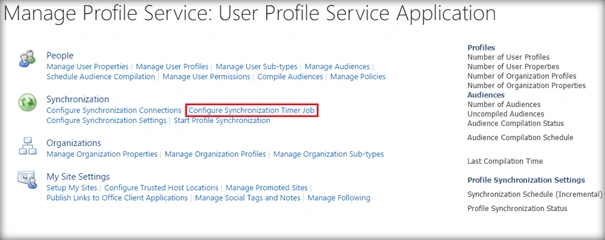
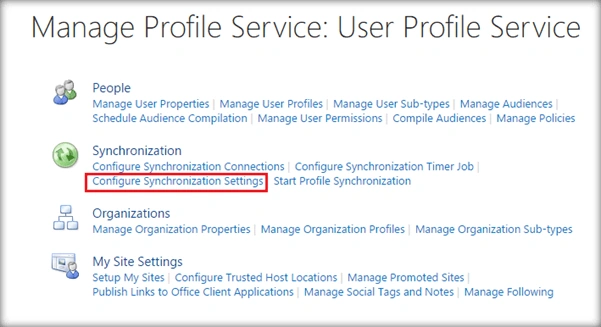
Once the above prerequisites are in place we can create the synchronization connection with the Active Directory and use FIM based SharePoint Profile Synchronization to synchronize the user profiles. In order to do that go to the User Profile Service Application and select ‘Configure Synchronization Connections’ from ‘Synchronization’ tab.
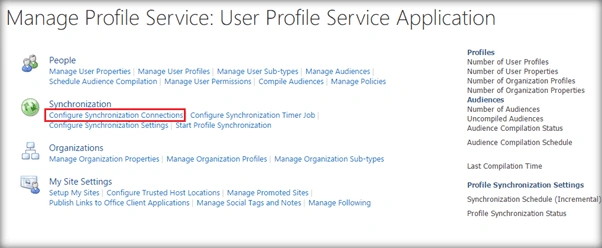
By default there are no connections in place. Click on ‘Create New Connection’ to create a new one.
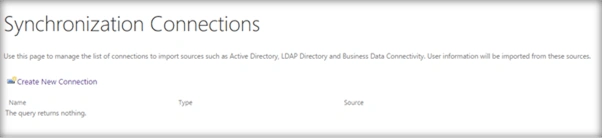
This will open up the page where we can specify the Connection Name, Type and Connection Settings.
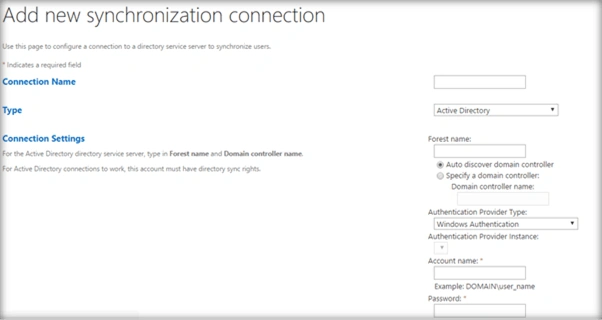
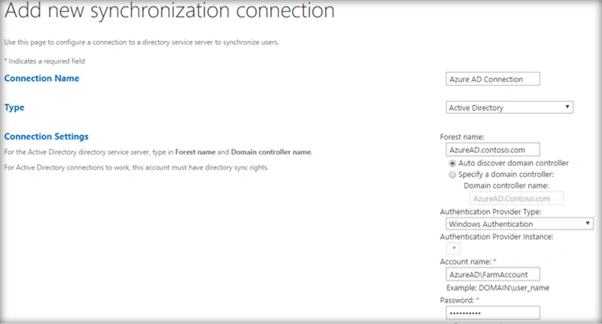
Specify the Connection Type as Active Directory and in Forest Name specify the Active Directory Domain Controller. Also mention the Active Directory administrator User Name and Password that will be used to connect to the AD.
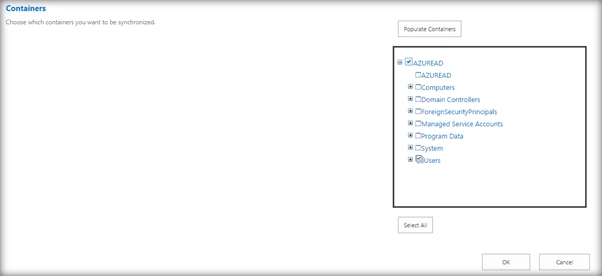
At the bottom of the page we have the Containers present in the Active Directory. Click on ‘Populate Containers’ to connect to the AD and retrieve the objects.
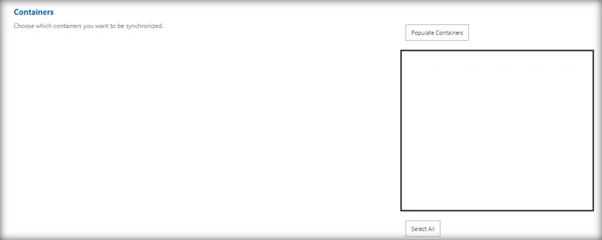
Thus the hierarchy of object has been retrieved from the Active Directory. Since we are more interested in synchronizing the users, select the ‘Users’ Object in the list box.

Join the conversation! Your thoughts help the community grow.