

Introduction
The views can be created for a list with manual steps by going through the list settings. The same can be implemented programmatically using several methods. In this article, you will learn how it can be implemented using JavaScript Object Model.
For example, I have created a list called “Test” with two custom columns, Column1 and Column2. By default when you try opening a list in SharePoint, the default view called “All Items” will be rendered. This view will show you three columns. They are Title, Column1 and Column2.
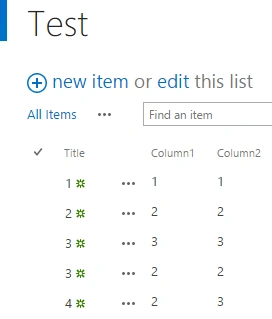
Creating SharePoint list view using JSOM:
In this example, we will see how we can view only our custom columns by filtering the SharePoint list values.
The following flow will show you the implementation.
Load the SP.js files and get the context of site
- Get all the views for a specific list present on the site
- var listCollection = web.get_lists();
- list = listCollection.getByTitle("Test");
- viewCollection = list.get_views();
- viewContext.load(viewCollection);
- Create a custom view ViewCreationInformation method. Set view title and the fields to be shown on the view using the following code.
- var createView = new SP.ViewCreationInformation();
- createView.set_title("TestView");
- var viewFields = ["Column1","Column2"];
- createView.set_viewFields(viewFields);
- Then build your query to retrieve the values for the view. This step can be an optional one.
- var camlQuery = new SP.CamlQuery();
- var query = "<Where><Eq><FieldRef Name='Column1' /><Value Type='Text'>2</Value></Eq></Where>";
- camlQuery.set_viewXml(query);
- createView.set_query(camlQuery);
- The view can be limited with custom row limit.
- createView.set_rowLimit(1);
The view can be still customized with view types. The applicable types are html, grid, etc. The following code shows you how to set the type.
The following table shows you different types of field types with values.- createView.set_viewTypeKind(2048);
Type Value none 0 html 1 grid 2048 calendar 524288 recurrence 8193 chart 131072 gantt 67108864 Then add the view to the collection and execute the query.
- viewCollection.add(createView);
- viewContext.load(viewCollection);
- viewContext.executeQueryAsync(ViewCreated, onFail);
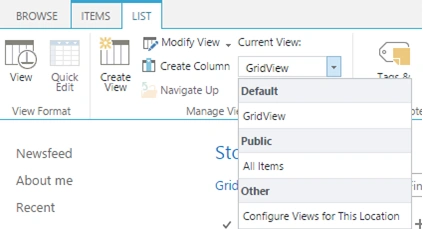
After execution of the above approach, go to List tab and you can see the new view, “Grid View,” created. Click on the new view to see the list with necessary filters set. The following snapshot helps you to change the view.
The below snapshot shows the data grid view of the test custom list we have created before.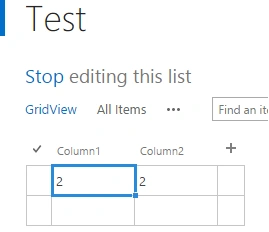
The above steps helped us in creating views for custom list.
Next we will see how we can edit the existing list views.
Modifying or Updating SharePoint list views using JSOM:
The approach is similar to creating views. Here instead of creating new view object, the existing view is retrieved and the properties are updated. The below code shows how you can update existing views.
Note: There are a few limitations in modifying views, such as the view type and view fields can’t be changed.
The following piece of code will help you in modifying the existing list view we have created above.- function UpdateViewJSOM(){
- viewContext = SP.ClientContext.get_current();
- var web = viewContext.get_web();
- var listCollection = web.get_lists();
- list = listCollection.getByTitle("Test");
- viewCollection = list.get_views();
- view = viewCollection.getByTitle("GridView");
- var camlQuery = new SP.CamlQuery();
- var query = "<Where><Eq><FieldRef Name='Column1' /><Value Type='Text'>1</Value></Eq></Where>";
- camlQuery.set_viewXml(query);
- view.set_viewQuery(camlQuery);
- view.set_rowLimit(2);
- view.update();
- viewContext.load(view);
- viewContext.executeQueryAsync(ViewModified,
- function onFail(sender,args){
- console.log(args.get_message());
- });
- }
The following snapshot shows the modified list view.
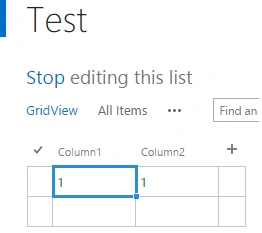
Deleting SharePoint list views using JSOM
You will learn how a list view can be deleted. This can be achieved by using deleteObject method. The below code will help you in deleting a view.
- function DeleteViewJSOM(){
- viewContext = SP.ClientContext.get_current();
- var web = viewContext.get_web();
- var listCollection = web.get_lists();
- list = listCollection.getByTitle("Test");
- viewCollection = list.get_views();
- view = viewCollection.getByTitle("GridView");
- view.deleteObject();
- viewContext.executeQueryAsync(ViewDeleted,
- function onFail(sender,args){
- console.log(args.get_message());
- });
- }
Summary
In this article, you have seen how a custom SharePoint list views can be created, updated, or deleted programmatically by using JavaScript Object model.
Ramakrishna BasagallaPosted Aug 1, 2018, 5:47 AM
Nice one, do you have code for calendar view creation
Hans FausakPosted Jun 20, 2017, 11:37 AM
Helpful article. Thanks for sharing.
Arwena VerdierPosted Feb 3, 2017, 8:34 AM
Thanks you Mr Natarajan !!
Gowtham RajamanickamPosted Apr 2, 2016, 5:23 AM
Good one...
Sagar PardeshiPosted Mar 24, 2016, 1:51 AM
gud one ..
Kumaresh RajalingamPosted Mar 23, 2016, 9:09 PM
Nice one
Debasis SahaPosted Mar 23, 2016, 1:20 PM
Nice one..
Vignesh ManiPosted Mar 23, 2016, 7:17 AM
Good one
Ramesh KhadePosted Mar 23, 2016, 5:37 AM
nice
Ibrahim ErsoyPosted Mar 23, 2016, 4:31 AM
I like it.Good work Mr Natarajan
Mohammed IbrahimPosted Mar 23, 2016, 4:29 AM
nice
Mohammad KhalidPosted Mar 23, 2016, 3:03 AM
Good work Mr. Natarajan ! Keep posting SharePoint content. It really help developers.
Humayun Kabir MamunPosted Mar 23, 2016, 2:49 AM
Nice...