

Introduction
This article describes a simple approach to creating a custom file type. In the example provided, a custom file type is created around a serializable class that is used as a data container holding all of the elements necessary to support an application designed to interact with the defined file type. A separate module is used to serialize and deserialize files of this user defined file type.
It is possible to include more than a single data container class as the basis for the file type; placing a collection of objects into a hash table will allow for greater complexity but will still operate in the same manner. The approach is useful if you are in need of a way to create a file type that is specific to a particular application.
Getting Started
In order to get started, unzip the downloaded files and open the project provided. Within the project you will find three main files: frmMain.cs, ProjectSerializer.cs, and PersonalData.cs.
frmMain.cs: This is the application and it is used to represent an application that interacts exclusively with the custom file type. This form contains a collection of text boxes used to capture or display values associated with instances of the PersonalData class. It only contains three primary functions, one to save a file as the custom type, one to open a file on startup, and one to open a file of the custom type through a file open dialog. To open a file, the application captures the path to the file by means of an OpenFileDialog, the path of the file along with a new instance of the PersonalData class is subsequently passed to the ProjectSerializer's deserialize function which in turn deserializes the content of the stored file and passes it back to the Open File function. Once the deserialized values are applied back to the PersonalData object, the Open File function populates the form textboxes from the values contained in that object. To save a file, the values currently displayed in the form's text boxes are gathered and used to populate the properties contained in a new instance of the PersonalData class. The class along with the file path captured from a SaveFileDialog are passed to the ProjectSerializer's serialize method where a binary formatter is used to serialize the object's content into a file created at the specified file path.
ProjectSerializer.cs: This is a module that contains two functions; one to serialize the data contained on the form and one to deserialize the data from a stored file saved as the custom file type. Both methods use the binary formatter although it would work equally well with soap formatter.
PersonalData.cs: A serializable class used contain the data associated with an instance of a custom file type as generated from the fields on in the frmMain form. One important point to make here is that this class is defined as serializable; if it were not the operation would fail.
Each of the files mentioned herein are contained in the sample application; the code is fairly well annotated and should be straight forward and easy to follow. Sufficient annotation is contained within these files so they should be easy enough to understand. At this point, you may wish to open the project, run it to see how it works, and then examine the code files to see how the project was constructed.
Creating a File Type Association.
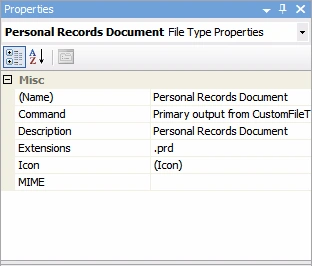
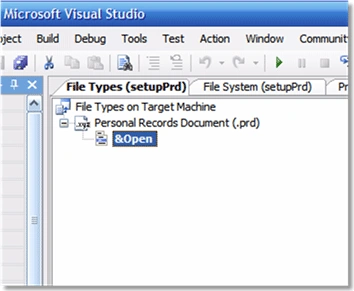
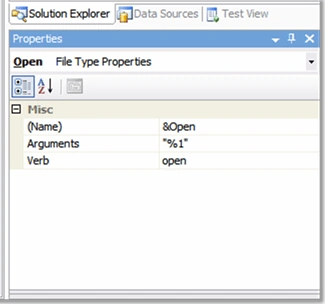
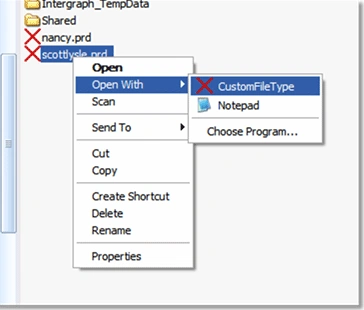
The process of creating a file type association through the use of the Visual Studio 2005 setup and deployment project is far easier to manage than it once was; you can manually code the necessary information into the application, and depending upon the installation package you are using, you may need to do that. If you are interested in that approach, take a look at this link,
ChebTalksPosted Jul 2, 2024, 12:02 PM
Are it have virus?
Jameson TinoyPosted Jun 11, 2013, 8:39 AM
Source code is not working. Having vb code in the cs file..
Kapil DesaiPosted May 18, 2009, 1:47 AM
using System; using Microsoft.Win32; namespace CustomFileType { /// <summary> /// Summary description for modRegistry. /// </summary> public class modRegistry { //Credit: http://www.devx.com/vb2themax/Tip/19554, author Marco Bellinaso // // Nifty little function to create the file association. // Displays the default application icon inside an icon that looks like a page // outline instead of using a specified icon. Made a couple of minor changes //to remove warnings in the original version but essentially it is the // the same as the original code. This is a nice approach because the // association occurs immediately. public modRegistry() { // // TODO: Add constructor logic here // } } [System.Runtime.InteropServices.DllImport("shell32.dll")] public void SHChangeNotify(int wEventId ,int uFlags,int dwItem1 ,int dwItem2 ) { } // Create the new file association // // Extension is the extension to be registered (eg ".prd") // ClassName is the name of the associated class (eg "PersonalDocumentRecord") // Description is the textual description (eg "Personal Record Document") // ExeProgram is the app that manages that extension (eg Application.StartupPath & "CustomFileType.exe") function CreateFileAssociation(string extension,string className,string description ,string exeProgram) Const SHCNE_ASSOCCHANGED = &H8000000 Const SHCNF_IDLIST = 0 // ensure that there is a leading period in the extension (e.g. ".prd") if extension.Substring(0, 1) <> "." extension = "." & extension Microsoft.Win32.RegistryKey Key1 = Nothing; Microsoft.Win32.RegistryKey Key2 = Nothing; Microsoft.Win32.RegistryKey Key3 = Nothing; try { // create a value for this key that contains the classname key1 = Microsoft.Win32.Registry.ClassesRoot.CreateSubKey(extension); key1.SetValue("", className); //create a new key for the Class name key2 = Microsoft.Win32.Registry.ClassesRoot.CreateSubKey(className); key2.SetValue("", description); // associate the program to open the files with this extension key3 = Microsoft.Win32.Registry.ClassesRoot.CreateSubKey(className & _ "\\Shell\\Open\\Command"); key3.SetValue("", exeProgram & " ""%1"""); } Catch(Exception e) { return False } finally if Not key1 Is Nothing key1.Close(); if Not key2 Is Nothing key2.Close(); if Not key3 Is Nothing key3.Close(); // notify Windows that file associations have changed SHChangeNotify(SHCNE_ASSOCCHANGED, SHCNF_IDLIST, 0, 0) return True } in the above code in SHChangeNotify, i m getting "Expected class, delegate, enum, interface, or struct" error.
Luis LimaPosted Apr 27, 2009, 11:19 AM
Hi!, This post is very cool and I've learned a lot with it. But now I have a doubt... Imagine that you need some information that is in an app.config file. If you save the .prd file in the bin.debug, everything thing works really fine But if you save the .prd file in the desktop, e.g., the system can´t find the app.config file. It's like having a MS Word that only allows you to save the .doc files in a predifined directory. Is this a problem that you also got? Thank a lot, Luis
amrishwa sharmawaPosted Feb 2, 2008, 2:08 PM
what to do
Jacob CummingsPosted Jan 9, 2007, 2:38 PM
thiere is no project type for setup or distribution on visual c# program. do you download a new project type.