

We can develop a C# standalone program or console application using an Integrate Development Environment (IDE) like Visual Studio or using a plain text editor like Notepad, Wordpad etc. The following shows how to do that using a text editor for a simple "Hello World" program. First of all set the path for the C# Compiler (using Windows 7).
1. Right-click Computer and click on Properties from Drop-Down Pane.
2. Now Control Panel Home open and click on Advanced system settings.
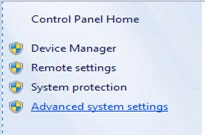
Fig 1. Control Panel Home
3. A new window System Properties opens. Click on the Advanced Tab and click on Environment Variables.
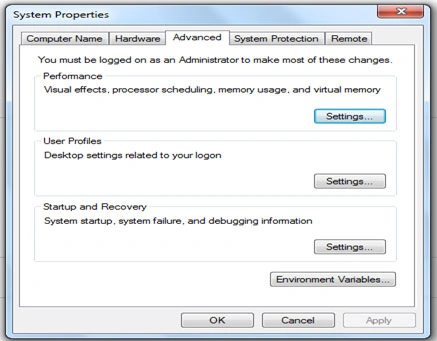
Fig 2 System Properties
4. A new window for Environment Variables opens.
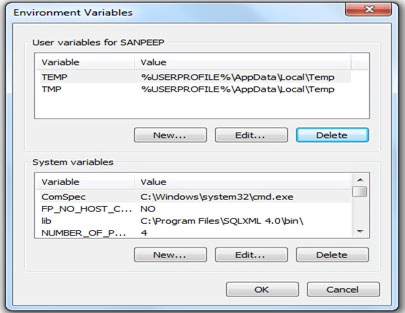
Fig 3 Environment Variable
5. There are two parts:
- User variables
- System variables
Under the User variables Pane click on the New button. A window New User Variable opens; it has two parameters:
- Variable name
- Variable value
In the Variable name write path. For the Variable value write the C# compiler path, such as:
C:\Windows\Microsoft.NET\Framework64\v3.5
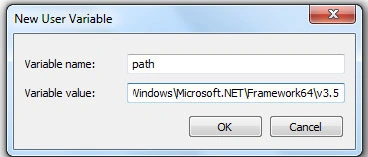
Fig 4 New User Variable
6. In the New User Variable Window click the OK button then for the Environment Variables window click the OK button then for the System Properties window click the OK button.
7. Open a Command Prompt and type in the command csc and press ENTER.
If following prompt appears then that means your C# compiler 3.5 path is correct.
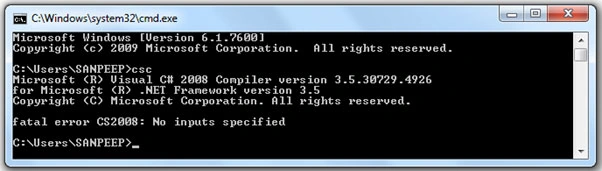
Fig 5 Path Varification
8. Type the following code with any Text Editor (Notepad, WordPad, etc):
class HelloWorld
{
static void Main()
{
System.Console.Write("Hello World");
}
}
9. Save the file at any location of the hard drive with class name and .cs extension. Open a Command Prompt window and compile HelloWorld.cs class using following command:
csc file-name
for example csc HelloWorld.cs
After successful compilation the HelloWorld.cs file's executable file HelloWorld.exe is created; now run this .exe file using the following command:
filename
for example HelloWorld.exe
Or
HelloWorld
Now our output is
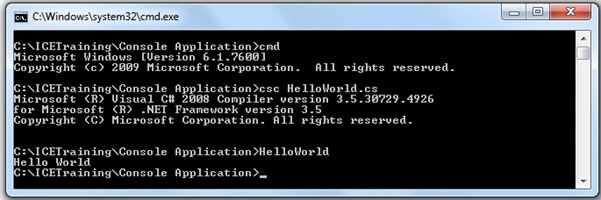
Fig 6 Output
Suthish NairPosted Jun 4, 2011, 2:14 AM
Thanks for sharing. I also updated the article with Article Extensions.
Sam HobbsPosted Jun 3, 2011, 12:47 PM
Another educational article would be to show how to use MSBuild. Note that it is possible to compile multiple C# files and get them linked together but I am not sure of the details. The .Net tool MSBulld is used to control the build. When Visual Studio does a build it uses MSBuild to do it. Most of the input to MSBuild come from XML files. A very simple IDE could be created that allows minimal editing of the MSBuild data and that issues the MSBuild command and redirects the output to an output window. That are the fundamentals of what VS does.
Sam HobbsPosted Jun 3, 2011, 12:38 PM
This will be educational for people unfamiliar with the old-fashioned way of doing things. I want to suggest however that instead of setting the environment variables permanently it is possible to set them temporarily for a specific command window using vcvars32.bat. For simple educational purposes such as this it is more efficient to use vcvars32.bat and it is a worthwhile education to know how to do that. The vcvars32.bat is in a folder such as: C:\Program Files (x86)\Microsoft Visual Studio 10.0\VC\bin. Yes I know that is the folder for C++. There might be a more appropriate bat file for .Net. It would be extremely easy to create a bat file for this.