

Introduction
Xamarin is a platform to develop cross-platform and multi-platform apps (for example, Windows phone, Android, iOS). In the Xamarin platform, the code sharing concept is used. In Xamarin Studio, Visual Studio is also available. Camera app is used to open the camera and take snaps, using the app.
Prerequisites
- Visual Studio 2015 Update 3.
The steps, mentioned below are required to be followed in order to create a Camera App in Xamarin Android app, using Visual Studio 2015.
Step 1
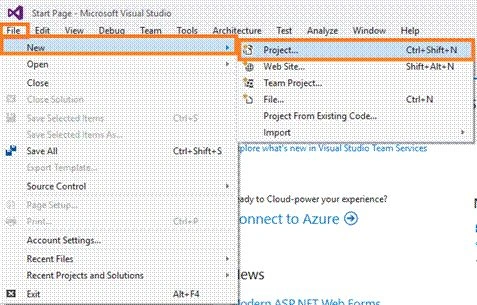
Click File--> select New--> select Project. The project needs to be clicked after opening all the types of projects in Visual Studio or click ing (Ctrl+Shift+N).
Step 2
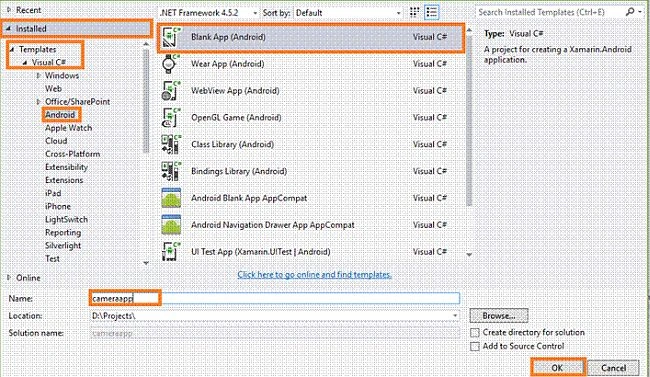
After opening the New Project, select Installed-->Templates-->Visual C#-->Android-->choose the Blank app (Android).
Now, give your Android app; a name (Ex:sample) and give the path of your project. Afterwards, click OK.
Step 3
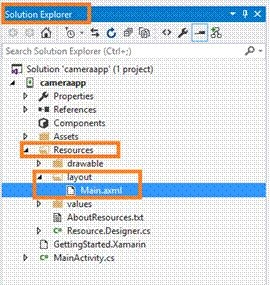
Now, go to the Solution Explorer. In Solution Explorer, get all the files and sources in your project.
Now, select Resource-->Layout-->double click to open main.axml page. To write XAML code, you need to select a source.
Choose the Designer Window, if you want to design. Hence, you can design your app.
Step 4
After opening main.axml, file will open the main page designer. You can design this page, as per your wish.
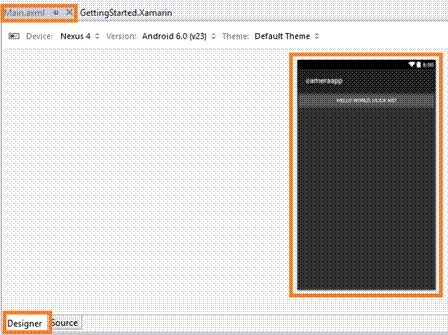
Now, delete the Default hello world button. Go to the source panel and you can see the button coding. You need to delete it.
After deleting XAML code, delete C# button action code.
Go to the MainActivity.cs page. You need to delete the button code.
Step 5
Now, go to the toolbox Window. In the toolbox Window, get all the types of the tools and controls.
You need to go to the toolbox Window and scroll down. You will see all the tools and controls.
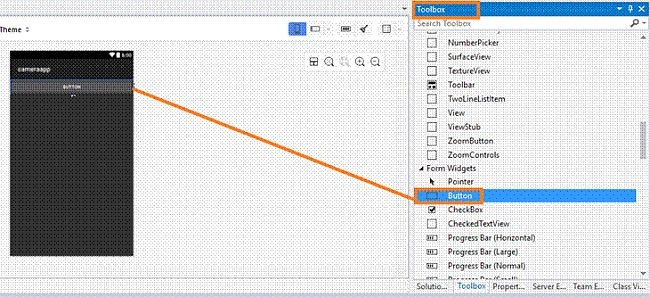
You need to drag and drop the button.
Step 6
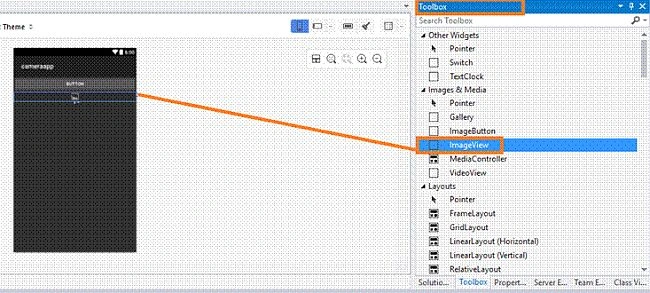
You need to drag and drop the ImageView.
Step 7
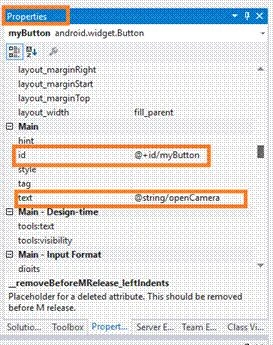
Now, go to the properties Window. You need to edit the Button Id value and Text value
(EX: android:id="@+id/myButton" android:text="@string/openCamera" ).
Step 8
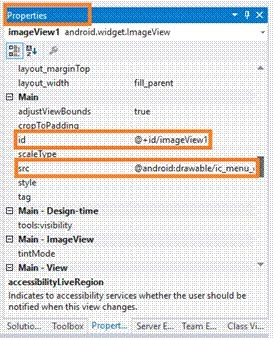
Now, you will edit ImageView Id value and src value.
(Ex: android:id="@+id/imageView1" android:src="@android:drawable/ic_menu_gallery").
Step 9
In this step, go to the Main.axml page Source Panel. Note, the ImageView and Button Id value and source value.
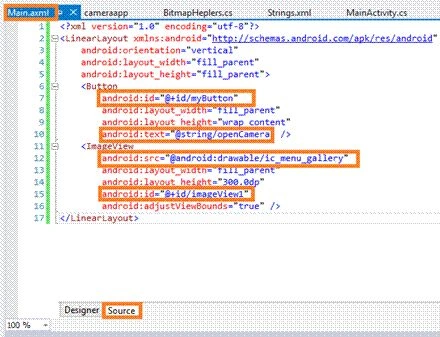
Main.axml
- <LinearLayout xmlns:android="http://schemas.android.com/apk/res/android" android:orientation="vertical" android:layout_width="fill_parent" android:layout_height="fill_parent">
- <Button android:id="@+id/myButton" android:layout_width="fill_parent" android:layout_height="wrap_content" android:text="@string/openCamera" />
- <ImageView android:src="@android:drawable/ic_menu_gallery" android:layout_width="fill_parent" android:layout_height="300.0dp" android:id="@+id/imageView1" android:adjustViewBounds="true" />
- </LinearLayout>
In this step, open the String.xml page. Go to Solution Explorer-->Resource-->values-->String.xml.
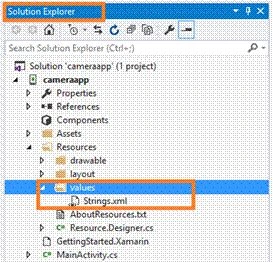
Step 11
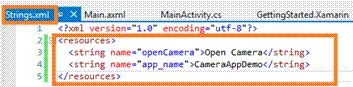
Afterwards, open String.xml file. Write XML code, mentioned below.
String.xml
- <?xml version="1.0" encoding="utf-8"?>
- <resources>
- <string name="openCamera">Open Camera</string>
- <string name="app_name">CameraAppDemo</string>
- </resources>
Step 12
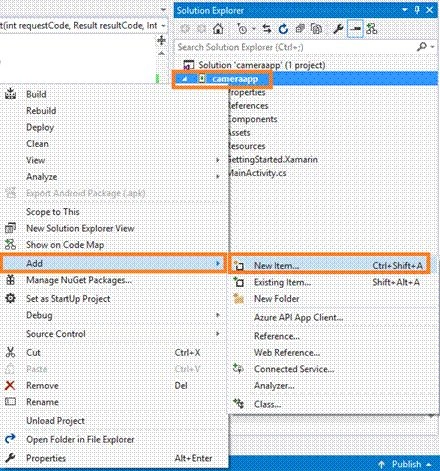
In this step, add one class file.
Go to Solution Explorer-->Resource-->Right click -->Add-->New Item.
Step 13
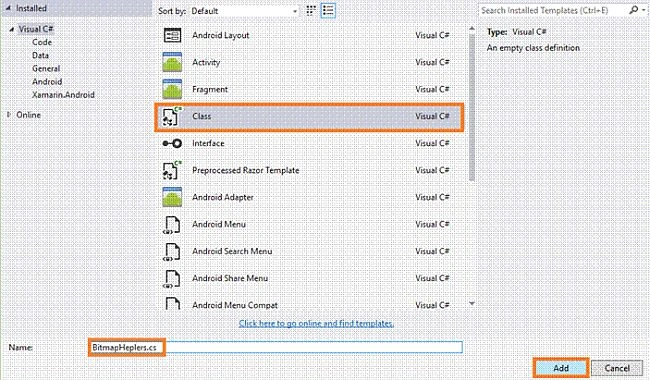
Now, choose the Class file and give name BitmapHelpers.cs.
Step 14
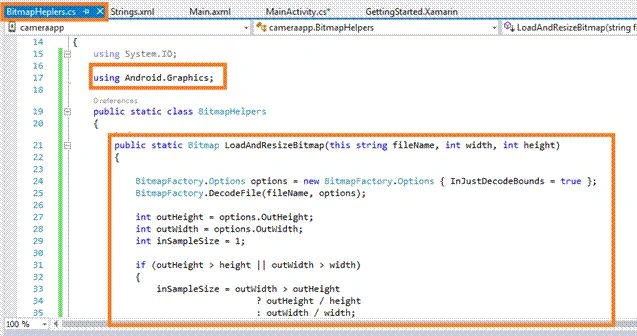
Afterwards, create the class file. Write the code, mentioned below.
BitmapHelpers.cs
- namespace cameraapp {
- using System.IO;
- using Android.Graphics;
- public static class BitmapHelpers {
- public static Bitmap LoadAndResizeBitmap(this string fileName, int width, int height) {
- BitmapFactory.Options options = new BitmapFactory.Options {
- InJustDecodeBounds = true
- };
- BitmapFactory.DecodeFile(fileName, options);
- int outHeight = options.OutHeight;
- int outWidth = options.OutWidth;
- int inSampleSize = 1;
- if (outHeight > height || outWidth > width) {
- inSampleSize = outWidth > outHeight ?
- outHeight / height :
- outWidth / width;
- }
- options.InSampleSize = inSampleSize;
- options.InJustDecodeBounds = false;
- Bitmap resizedBitmap = BitmapFactory.DecodeFile(fileName, options);
- return resizedBitmap;
- }
- }
- }
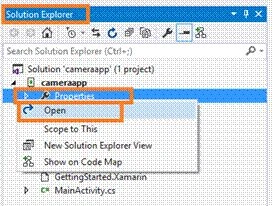
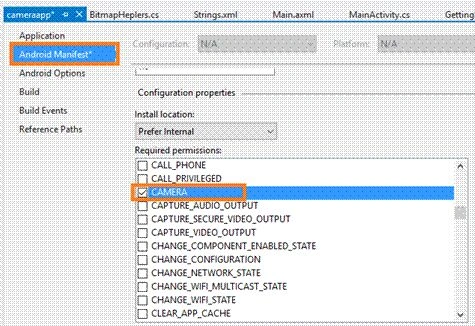
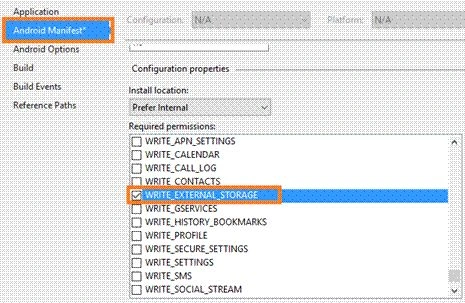
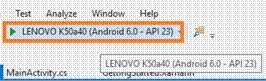
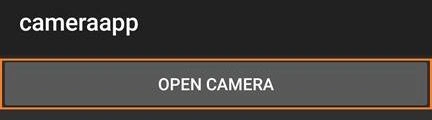
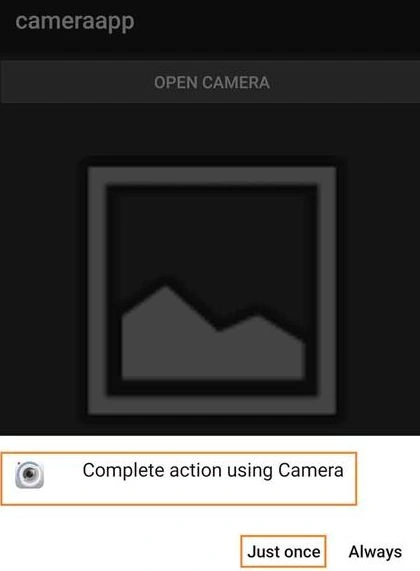
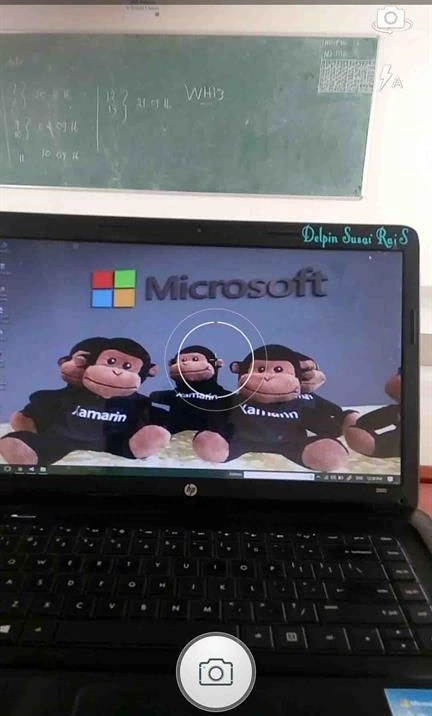
Stuart WilsonPosted Jul 2, 2020, 10:43 AM
Hi Delphin, I am getting an exception saying that the photo is accessible outside the app. Is there a workaround?
Mfundo XoloPosted Nov 5, 2018, 7:22 AM
How do i save the photo to my device after capturing it?
Sagar PatilPosted Mar 14, 2018, 8:11 AM
Nice article...I need to capture image after 5 seconds of opening camera. How can i integrate? without user interaction i need to capture
Umair IlyasPosted Dec 8, 2017, 2:05 AM
How add crop functionality in this camera please guide me bro
Joe WilsonPosted Oct 28, 2016, 6:43 AM
Thank you..