

Microsoft Fabric brings together data engineering, analytics, and business intelligence into a single, unified platform. One of its most powerful features is the seamless integration of Power BI, which allows you to move effortlessly from raw data to meaningful insights.
In this article, I’ll walk through how to create a Power BI Dashboard from an existing Power BI Report in Microsoft Fabric, why dashboards still matter, and best practices for designing them effectively.
Power BI Reports vs Dashboards in Microsoft Fabric
Before jumping into the steps, it’s important to understand the difference.
Power BI Report
Multi-page
Built from a dataset or semantic model
Interactive (filters, slicers, drill-through)
Used mainly for analysis
Power BI Dashboard
Single-page canvas
Built from visuals pinned from reports
Read-only (no slicers)
Used for monitoring and high-level KPIs
In Microsoft Fabric, reports and dashboards coexist in the same workspace, making it easy to move from detailed analysis to executive-level monitoring.
Prerequisites
To create a dashboard from a Power BI report in Microsoft Fabric, you need:
An existing Power BI Report published to a Fabric workspace
At least Viewer access (Contributor or higher to create dashboards)
A report built on a Fabric semantic model, Lakehouse, or Warehouse
Step-by-Step: Creating a Dashboard from a Power BI Report
In the cornerstone_wks workspace as seen below, I've got Sales and HR Dashboard Power BI Reports.
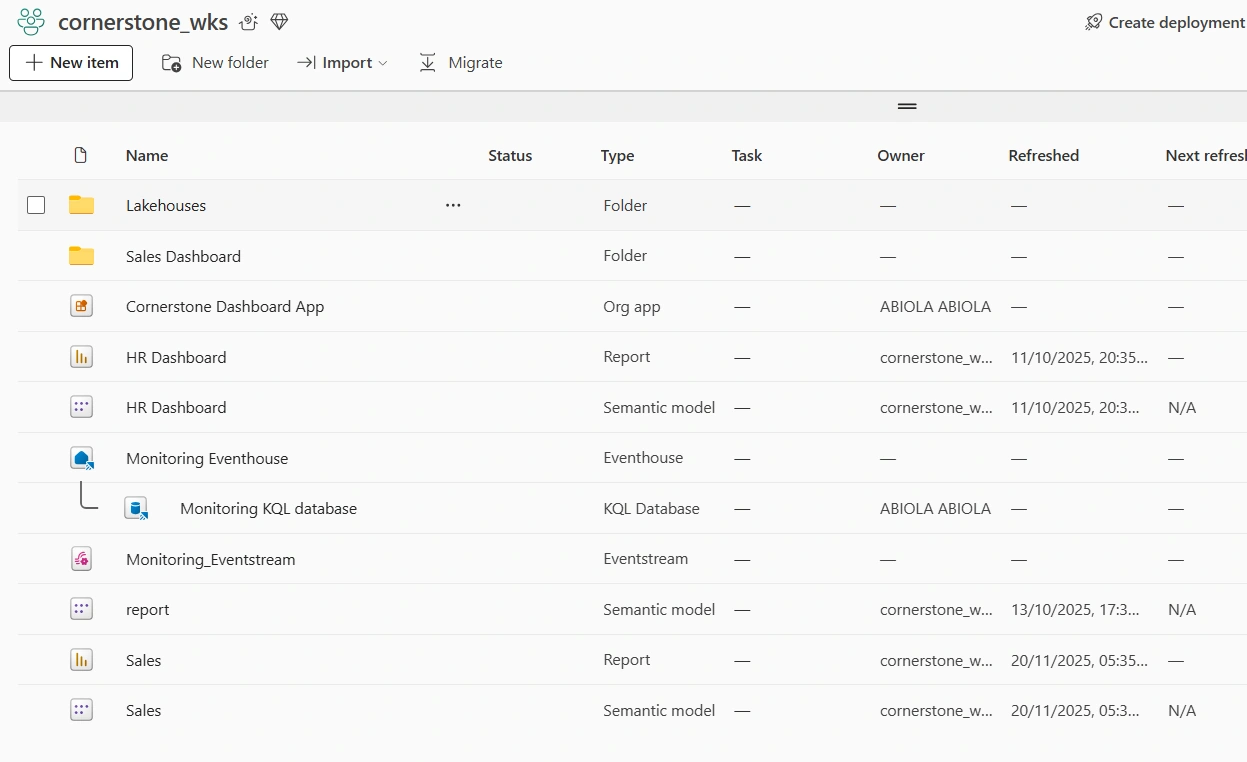
To create a dashboard from both reports,
In the +New Item, create a dashboard item and give it a name and click create
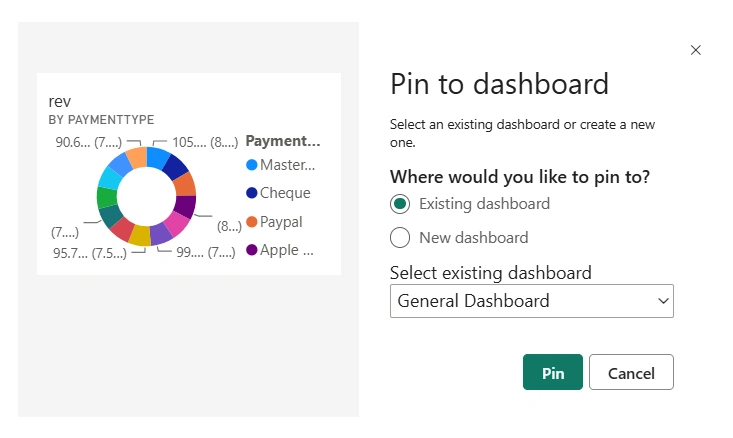
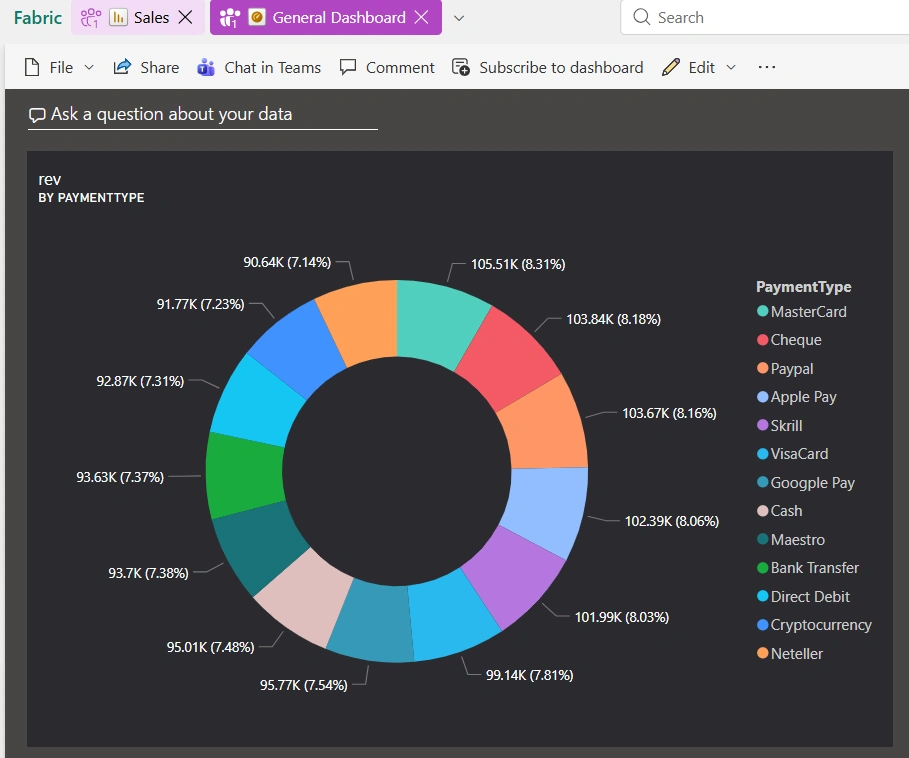
In the Sales report, I want to add the donut chart that shows Rev by PaymentType to the newly create dashboard. To do these, hover the mouse on that specific visual and click on Pin Visual.
In the Pin to dashboard window, click Pin. The visual would be pinned to the dashboard structure created
Click Go to Dashboard. As can been seen below, the Donut Visual is now pinned to the dashboard
Next, in the HR Dashboard Report, pin the Sum of Salary by Department clustered Bar Chart visual
Click Go to Dashboard. As can been seen below, the clustered by chart is pinned to the dashboard
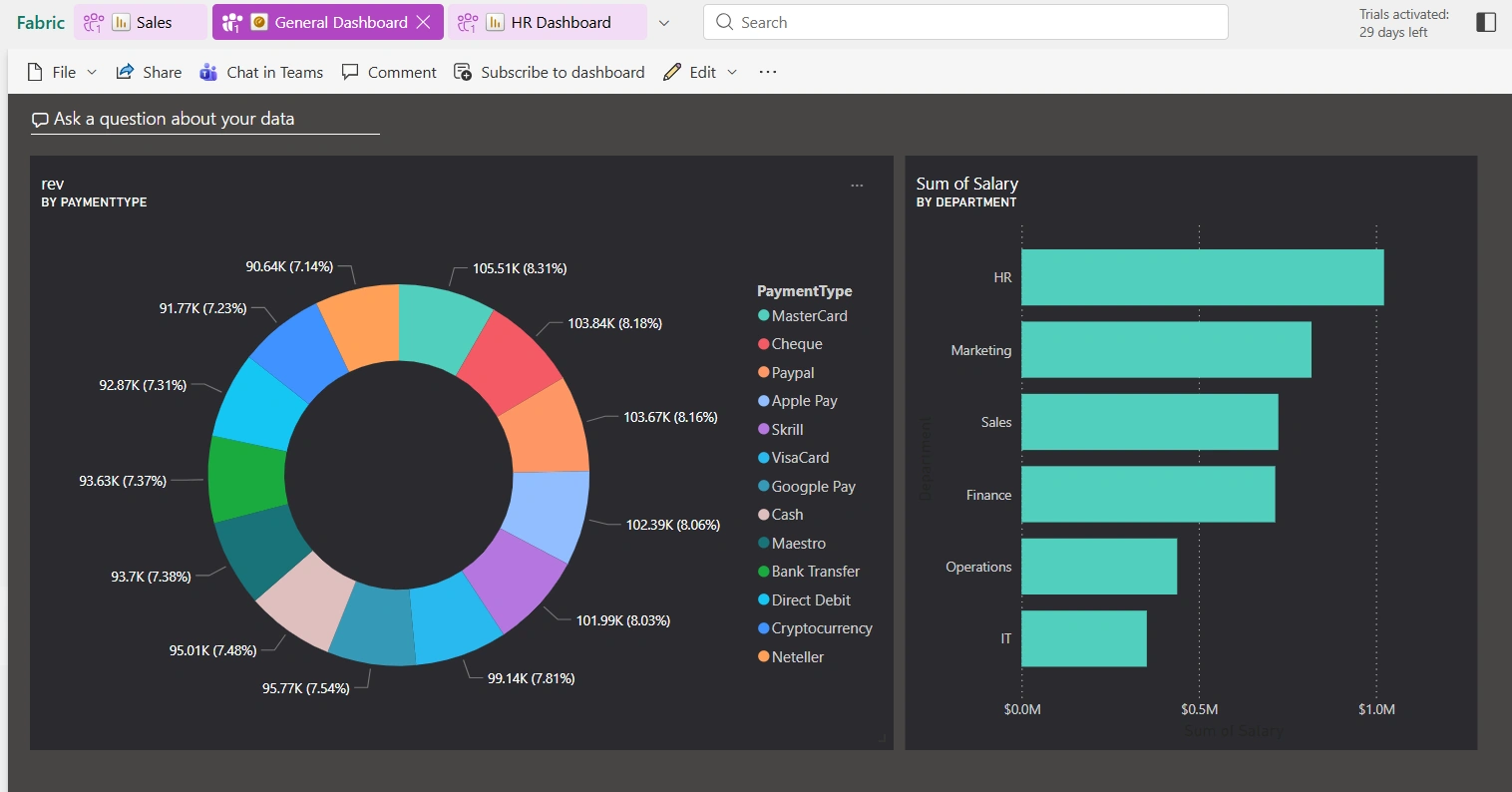
We can apply needed customization to the dashboard such as dashboard theme, adding of media content such as image, text box, video, web content etc. The dashboard is ready to be shared within the organization. It can be shared in MS Teams chat
Final Thoughts
Creating dashboards from Power BI reports in Microsoft Fabric is simple, powerful, and highly effective for delivering business value. With just a few clicks, you can turn detailed analytical reports into high-level, actionable insights that decision-makers can consume instantly.
Microsoft Fabric’s unified experience ensures that your dashboards stay connected, secure, and always up to date—making them a critical part of any modern data platform.
Join the conversation! Your thoughts help the community grow.