

Introduction

In this article, we will create a multi-language translator using Blazor and the Translate Text Azure Cognitive Service. This translator will be able to translate between all the languages supported by the Translate Text API. Currently, the Translate Text API supports more than 60 languages for translation. The application will accept the text to translate and the target language as the input and returns the translated text and the detected language for the input text as the output.
Take a look at the output shown below.
Prerequisites
- Install the latest .NET Core 3.1 SDK from https://dotnet.microsoft.com/download/dotnet-core/3.1
- Install the latest version of Visual Studio 2019 from https://visualstudio.microsoft.com/downloads/
- An Azure subscription account. You can create a free Azure account at https://azure.microsoft.com/en-in/free/
Source Code
You can get the source code from GitHub.
Create the Azure Translator Text Cognitive Services Resource
Log in to the Azure portal and search for the cognitive services in the search bar and click on the result. Refer to the image shown below.
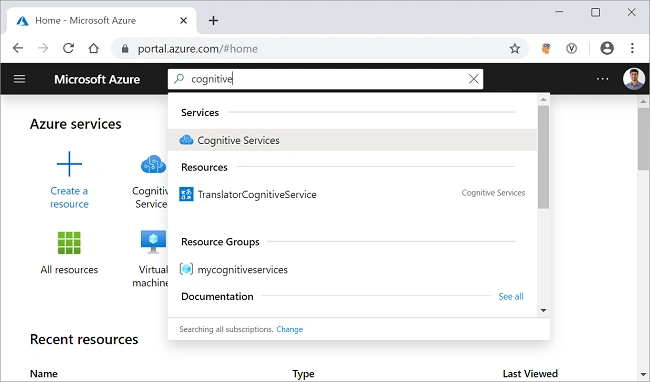
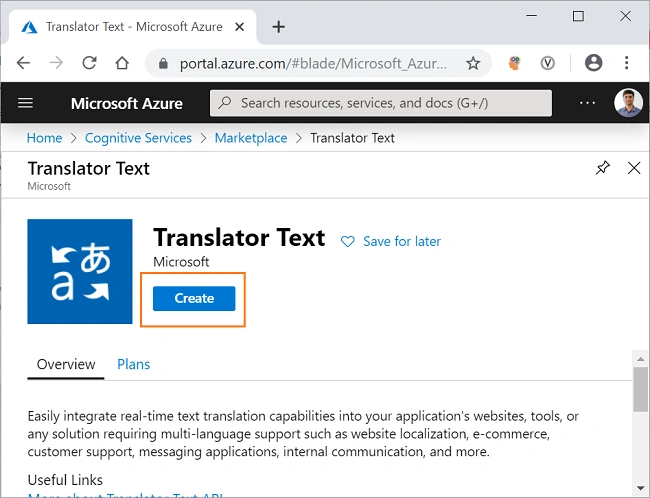
On the next screen, click on the Add button. It will open the cognitive services marketplace page. Search for the "Translator Text" in the search bar and click on the search result. It will open the Translator Text API page. Click on the "Create" button to create a new Translator Text resource. Refer to the image shown below.
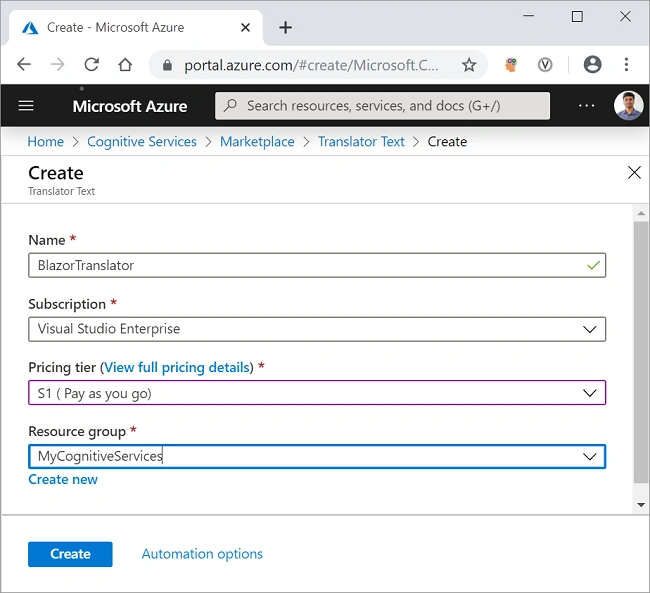
On the Create page, fill in the details as indicated below,
- Name: Give a unique name for your resource.
- Subscription: Select the subscription type from the dropdown.
- Pricing tier: Select the pricing tier as per your choice.
- Resource group: Select an existing resource group or create a new one.
Click on the Create button. Refer to the image shown below.
After your resource is successfully deployed, click on the “Go to resource” button. You can see the Key and the endpoint for the newly created Translator Text resource. Refer to the image shown below.
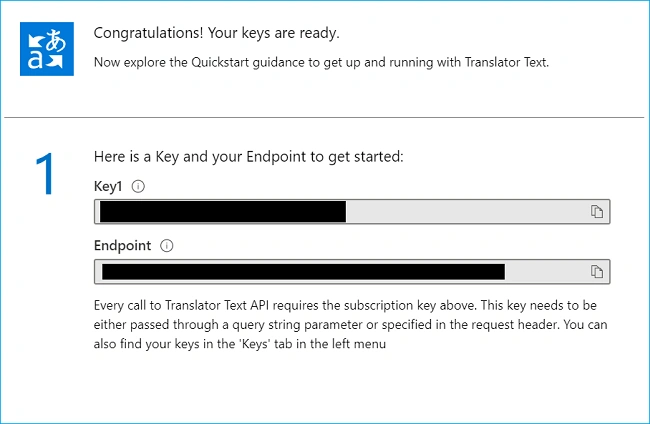
Make a note of the key, we will be using this in the latter part of this article to request the translations from the Translator Text API. The values are masked here for privacy.
Create a Server-Side Blazor Application
Open Visual Studio 2019, click on “Create a new project”. Select “Blazor App” and click on the “Next” button. Refer to the image shown below.
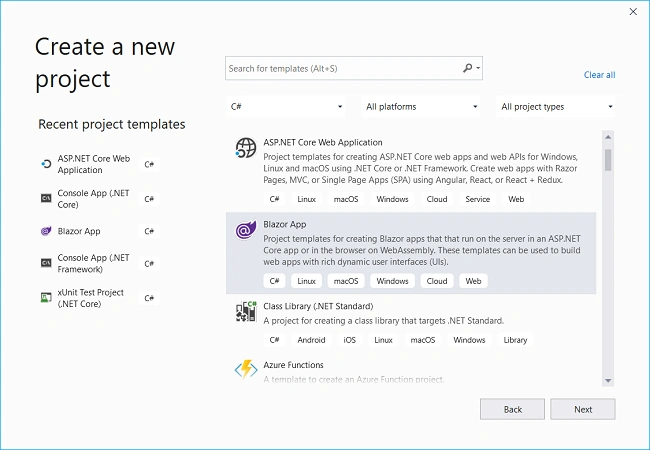
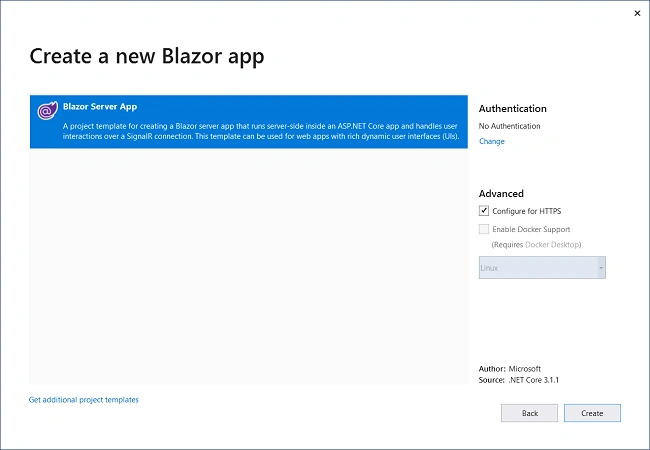
On the next window, put the project name as BlazorTranslator and click on the “Create” button. The next window will ask you to select the type of Blazor app. Select Blazor Server App and click on the Create button to create a new server-side Blazor application. Refer to the image shown below.
Creating the Models
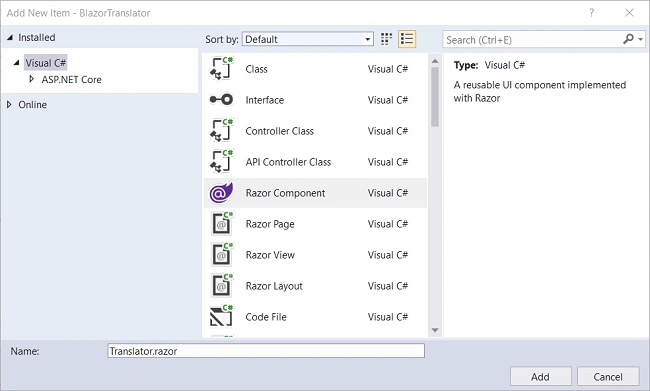
Right-click on BlazorTranslator project and select Add >> New Folder. Name the folder as Models. Again, right-click on the Models folder and select Add >> Class to add a new class file. Put the name of your class as LanguageDetails.cs and click Add.
Open LanguageDetails.cs and put the following code inside it.
- namespace BlazorTranslator.Models
- {
- public class LanguageDetails
- {
- public string Name { get; set; }
- public string NativeName { get; set; }
- public string Dir { get; set; }
- }
- }
Similarly, add a new class file TextResult.cs and put the following code inside it.
- using System;
- namespace BlazorTranslator.Models
- {
- public class TextResult
- {
- public string Text { get; set; }
- public string Script { get; set; }
- }
- }
Add a new class file Translation.cs and put the following code inside it.
- namespace BlazorTranslator.Models
- {
- public class Translation
- {
- public string Text { get; set; }
- public TextResult Transliteration { get; set; }
- public string To { get; set; }
- }
- }
Create a class file DetectedLanguage.cs and put the following code inside it.
- namespace BlazorTranslator.Models
- {
- public class DetectedLanguage
- {
- public string Language { get; set; }
- public float Score { get; set; }
- }
- }
Create a class file TranslationResult.cs and put the following code inside it.
- namespace BlazorTranslator.Models
- {
- public class TranslationResult
- {
- public DetectedLanguage DetectedLanguage { get; set; }
- public TextResult SourceText { get; set; }
- public Translation[] Translations { get; set; }
- }
- }
Finally, create the class file AvailableLanguage.cs and put the following code inside it.
- using System.Collections.Generic;
- namespace BlazorTranslator.Models
- {
- public class AvailableLanguage
- {
- public Dictionary<string, LanguageDetails> Translation { get; set; }
- }
- }
Create the Translation service
Right-click on the BlazorTranslator/Data folder and select Add >> Class to add a new class file. Put the name of the file as TranslationService.cs and click on Add. Open TranslationService.cs file and put the following code inside it.
- using BlazorTranslator.Models;
- using Newtonsoft.Json;
- using System;
- using System.Net.Http;
- using System.Text;
- using System.Threading.Tasks;
- namespace BlazorTranslator.Data
- {
- public class TranslationService
- {
- public async Task<TranslationResult[]> GetTranslatation(string textToTranslate, string targetLanguage)
- {
- string subscriptionKey = "af19d996a3cb4a70a808567aad5bc41a";
- string apiEndpoint = "https://api.cognitive.microsofttranslator.com/";
- string route = $"/translate?api-version=3.0&to={targetLanguage}";
- string requestUri = apiEndpoint + route;
- TranslationResult[] translationResult = await TranslateText(subscriptionKey, requestUri, textToTranslate);
- return translationResult;
- }
- async Task<TranslationResult[]> TranslateText(string subscriptionKey, string requestUri, string inputText)
- {
- object[] body = new object[] { new { Text = inputText } };
- var requestBody = JsonConvert.SerializeObject(body);
- using (var client = new HttpClient())
- using (var request = new HttpRequestMessage())
- {
- request.Method = HttpMethod.Post;
- request.RequestUri = new Uri(requestUri);
- request.Content = new StringContent(requestBody, Encoding.UTF8, "application/json");
- request.Headers.Add("Ocp-Apim-Subscription-Key", subscriptionKey);
- HttpResponseMessage response = await client.SendAsync(request).ConfigureAwait(false);
- string result = await response.Content.ReadAsStringAsync();
- TranslationResult[] deserializedOutput = JsonConvert.DeserializeObject<TranslationResult[]>(result);
- return deserializedOutput;
- }
- }
- public async Task<AvailableLanguage> GetAvailableLanguages()
- {
- string endpoint = "https://api.cognitive.microsofttranslator.com/languages?api-version=3.0&scope=translation";
- var client = new HttpClient();
- using (var request = new HttpRequestMessage())
- {
- request.Method = HttpMethod.Get;
- request.RequestUri = new Uri(endpoint);
- var response = await client.SendAsync(request).ConfigureAwait(false);
- string result = await response.Content.ReadAsStringAsync();
- AvailableLanguage deserializedOutput = JsonConvert.DeserializeObject<AvailableLanguage>(result);
- return deserializedOutput;
- }
- }
- }
- }
Join the conversation! Your thoughts help the community grow.