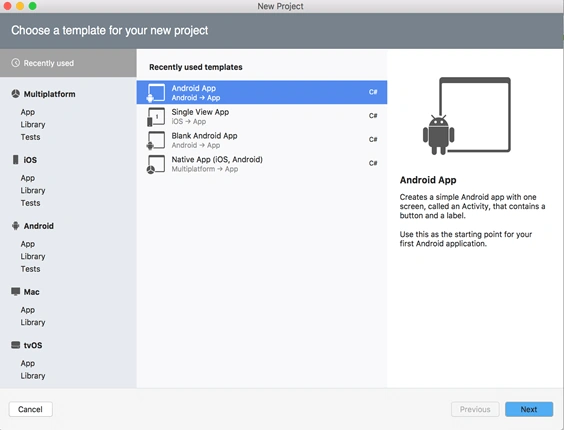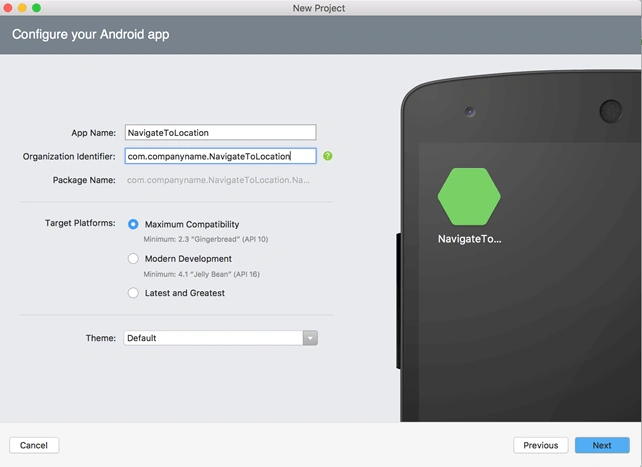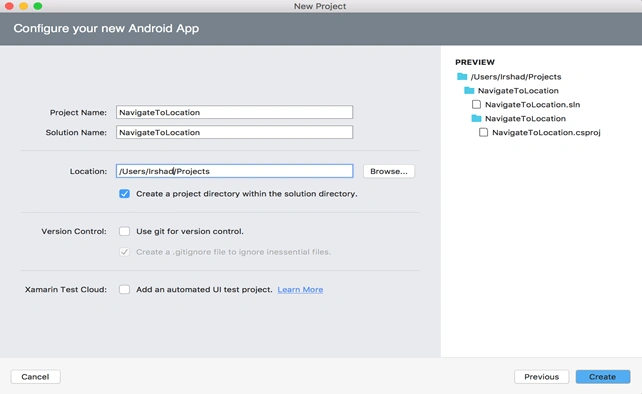
Introduction

Let's build a simple Map application that will contain the source and destination addresses in the form of fields From and To respectively.
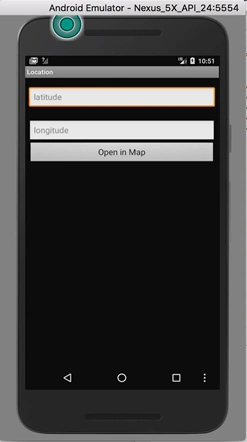
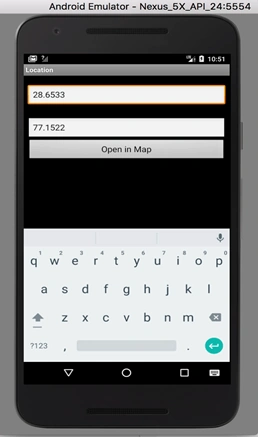
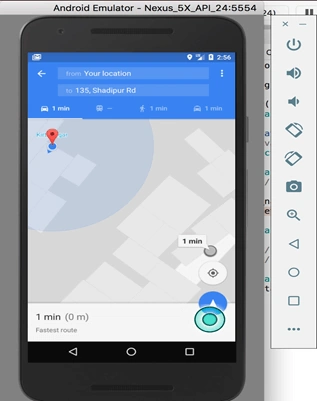
This application will take two user inputs for the map, i.e., Latitude and Longitude. Clicking on the open in the map will open the map that can show you the direction from the current location to the given address defined by the two user inputs.
This application will show you how to open the map without giving any application key. You don't need to generate an API key for this application.
We are opening the map intent from android.net.Uri. Immutable URI reference.
Implementation
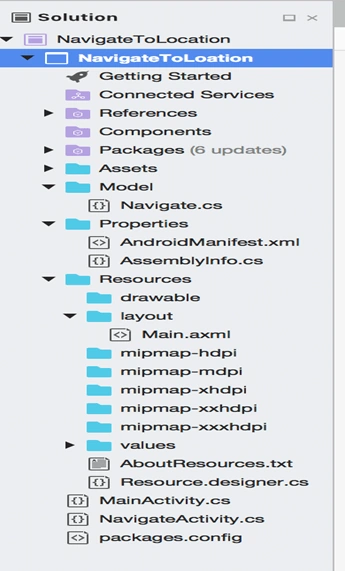
The directory structure will be as follows.
Android
Note
You may have to add the NewtonSoft.Json package for working on JSON serialize and deserialize objects.
Add the following file under the Model directory.
Add
  1. using System;
  2. namespace GoogleMapDemo.Model
  3. {
  4. public class Navigate
  5. {
  6. public string latitude { get; set; }
  7. public string longitude { get; set; }
  8. }
  9. }
Add the following content on main.axml.
  1. <?xml version="1.0" encoding="utf-8"?>
  2. <LinearLayout xmlns:android="http://schemas.android.com/apk/res/android"
  3. android:orientation="vertical"
  4. android:layout_width="match_parent"
  5. android:layout_height="match_parent"
  6. android:paddingTop="20dp"
  7. android:paddingLeft="8dp"
  8. android:paddingRight="8dp">
  9. <EditText
  10. android:layout_width="fill_parent"
  11. android:textAppearance="?android:attr/textAppearanceMedium"
  12. android:layout_height="wrap_content"
  13. android:id="@+id/latitude"
  14. android:layout_marginBottom="15dp"
  15. android:hint="@string/latitude" />
  16. <EditText
  17. android:layout_width="fill_parent"
  18. android:textAppearance="?android:attr/textAppearanceMedium"
  19. android:layout_height="wrap_content"
  20. android:id="@+id/longitude"
  21. android:layout_marginTop="10dp"
  22. android:hint="@string/longitude" />
  23. <Button
  24. android:layout_width="fill_parent"
  25. android:textAppearance="?android:attr/textAppearanceMedium"
  26. android:layout_height="wrap_content"
  27. android:id="@+id/open_map_button"
  28. android:text="@string/open_map" />
  29. </LinearLayout>
Add the follwoing content on string.xml.
  1. <?xml version="1.0" encoding="utf-8"?>
  2. <resources>
  3. <string name="app_name">GoogleMapDemo</string>
  4. <string name="latitude">latitude</string>
  5. <string name="longitude">longitude</string>
  6. <string name="open_map">Open in Map</string>
  7. </resources>
Add the following content on MainActivity.cs
This activity is the main activity and it will have the screen that will take the user input. Clicking on button will take you to the new activity that will open the map.
  1. using Android.App;
  2. using Android.Content;
  3. using Android.OS;
  4. using System;
  5. using Android.Widget;
  6. using NavigateToLocation.Model;
  7. using Newtonsoft.Json;
  8. namespace NavigateToLocation
  9. {
  10. [Activity(Label = "NavigateToLocation", MainLauncher = true)]
  11. public class MainActivity : Activity
  12. {
  13. TextView _latitude, _longitude;
  14. Navigate _navigate;
  15. protected override void OnCreate(Bundle savedInstanceState)
  16. {
  17. base.OnCreate(savedInstanceState);
  18. // Set our view from the "main" layout resource
  19. SetContentView(Resource.Layout.Main);
  20. _navigate = new Navigate();
  21. _latitude = FindViewById<TextView>(Resource.Id.latitude);
  22. _longitude = FindViewById<TextView>(Resource.Id.longitude);
  23. FindViewById<Button>(Resource.Id.open_map_button).Click += MapButton_OnClick;
  24. }
  25. public void MapButton_OnClick(Object sender, EventArgs eventArgs)
  26. {
  27. _navigate.latitude = _latitude.Text;
  28. _navigate.longitude = _longitude.Text;
  29. var navigateIntent = new Intent(this, typeof(NavigateActivity));
  30. navigateIntent.PutExtra("navigate", JsonConvert.SerializeObject(_navigate));
  31. StartActivity(navigateIntent);
  32. }
  33. }
  34. }
Add file NavigateActivity.cs
This activity will open the map and contain the From and To fields filled when opening the map intent.
  1. using Android.App;
  2. using Android.Content;
  3. using Android.OS;
  4. using NavigateToLocation.Model;
  5. using Newtonsoft.Json;
  6. namespace NavigateToLocation
  7. {
  8. [Activity(Label = "NavigateToLocation")]
  9. public class NavigateActivity : Activity
  10. {
  11. Navigate _navigate;
  12. protected override void OnCreate(Bundle savedInstanceState)
  13. {
  14. base.OnCreate(savedInstanceState);
  15. // Set our view from the "main" layout resource
  16. _navigate = JsonConvert.DeserializeObject<Navigate>(Intent.GetStringExtra("navigate"));
  17. SetContentView(Resource.Layout.Main);
  18. var geoUri = Android.Net.Uri.Parse("http://maps.google.com/maps?daddr=+" + _navigate.latitude + "," + _navigate.longitude);
  19. //use below url for giving the source and destination addres
  20. // http://maps.google.com/maps?saddr=20.344,34.34&daddr=20.5666,45.345
  21. var mapIntent = new Intent(Intent.ActionView, geoUri);
  22. StartActivity(mapIntent);
  23. }
  24. }
  25. }
You don't need to add any manifest information for any permission related information in file AndroidManifest.xml.
Screens
Android
Android
Android
Execution
  1. Open the application.
  2. Give valid latitude and longitude.
  3. Click on the "Open in map" button.
  4. You will be redirected to map intent and you can have address From as source (i.e your current location) and destination as To address on the map. You can use navigation and direction accordingly.
  5. You can set the source address also. See the “cs” file for details.