

Introduction
Salesforce CRM can give many data type fields to get a difference of information from users and store it in our org. This includes information such as name, date of birth, birth time, work location, email, mobile number, etc.…
In this article, I am going to explain the “Picklist” and “Picklist (Multi-Select)” data type fields in the Salesforce lightning platform.
Picklist
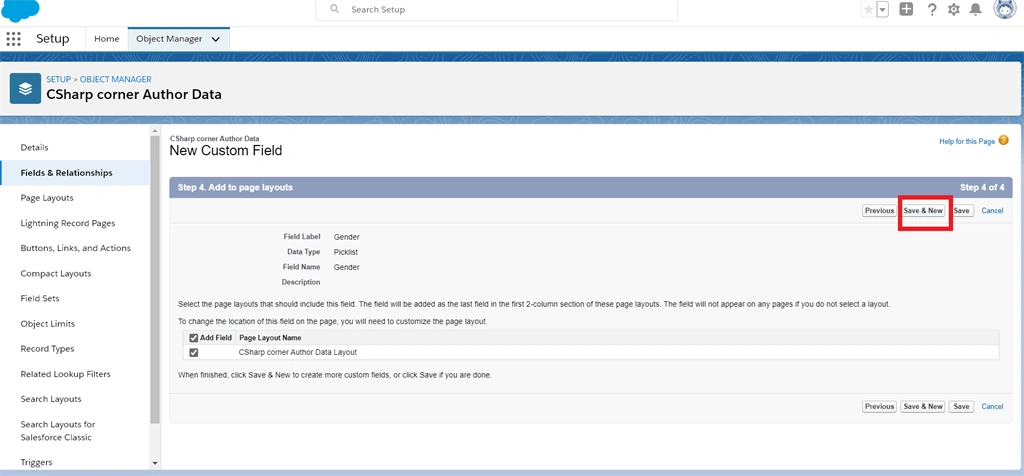
The picklist data type field contains much of the data available on the list. But users can select any one of the data from the list. For example, (Gender)
Picklist (Multi-select)
The picklist (Multi-Select) data type field contains many of the data available on the list. This picklist can allow users to select multiple data from the list.
By reading this article, you will learn about how to create a Picklist and Picklist multi-select in Salesforce custom objects.
Prerequisites
-
Before starting this process, you must sign up on the Salesforce Trailhead lightning platform. Click here to sign up
Creating A Picklist Data Type Field
Step 1
Login to trailhead and Launch “trailhead playground” or “Developer Edition”
Step 2
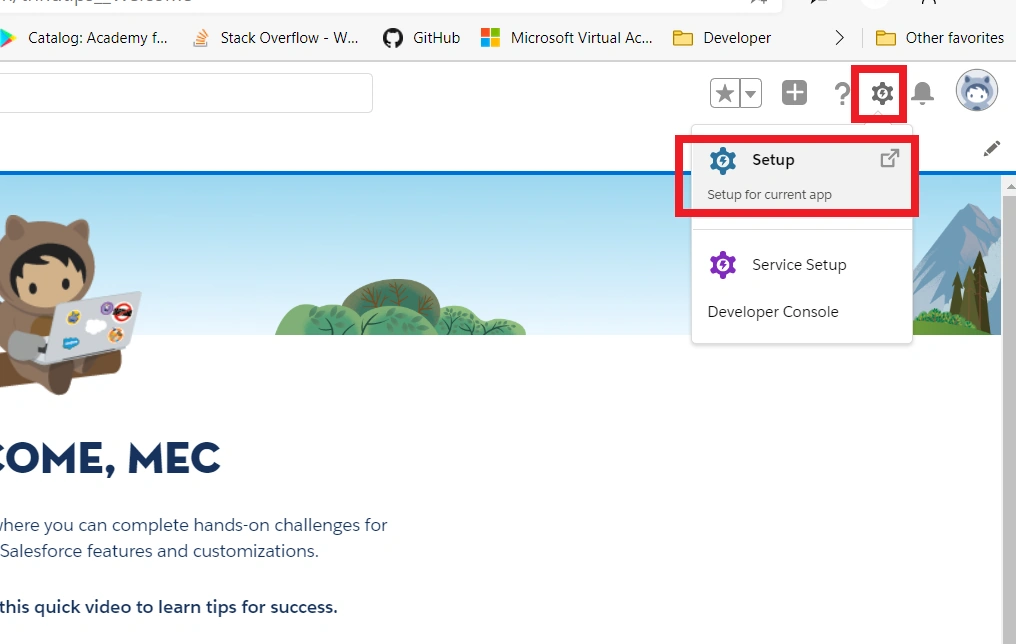
Click the “Gear” icon and then click the “Setup” option.
Step 3
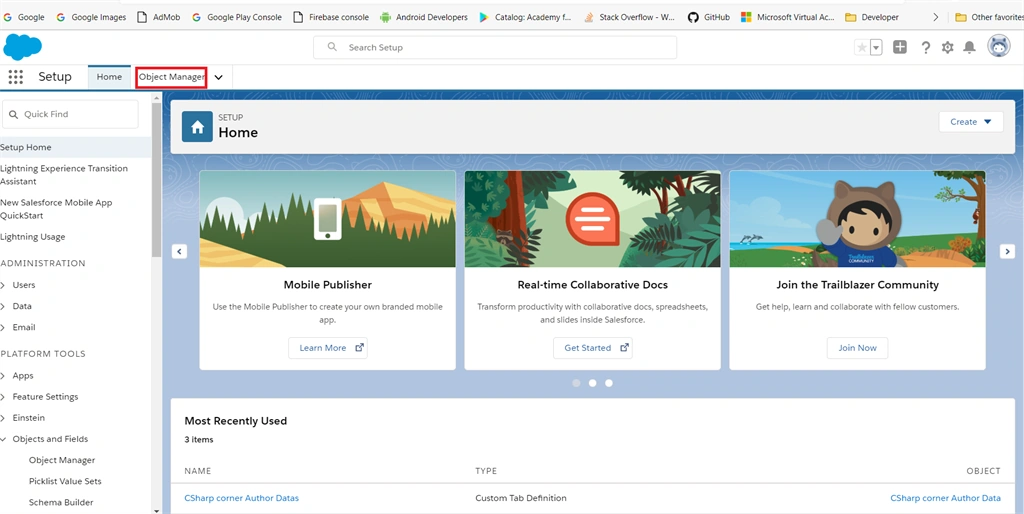
On the setup page, click the “Object Manager” at the top of the page.
Step 4
Read my previous article, how to create a custom object in the salesforce lightning platform.
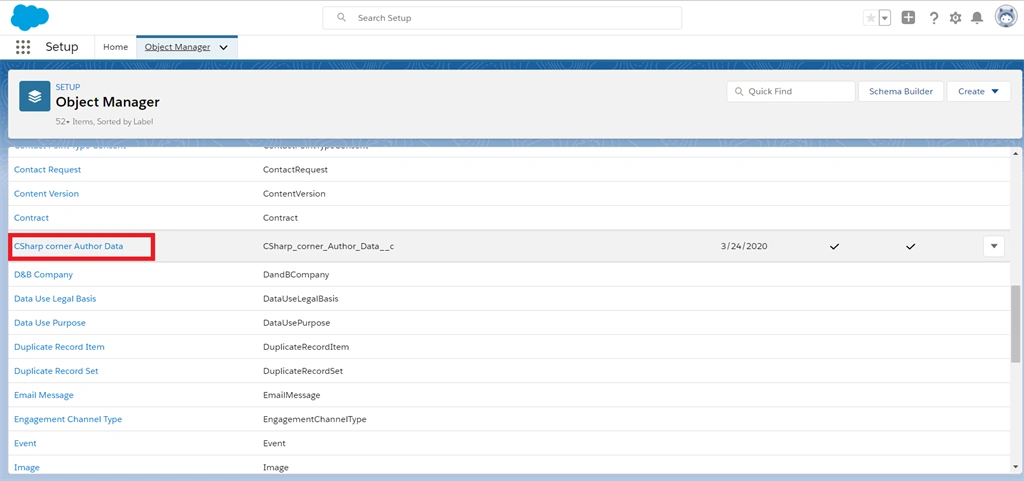
In the object manager page, scroll down and click the created our custom object name from the object list.
Step 5
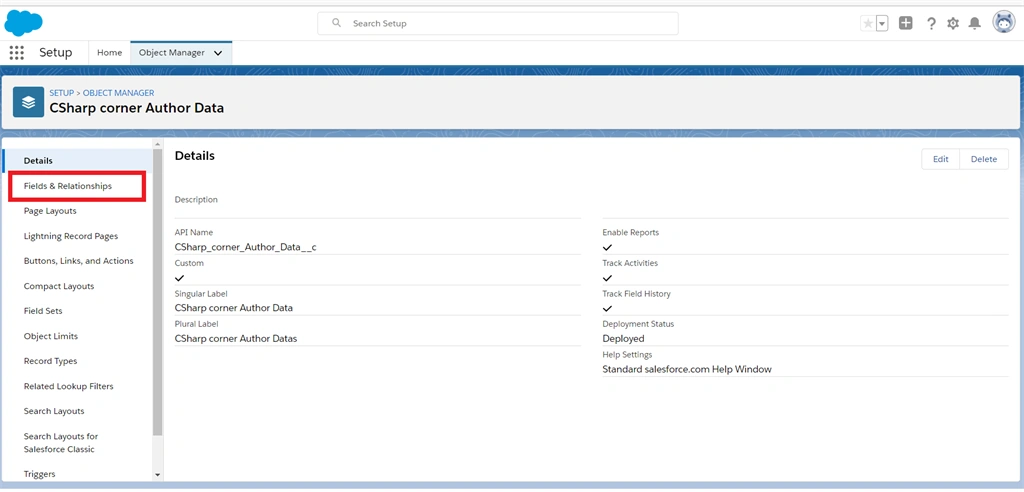
In our created custom object page, click the “Fields & Relationship” option from the left side pane.
Step 6
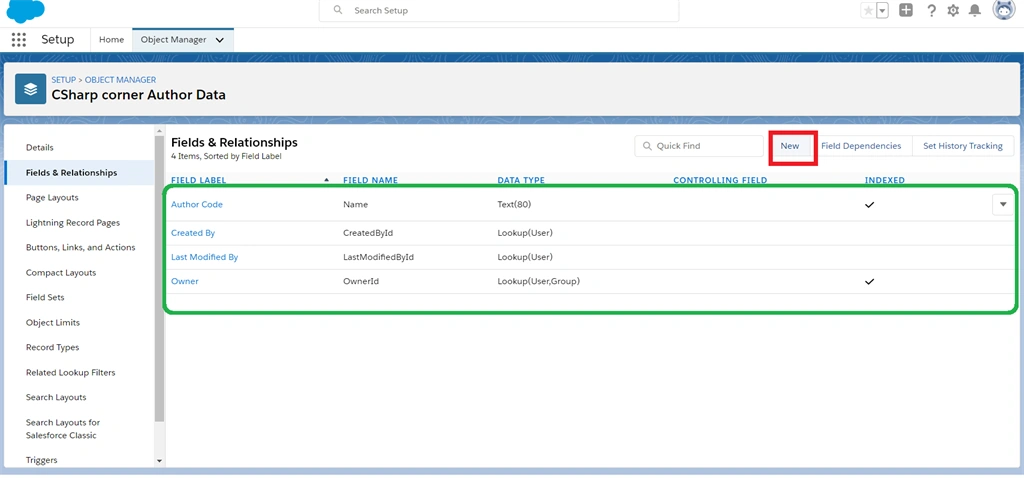
Next, in fields and relationship pages our predefined fields are listed. Now we are creating a new picklist field from the data type by clicking the “New” button.
Step 7
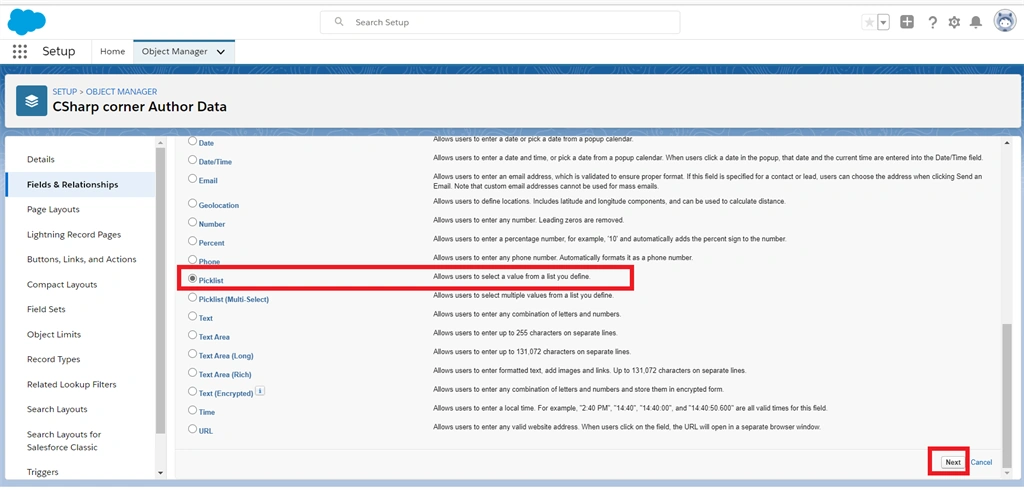
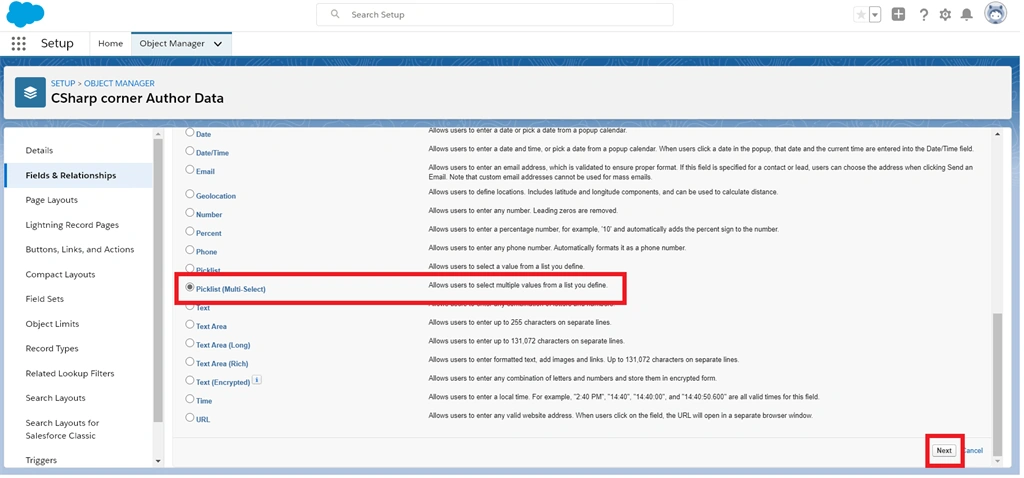
On the next page, many data types are listed on the page. Select the “Picklist” data type radio button and then click the “Next” button.
Step 8
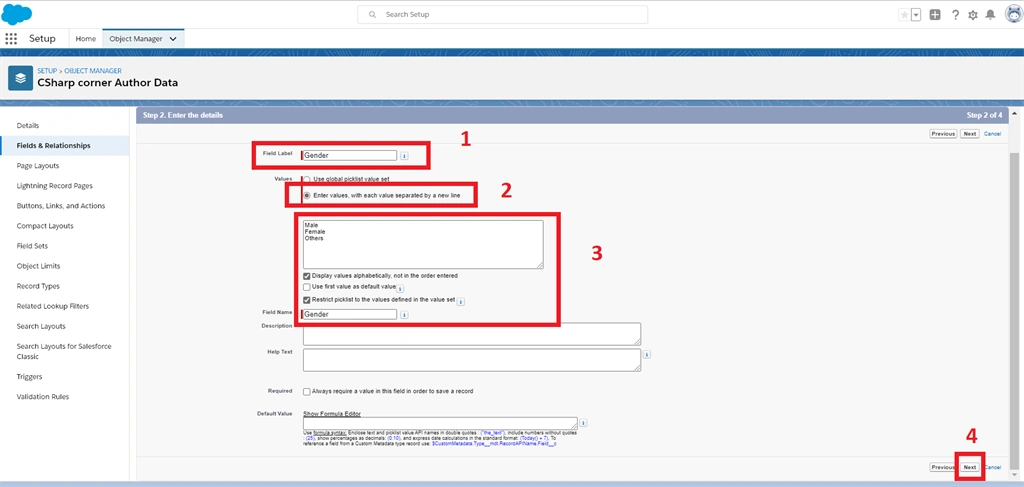
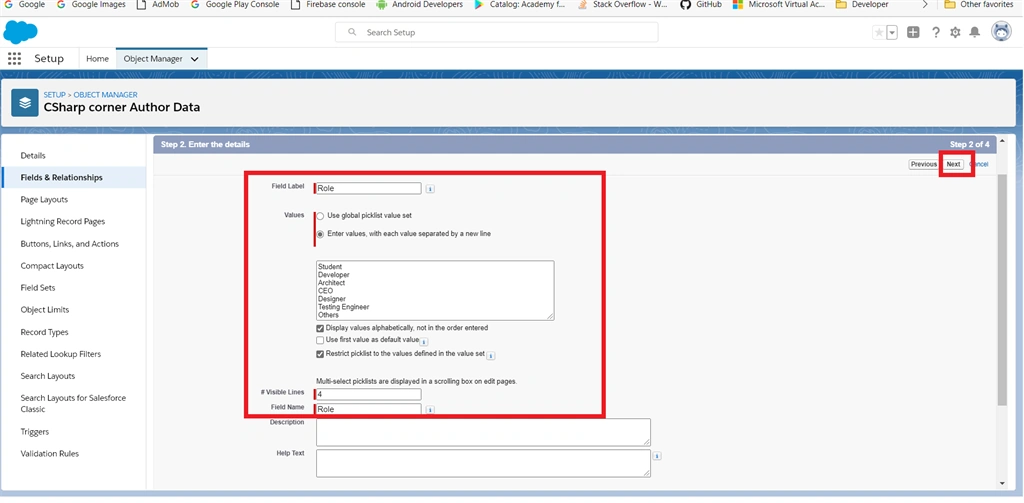
In the details page, enter all the required fields.
-
Give the field name
-
Select the “Enter the values, with each value separated by a newline” radio button.
-
Give the values to picklist and then select the checkbox when you require it.
-
Check If all fields can be filled, finally click the “Next” button.
Dhanush MPosted Mar 26, 2020, 10:56 PM
Interesting article Naveen