

Introduction
Xamarin is a platform to develop cross-platform and multi-platform apps (Ex. Windows phone, Android, iOS). In Xamarin platform, the code sharing concept is used.
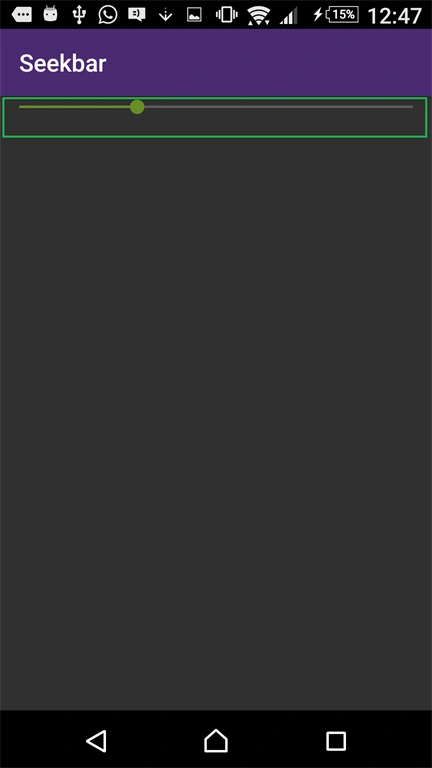
Seek Bar control is used to increase brightness control and seek songs in Android apps.
Prerequisites
- Visual Studio 2015 update 3
The following steps need to be followed in order to create a Seek Bar control in Xamarin Android app using Visual Studio 2015 update 3.
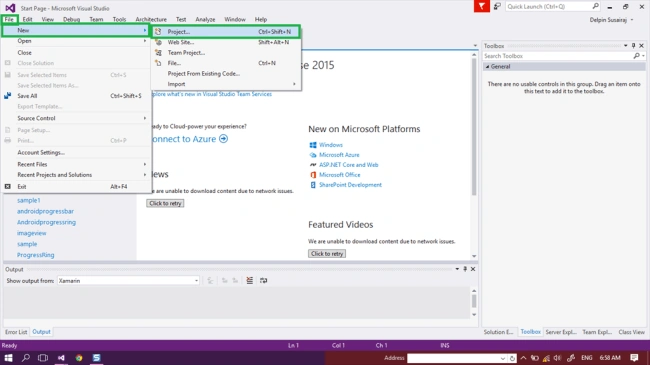
Step 1 - Click File--> New --> Project. This will open all types of projects in the Visual Studio or click (Ctrl+Shift+N).
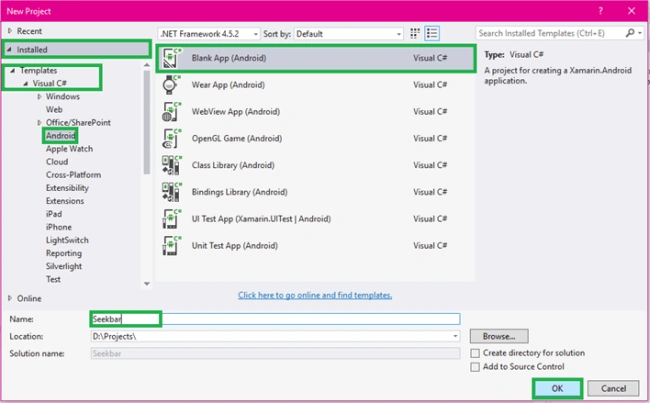
Step 2 - After opening the New Project, select Installed-->Templates-->Visual C#-->Android-->choose the Blank App (Android).
Next, give your Android app a name (Ex:sample) and give path of your project. Click OK.
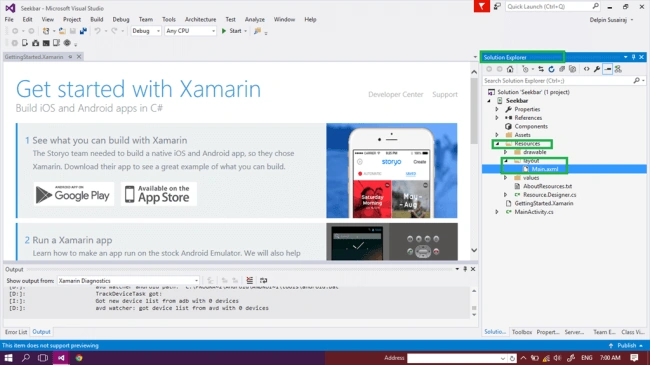
Step 3 - Next, go to the Solution Explorer. Next, select Resource --> Layout --> double click to open main.axml page.
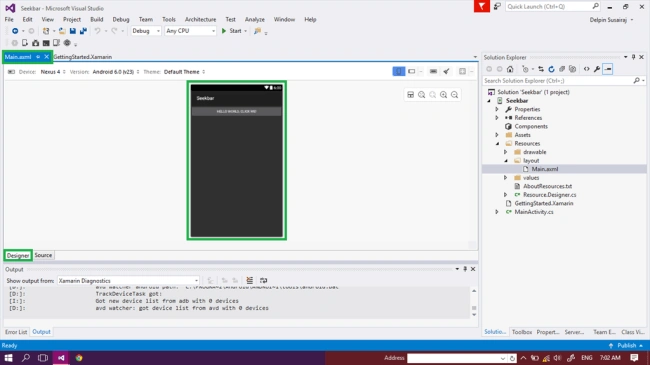
If you want to design the app through GUI, choose the Design View, otherwise select Code View.
Step 4 - After opening the main.axml file, just design the app as per your requirement.
Step 5 - Next, delete the default "Hello World" button.
Go to the source panel. You can see the button coding. Just delete this button.

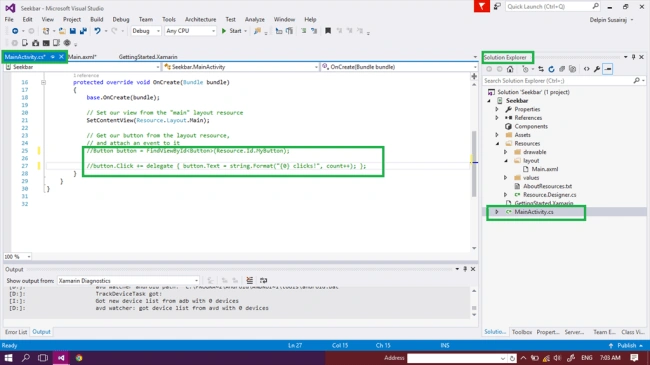
Step 6 - After deleting the XAML code, delete the C# button action code.
Go to the MainActivity.cs page and delete the button code.
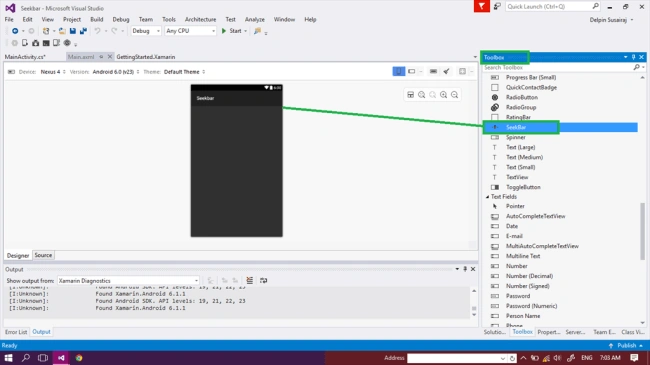
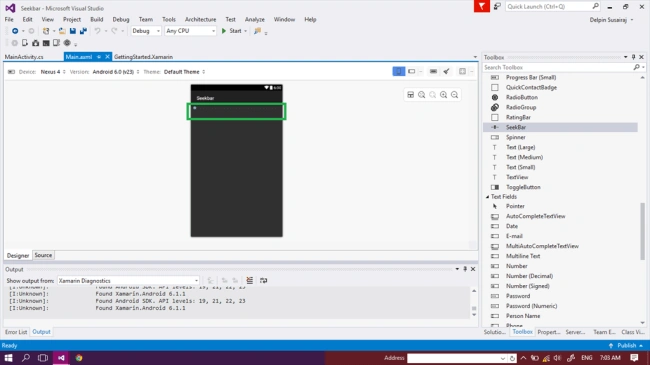
Step 7 - Next, go to the toolbox window which has all types of the tools and control. Go to the toolbox window and scroll down. You will see the Seek Bar Control.
Mahesh ChandPosted Oct 8, 2016, 4:29 AM
Feedback: This is very basic. Make it and explain the use of seekbar and what the purpose is.