

Introduction
In this article, I will explain how to create a SharePoint group and add a user to that group using Power Automate.
Prerequisites
Basic knowledge of creating flows
You have permissions to create and manage SharePoint groups
You have permissions to create and manage users in SharePoint
You know the user email you want to add
You have a SharePoint site ready
Flow Overview
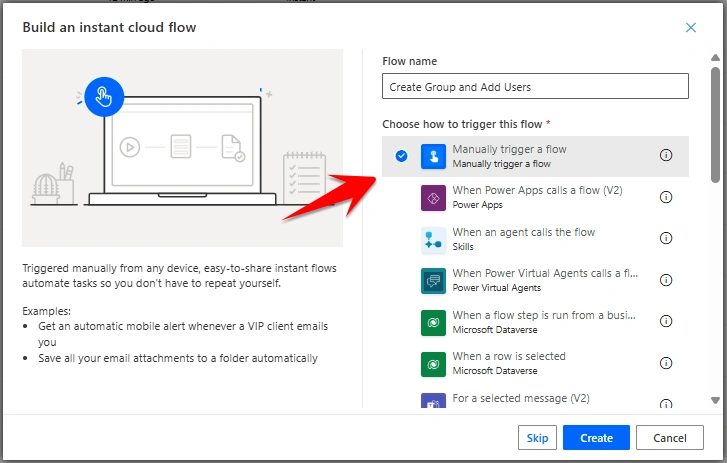
Step 1 - Go to make.powerautomate.com and click on Create from the left-hand menu. Select Automated cloud flow (or Instant cloud flow based on your requirement). In my case, choose the Manually trigger a flow trigger. Give your flow a name like “Create Group and Add Users”, and then click on Create.
Step 2 - Add the Send an HTTP request to SharePoint action.
Site Address: Your SharePoint site URL
Method: Choose POST
Uri:
_api/web/sitegroupsHeaders:
| Accept | application/json;odata=nometadata |
| Content-Type | application/json;odata=nometadata |
Body:
{
  "Title": "Test Group",
  "Description": "This group created from Power Automate"
}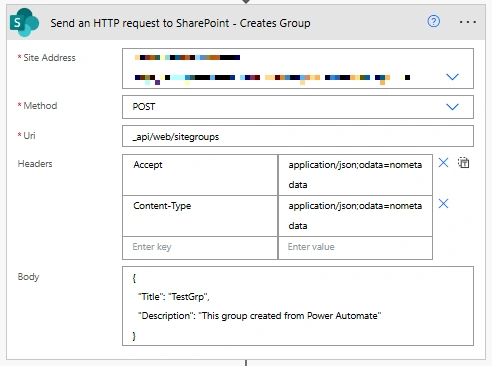
This action creates a new group in your SharePoint site.
Step 3 - Add another Send an HTTP request to SharePoint action.
Site Address: Your SharePoint site URL
Method: Choose POST
Uri:
_api/web/siteGroups/GetById(@{body('Send_an_HTTP_request_to_SharePoint_-_Creates_Group')?['Id']})/usersHeader:
| Accept | application/json;odata=nometadata |
| Content-Type | application/json;odata=nometadata |
Body:
{
  "LoginName": "i:0#.f|membership|[email protected]"
}
Replace "[email protected] " with the email of the user you want to add.
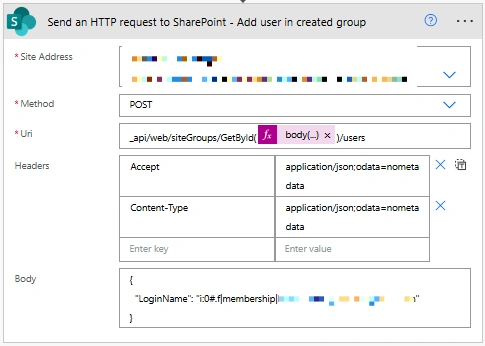
This action adds a user to the newly created group in your SharePoint site.
Step 4 - Click on Save, then click on Test or Run to execute the flow.
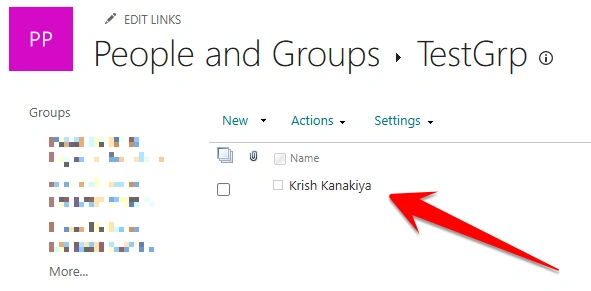
Output - The SharePoint group is successfully created and the user is added to it.

Use Cases
You can use this approach when:
Automated onboarding processes
Role-based access assignment
Dynamic permission management
Integration with PowerApps
Conclusion
Using this article, you can easily create a SharePoint group and add members using Power Automate.
Join the conversation! Your thoughts help the community grow.