

Introduction
Power BI is widely used for connecting to external data sources like Excel, SQL Server, or SharePoint. However, there are times when you may want to create a table directly inside Power BI without relying on an external file. This is useful for small reference tables, parameter tables, or testing purposes. Power BI provides a simple way to manually enter data and build tables right within your report.
Methods to Create a Table Manually
1. Enter Data Directly
Step 1: Go to Home → Enter Data in Power BI Desktop.
Step 2: The create Table window will open, where you can type values into rows and columns. You can also copy and paste data from Excel or another source.
Step 3: Once done, click Load to add the table to your data model.
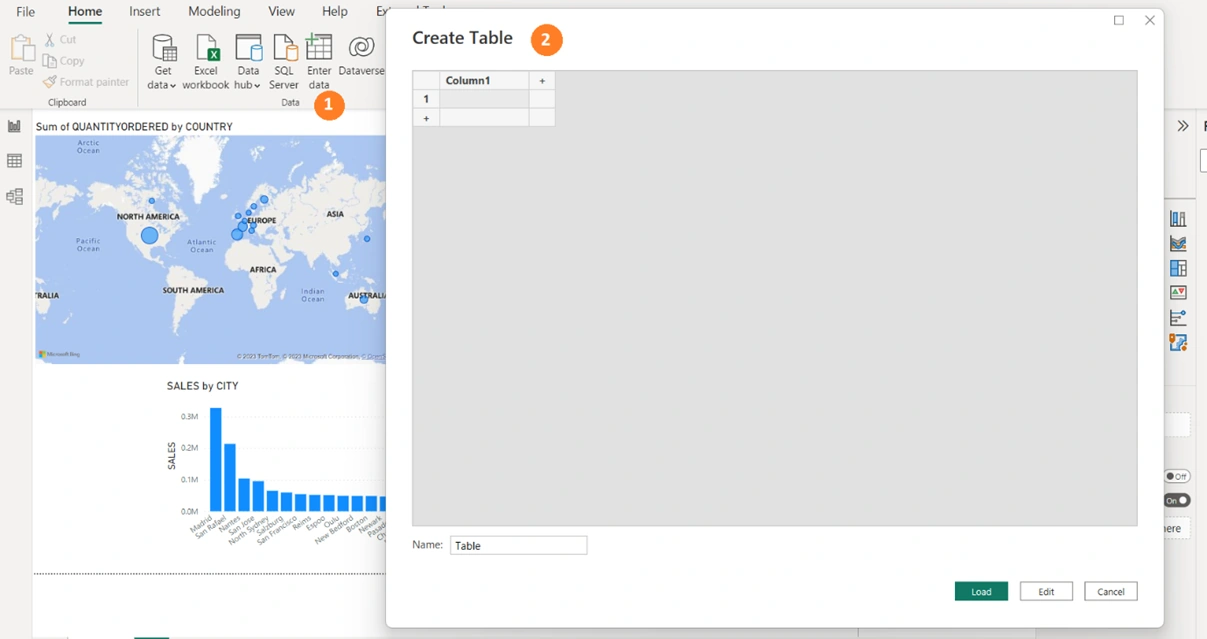
This method is perfect for small lookup tables (e.g., mapping codes to names).
2. Create a Table Using DAX
In Modeling → New Table, you can write a DAX expression to generate a table.
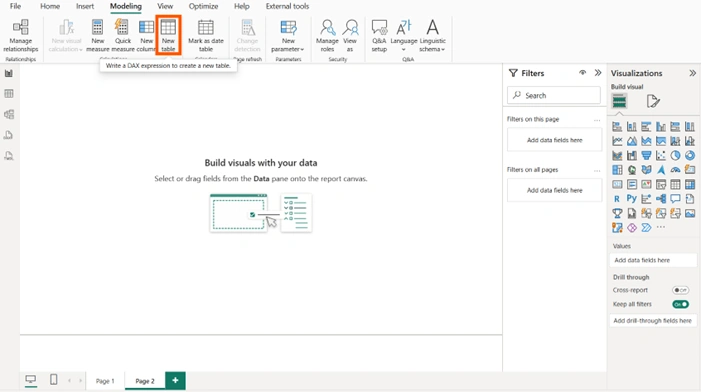
Example:
SalesYears = DATATABLE( "Year", INTEGER, "Target", INTEGER, { {2024, 50000}, {2025, 60000}, {2026, 70000} } )
This creates a static table with predefined values.
You can also use functions like CALENDAR() or GENERATE() to build dynamic tables.
3. Create a Table Visual
If you only want to display data in tabular form, you can use the Table visual.
Drag fields into the Columns section, and Power BI will display them in rows and columns.
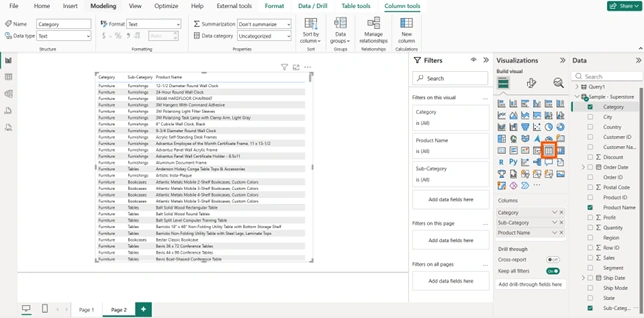
This doesn’t create a new table in the data model, but it’s useful for reporting.
Best Practices
Use Enter Data for small, static tables.
Use DAX tables for dynamic or calculated tables.
Keep manual tables simple—large datasets should be imported from external sources.
Rename tables and columns clearly to avoid confusion in your model.
Conclusion
Manually creating tables in Power BI is a handy feature when you need quick reference data, parameters, or test datasets. Whether you type values directly, build tables with DAX, or use visuals to display tabular data, Power BI gives you flexibility to shape your data model. By combining manual tables with imported data, you can create powerful, customized reports that meet your exact needs.
Join the conversation! Your thoughts help the community grow.