Introduction

This article explains how to create a User Control in the Web API. We add a "MVC4 View User Control (ASPX)" in which we create a link that calls the action method from the "Controller".

Procedure for creating the User Control in the Web API.

Step 1

Create an API application as in the following:

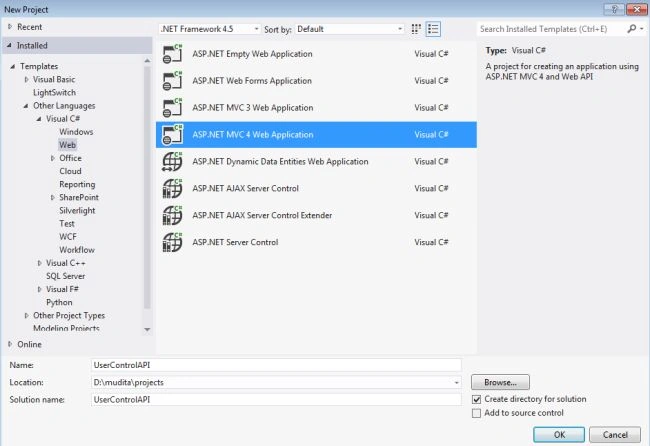
  1. Start Visual Studio 2012.
  2. From the start window Select "Installed" -> "Visual C#" -> "Web".
  3. Select "ASP.NET MVC4 Web Application" and click the "OK" button.
    user.jpg
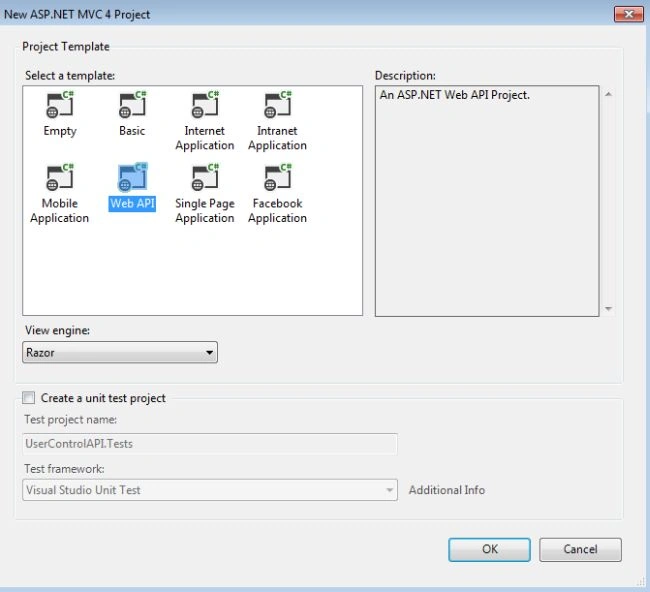
  1. From the "MVC4 Project" window select "Web API".
    user1.jpg
  1. Click the "Ok" button.

Step 2

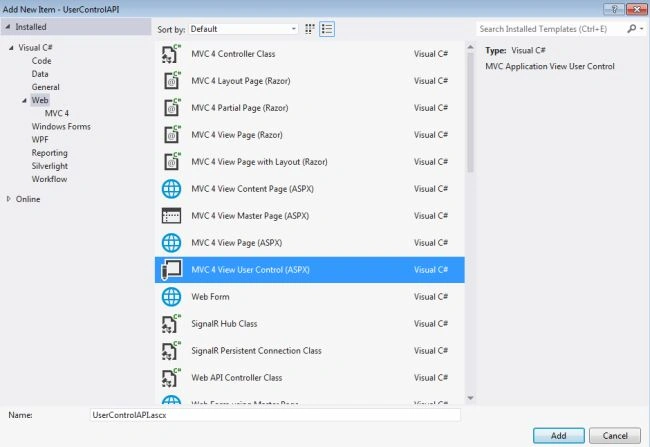
Now we add a User Control named "UserControlAPI.ascx".

  1. In the "Solution Explorer".
  2. Right-click on the "Shared folder", select "Add" -> "New Item".
  3. Select "Installed" -> "Visual C#" -> "Web".
  4. Select "MVC4 View User Control (ASPX)".
    user2.jpg
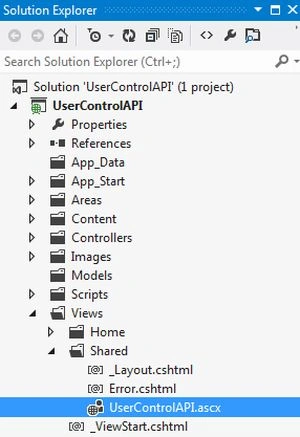
  1. Click the "Ok" button. It will be shown in the Shared folder.
    user3.jpg

Add the following lines of code:

  1. <%@ Control Language="C#" Inherits="System.Web.Mvc.ViewUserControl" %>
  2. <%: Html.ActionLink("ClickMe","Display") %>

In this code "ClickMe" is a link and "Display" is an action method. When we click on the link "ClickMe", it calls the action method "Display" from the controller.

Step 3

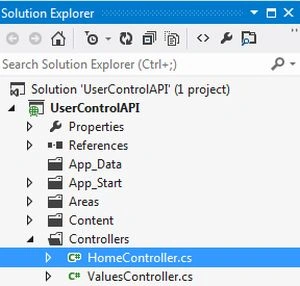
Now in the "HomeController" we create an action method "Display". This file exists in the:

  1. In the "Solution Explorer".
  2. Spread the "Controller" folder.
  3. Select the "HomeController".

    user5.jpg

Add the following code:

  1. using System;
  2. using System.Collections.Generic;
  3. using System.Linq;
  4. using System.Web;
  5. using System.Web.Mvc;
  6. namespace UserControlAPI.Controllers
  7. {
  8. public class HomeController : Controller
  9. {
  10. public ActionResult Index()
  11. {
  12. return View();
  13. }
  14. public string Display()
  15. {
  16. return "<h3>This is the example of the User Control:</h3>";
  17. }
  18. }
  19. }

Step 4

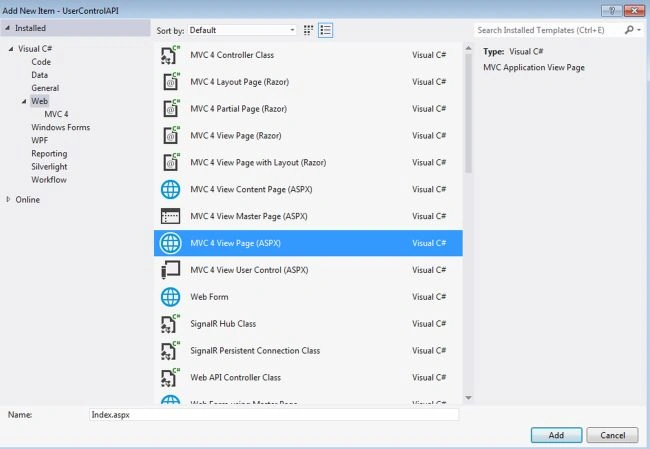
Now add a "View Page" "Index.aspx" in the "Home" folder.

  1. In the "Solution Explorer".

  2. Right-click on the "Home" folder then select "Add" -> "New Item".

  3. Select "Installed" -> "Visual C#" -> "Web".

  4. Now select "MVC4 View Page (ASPX)".

    user4.jpg

  1. Click the "Ok" button.

Add the following code:

  1. <%@ Page Language="C#" Inherits="System.Web.Mvc.ViewPage" %>
  2. <!DOCTYPE html>
  3. <html>
  4. <head id="Head1" runat="server">
  5. <title>Index</title>
  6. </head>
  7. <body>
  8. <div>
  9. <h3><% Html.RenderPartial("UserControlAPI"); %></h3>
  10. </div>
  11. </body>
  12. </html>
In the following code we use the "Html.RenderPartial" in which the "RenderPartial" method renders the "UserControl" (the .ascx file) using the "Html" helper, here the user control file is "UserControlAPI.ascx".

Step 5

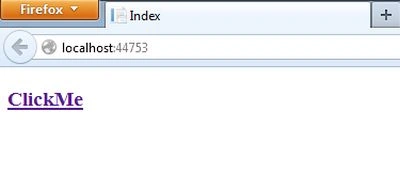
Execute the application by pressing "F5". The output will be displayed like this:

user6.jpg

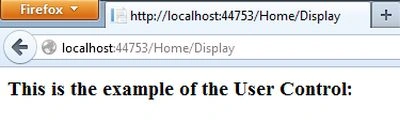
Click on the link "ClickMe". It displays a message.

user7.jpg