

Introduction
This article is a continuation of my previous series of articles and here we will be discussing about Azure Machine Learning Studio. We will create an experiment, and we will be discussing more with the sample datasets and other Workflows of the experiment.
Note
Surf the articles given below before you work on this experiment creation with Machine Learning Studio.
- Click here for why we should choose Microsoft Azure Machine Learning.
- Click here for starting with Machine Learning on Microsoft Azure – Part One.
- Click here for starting with Machine Learning on Microsoft Azure – Part Two.
About Azure Machine Learning Studio
Azure Machine Learning Studio is the IDE, which we will be using here for Machine Learning. We will be creating and deploying our Azure Machine Learning Solutions with help of this Studio. Is supports us with all the phases of development, where the interface is extremely easy to work on, we can just drag and drop and we can see the graphical view of how the data flows. We need not write any program codes here but still the programming languages like Python are supported in it.
As mentioned in the previous articles, we can get access for Machine Learning with the free trial or an event with the help of Microsoft Azure Account.
Here, we will be going with Machine Learning from Microsoft Azure.
Login for Azure portal – www.manage.windowsazure.com
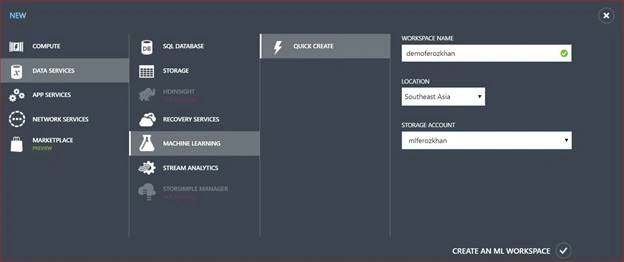
Click New - Data Services - Machine Learning - Quick Create - Workspace name, Location and Storage Account. Click Create an ML Wokspace.
Click Sign in to ML Studio, once it is created.
Here, we can find the menu options in Azure Machine Learning Studio, as shown below.
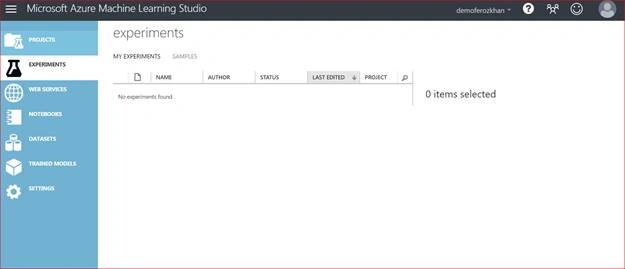
- Projects
- Experiments
- Web Services
- Notebooks
- Datasets
- Trained Models
- Settings
Projects
Projects helps us with listing whatever projects are available. This organizes the collection of experiments, Web Services, data sets and the trained models. The same experiments can also be used for other projects.
Experiments
Experiments lists out the graphical view for the steps such as getting the data, pre-processing it, transforming it, training the model etc.
My experiments will list out the experiments, which we have on our Machine Learning Studio.

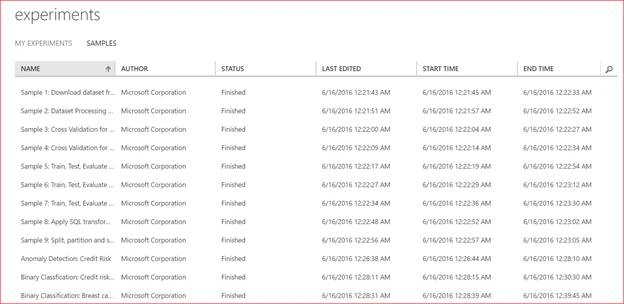
Samples in Machine Learning Studio will help us to go with sample Machine Learning experiments.
Web Services
Web Services are used to go with our experiments to support the clients with the application on how we help them to work with the predictive models.

Datasets
Datasets are created with the help of files, which we have uploaded from our machine or with the help of Azure Data stores. This also holds the samples.

Trained Models
This is created as we run our experiments. We can store them and we can even use the same on other projects as we need.

Creating an Experiment in Azure Machine Learning Studio
We can create the experiments with the help of a blank or a predefined experiment, which is available. A blank experiment will help us to define the specific experiment, a pre-defined experiment is a best way to go, if we are working on a solution for a specific problem.
About the Experiment
We are going to create a Machine Learning project here, which can predict the price of a car with the help of its features.
Major steps on Experiments of Microsoft Azure Machine Learning Studio
- Getting data.
- Selecting the algorithm.
- Training the model.
- Evaluating the model.
Keep the steps given above in mind, whenever you work with Machine Learning.
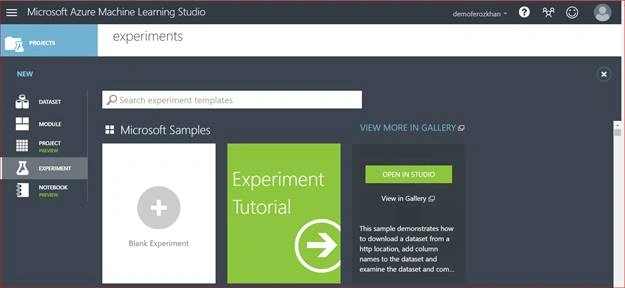
Let's work on a blank experiment here.
New - Experiment - Blank Experiment.
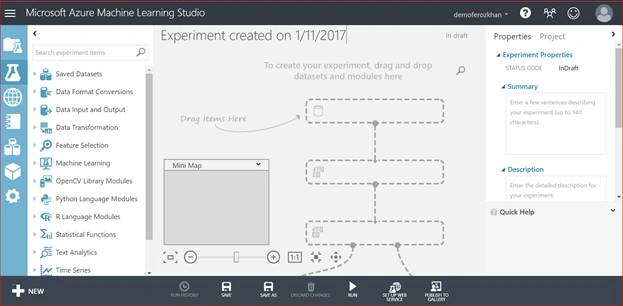
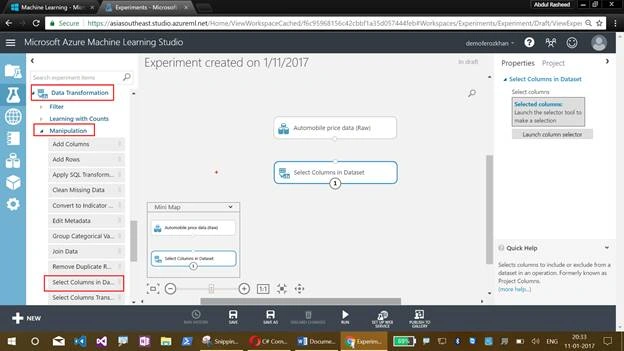
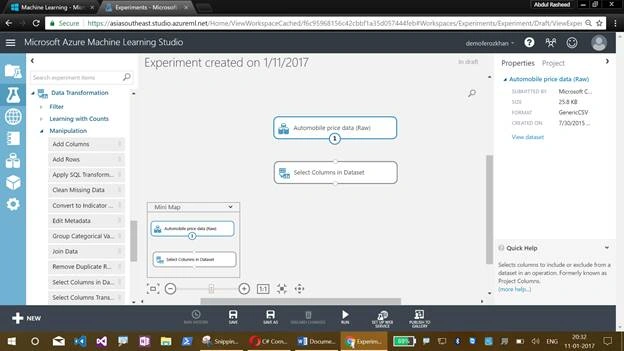
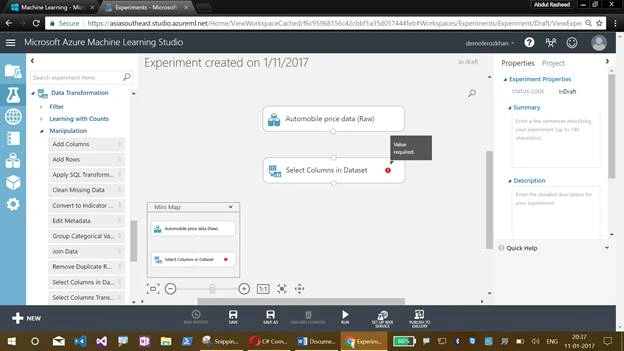
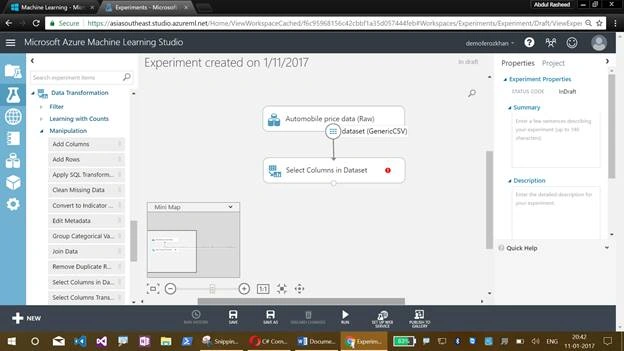
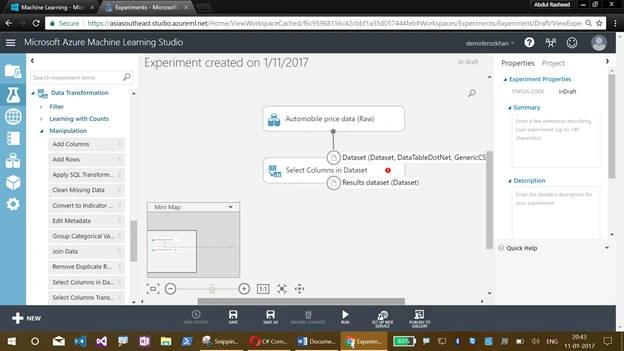
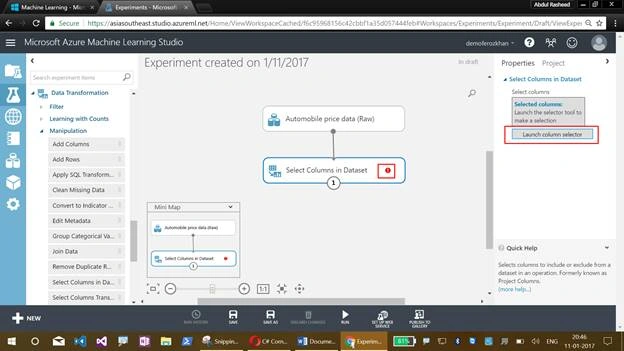
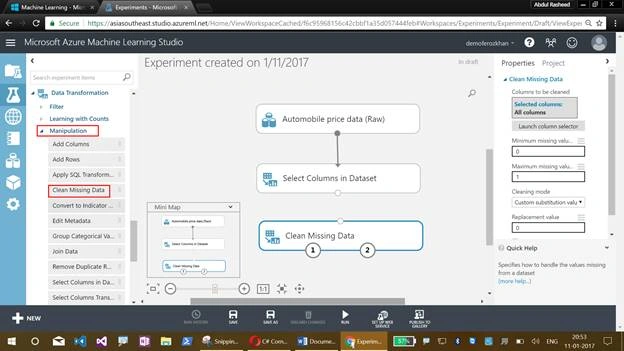
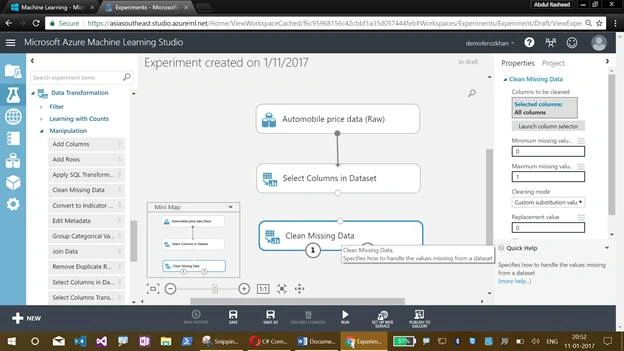
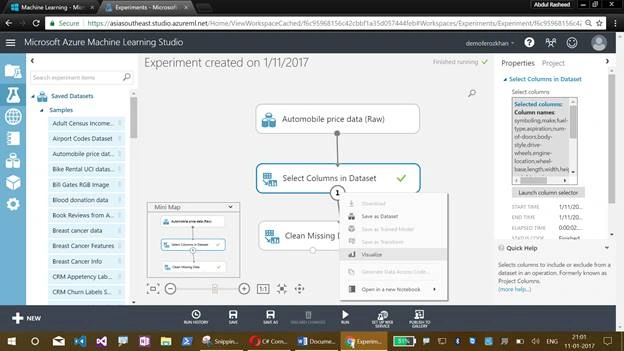
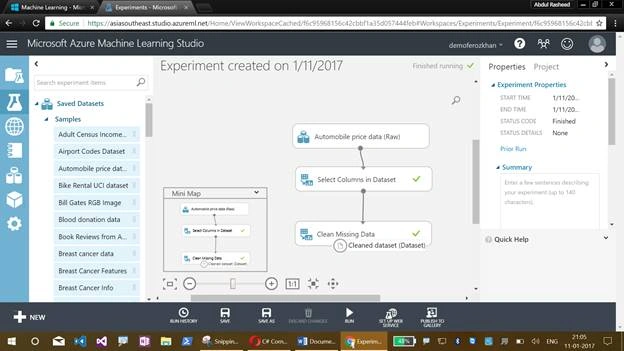
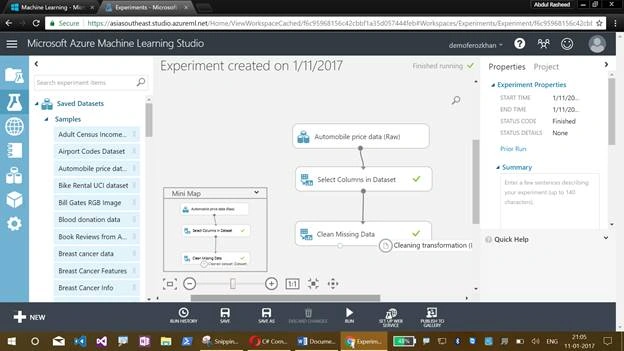
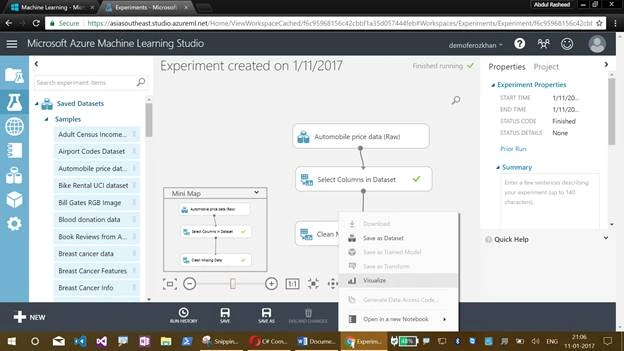
Now comes the graphical display of our Azure Machine Learning Studio experiment, which will help us to drag the items. This also illustrates the flow of an experiment.
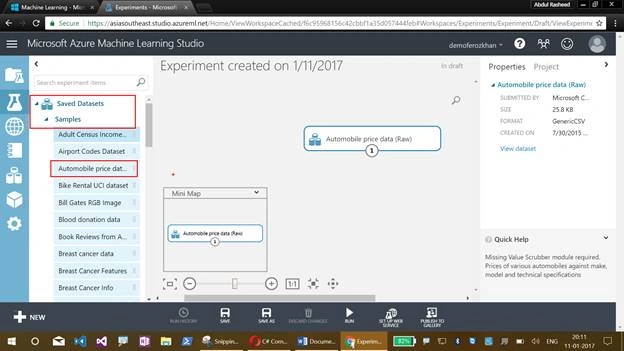
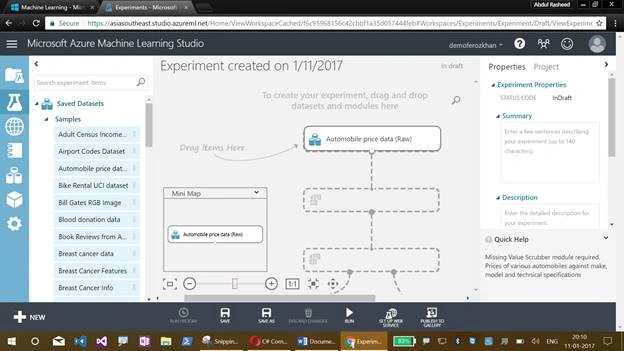
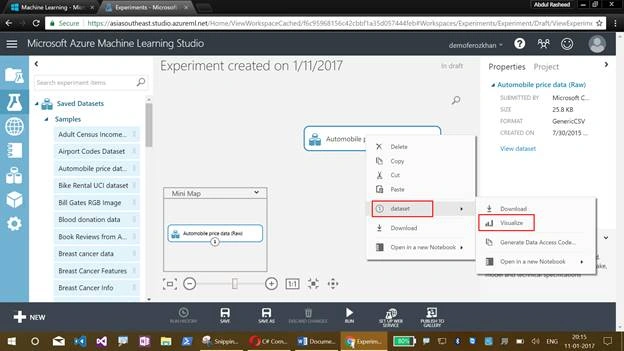
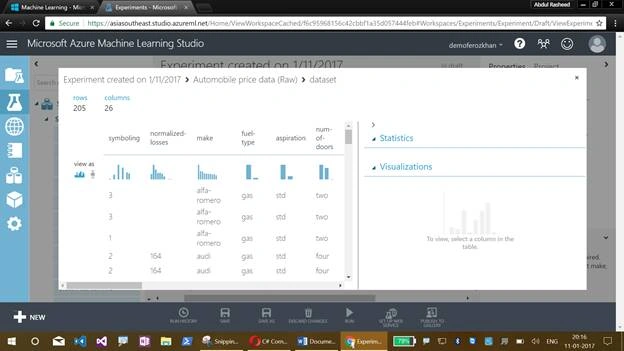
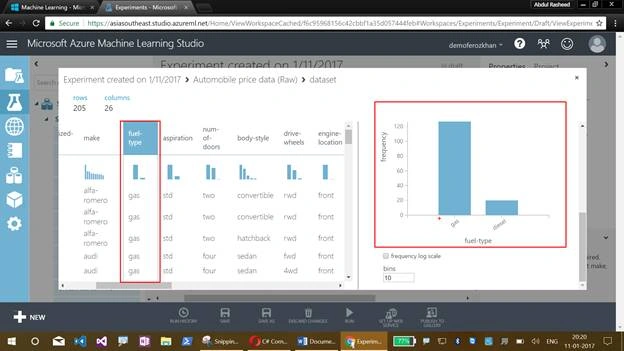
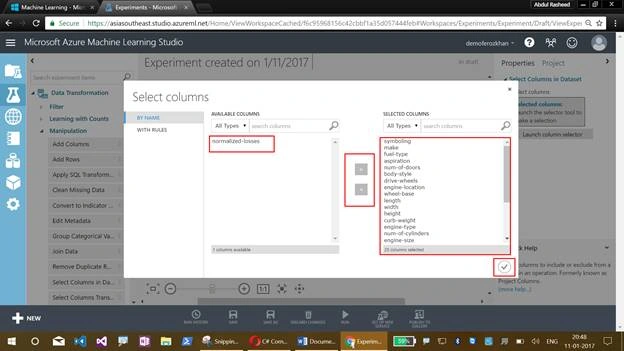
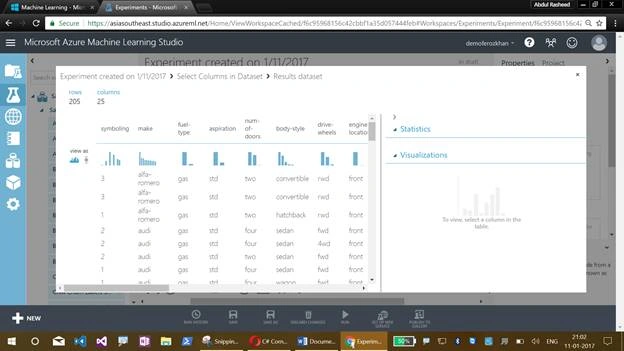
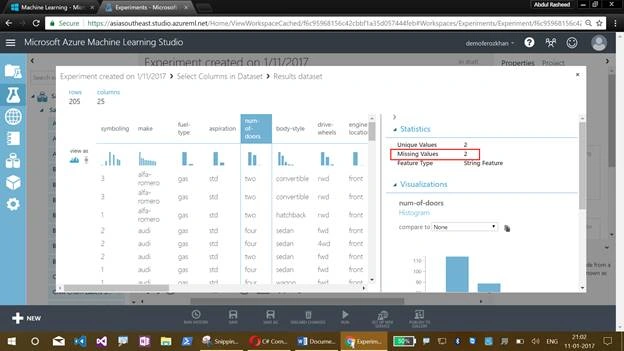
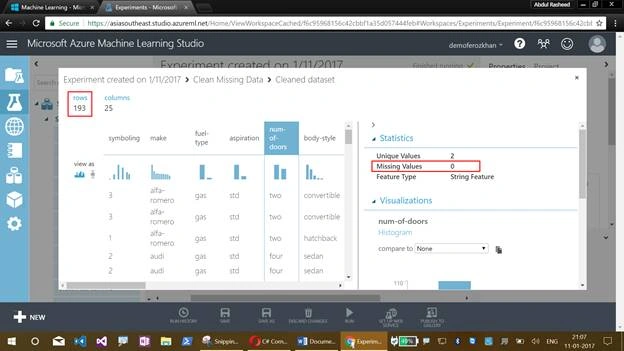
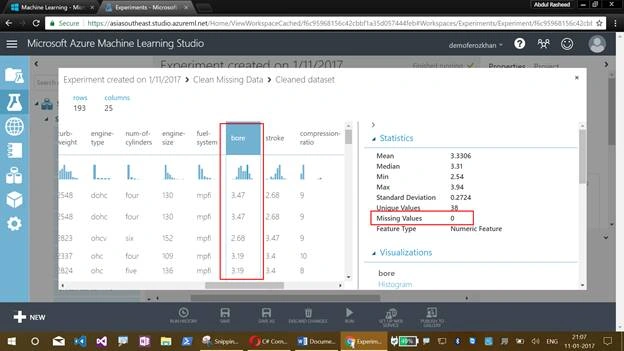
Now, the features of the cars holds the data like Manufacturer, number of doors, number of seats and other automobile features. This data is already available with Microsoft Azure; and I am going to just drag it off.


Vignesh ManiPosted Jan 13, 2017, 4:29 PM
Nice Article. Thank you for sharing..