
This article explains how to create a Custom Code Activity and how to use it in Visual Studio 2013 Workflows for SharePoint 2013.
Implementation Procedure
- Open Visual Studio 2013 and create a new project as Activity Library from the Workflow category and provide the name as CustomListCreation.
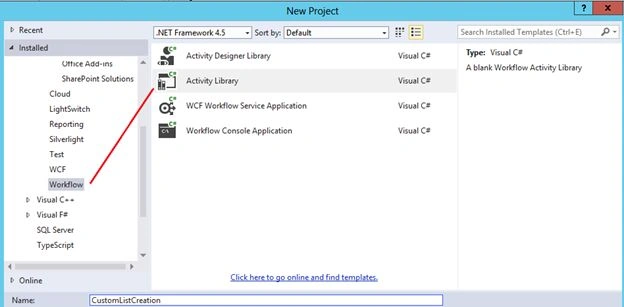
- Click Ok. Then right-click on Activity1.xaml and select delete to remove the XAML file, since we are going to create a code activity.
- Right-click on the CustomListCreation project and add a new item as Code Activity from the workflow installed category and provide the name as CustomListCodeActivity.
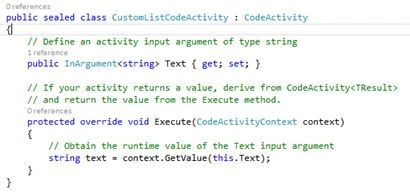
- Then you will see the following code in the CustomListCodeActivity.cs file.
- Add a reference as Microsoft.SharePoint.Client.dll and Microsoft.SharePoint.Client.Runtime.dll from the ISAPI folder (C:\Program Files\Common Files\microsoft shared\Web Server Extensions\15\ISAPI)
- To allow default qualification of the Microsoft.SharePoint.Client namespace use the following directive:
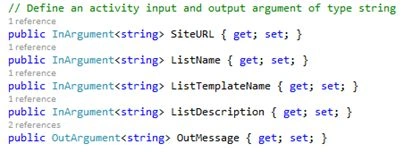
using Microsoft.SharePoint.Client; - Then create the variable as in the following screenshot.
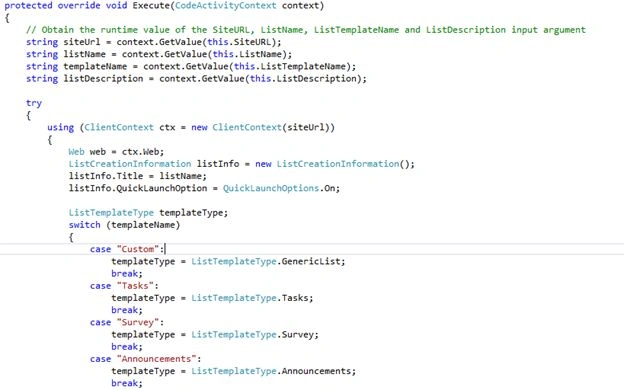
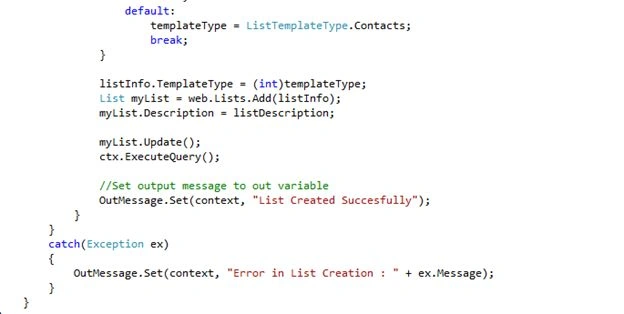
- Then write the code inside the Execute method.
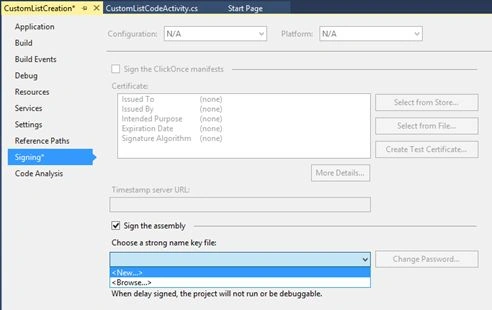
- Right-click on the project and select Properties and do the following procedure.
- Select Signing
- Check the Sign the assembly checkbox
- Choose New from the drop down
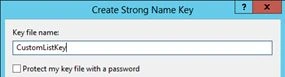
- Then provide the Key file name as CustomListKey and uncheck the Protect my key file as in the following:
- Save the project and close the properties window.
- Build the project and you will see the Build succeeded message.
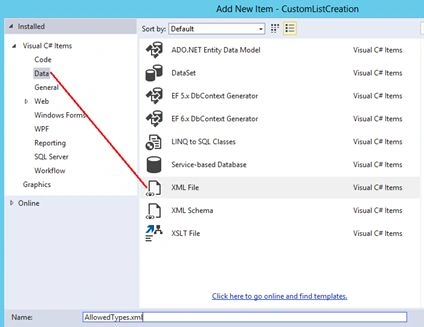
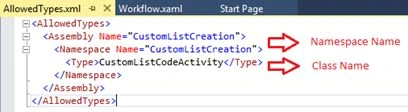
- Right-click on the project and add a new item as XML File under Data category and provide the name as AllowedTypes.xml.
- Type the following code in the XML file.
- Next we will do the deployment.
- Copy CustomListCreation.dll from the debug folder and paste into the following location.

- Copy the AllowedTypes.xml file from the project folder and paste into the above two locations.
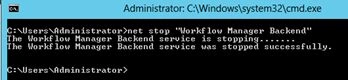
- Open a command prompt to restart the “Workflow Manager Backend” service.
- Type net stop “Workflow Manager Backend” and you will see the message as below.
- Then type net start “Workflow Manager Backend” and you will see the message as below.

- DeployCustomListCreation.dll file into GAC using gacutil.exe
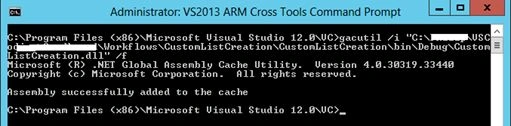
- Open Visual Studio command prompt and type the following command to execute it.
gacutil /i “C:\FolderName for Project\bin\debug\CustomListCreation.dll” /f
- Then you will see the output as shown below.
- Then reset IIS. Type the command as iisrest in the command prompt.
- Copy CustomListCreation.dll from the debug folder and paste into the following location.
- Next we will use this custom code activity in the project.
- Open the site you want to deploy it and create the list you want (in this example, “WFCodeActivityList” is created).
- Right-click on the project solution and select "New Project…."
- Select "SharePoint 2013 – Empty Project" and provide the name as “WFCustomList”.
- Provide the SharePoint URL and select sandboxed solution and click Finish.
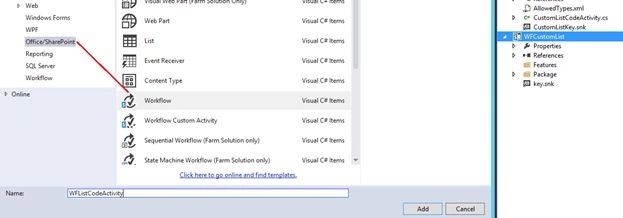
- Right-click on the newly created SharePoint project and add a workflow and new item as shown below.
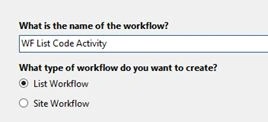
- Provide the workflow name as WF List Code Activity in the next window and select List Workflow as below.
- Click Next and select the list we created in the step 17 from the drop down list.
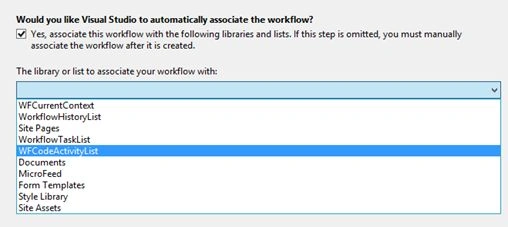
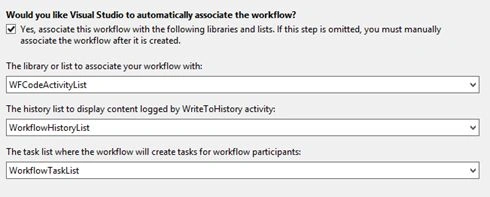
- In the history list drop down, select WorkflowHistoryList or select <Create New>
- In the task list drop down, select WorkflowTaskList or select <Create New>. Then the final UI is shown below.
- Click Next and leave it as default selection and click Finish
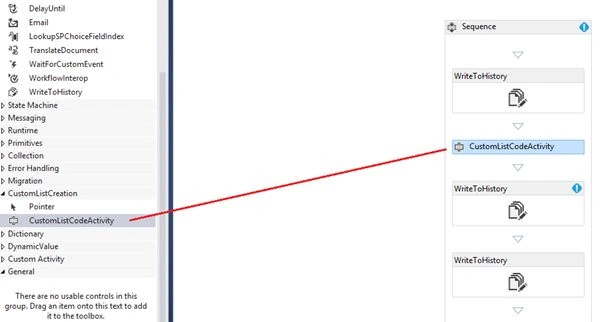
- Then you will see the designer window and you will see the custom activity in the toolbox as shown below.

- Drag and drop 3 WriteToHistory activities to the Sequence from the toolbox under the SP – Utilities category.
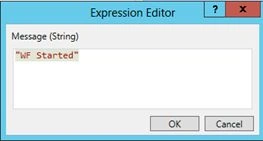
- Select the first WriteToHistory activity from the designer and press F4 to open the properties window and click on the (…) button next to Message.
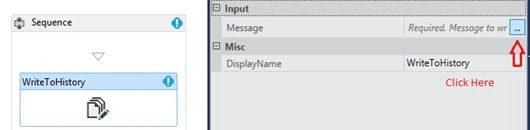
- Then provide the message as “WF Started” in the Expression Editor window and click Ok.
- Repeat Steps 29 and 30 for the third WriteToHistory activity and provide the message as “WF Completed”.
- Drag and drop the CustomListCodeActivity from the CustomListCreation category between the first two WriteToHistory activities and the final UI is shown below.
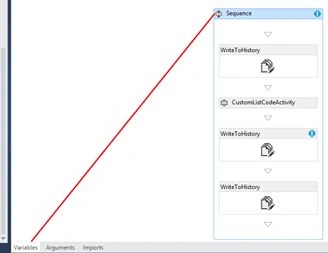
- Then select Sequence from the designer and click on Variables to create a new variable.
- In the variable window create a new variable called outputMessage and set the variable type as string.

- Then again click on Variables as we did in the step 33 to close the variable window.
- Select the second WriteToHistory activity from the designer and provide the message as string.Format("Output Message : {0}", outputMessage) – Refer step 29 and 30
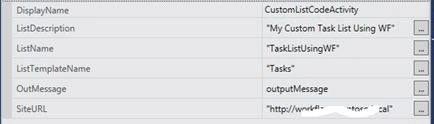
- Select CustomListCodeActivity and open the properties window and do the following procedure.
- Provide the value for ListDescription as "My Custom Task List Using WF"
- Provide the value for ListName as "TaskListUsingWF"
- Provide the value for ListTemplateName as "Tasks"
- Provide the value for OutMessage as outputMessage (Assign the variable)
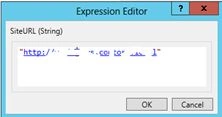
- Provide the SiteURL value as
- Final properties for CustomListCodeActivity
- Rename the feature and deploy the project.
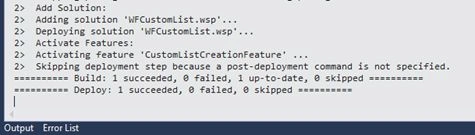
- Then you will see the deployment success message in the output window.
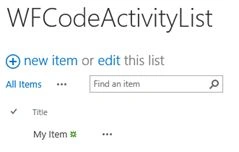
- Then go to the List you have associated the workflow and add new item as “My Item”.
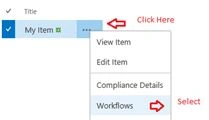
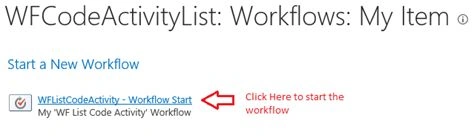
- Click on (…) and select workflows from the list. Since the WF is started manually.
- Click on the link as shown below to start the workflow.
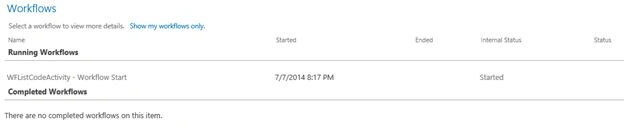
- Again repeat the step 41 and click Started as shown below.
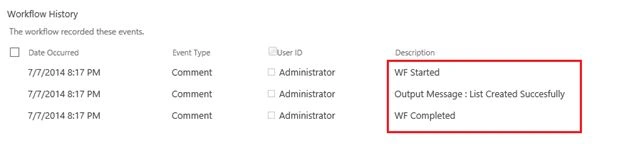
- Refresh the page for a few seconds and you will see the workflow history as shown below.
- Then you will see the custom list created by the workflow is displayed in the Quick Launch as shown below.
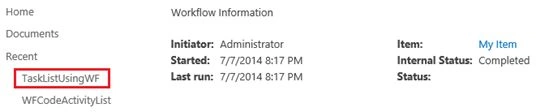
- Verify the list name is same as we provided in the step 37.
- That's all…. You have done the custom code activity workflow in SharePoint 2013.
AGNEL STANLEYPosted Jan 24, 2023, 2:06 PM
I am getting below error Severity Code Description Project File Line Suppression StateError Error occurred in deployment step 'Activate Features': Microsoft.Workflow.Client.ActivityNotFoundException: The activity named 'WorkflowXaml_95d31e46_31cb_47aa_af2c_e5d150f8f3d0' from scope '/SharePoint/default/29dabd17-3300-458a-b805-00701bf7916e/46993450-2248-42f8-b4ac-b5c0f0f6e4eb' was not found. HTTP headers received from the server - ActivityId: ef2f4424-048d-4689-8873-4c7e7ac02305. NodeId: UC-TST-SP-9559. Scope: /SharePoint/default/29dabd17-3300-458a-b805-00701bf7916e/46993450-2248-42f8-b4ac-b5c0f0f6e4eb. Client ActivityId : 62c1f59d-559c-4e17 CaseStatusProject 0
MyhPosted Nov 21, 2022, 8:59 AM
Philip Jebaraj, I received 401 unauthorized.
MyhPosted Nov 21, 2022, 8:58 AM
Philip Jebaraj, I received an error: System.Exception: The remote server returned an error: (401) Unauthorized. ---> System.Net.WebException: The remote server returned an error: (401) Unauthorized.at System.Net.HttpWebRequest.GetResponse()at Microsoft.SharePoint.Client.SPWebRequestExecutor.Execute()at Microsoft.SharePoint.Client.ClientContext.GetFormDigestInfoPrivate()at Microsoft.SharePoint.Client.ClientContext.EnsureFormDigest()at Microsoft.SharePoint.Client.ClientContext.ExecuteQuery()at CustomActivitiesLibrary.GroupOwnerCodeActivity.Execute(CodeActivityContext context)--- End of inner exception stack trace ---at CustomActivitiesLibrary.GroupOwnerCodeActivity.Execute(CodeActivityContext context)at System.Activities.CodeActivity.InternalExecute(ActivityInstance instance, ActivityExecutor executor, BookmarkManager bookmarkManager)at System.Activities.Runtime.ActivityExecutor.ExecuteActivityWorkItem.ExecuteBody(ActivityExecutor executor, BookmarkManager bookmarkManager, Location resultLocation)
smruti sahooPosted Aug 20, 2018, 10:43 AM
Hi,I followed the steps and was able to created the activity and use it in the workflow. But whenever it's trying to execute this activity, it's throwing "object reference" error. What's going wrong?Note: I've deployed the DLL to the GAC on the WFE only. Is it required to deploy on the workflow manager server as well?
Gowtham RajamanickamPosted Apr 7, 2016, 3:01 AM
good one..
Prasad PathakPosted May 25, 2015, 5:12 AM
Thanks, nice article
Bheemu surendra reddyPosted Feb 4, 2015, 6:45 AM
Great article for advance developer
Philip JebarajPosted Jul 9, 2014, 12:34 AM
Thanks Dinesh
Dinesh BeniwalPosted Jul 9, 2014, 12:29 AM
Great start Philip, welcome to the C# Corner.
Sandeep VemulaPosted Jul 9, 2014, 12:20 AM
nice information
Philip JebarajPosted Jul 8, 2014, 5:02 AM
Thank you Lakshmanan
Lakshmanan Sethu SankaranarayanPosted Jul 8, 2014, 3:02 AM
Nice one!